Purpose/Overview
The Payment Manager allows users to process payments after payment terms have been configured and the associated agreements have been fully executed. Through the payment processing workflow, users can identify eligible payments, group them into a Check Log, submit them for approval, and ultimately export or transmit approved payments for accounting and disbursement purposes.
A Check Log serves as a payment batch that groups multiple payment records together for review, approval, and processing.
Navigation Path:
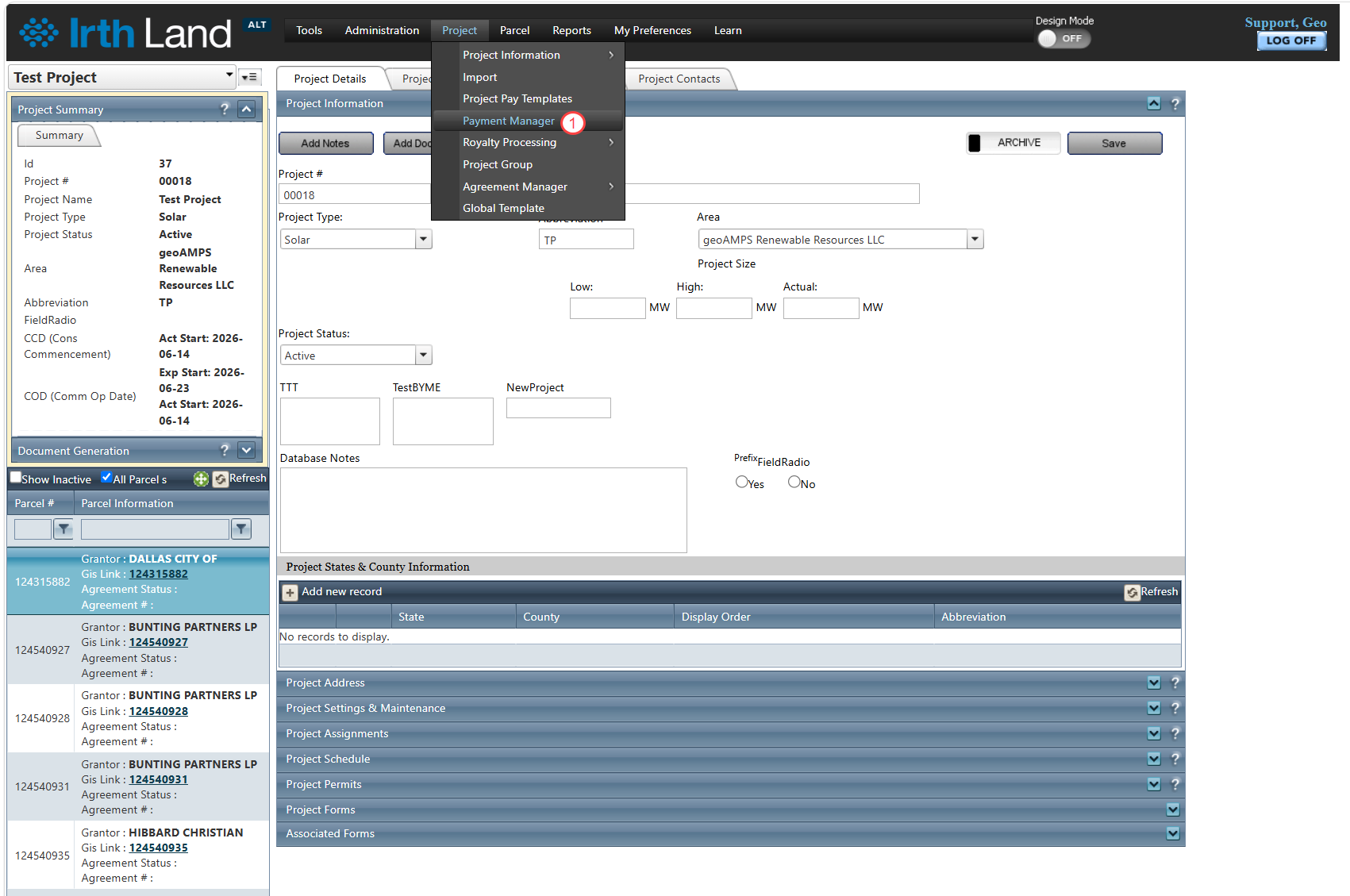
To access this feature: Project > Payment Manager > Search Information tab
Things to Know:
- Payments can only be processed after payment terms have been configured and the associated agreements have been fully executed.
- A Check Log is used to group multiple payment records into a single batch for review and approval.
- The system validates the current ownership percentage against the scheduled payment distribution percentage before payment processing.
- If a discrepancy exists, a link is displayed in the Total vs. Ownership Discrepancy column, allowing users to review the comparison details before proceeding.
Key Benefits/Use Cases:
Identify Eligible Payments
Users can search for payment records using various criteria to quickly locate payments that are ready for processing.
Group Payments for Approval
Multiple payment records can be organized into a Check Log, simplifying the review and approval process.
Validate Payment Distribution
The system automatically checks ownership percentages against scheduled payment distributions to help identify discrepancies before payments are processed.
How It Works:
Finding Payments
Before payments can be processed, users must first identify the payments that are eligible for processing. Once the required payment records have been located, they can either be added to an existing Check Log or grouped into a newly created Check Log for approval and processing.
Search for Payments
Step 1: Navigate to Project > Payment Manager.
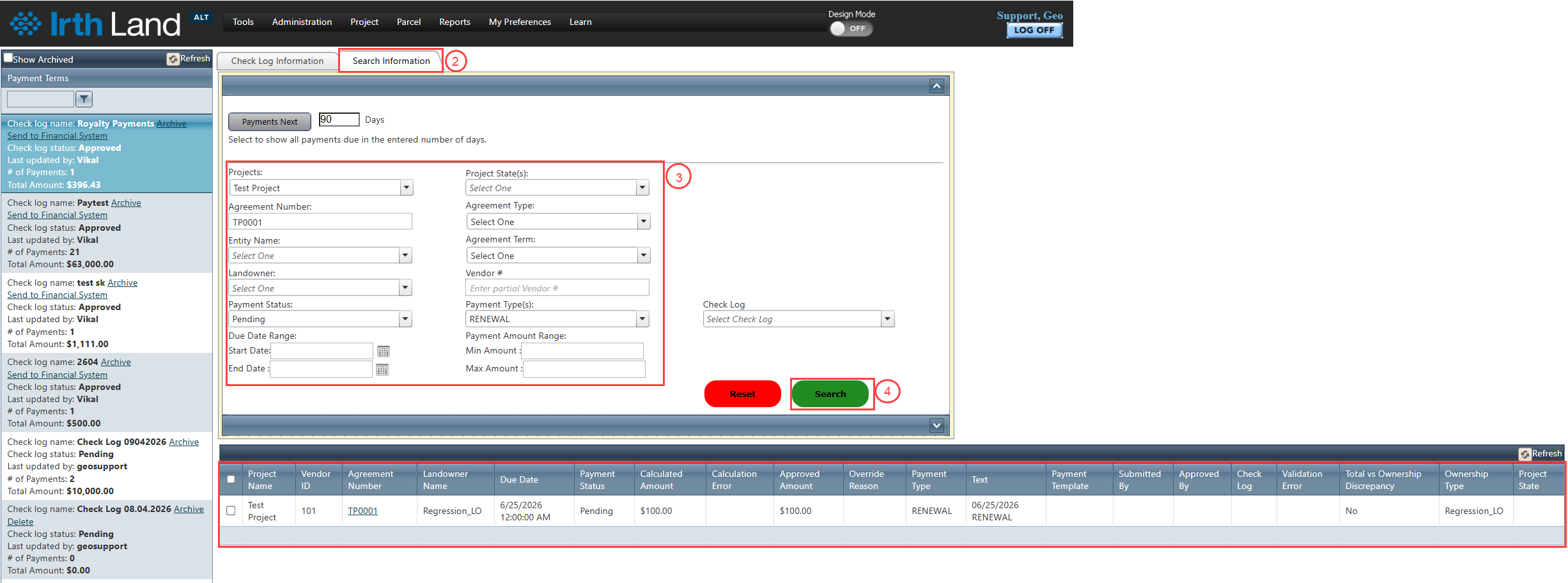
Step 2: Open the Search Information tab.
Step 3: In the Search Options section, enter the appropriate search criteria, such as:
- Project
- Agreement
- Payment Template
- Payment Status
- Payment Period
- Other available filters
Step 4: Click Search.
The system displays all payment records that match the specified criteria.
Additional Information
- Click the Agreement Number link to review the associated agreement details.
- Review any links displayed in the Total vs. Ownership Discrepancy column to compare ownership percentages with scheduled payment distributions before processing payments.
Related Features/Next Steps:
FAQ/Troubleshooting:
Q: Why am I unable to process a payment?
A: Payments can only be processed after payment terms have been configured and the associated agreements have been fully executed.
Q: What is a Check Log?
A: A Check Log is a payment batch that groups multiple payment records together for review, approval, and processing.
Q: What does the Total vs. Ownership Discrepancy link indicate?
A: The link appears when the current ownership percentage differs from the scheduled payment distribution percentage. Selecting the link allows you to review the comparison details before processing the payment.
Questions? Contact us!

Was this article helpful?
That’s Great!
Thank you for your feedback
Sorry! We couldn't be helpful
Thank you for your feedback
Feedback sent
We appreciate your effort and will try to fix the article