Purpose/Overview
The Override Payment Amounts feature in Payment Manager allows users to adjust payment amounts before processing when exceptional circumstances require changes. Users can increase payment values by either a fixed amount or a percentage, ensuring payment records accurately reflect approved adjustments.
This feature is intended for users responsible for managing and processing payments and provides flexibility when payment modifications are required.
Navigation Path:
To access this feature: Project > Payment Manager > Search Information
Things to Know:
- Payment adjustments can be applied using a fixed amount, a percentage increase, or both.
- A comment is required to document the reason for the payment adjustment.
- The system automatically recalculates the payment amount after the update is applied.
- Adjustment information is recorded and retained as part of the payment record.
Key Benefits/Use Cases:
Payment Corrections
Adjust payment amounts when corrections are required before payment processing, ensuring accurate payment values.
Approved Payment Increases
Apply authorized increases using a fixed amount or percentage to accommodate project-specific payment requirements.
Audit and Tracking
Document adjustment reasons through comments, providing a clear audit trail of payment modifications.
How It Works:
Follow these steps to update a payment amount:
Step 1: Access Payment Manager
- Navigate to Project > Payment Manager.
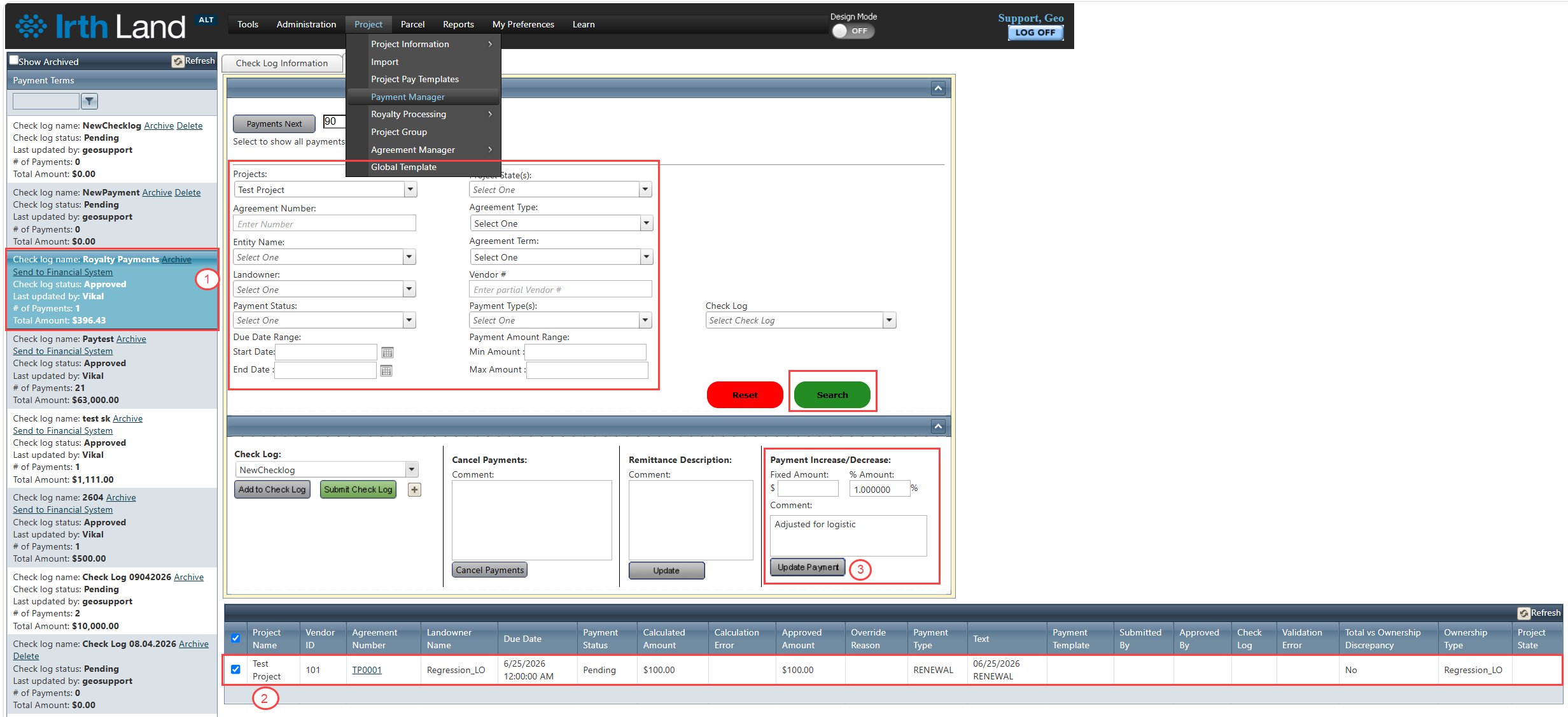
- Select the appropriate Check Log from the left navigation panel.
Step 2: Locate the Payment Record
- Open the Search Information tab.
- Use the Search Options section to locate the payment record.
- Select the payment record to be modified.
Step 3: Apply the Payment Adjustment
- Navigate to the Processing Options panel.
- Enter one or both of the following values:
- Payment Increase (Fixed Amount)
- Payment Increase (% Amount)
- Enter a comment explaining the reason for the adjustment.
- Click Update Payment.
Related Features/Next Steps:
FAQ/Troubleshooting:
Q: Can I increase a payment by a fixed amount?
A: Yes. Enter a value in the Payment Increase (Fixed Amount) field and update the payment.
Q: Can I increase a payment by a percentage?
A: Yes. Enter a value in the Payment Increase (% Amount) field and update the payment.
Q: What happens after I click Update Payment?
A: The system recalculates the payment amount and records the adjustment details, including the comment provided.
Q: Why should I enter a comment when adjusting a payment?
A: The comment provides documentation for the adjustment and helps maintain an audit trail of payment changes.
Questions? Contact us!

Was this article helpful?
That’s Great!
Thank you for your feedback
Sorry! We couldn't be helpful
Thank you for your feedback
Feedback sent
We appreciate your effort and will try to fix the article