Purpose/Overview
Payment Templates can be applied to one or multiple agreements to automatically generate payment schedules based on predefined template configurations. This feature eliminates the need to manually create recurring payment records for each agreement, ensuring consistency, accuracy, and efficiency in payment schedule creation.
Templates can be associated with agreements either from the Payment Template page or directly from an agreement record, depending on whether the template needs to be applied to multiple agreements or a single agreement.
Navigation Path:
Apply a Template to a Single Agreement: Project > Agreement Manager > Payment Information > Open Agreement Record
Apply a Template to Multiple Agreements: Project Pay Template or Global Template > Open Template Record > Add to Agreement
Things to Know:
- Payment Templates can be applied to one or multiple agreements.
- Payment schedules are automatically generated based on the selected template configuration.
- Each unique combination of a Payment Template and an Agreement Term creates a Payment Header record.
- The Payment Header serves as the parent record that stores and manages all payment records generated for that specific template and agreement term combination.
- An agreement can contain multiple Payment Headers when different templates or agreement terms are applied.
Key Benefits/Use Cases:
Apply a Template to Multiple Agreements
Use this method when the same payment schedule structure needs to be applied to several agreements simultaneously, reducing administrative effort and ensuring consistency.
Apply a Template to a Specific Agreement
Use this method when a payment schedule needs to be generated for a single agreement with a selected agreement term.
Automate Payment Schedule Creation
Automatically generates payment records based on predefined template rules, reducing manual data entry and minimizing errors.
How It Works:
1. Applying a Template from the Template Page
Use this method when you need to apply the same payment template to multiple agreements at once.
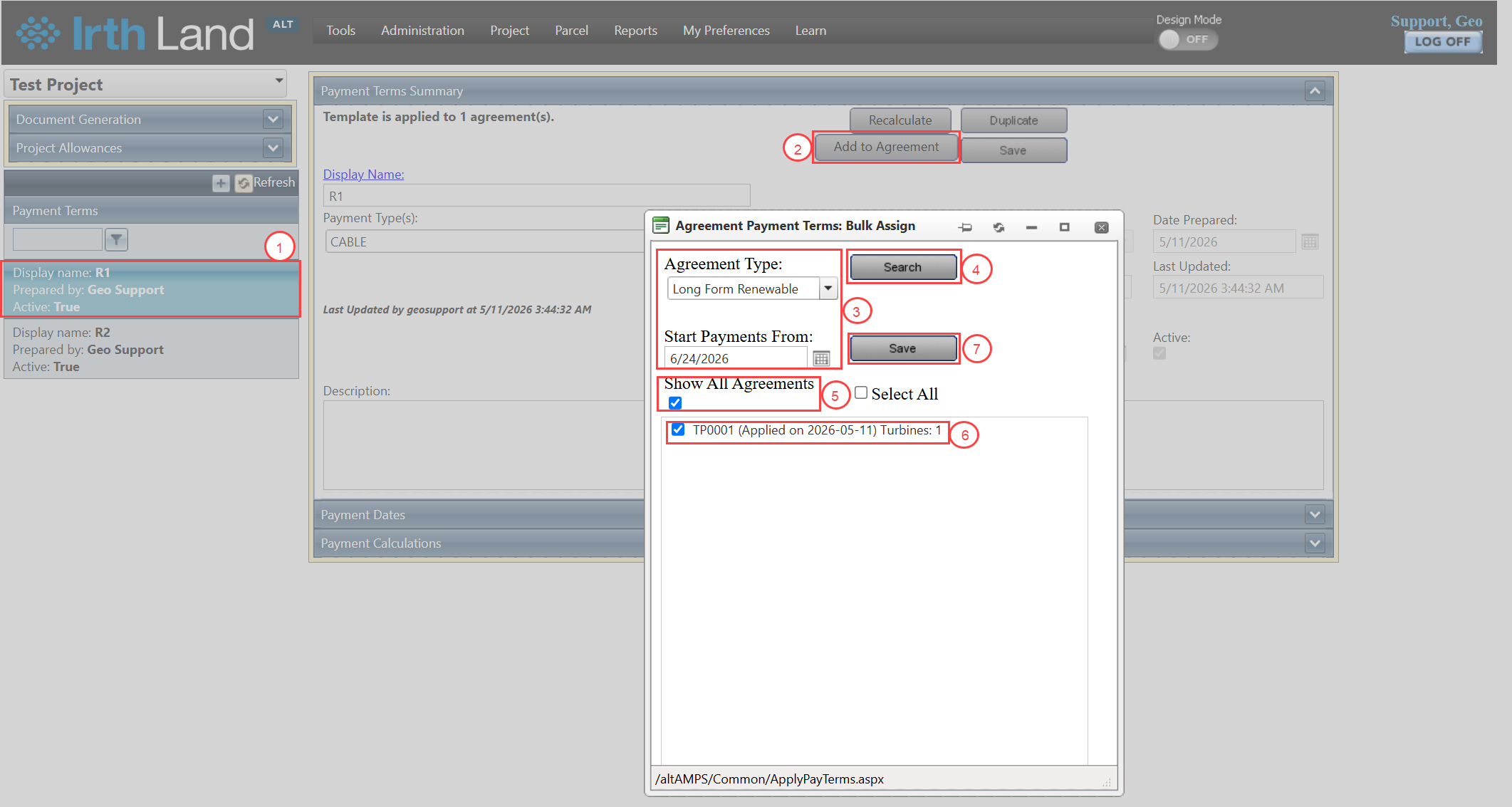
- Open the required Payment Template record.
- Click Add to Agreement.
- In the search window, specify the following criteria:
- Agreement Type – Select the agreement type to filter applicable agreements.
- Start Payment from Date – Specify the date from which the payment schedule should begin.
- Click Search to display matching agreement records.
- To display all agreements in the application, select the Show All Agreements checkbox.
- Select the agreements to which the template should be applied:
- Select individual agreements by checking the corresponding checkboxes.
- Alternatively, select the Select All checkbox to apply the template to all displayed agreements.
- Click Save.
The system applies the selected payment template to all selected agreements and automatically creates the required payment records based on the template configuration.
2. Applying a Template from the Agreement Page
Use this method when applying a payment template to a specific agreement.
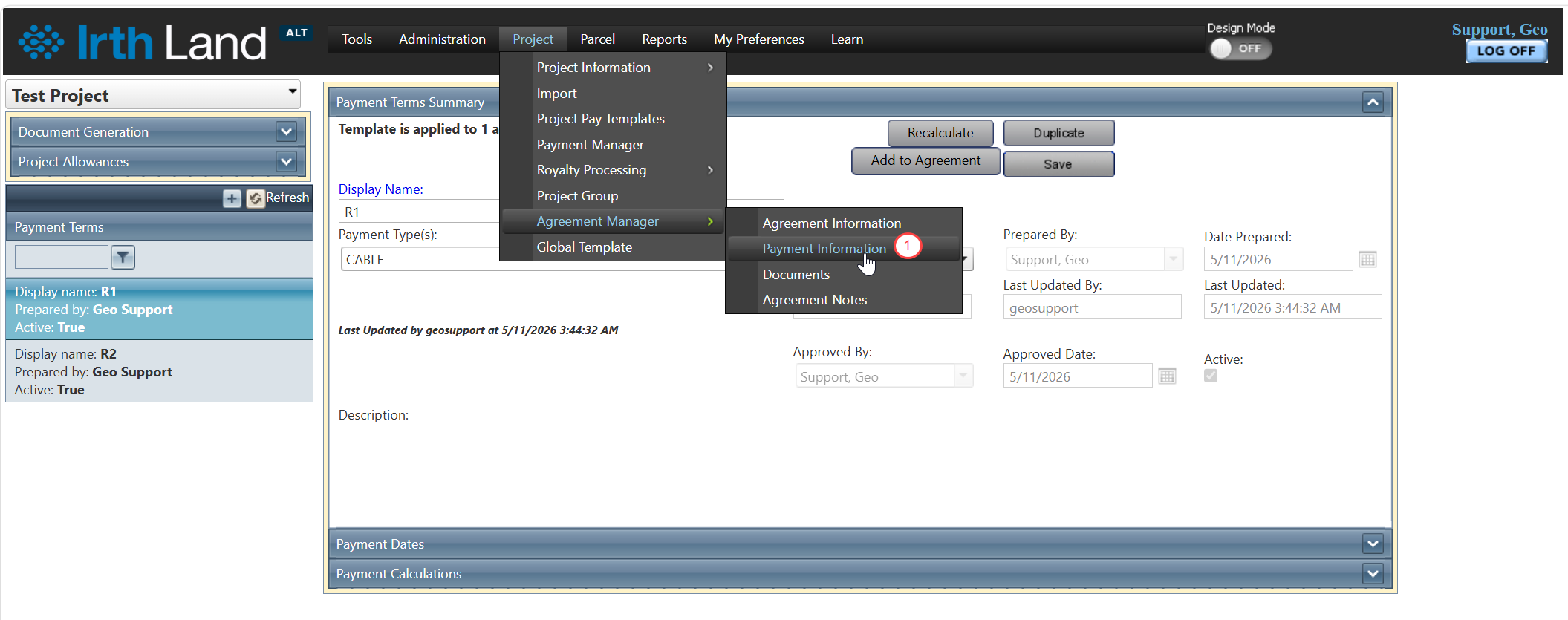
- Navigate to Project > Agreement Manager > Payment Information.
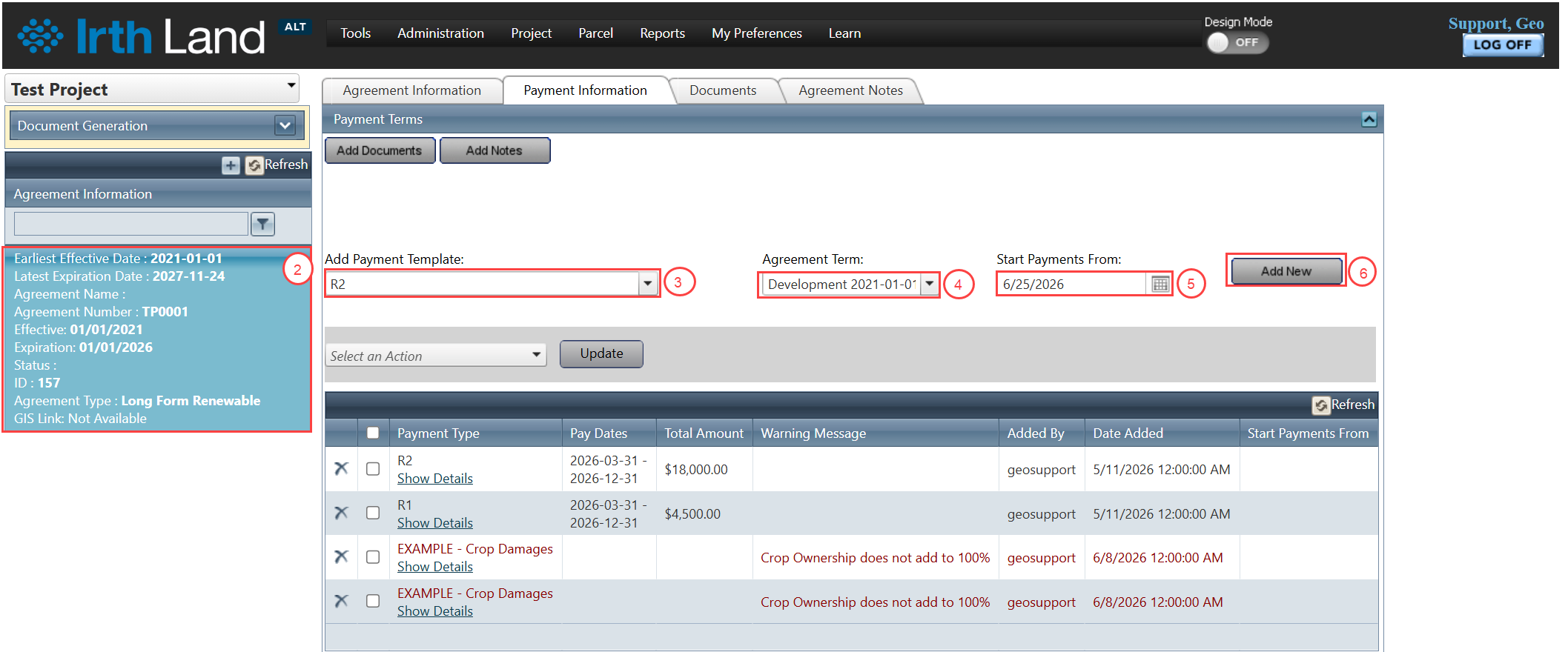
- Open the desired agreement record.
- From the Add Payment Template dropdown, select the payment template to apply.
- From the Agreement Term dropdown, select the agreement term that should be associated with the template.
- In the Start Payments From field, enter or select the date from which the payment schedule should begin.
- Click Add New.
The system generates payment records for the selected agreement based on the template configuration and the selected agreement term.
3. Payment Header Creation
When a template is applied to an agreement, the system creates a Payment Header record for each unique combination of:
- Payment Template
- Agreement Term
The Payment Header acts as the parent container for all payment records generated from that specific template and agreement term combination. Multiple Payment Headers can exist within a single agreement when different templates or agreement terms are applied.
Related Features/Next Steps:
FAQ/Troubleshooting:
Q: Can a payment template be applied to multiple agreements at the same time?
A: Yes. Use the Add to Agreement option from the Payment Template page to apply a template to multiple agreements simultaneously.
Q: What happens after a payment template is applied?
A: The system automatically generates payment records based on the template configuration and the specified payment start date.
Q: What is a Payment Header?
A: A Payment Header is the parent record created for each unique Payment Template and Agreement Term combination. It stores and manages all payment records generated from that combination.
Q: Can an agreement have more than one Payment Header?
A: Yes. Multiple Payment Headers can exist within an agreement when different payment templates or agreement terms are applied.
Questions? Contact us!

Was this article helpful?
That’s Great!
Thank you for your feedback
Sorry! We couldn't be helpful
Thank you for your feedback
Feedback sent
We appreciate your effort and will try to fix the article