Purpose/Overview
The Duplicate Template feature allows users to create a copy of an existing template without manually recreating its configuration. When a template is duplicated, the system copies the original template’s configuration, terms, and settings and associates the new template with a selected project.
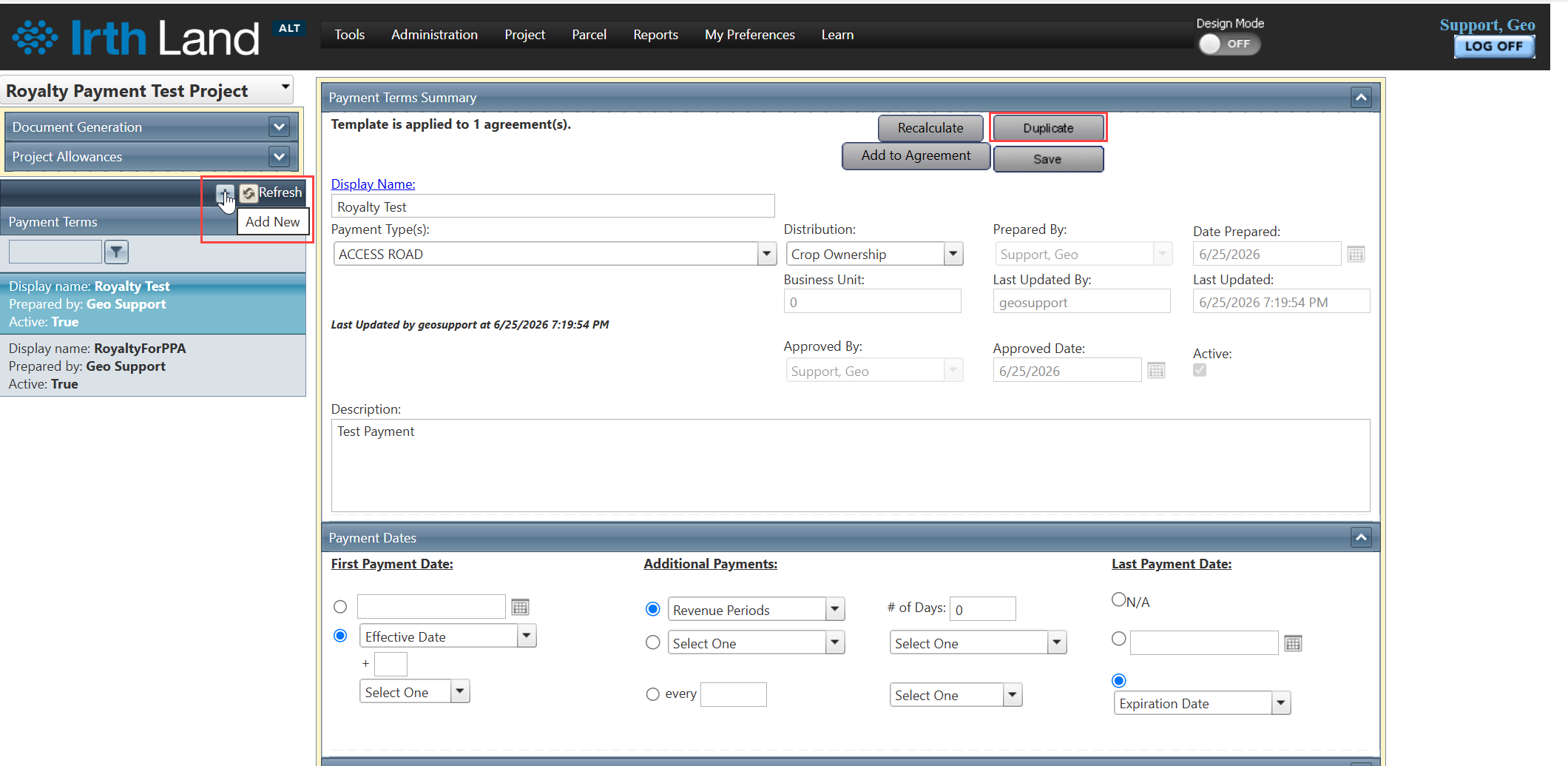
In addition, templates display an Agreement Count, which indicates the number of agreements currently associated with the selected template. This information helps users understand the usage and impact of a template before making changes.
This feature is especially useful when multiple projects require similar payment terms or template configurations. By duplicating an existing template, users can maintain consistency across projects while significantly reducing setup time and effort.
Navigation Path:
To access this feature: Project > Project Pay Template or Global Template
Things to Know:
- The duplicated template inherits the configuration, terms, and settings from the original template.
- During duplication, users must select the project to which the new template will be associated.
- The agreement count displayed on a template indicates the number of agreements currently associated with that template.
- For a Project Pay Template, the agreement count represents the total number of agreements within the same project that have the selected Project Pay Template applied.
- For a Global Template, the agreement count represents the total number of agreements across the entire system that have the selected Global Template applied.
- In the Global Template section, template management actions such as Recalculate, Add to Agreement, and Duplicate are available at the global level and can be applied across the system.
Key Benefits/Use Cases:
Reuse Existing Template Configurations
Duplicate an existing template to quickly create a new template with the same setup, reducing manual configuration efforts.
Maintain Consistency Across Projects
Apply standardized payment terms and template settings across multiple projects to ensure consistency and compliance.
Assess Template Usage and Impact
Use the agreement count to determine how many agreements are associated with a template before making updates or modifications.
Save Administrative Time
Eliminate the need to recreate complex template configurations, allowing users to focus on project-specific adjustments.
How It Works:
Follow these steps to create a duplicate of an existing template:
Step 1: Open the Template
Open the template that you want to duplicate.
Step 2: Select Duplicate
Click the Duplicate button.
Step 3: Choose the Target Project
In the duplication window, search for or select the target project from the Project dropdown list.
Step 4: Review and Save
Review the selected project details and click Save.
Step 5: Template Creation
The system creates a new template by copying the configuration, terms, and settings from the original template and associates it with the selected project.
Step 6: Review Agreement Count
After opening a template, review the displayed agreement count to determine how many agreements are currently associated with that template.
Related Features/Next Steps:
FAQ/Troubleshooting:
Q: What information is copied when a template is duplicated?
A: The system copies the template configuration, terms, and settings from the original template.
Q: Can I duplicate a template for a different project?
A: Yes. During the duplication process, you can select the target project from the Project dropdown list.
Q: What does the agreement count represent?
A: The agreement count indicates the number of agreements currently associated with the selected template.
Q: Why does the agreement count differ between Project Pay Templates and Global Templates?
A: Project Pay Template counts are limited to agreements within the same project, while Global Template counts include agreements across the entire system that use the selected template.
Questions? Contact us!

Was this article helpful?
That’s Great!
Thank you for your feedback
Sorry! We couldn't be helpful
Thank you for your feedback
Feedback sent
We appreciate your effort and will try to fix the article