Purpose/Overview
The Landowner Search Bulk Updates feature enables users to efficiently manage and update multiple landowner records directly from the Landowner Search page. The page provides various search filters that help locate specific landowner records and perform actions on the search results.
This feature is particularly useful for maintaining accurate landowner information, consolidating duplicate records, creating new landowner records, and quickly accessing records related to a landowner. By reducing the need to update records individually, it improves data quality and administrative efficiency.
Note: If a field is used as a search filter but is not configured as a grid column, the system automatically adds that column to the search results grid.
Navigation Path:
To access this feature: Tools > Landowner Search
Things to Know:
- Bulk update options are available after running a Landowner Search.
- When creating a new landowner from the Landowner Search page, only Entity-related fields are displayed.
- Additional related-record columns such as #Parcels and #Documents may appear alongside the #Agreement column depending on your system configuration.
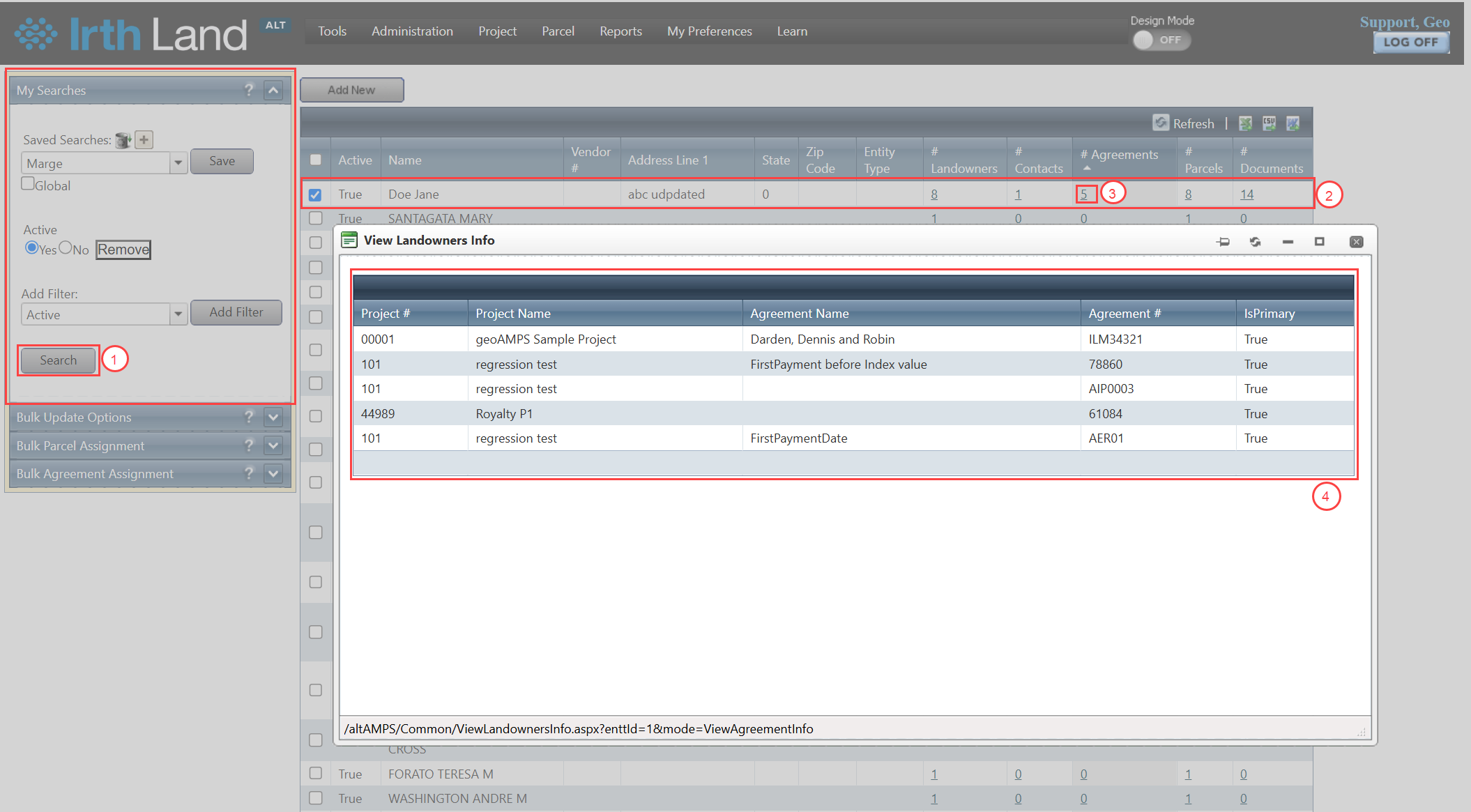
- Selecting a numeric value in a related-record column opens a pop-up window displaying the associated records.
Key Benefits/Use Cases:
Consolidate Duplicate Landowner Records
Merge duplicate or related landowner records into a single record to maintain clean and accurate data.
Create New Landowner Records
Add new landowner records directly from the search page without navigating to a separate module.
Access Related Information Quickly
View agreements, parcels, documents, and other related records directly from the search results grid.
How It Works:
1. Merging Landowner Records
The Merge Records feature allows duplicate or related landowner records to be combined into a single record.
To merge landowner records:
- Run a landowner search.
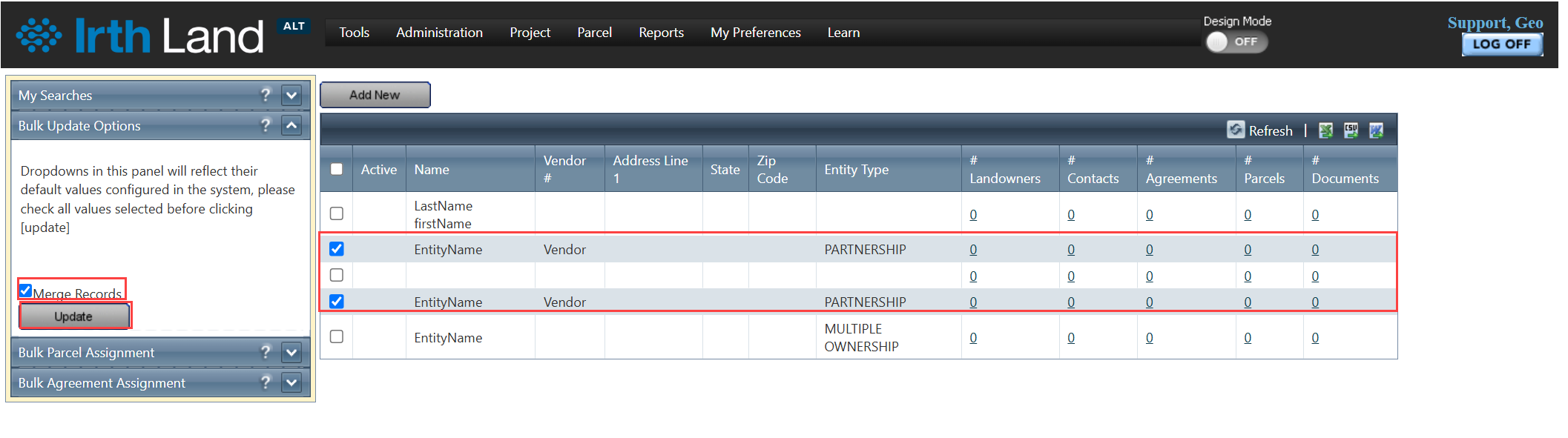
- Select the landowner records to merge using the checkboxes in the search results grid.
- In the Bulk Update Options section, select Merge Record.
- Click Update.
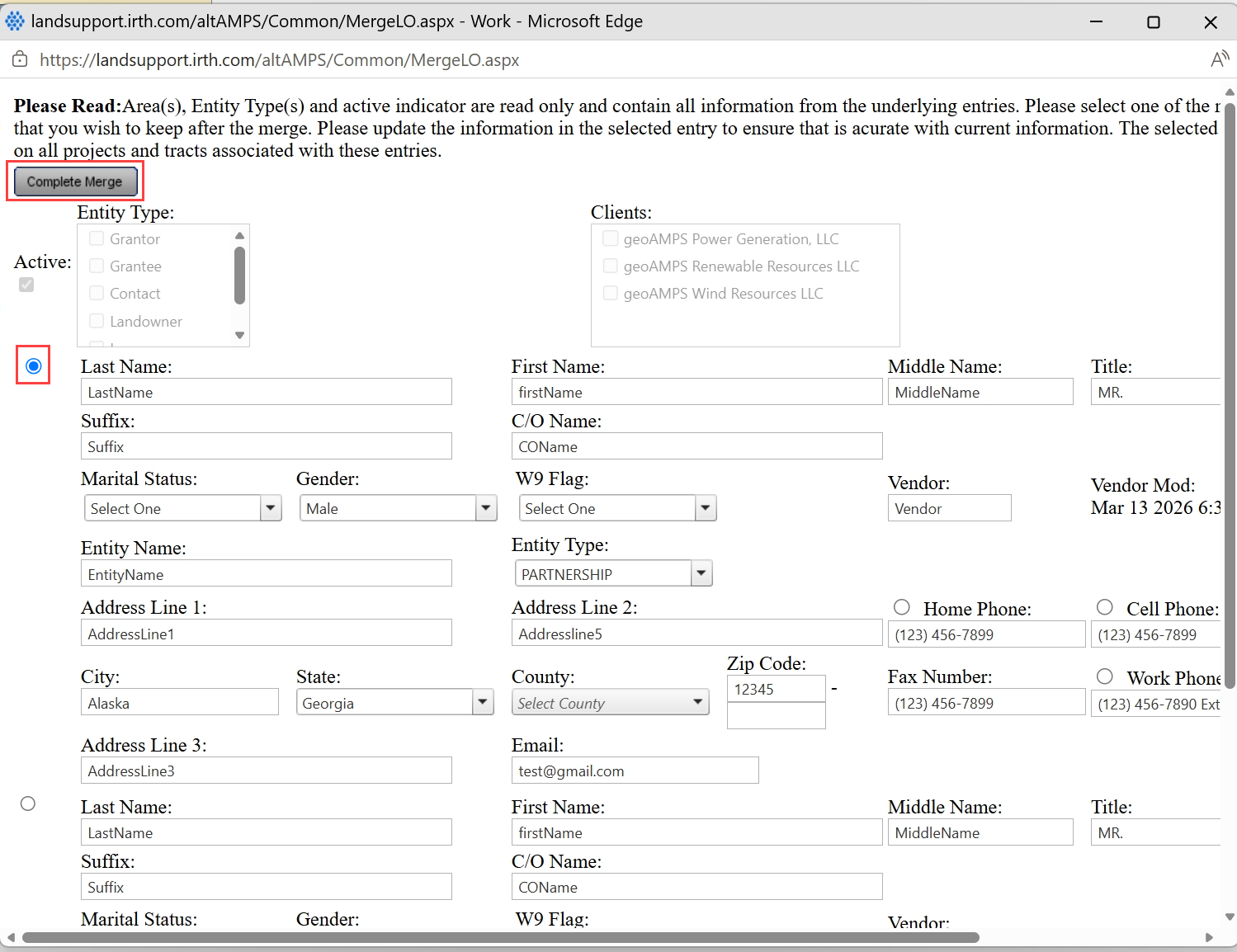
A pop-up window opens, allowing you to review the merged landowner record before completing the process.
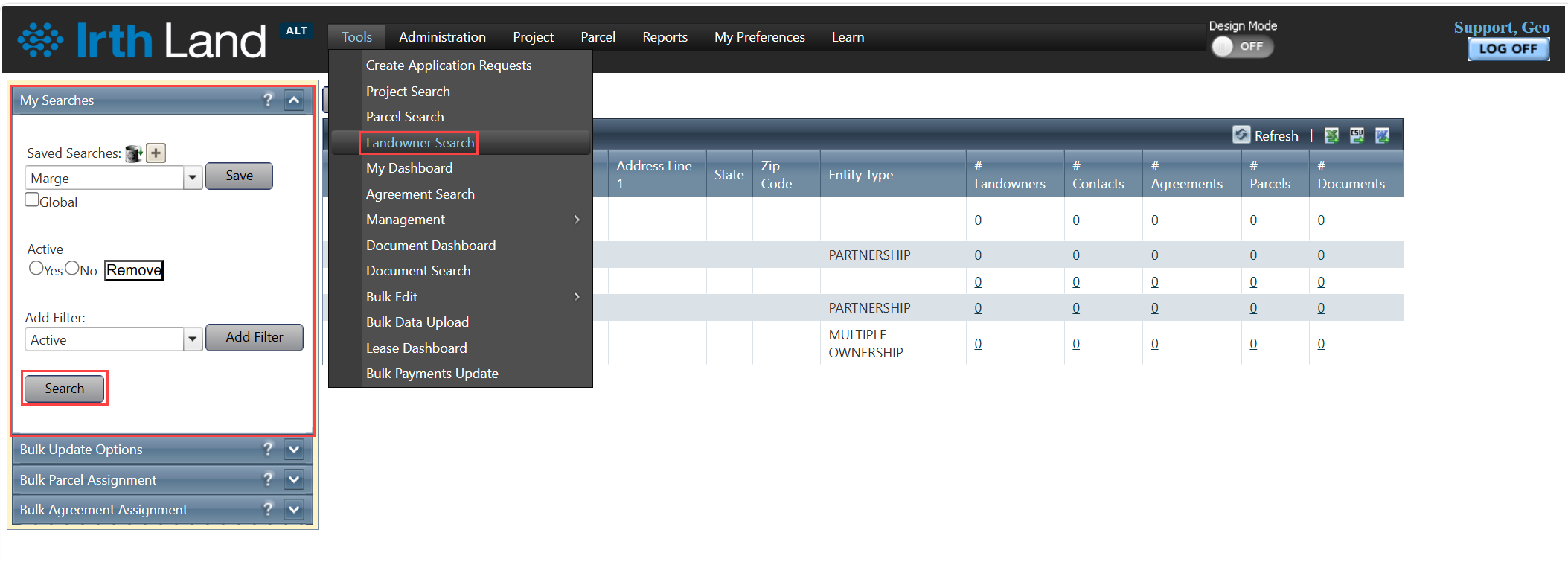
2. Adding New Landowners
New landowner records can be created directly from the Landowner Search page.
To add a new landowner:
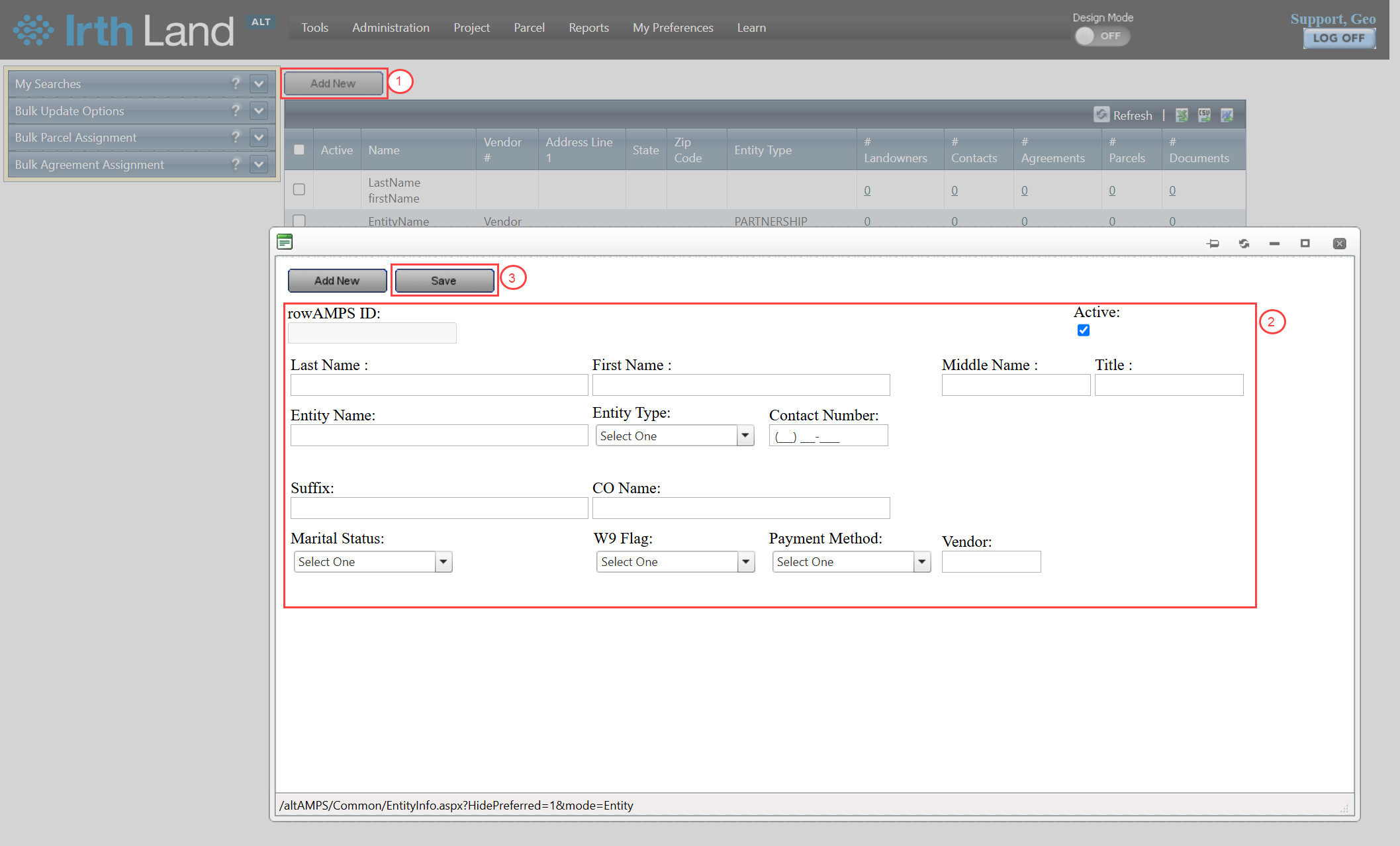
- Click Add New.
- Enter the required landowner information.
- Save the new record.
Note: Only Entity-related fields are available when creating a new landowner from this page.
3. Viewing Related Records
The search results grid includes columns that display counts of records associated with a landowner.
To view related records:
- Run a landowner search.
- Locate the desired landowner in the search results grid.
- Select the numeric value in a related-record column, such as #Agreement, #Parcels, or #Documents.
- Review the associated records in the pop-up window that opens.
Related Features/Next Steps:
FAQ/Troubleshooting:
Q: Why does a column appear in the search results that I did not configure?
A: If a field is used as a search filter but is not configured as a grid column, the system automatically adds the column to the search results.
Q: Can I create a complete landowner profile from the Landowner Search page?
A: You can create a new landowner record from the page; however, only Entity-related fields are available during creation.
Q: How do I view records associated with a landowner?
A: Click the numeric value displayed in a related-record column (for example, #Agreement, #Parcels, or #Documents) to open a pop-up window showing the associated records.
Questions? Contact us!

Was this article helpful?
That’s Great!
Thank you for your feedback
Sorry! We couldn't be helpful
Thank you for your feedback
Feedback sent
We appreciate your effort and will try to fix the article