Purpose/Overview
The Bulk Update feature allows users to update multiple records simultaneously after performing a search. This functionality helps streamline data management by enabling users to apply changes to several records at once, eliminating the need to update each record individually.
Bulk updates are available for records returned through Project, Parcel, and Landowner searches, making it easier to manage large volumes of data efficiently and consistently.
Navigation Path:
To access bulk update functionality, run a search from one of the following locations:
- Tools > Project Search
- Tools > Parcel Search
- Tools > Landowner Search
- Tools > Document Search
After the search results are displayed, select the records you want to update using the checkboxes in the results grid and then choose the appropriate bulk update option.
Things to Know:
- Bulk update functionality is available only after a search has been performed.
- Users must select one or more records from the search results before applying a bulk update.
- Available bulk update options vary depending on the type of search performed (Project, Parcel, or Landowner).
Key Benefits/Use Cases:
Update Multiple Records at Once
Apply changes to several records simultaneously, reducing the time required for repetitive updates and improving productivity.
Maintain Data Consistency
Ensure consistent updates across multiple records by applying the same changes through a single bulk update action.
Simplify Large-Scale Data Management
Manage large datasets more efficiently by updating selected records directly from search results rather than opening and editing each record individually.
How It Works:
Follow these steps to perform a bulk update:
Step 1: Run a Search
Navigate to one of the following search tools and perform a search:
- Tools > Project Search
- Tools > Parcel Search
- Tools > Landowner Search
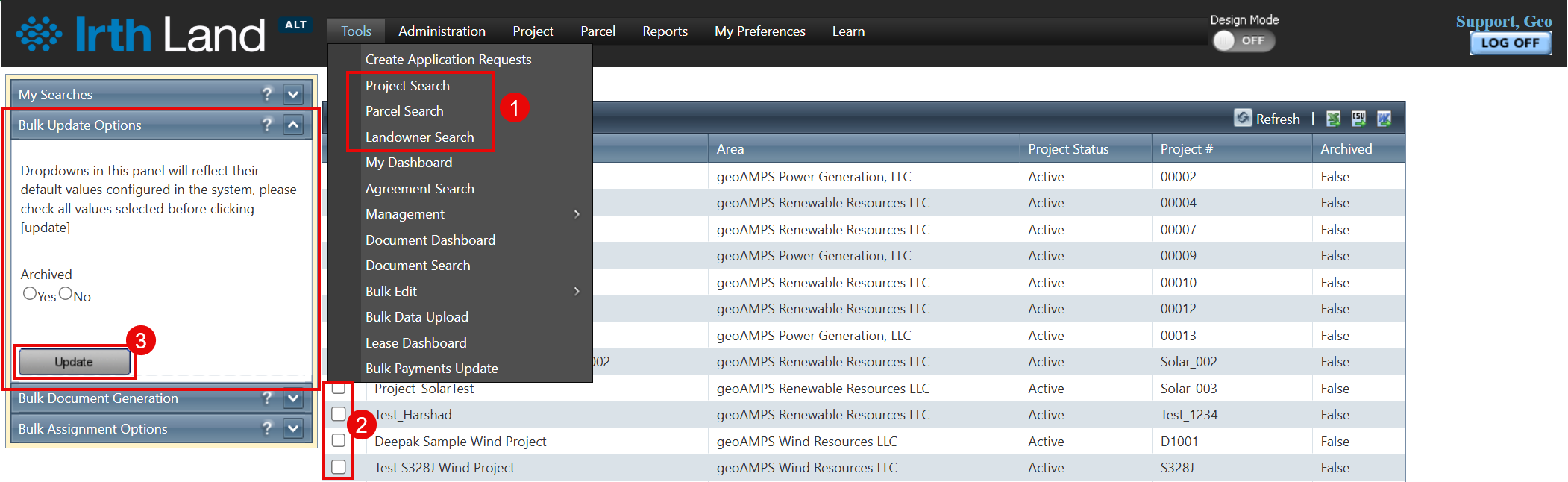
Step 2: Select Records
When the search results are displayed, select the records you want to update by checking the corresponding checkboxes in the results grid.
Step 3: Apply a Bulk Update
Choose the appropriate bulk update option available for the selected search type and click Update to apply the changes to the selected records.
Note: The available bulk update options depend on the search type being used.
Related Features/Next Steps:
FAQ/Troubleshooting:
Q: Why can't I see the bulk update options?
A: Bulk update options become available only after running a Project, Parcel, or Landowner search and selecting one or more records from the results grid.
Q: Can I perform the same bulk update from all search types?
A: No. The available bulk update options vary depending on whether the search was performed from Project Search, Parcel Search, or Landowner Search.
Q: Do I need to update each record individually?
A: No. The bulk update feature allows you to update multiple selected records simultaneously, saving time and reducing manual effort.
Questions? Contact us!

Was this article helpful?
That’s Great!
Thank you for your feedback
Sorry! We couldn't be helpful
Thank you for your feedback
Feedback sent
We appreciate your effort and will try to fix the article