Purpose/Overview
The Document Search feature provides a centralized location for finding documents stored throughout the system. It allows users to search for documents that have been uploaded or attached across all supported modules and records.
This feature simplifies document retrieval by enabling users to quickly locate and download documents from a single search interface, eliminating the need to navigate through individual records or modules.
Navigation Path:
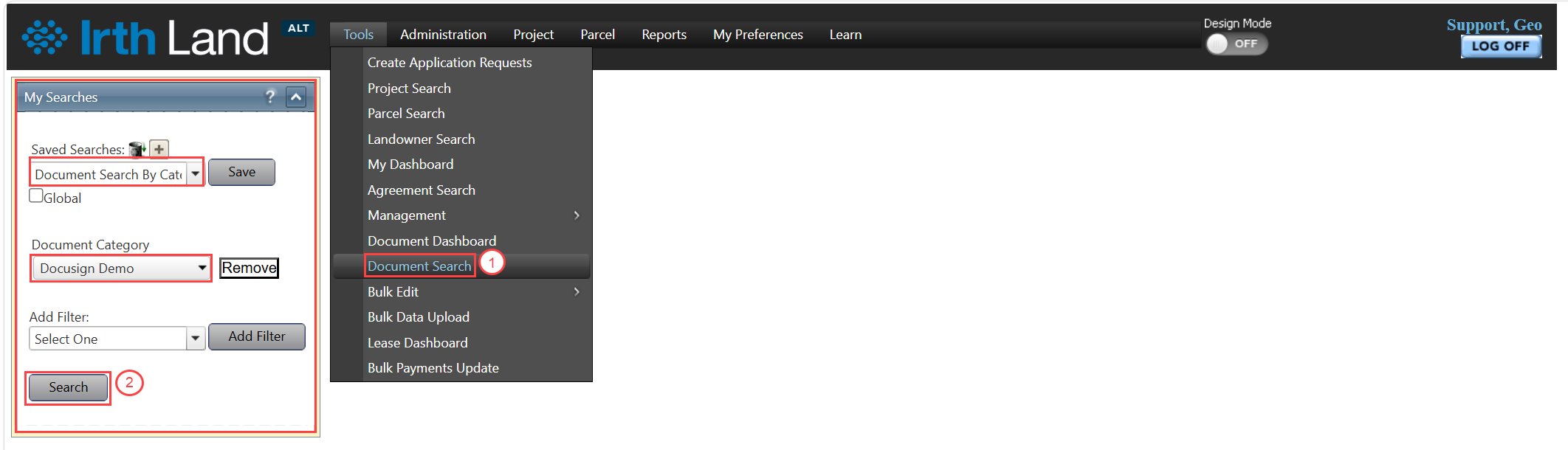
To access this feature: Tools > Document Search
The Document Search page functions similarly to other search pages within the system. Users can create and run searches using standard search criteria and filters.
Things to Know:
- The Document Search feature retrieves documents associated with records across all supported modules in the system.
- Search functionality operates similarly to other search pages.
- For additional information on creating and running searches, refer to the Search Overview documentation.
- The feature has been enhanced to include documents associated with workflows and records throughout the system.
Key Benefits/Use Cases:
Centralized Document Retrieval
Search and locate documents from multiple modules and records in a single location, reducing the time spent navigating through the system.
Bulk Document Downloads
Select and download multiple documents simultaneously, improving efficiency when working with large sets of records.
Cross-Module Document Access
Access documents associated with workflows and records across all supported modules, providing a comprehensive view of available documentation.
How It Works:
Downloading Selected Documents
Follow these steps to download specific documents from the search results:
Step 1: Navigate to Tools > Document Search.
Step 2: Run a document search using the desired search criteria.
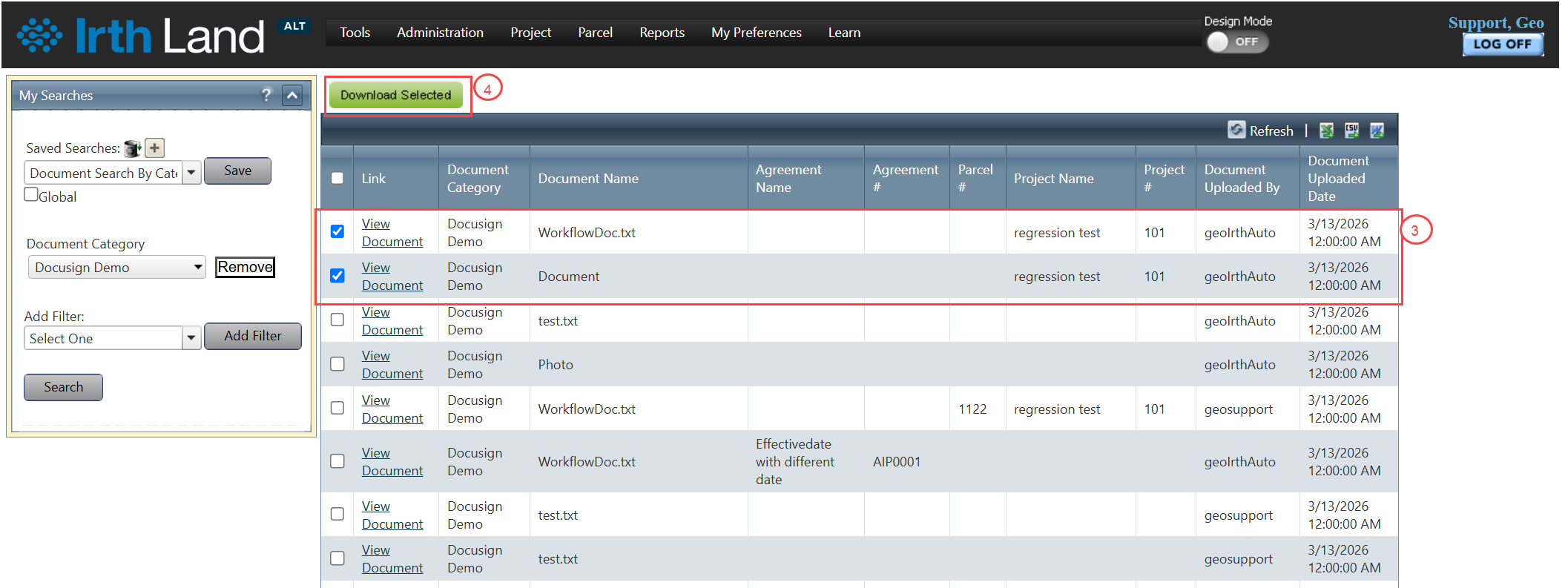
Step 3: Select the required document records using the checkboxes next to each document.
Step 4: Click Download Selected.
The selected documents are downloaded to your local device.
Downloading All Displayed Documents
Follow these steps to download all documents displayed in the search results:
Step 1: Run a document search.
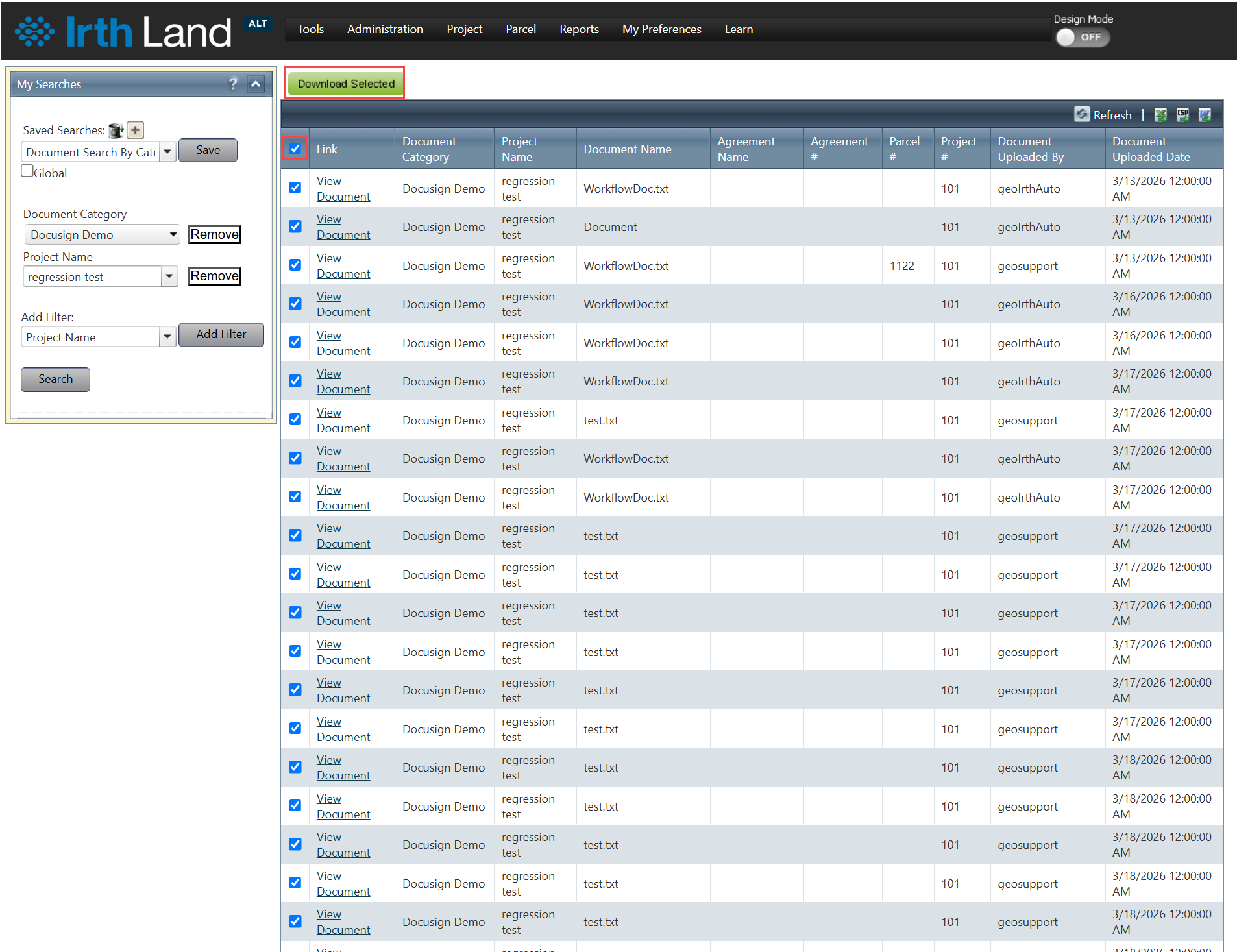
Step 2: Select the checkbox in the column header to select all displayed records.
Step 3: Click Download Selected.
All displayed documents are downloaded to your local device.
Related Features/Next Steps:
FAQ/Troubleshooting:
Q: What types of documents can be found using Document Search?
A: Document Search retrieves documents that have been uploaded or attached to records across all supported modules and workflows within the system.
Q: Can I download multiple documents at the same time?
A: Yes. Select one or more document records using the available checkboxes and click Download Selected to download them in bulk.
Q: How do I download all documents returned by a search?
A: Select the checkbox in the column header to select all displayed records, then click Download Selected.
Q: Where are downloaded documents saved?
A: Downloaded documents are saved to your local device according to your browser's download settings.
Questions? Contact us!

Was this article helpful?
That’s Great!
Thank you for your feedback
Sorry! We couldn't be helpful
Thank you for your feedback
Feedback sent
We appreciate your effort and will try to fix the article