Purpose/Overview
The Payment Calculations feature allows users to define how payment amounts are calculated for agreements. Payment calculations can be based on fixed values, acreage, agreement attributes, or escalation rules that automatically adjust payment amounts over time.
By using formulas and dynamic tags, payment templates can be configured to support a variety of business requirements while reducing manual calculations and improving consistency across agreements.
Navigation Path:
To access this feature: Project > Project Pay Template or Global Template > Payment Calculation
Things to Know:
- Tags must be entered correctly; invalid or unrecognized tags are highlighted in red during validation.
- Tags dynamically retrieve data from agreements, projects, parcels, or payment records when calculations are executed.
- Use the Tag Lookup feature to view available tags and their descriptions.
- Percentage escalation formulas automatically increase payment amounts over time using compound growth.
- Formula validation helps ensure calculations can be processed successfully.
Key Benefits/Use Cases:
Acreage-Based Payments
Calculate payments automatically based on leased acres, parcel acres, wind acres, or other agreement-specific values. This eliminates manual calculations and ensures payment accuracy.
Dynamic Payment Formulas
Use tags to retrieve agreement, project, parcel, or payment data directly within formulas. This allows a single payment template to adapt to different agreements without modification.
Automatic Payment Escalation
Configure annual payment increases using escalation formulas. This supports agreements that require inflation adjustments or contractually defined annual increases without manual intervention.
How It Works:
1. Using Tags
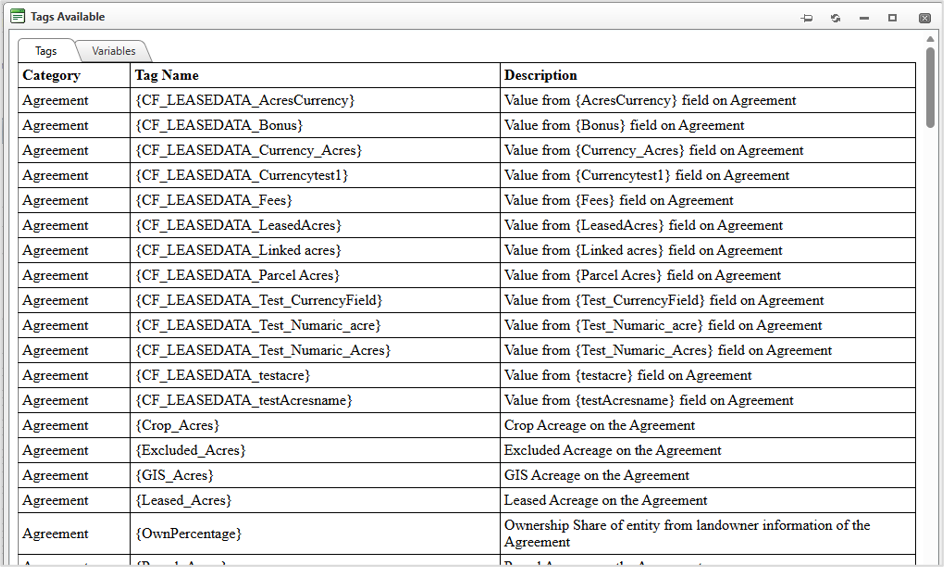
Tags are placeholders that dynamically retrieve and use data from an agreement, project, parcel, or payment record when a payment calculation is executed. This allows payment formulas to automatically adapt based on the specific agreement being processed.
Commonly used tags include:
{Leased_Acres}{Wind_Acres}{Parcel_Acres}
Tags can be added to a formula in either of the following ways:
- Manually type the tag directly into the formula field.
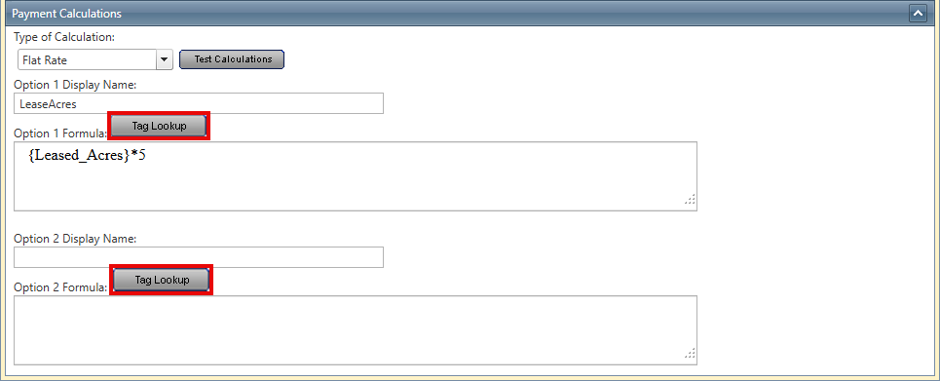
- Select the required tag using the Tag Lookup feature, which displays available tags and their descriptions.
When a formula is validated, the system verifies all tags used in the calculation. If a tag is invalid, misspelled, or not recognized by the system, it is highlighted in red. This validation helps prevent calculation errors and ensures that the formula can be processed successfully.
Example Formula: {Leased_Acres} * 5
In this example, the system multiplies the number of leased acres by 5 to determine the payment amount.
2. Flat Rate Calculation Example
A flat-rate calculation applies a fixed payment amount based on a specific agreement value.
Formula Example: {Leased_Acres} * 5
Calculation Example
If the agreement contains:
- Leased Acres = 100
The calculated payment amount is: 100 × 5 = $500
This type of calculation is commonly used when payments are based on a fixed rate per acre, parcel, or other measurable unit.
3. Percentage Escalation Example
Percentage-based escalation increases a payment amount by a specified percentage each year. This method is commonly used to account for inflation or contractually agreed annual increases.
Formula Example: 2000 * POWER(1.02, Years_From_First_Payment)
Formula Breakdown
2000= Initial payment amount1.02= Represents a 2% annual increaseYears_From_First_Payment= Number of years elapsed since the first paymentPOWER()= Mathematical function used to apply compound growth
4. Testing Calculations
Before saving or applying a payment template, it is recommended that users test the calculation to verify that the formula produces the expected results.
Testing calculations helps identify:
- Invalid tags or variables
- Formula syntax errors
- Unexpected calculation results
- Incorrect payment amounts before payment generation
To Test a Calculation
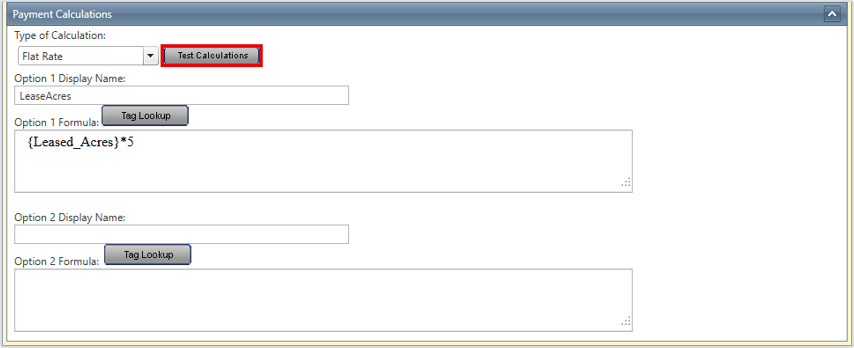
- Click Test Calculations.
- Select the appropriate Project.
- Select the required Leases.
- Select the applicable Lease Term.
- Click Show Calculation.
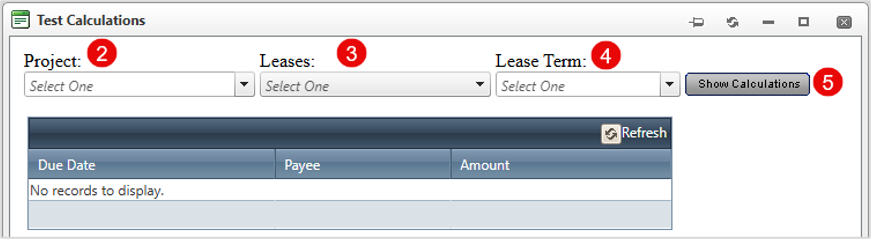
- Review the calculation details and computed payment amount.
Related Features/Next Steps:
- Escalating Payment Configuration
- Manual Payment Recalculation
- Applying Payment Templates to Agreements
FAQ/Troubleshooting:
Q: What are tags used for?
A: Tags are placeholders that retrieve values from agreements, projects, parcels, or payment records and insert them into payment formulas during calculation.
Q: How can I add a tag to a payment formula?
A: Tags can be entered manually in the formula field or selected through the Tag Lookup feature.
Q: What happens if a tag is entered incorrectly?
A: During formula validation, invalid or unrecognized tags are highlighted in red so they can be corrected before the calculation is used.
Q: Can payment amounts increase automatically each year?
A: Yes. Percentage escalation formulas can be configured to automatically increase payment amounts based on a specified annual percentage.
Q: What is the purpose of the POWER() function in escalation formulas?
A: The POWER() function applies compound growth, allowing payment amounts to increase automatically over time according to the defined escalation percentage.
Q: Why should I test a calculation before using it?
A: Testing helps identify formula errors, invalid tags, and unexpected payment results before payment generation occurs, helping prevent incorrect payments.
Questions? Contact us!

Was this article helpful?
That’s Great!
Thank you for your feedback
Sorry! We couldn't be helpful
Thank you for your feedback
Feedback sent
We appreciate your effort and will try to fix the article