Purpose/Overview
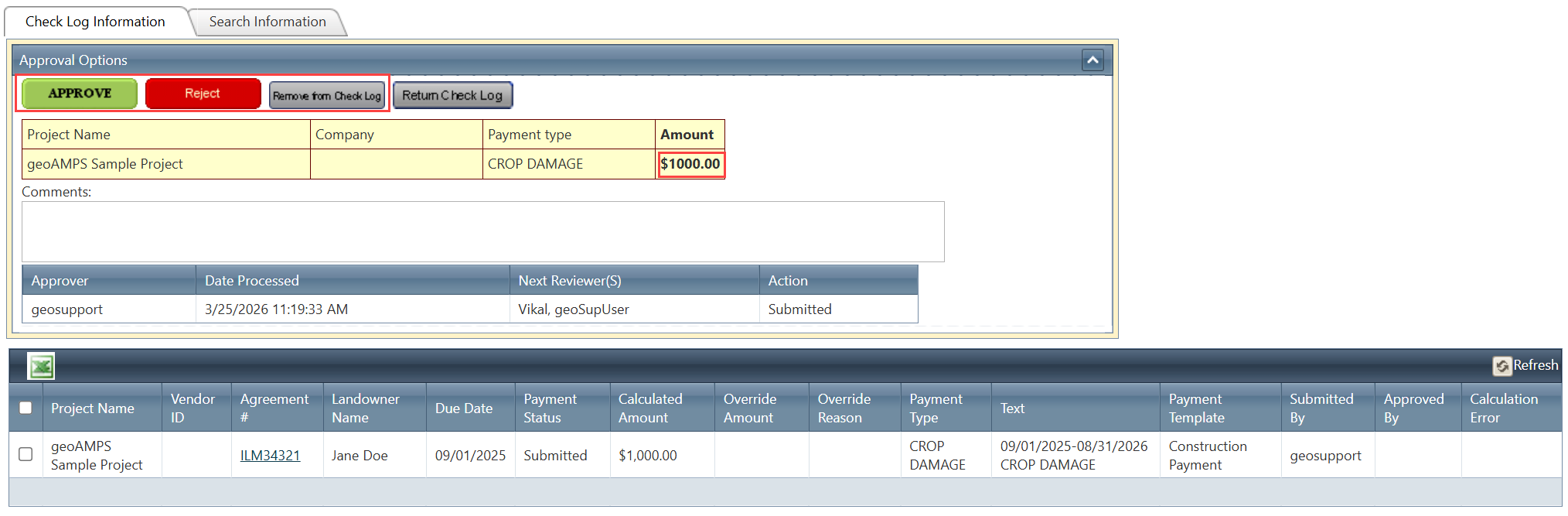
The Approving or Rejecting Payments feature allows authorized approvers to review submitted Check Logs and verify that payment information is accurate and complete before payment processing occurs. This approval workflow helps ensure payment accuracy, supports financial controls, and prevents incorrect or incomplete payment information from being transmitted to accounting systems.
Approvers can approve Check Logs for processing, reject them for correction, remove individual payments when necessary, and export payment details for reporting or auditing purposes.
Navigation Path:
To access this feature: Project > Payment Manager > Check Log Information Tab > Approval Options Panel
Things to Know:
- Only approved Check Logs are eligible for export or transmission to external accounting systems.
- When a Check Log is rejected, its status returns to Pending, allowing users to make corrections and resubmit it for approval.
- Removing a payment from a Check Log changes the payment status back to Pending.
- Approved payment information can be exported to Microsoft Excel or transmitted to enterprise accounting systems such as SAP or NetSuite.
Key Benefits/Use Cases:
Payment Validation and Approval
Approvers can review payment details before processing to ensure payment accuracy and compliance with organizational requirements.
Payment Correction Workflow
Rejected Check Logs can be updated and corrected before being resubmitted, reducing the risk of processing inaccurate payments.
Financial Reporting and Integration
Approved payment information can be exported for auditing and reconciliation or transmitted to external accounting systems for final payment processing.
How It Works:
Approve a Check Log
Follow these steps to approve a Check Log:
- Navigate to Project > Payment Manager > Check Log Information Tab > Approval Options Panel.
- Review the payment details contained within the Check Log.
- Click Approve.
Result: The Check Log and all associated payments are marked as Approved and become eligible for export or transmission to the accounting system.
Reject a Check Log
If corrections are required:
- Navigate to the Approval Options Panel.
- Enter comments explaining the reason for rejection.
- Click Reject.
Result: The Check Log status returns to Pending, allowing updates and corrections before resubmission.
Remove Payments from a Check Log
Individual payments can be removed from a Check Log when they should not be processed.
- Select one or more payment records within the Check Log.
- Click Remove from Check Log.
Result: The selected payments are removed from the Check Log, and their status reverts to Pending.
Export Payment Details
To generate a report containing payment information:
- Navigate to the Check Log Information tab.
- Click the Amount link.
Result: The system exports the latest payment information to an Excel file for review, reporting, or auditing purposes.
Related Features/Next Steps:
FAQ/Troubleshooting:
Q: What happens when a Check Log is approved?
A: The Check Log and all associated payments are marked as Approved and become eligible for export or transmission to the accounting system.
Q: What happens when a Check Log is rejected?
A: The Check Log status changes back to Pending, allowing users to make corrections and resubmit it for approval.
Q: Can individual payments be removed from a Check Log?
A: Yes. Select the payment records and click Remove from Check Log. The selected payments are removed, and their status reverts to Pending.
Q: Can payment information be exported?
A: Yes. Clicking the Amount link on the Check Log Information tab exports the latest payment information to an Excel file.
Q: Where can approved payment information be sent?
A: Approved payment information can be exported to Excel or transmitted to external accounting systems such as SAP or NetSuite for payment processing.
Questions? Contact us!

Was this article helpful?
That’s Great!
Thank you for your feedback
Sorry! We couldn't be helpful
Thank you for your feedback
Feedback sent
We appreciate your effort and will try to fix the article