Purpose/Overview
The Manual Payment Recalculation feature allows users to update and regenerate pending payment records after changes have been made to an agreement in the Agreement Manager. This feature helps ensure that payment amounts, schedules, and related payment information accurately reflect the latest agreement updates.
The feature is intended for users responsible for managing agreements and payment records. It provides a way to refresh pending payments without affecting payments that have already been processed or finalized.
Navigation Path:
To access this feature:
- Project > Agreement Manager > Payment Information tab
- Project > Project Pay Template or Global Template
Things to Know:
- Only pending payments are recalculated.
- Payments that have already been processed, approved, paid, or otherwise finalized are not modified.
- Only active payment templates are included in the recalculation process.
- Payments associated with inactive payment templates are not recalculated.
If an inactive payment template is encountered during recalculation, the system displays the following error message:
"Payment template is not active."
- After recalculation, users should review payment records to verify that updated payment amounts and schedules reflect the intended agreement changes.
Key Benefits/Use Cases:
Recalculate Individual Payment Records
Allows users to update pending payments associated with a specific payment summary record after agreement modifications have been made.
Recalculate Multiple Payment Types
Enables users to process several payment terms simultaneously, reducing manual effort when multiple payment types are impacted by agreement changes.
Validate Payment Template Changes
Allows users to verify that updates made to a Payment Template are correctly applied to associated lease agreements before proceeding with further payment processing.
How It Works:
A. Recalculate a Single Payment Summary Record
To recalculate payments for a specific payment summary record:
- Navigate to Project > Agreement Manager.
- Open the required agreement record.
- Select the Payment Information tab.
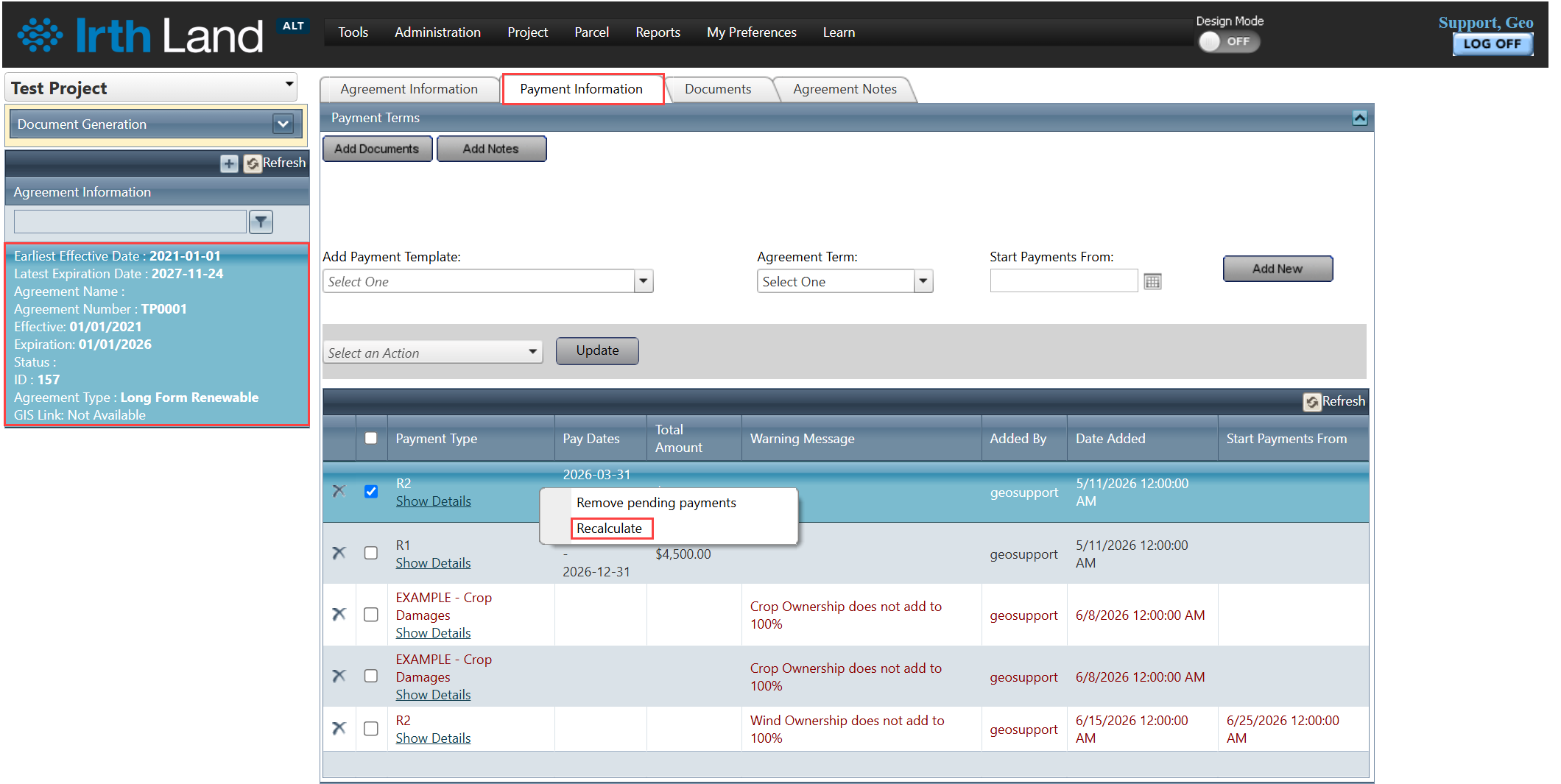
- In the Payment Summary panel, locate the payment summary record that requires recalculation.
- Right-click the desired Payment Summary record.
- Select Recalculate from the context menu.
The system recalculates all eligible pending payments associated with the selected payment summary record and updates the payment information accordingly.
B. Recalculate Multiple Payment Types
To recalculate multiple payment terms:
- Navigate to Project > Agreement Manager.
- Open the required agreement record and select the Payment Information tab.
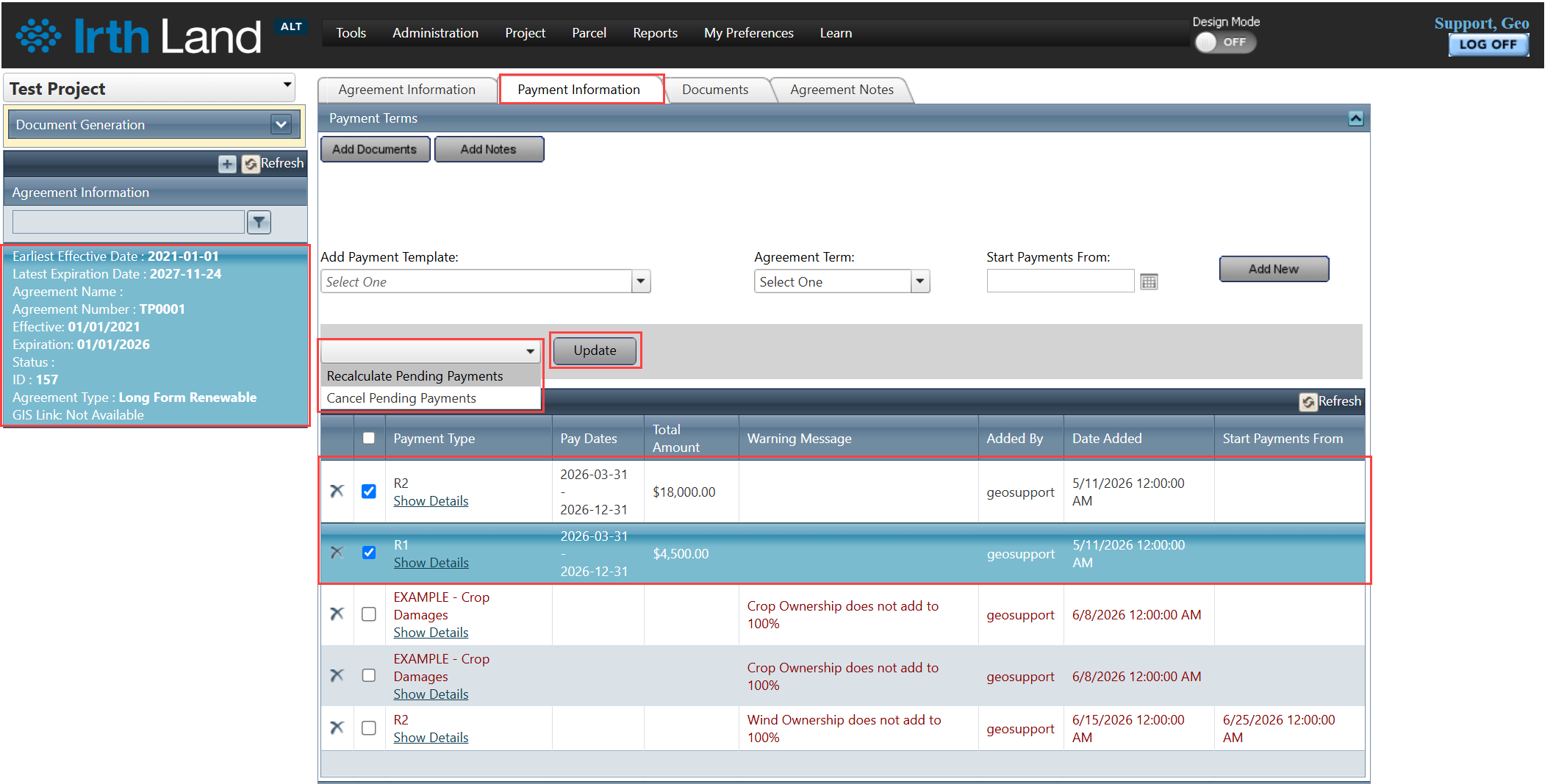
- In the payment section, select one or more payment term rows that require recalculation.
- Click the Select an Action drop-down menu.
- Choose Recalculate Pending Payments and click Update.
The system processes all selected payment terms and recalculates any eligible pending payments.
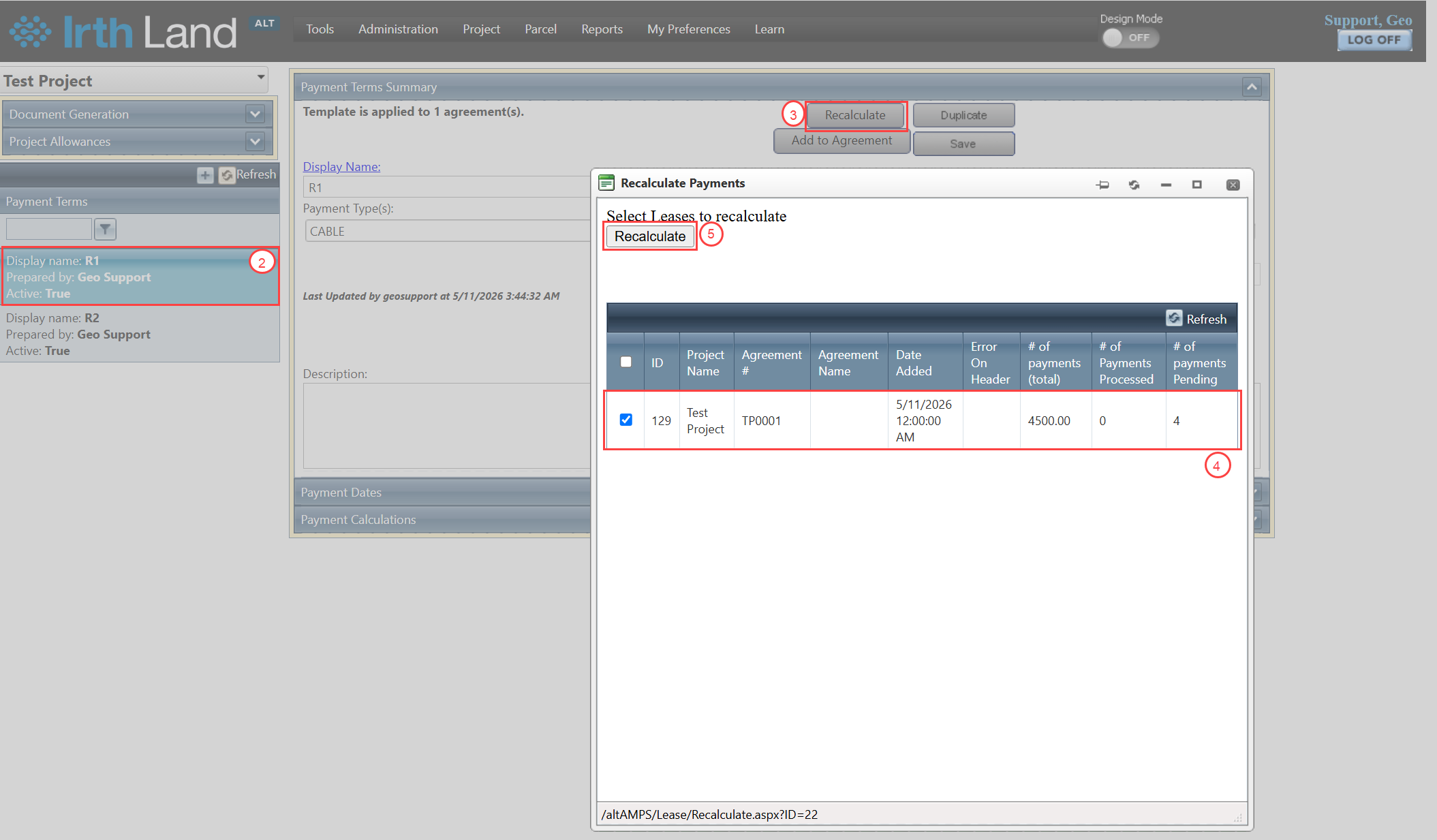
C. Recalculate Payments from the Payment Template Page
The Recalculate option allows users to verify that changes made to a Payment Template are correctly applied to associated lease agreements.
To recalculate payments from a Payment Template:
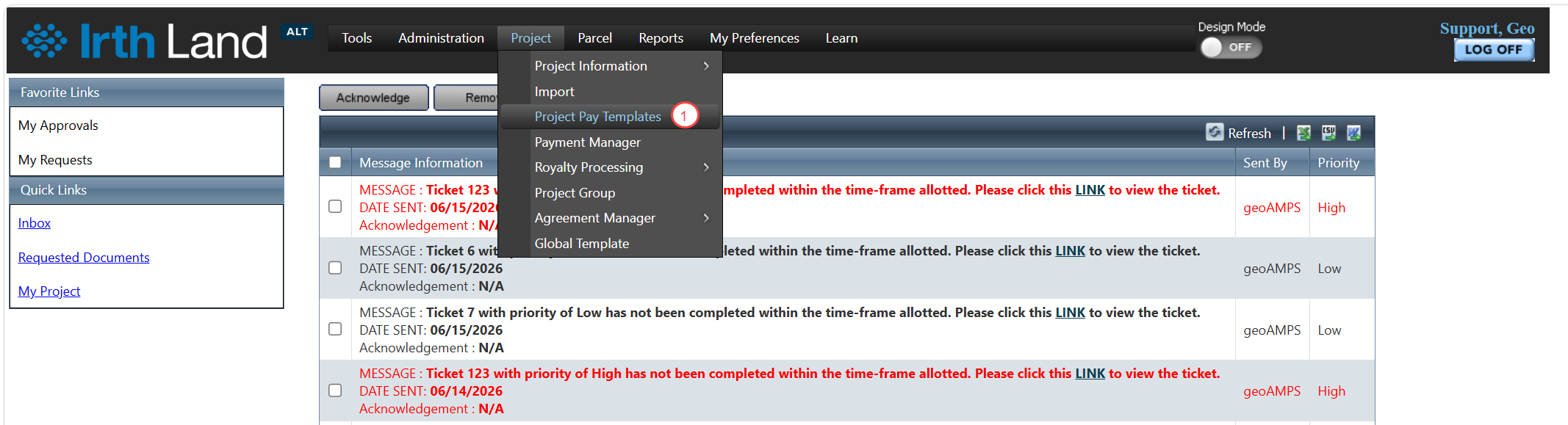
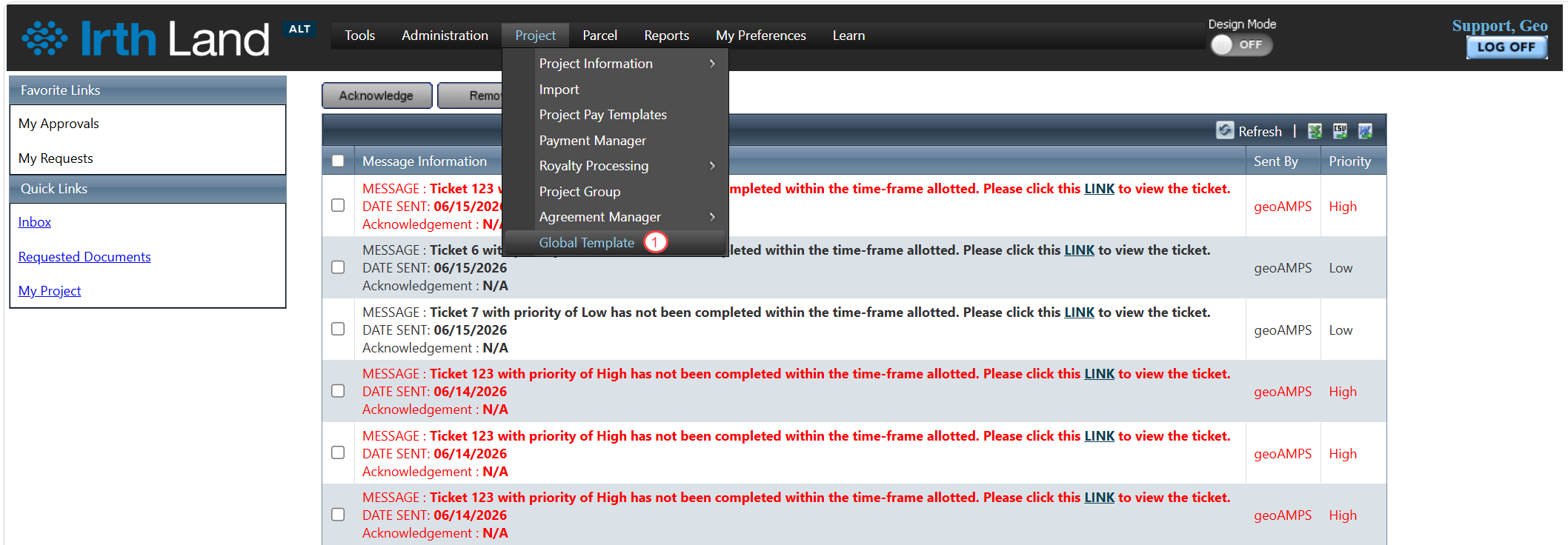
- Navigate to Project > Project Pay Template or Project > Global Template.
- Open the required Payment Template record.
- Click Recalculate.
- Select one or more leases from the project using the available checkboxes.
- Click Recalculate again to process the selected leases.
- Review the results to confirm that the template changes have been applied as expected.
Related Features/Next Steps:
FAQ/Troubleshooting:
Q: Which payments are updated during recalculation?
A: Only eligible pending payments are recalculated. Payments that have already been processed, approved, paid, or finalized are not modified.
Q: Can inactive payment templates be recalculated?
A: No. Only active payment templates are included in the recalculation process.
Q: What happens if a payment template is inactive?
A: The system displays the error message: "Payment template is not active."
Q: Should payment records be reviewed after recalculation?
A: Yes. It is recommended to review recalculated payment records to ensure updated payment amounts and schedules accurately reflect the latest agreement changes.
Questions? Contact us!

Was this article helpful?
That’s Great!
Thank you for your feedback
Sorry! We couldn't be helpful
Thank you for your feedback
Feedback sent
We appreciate your effort and will try to fix the article