Purpose/Overview
The User Preferences feature allows users to personalize how information is displayed throughout the application and configure default behaviors that match their daily workflow. These settings are applied only to the individual user and help reduce repetitive tasks by remembering preferred options.
Users can customize their Start Page, choose the Pager Location displayed on grid pages, determine whether Offline Parcels are shown by default, and control the visibility of Inactive Project Assignments. These preferences improve usability by providing a more personalized and efficient experience each time the user logs in.
Navigation Path:
To access this feature: My Preferences > Manage Preferences > User Preferences Panel
Things to Know:
- User preference settings are specific to the logged-in user and do not affect other users.
- Changes take effect immediately after clicking Update.
- The Start Page determines which page opens after logging into the application.
- The Pager Location controls where the page navigation controls appear within system grids.
- Show Offline Parcels by Default determines whether offline parcels are automatically displayed in Parcel and Project grids.
- Show Inactive Project Assignments by Default determines whether inactive project assignments are displayed by default.
- Each preference can be edited individually using the Edit (Pencil) icon.
Key Benefits/Use Cases:
- Personalized Login Experience: Configure a preferred Start Page so the application opens directly to the page you use most frequently, reducing navigation time.
- Customize Grid Navigation: Choose whether grid pagination controls appear at the Top, Bottom, or Top and Bottom of data grids to match your preferred working style.
- Improve Data Visibility: Automatically display offline parcels or inactive project assignments when required, eliminating the need to manually enable these options each time you access a project.
How It Works:
Change the Start Page
Step 1: Navigate to My Preferences > Manage Preferences > User Preferences.
Step 2: Click the Edit (Pencil) icon next to Start Page.
Step 3: Select the desired page from the drop-down list.
Step 4: Click Update to save your changes.
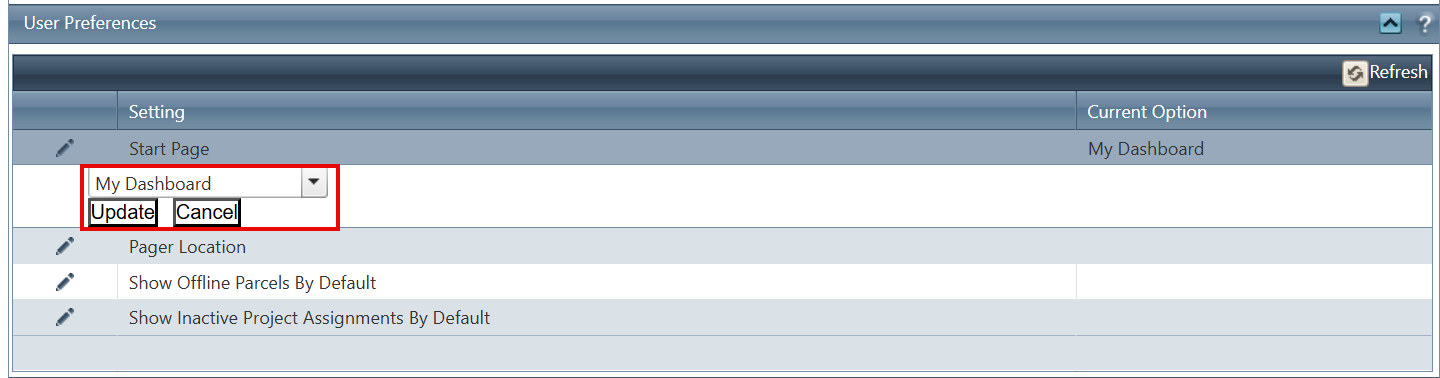
Result: The selected page becomes your default landing page after logging into the application.
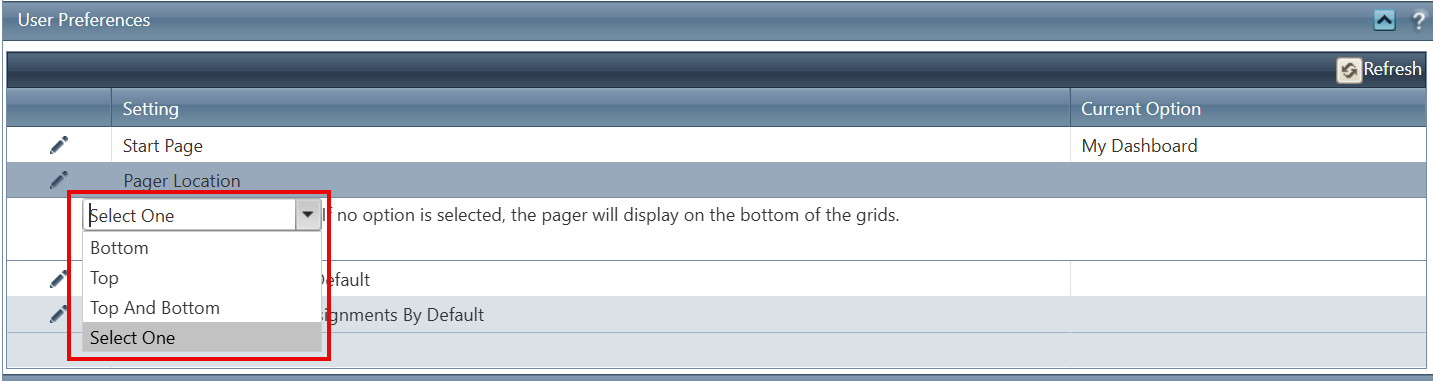
Configure Pager Location
Step 1: Click the Edit (Pencil) icon next to Pager Location.
Step 2: Select one of the available options:
- Top – Displays the pager at the top of the grid.
- Bottom – Displays the pager at the bottom of the grid.
- Top and Bottom – Displays the pager in both locations.
- Select One – If no option is selected, the pager is displayed at the bottom of the grid by default.
Step 3: Click Update to save the setting.
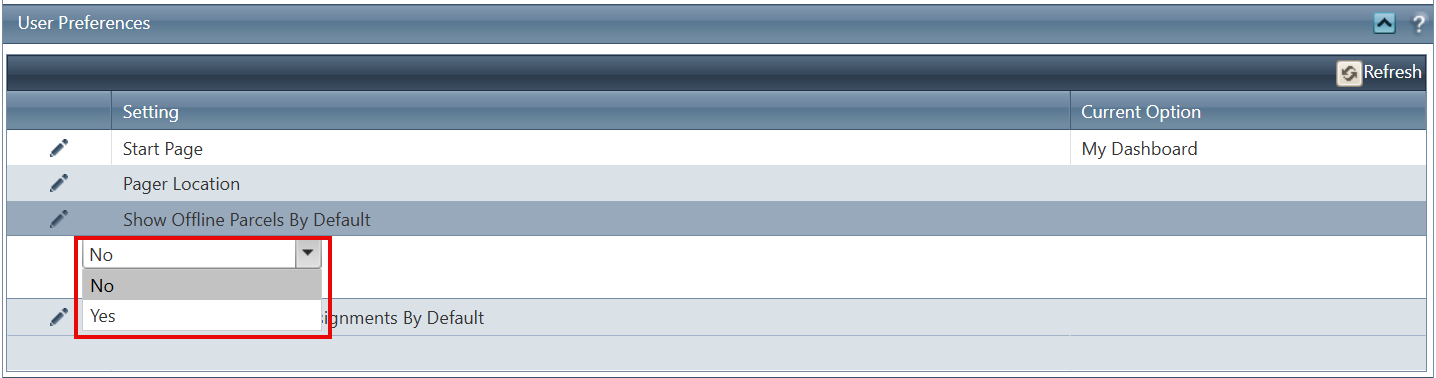
Show Offline Parcels by Default
Step 1: Click the Edit (Pencil) icon next to Show Offline Parcels By Default.
Step 2: Select either:
- Yes – Offline parcels are displayed automatically in Parcel and Project grids.
- No – Offline parcels remain hidden unless manually enabled.
Step 3: Click Update.
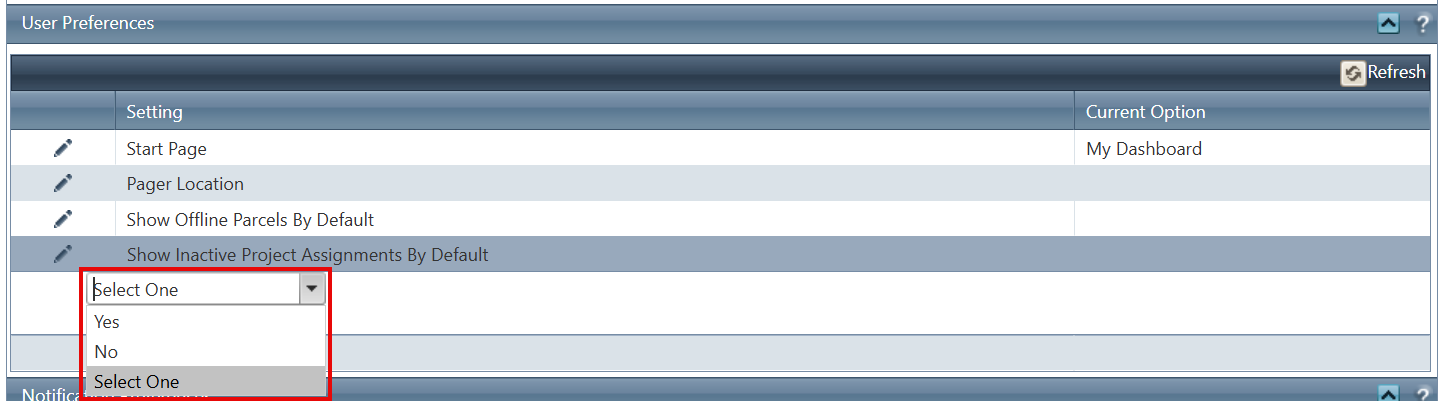
Show Inactive Project Assignments by Default
Step 1: Click the Edit (Pencil) icon next to Show Inactive Project Assignments By Default.
Step 2: Select either:
- Yes – Inactive project assignments are displayed automatically.
- No – Only active project assignments are displayed by default.
Step 3: Click Update.
FAQ/Troubleshooting:
Q: Why don’t I see my bookmarked page in the list?
A: Ensure you clicked Insert after selecting the page. Refresh the screen if needed.
Q: Can I remove a bookmarked page?
A: Yes, you can edit or delete the record from the User Preferences panel.
Q: Why are offline parcels not visible?
A: Check if the Show Offline Parcels by Default setting is turned OFF, or manually enable the Show Offline checkbox on the Parcel/Project screen.
Questions? Contact us!

Was this article helpful?
That’s Great!
Thank you for your feedback
Sorry! We couldn't be helpful
Thank you for your feedback
Feedback sent
We appreciate your effort and will try to fix the article