Full NMEA GGA Capture from Device Location Services
Purpose/Overview
In this article, you’ll learn how to enable and configure full NMEA GGA capture from device location services so that complete GPS data strings, rather than only latitude and longitude, are populated in Work Item fields, helping organizations meet regulatory requirements and ensure accurate, device‑reported location information through proper form and screen configuration. The feature is intended for administrators configuring forms and screens that rely on GPS device data.
Navigation Path:
To access this feature: Utilisphere > System Management > Administration > Work Management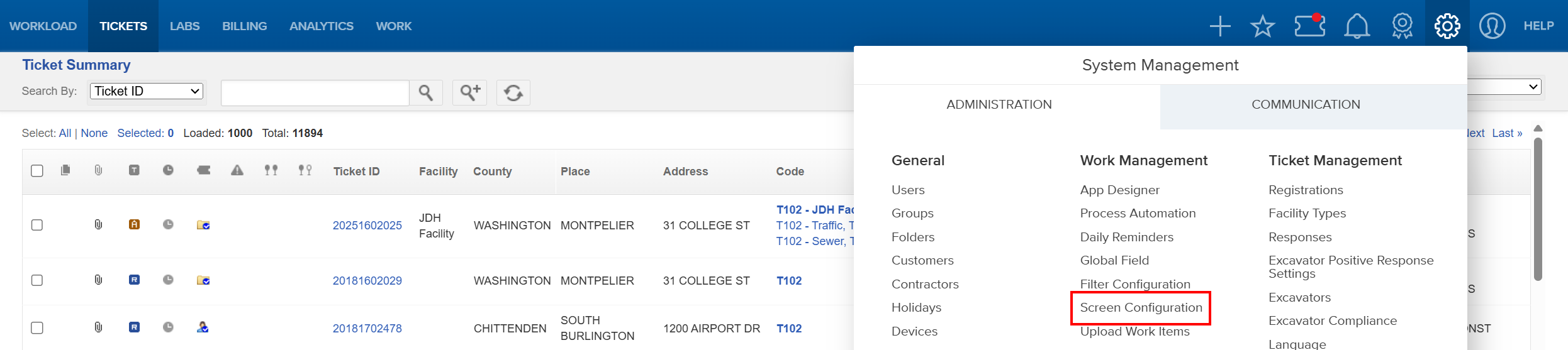
Things to Know:
Permissions: Access to App Designer and Screen Configuration is required.
Platforms Supported: Currently, this feature is supported in Full Web.
Behavior: The entire NMEA GGA sentence is ingested from device location services instead of only parsing latitude and longitude.
Key Benefits/Use Cases:
Regulatory Compliance: Enables storage of complete NMEA GGA strings required by updated regulations.
Complete GPS Data Capture: Preserves the full GPS sentence exactly as provided by the device.
Configurable Form Display: Allows GPS device data to be displayed and used directly within Work Item forms.
How It Works:
Follow these steps to set up or enable the feature:
Configure the Form in App Designer
- Navigate to System Management > Administration > Work Management > App Designer

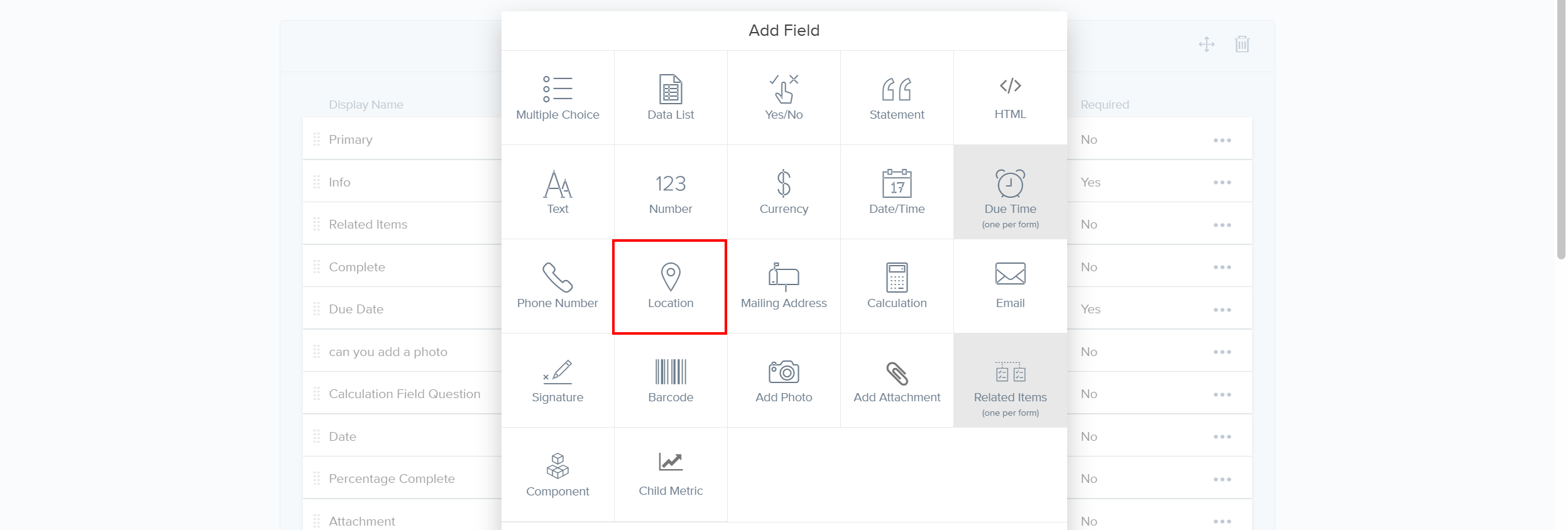
- Select Create New Form and include a Location field, or open an existing form and add a Location field if one is not already present.

- Select the Location field (or open the existing Location field configuration).
- Check the NMea/GPS Device Display and Require options.
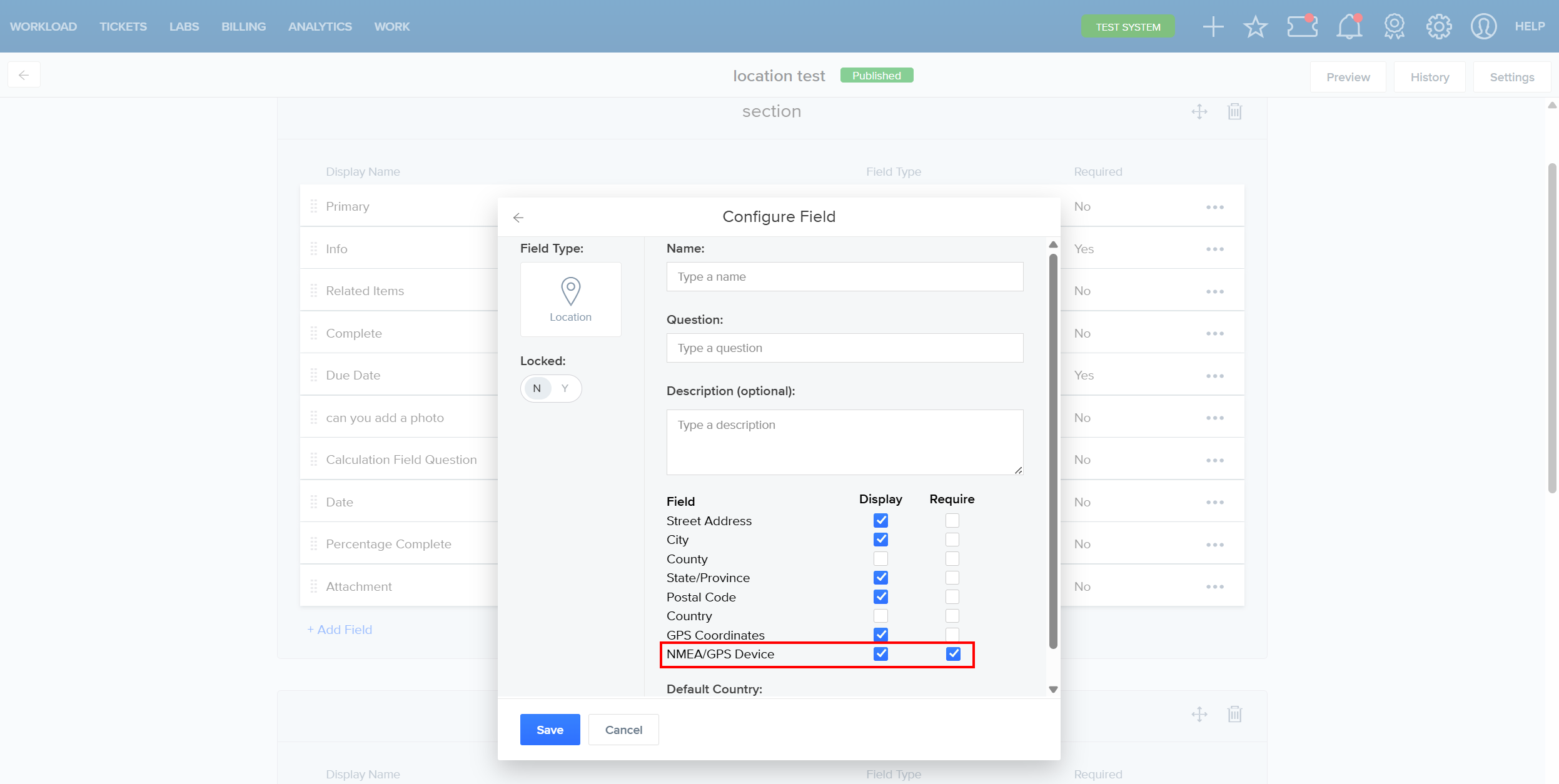
- Save the form.
Configure the Screen Layout
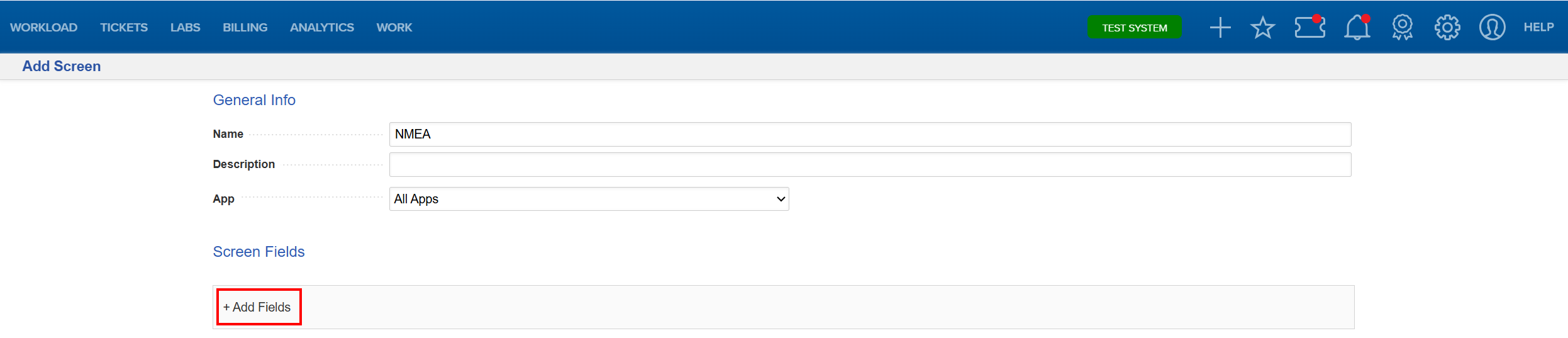
- Navigate to System Management > Administration > Work Management > Screen Configuration
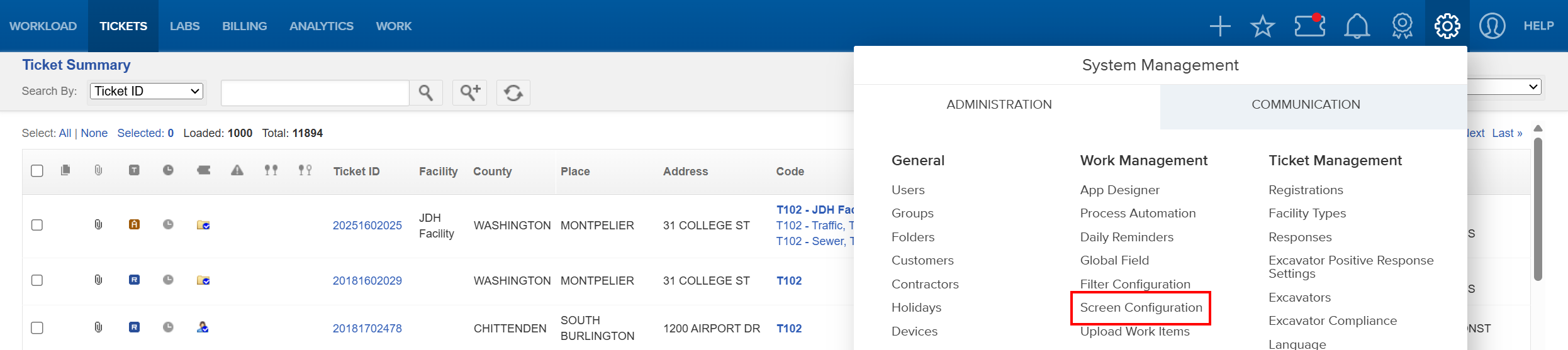
- Select Add a Screen, or open an existing screen to modify.

- Click + Add Fields.
- Select Location Detail Type and Location Detail to expose the GPS-related fields.
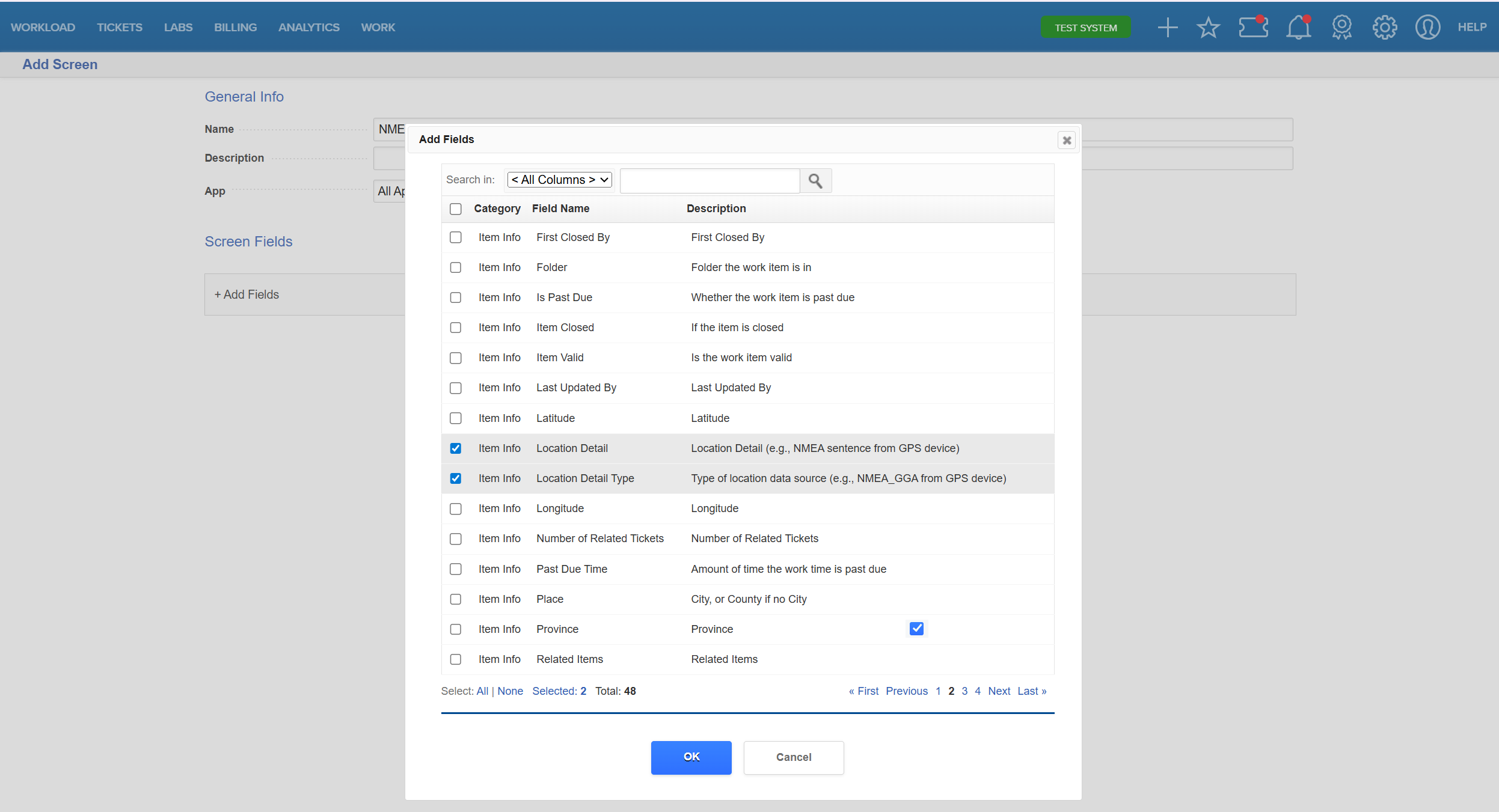
- Click OK and Save the screen configuration.
Use the Feature in Work Items
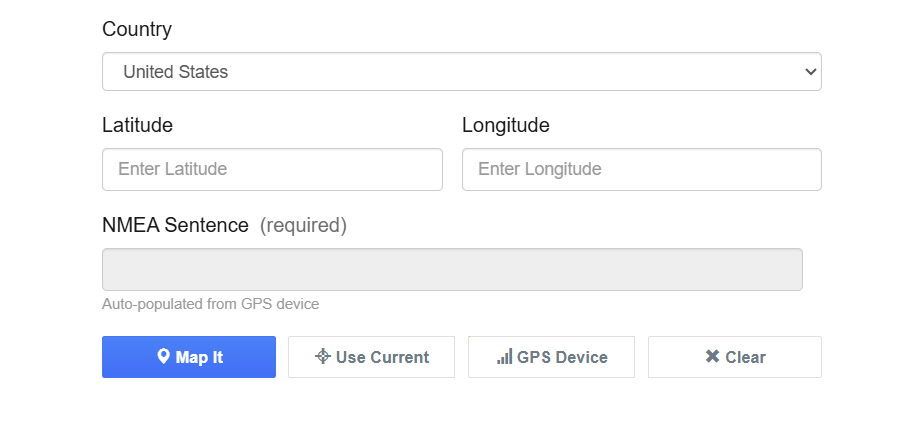
Once configured, the device's location services will automatically populate the configured Work Item fields with the full NMEA GGA sentence.
FAQ/Troubleshooting:
Q: What GPS data is captured with this feature?
A: The full NMEA GGA sentence is ingested rather than only latitude and longitude.
Q: Where is the GPS device option configured?
A: It is enabled in App Designer by selecting the NMEA/GPS Device field on a form.
Q: Is this supported on mobile and web?
A: Yes, it is available in Full Web, New Mobile, and Old Mobile.
Questions? Contact us!

Was this article helpful?
That’s Great!
Thank you for your feedback
Sorry! We couldn't be helpful
Thank you for your feedback
Feedback sent
We appreciate your effort and will try to fix the article