Trimble Mobile Manager (TMM) Integration
Purpose/Overview
In this article, you will learn how to connect and manage a Trimble GNSS receiver using Trimble Mobile Manager (TMM) within the Irth Mobile app. This integration enables high-accuracy GPS positioning when working in the field and provides real-time connection status, device details, and troubleshooting tools directly from your task screen.
Navigation Path:
To access this feature, go to: Irth Mobile > Action Bar
Things to Know:
Available on both iOS and Android devices, including phones and tablets.
Requires the Trimble Mobile Manager (TMM) app to be installed on the same device as Irth Mobile.
A compatible Trimble GNSS receiver must be paired with TMM and powered on.
Irth Mobile must have location and Bluetooth permissions enabled.
Connection status is displayed directly on the task action bar.
GPS connection events are tracked automatically and retained between sessions.
Trimble and Trimble Mobile Manager are trademarks of Trimble Inc.
Key Benefits/Use Cases:
- Capture more accurate GPS positions using supported Trimble GNSS receivers.
- Monitor receiver connectivity without leaving their current task.
- Quickly identify and resolve GPS connection issues.
- View receiver battery levels and connection history.
- Reconnect to a receiver without restarting Irth Mobile.
- Continue field work with confidence using high-precision location data.
How It Works:
Before You Begin
Before using the Trimble Mobile Manager integration:
- Install Trimble Mobile Manager (TMM) on your mobile device by going to the App Store for iOS devices or Google Play for Android devices.
- Pair a supported Trimble GNSS receiver with TMM.
- Verify the receiver is powered on and connected.
- Allow all requested Bluetooth and location permissions in Irth Mobile.
When you open a task, the task action bar displays a TMM status indicator next to the Update and Camera buttons.
The indicator updates automatically as the connection status changes.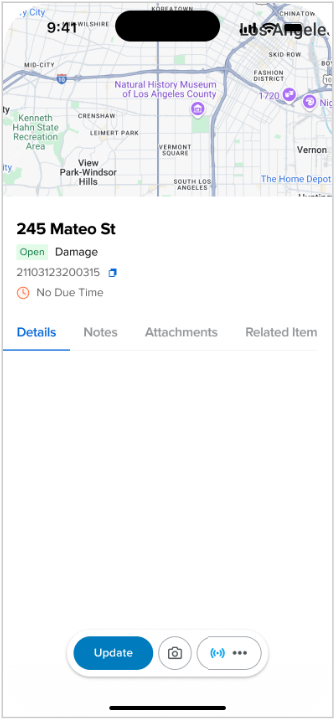
| Status Indicators | Meaning |
 | Blue Signal Indicator: TMM is connected and ready to provide high-precision GPS data. |
 | Red Signal Indicator: TMM is disconnected or experiencing an error. |
Access the TMM Panel
To view connection details:
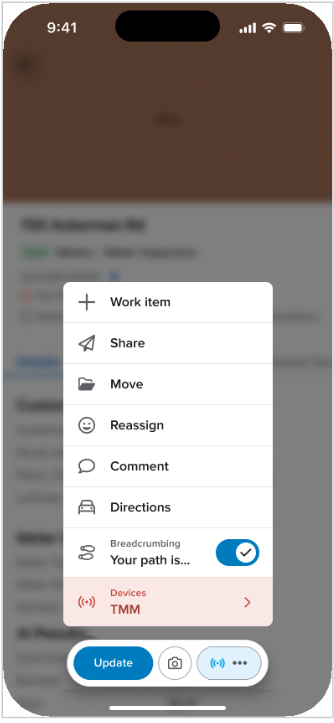
- Open a task.
- Tap the More (...) menu on the task action bar.
- Select Devices > TMM.
Connection Status Information
The connection screen provides real-time information about the status of the connection between the mobile device and the Trimble receiver.
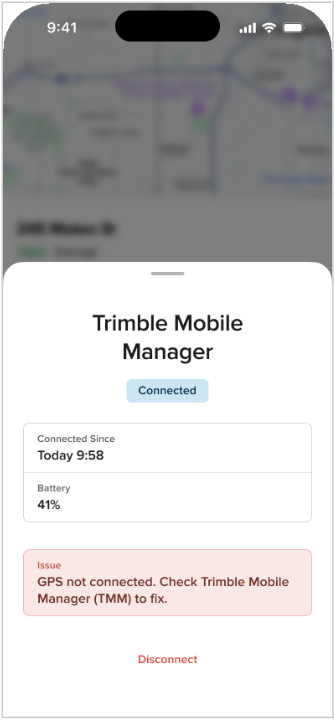
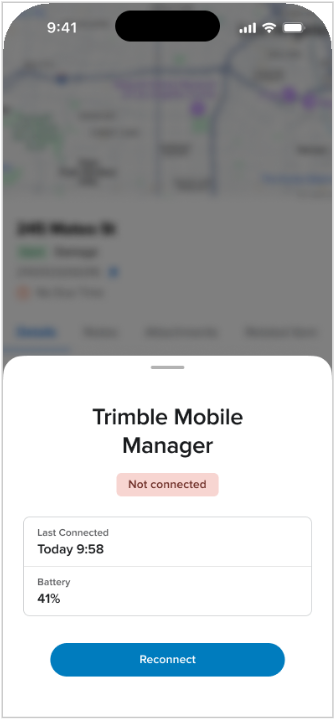
When a connection is active, the status displays Connected in blue. If communication with the receiver has been lost or has not been established, the status displays Not Connected in red.
| Connected | Not Connected |
 |  |
The screen may include the following information and actions:
- Status Badge indicates whether the receiver is currently connected or not connected.
- Connected Since shows when the current connection session began.
- Last Connected displays the most recent connection timestamp when the receiver is disconnected.
- Battery Level shows the remaining battery percentage of the connected Trimble receiver, when available.
- Issue Banner displays GPS connection warnings along with troubleshooting guidance to help resolve connectivity issues.
- Disconnect ends the current connection session between the mobile device and the Trimble receiver.
- Reconnect attempts to re-establish communication with the Trimble Mobile Manager (TMM) application and the receiver.
This information helps users quickly verify connection health, monitor receiver status, and troubleshoot GPS connectivity issues when working in the field.
Irth Mobile automatically records connection and disconnection events to maintain accurate connection history information.
Disconnect from a Receiver
To end an active TMM session:
- Open the TMM panel.
- Tap Disconnect.
- Confirm the status changes to Not Connected.
- Verify the task action bar indicator changes to red.
Once disconnected, Irth Mobile stops receiving GPS positions from the Trimble receiver.
Reconnect to a Receiver
To restore a connection:
- Open the TMM panel.
- Tap Reconnect.
- Irth Mobile briefly opens Trimble Mobile Manager to re-establish the connection.
- Return to the task screen.
- Verify the status changes to Connected and the action bar indicator changes to blue.
The Connected Since timestamp updates automatically when a new connection is established.
Troubleshooting
The TMM icon is red
Possible Cause: The receiver is disconnected or communication has been interrupted.
Resolution:
- Open the TMM panel.
- Tap Reconnect.
- Verify the connection status changes to Connected.
GPS Not Connected Warning Appears
Possible Cause: GPS positions are not currently being received from the receiver.
Resolution:
- Open the Trimble Mobile Manager app.
- Confirm the receiver is powered on.
- Verify the receiver is paired and connected.
- Confirm the receiver is actively receiving positions.
- Return to Irth Mobile.
Reconnect Does Not Restore Connectivity
Possible Causes:
- TMM is not installed.
- TMM is outdated.
- Bluetooth is disabled.
- The receiver is out of range.
- The receiver battery is depleted.
Resolution:
- Verify TMM is installed and updated.
- Ensure Bluetooth is enabled.
- Move closer to the receiver.
- Confirm the receiver has sufficient battery power.
- Retry the Reconnect action.
No Device Connections Is Displayed
Possible Cause: A Trimble receiver has not been configured on the device.
Resolution:
- Install Trimble Mobile Manager.
- Pair a supported Trimble GNSS receiver.
- Ensure the receiver is powered on.
- Reopen the Devices menu.
Battery Level Is Low
Recommendation: Charge or replace the receiver battery before beginning location-critical work to avoid interruptions during field activities.
FAQ/Troubleshooting:
Q: Do I need to leave my task to view TMM information?
A: No. Connection status and device information are available directly from the task screen.
Q: Can I reconnect without restarting Irth Mobile?
A: Yes. The Reconnect option allows you to restore connectivity without restarting the application.
Q: Is the integration available on both Android and iOS?
A: Yes. The TMM integration is supported on both Android and iOS devices.
Q: What happens if my receiver disconnects?
A: The status indicator changes to red and warning messages appear to help you diagnose and correct the issue.
Q: Does Irth Mobile track connection history?
A: Yes. The application records connection and disconnection events and displays Connected Since and Last Connected timestamps.
Questions? Contact us!

Was this article helpful?
That’s Great!
Thank you for your feedback
Sorry! We couldn't be helpful
Thank you for your feedback
Feedback sent
We appreciate your effort and will try to fix the article