Time Tracking in Irth Mobile
Purpose/Overview
Note: The current release supports basic time tracking only. Advanced time tracking features, including batch actions and other advanced workflows, are planned for a future update. |
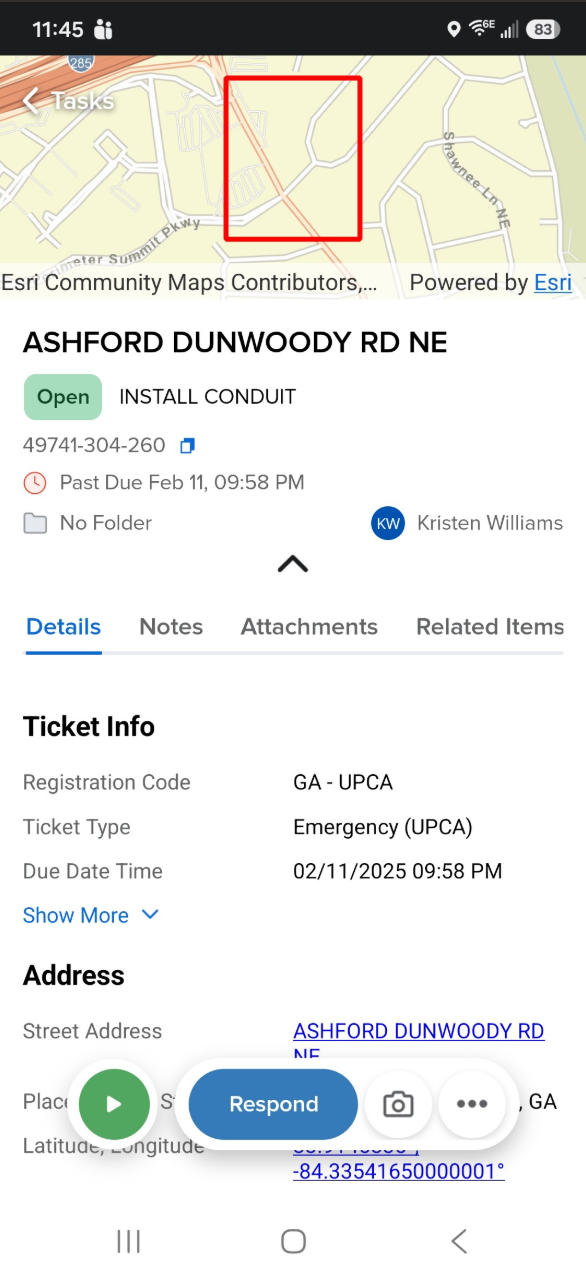
Navigation Path:
Things to Know:
- Basic time tracking is supported in the current release of Irth Mobile. Advanced time tracking capabilities and batch actions are not yet available.
- Time tracking behavior is consistent across supported mobile platforms.
- The timer continues running after a ticket response is sent. Users must manually stop the timer when work is complete.
- Adding comments, uploading attachments, or updating ticket information does not stop the timer.
- The only way to end a running timer is by selecting the Stop Timer button.
Key Benefits/Use Cases:
- Track Time Spent on Ticket Work: Accurately record the amount of time spent investigating, updating, and resolving tickets.
- Continue Work After Responding: Respond to a ticket while keeping the timer active to account for additional comments, attachments, or follow-up activities.
- Simple Time Tracking Workflow: Easily start and stop a timer directly from a ticket without requiring advanced time-tracking configurations.
How It Works:
Follow these steps to track time on a ticket:
- Navigate to the ticket you will be working on within Irth Mobile.
- Tap the Start Timer button to begin tracking time. The timer remains active until it is manually stopped.
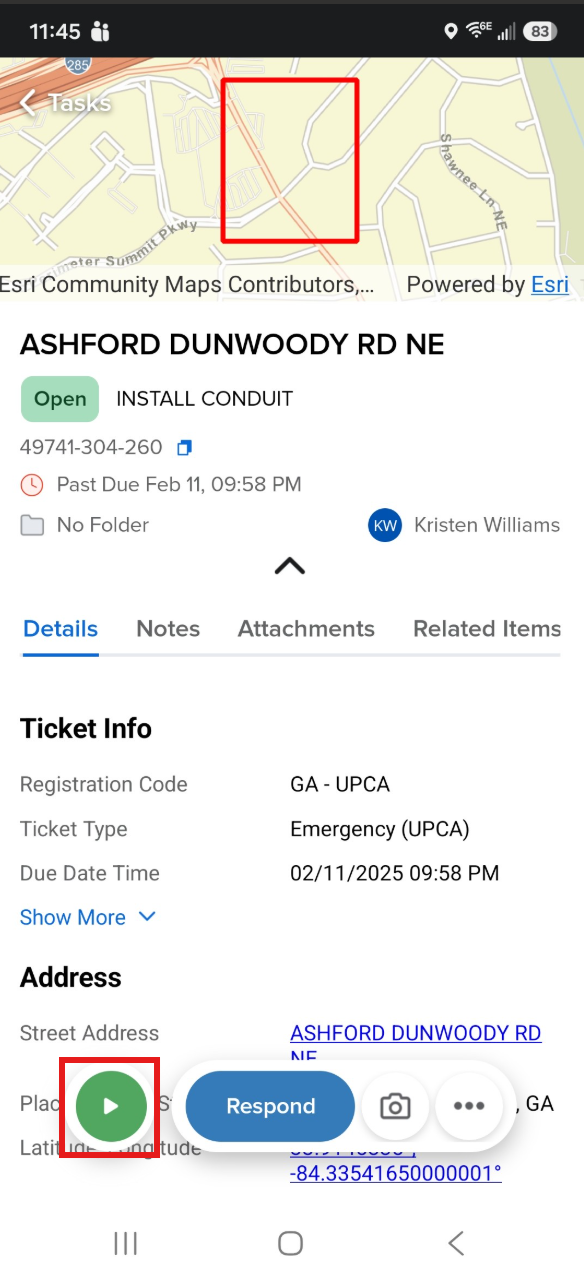
- Continue working on the ticket as needed. You can add comments, upload attachments, update ticket information, and send responses while the timer is running.
- If you send a response to the ticket, the timer will continue running. This behavior is intentional and allows you to perform additional work after responding.
- When all work is complete, tap the Stop Timer button, then tap Done with this task to end time tracking and record the elapsed time.
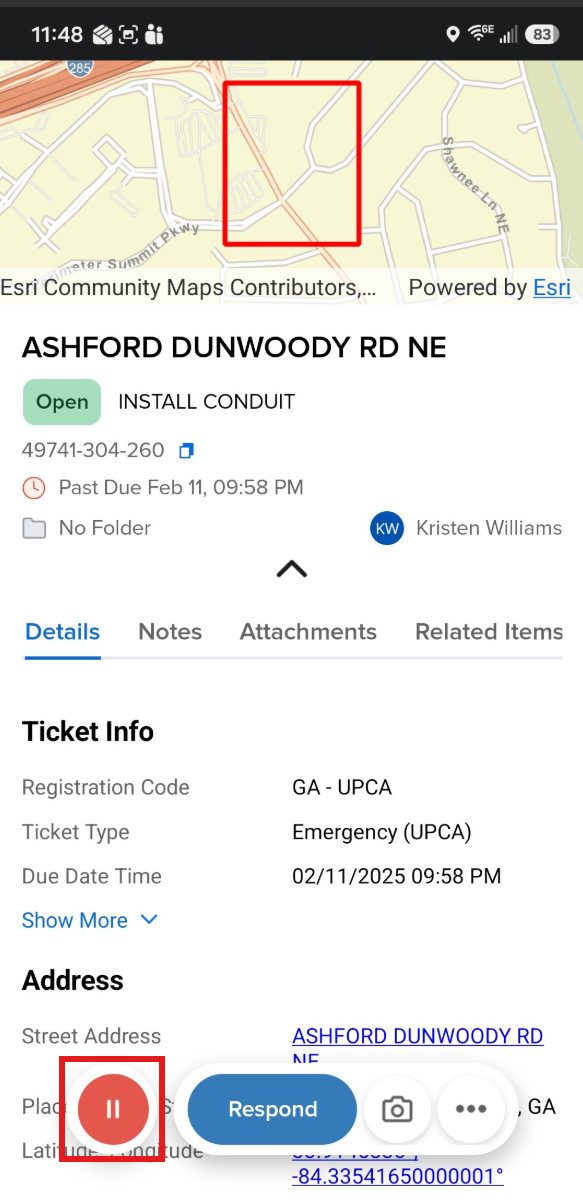
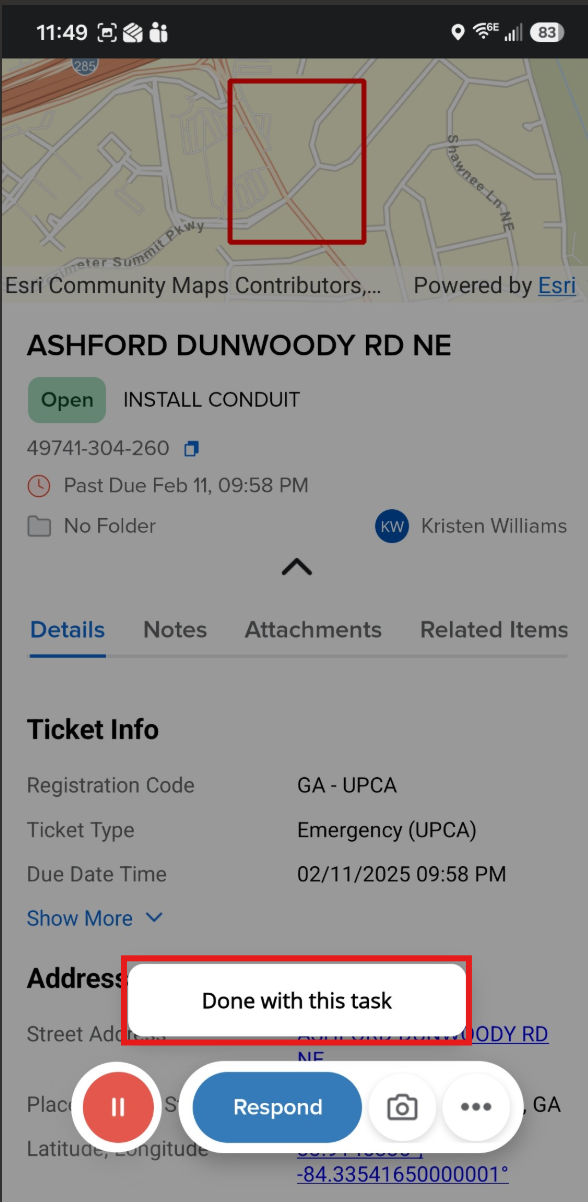
Important: Sending a ticket response does not stop the timer. Users must manually select Stop Timer when they have finished all work associated with the ticket.
FAQ/Troubleshooting:
Q: Why is my timer still running after I responded to a ticket?
A: This is expected behavior. Sending a ticket response does not stop time tracking. The timer remains active so you can continue working on the ticket, including adding comments, attachments, or other updates.
Q: How do I stop a running timer?
A: Tap the Stop Timer button on the ticket. This is the only action that ends time tracking.
Q: Does uploading an attachment or adding a comment stop the timer?
A: No. The timer will continue running until you manually select Stop Timer.
Questions? Contact us!

Was this article helpful?
That’s Great!
Thank you for your feedback
Sorry! We couldn't be helpful
Thank you for your feedback
Feedback sent
We appreciate your effort and will try to fix the article