Guided Workflow
Purpose/Overview
In this article, we cover the Guided Workflow feature, which introduces a structured Start → Drive → Arrive → Work → Stop process for locate request tickets. This feature gives field locators a consistent, guided way to start work on a ticket, automatically track travel time and work time, and give supervisors clear visibility into ticket activity directly from the Locate Requests grid. It solves inconsistent or manual time tracking by automating timer start/stop actions as the user moves through the ticket lifecycle. It is intended primarily for field locators who process locate request tickets, as well as supervisors and administrators who need to monitor time spent on tickets and workload distribution.
Navigation Path:
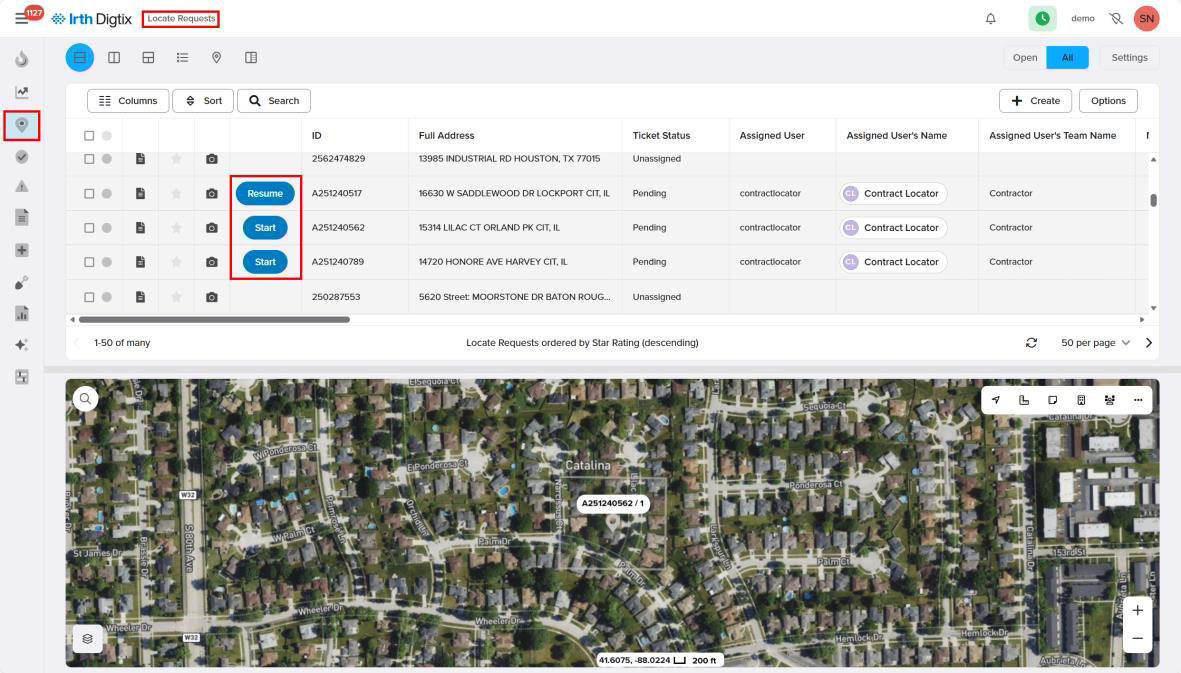
To access this feature: Locate Requests grid > Start button (on a ticket row or within an open ticket)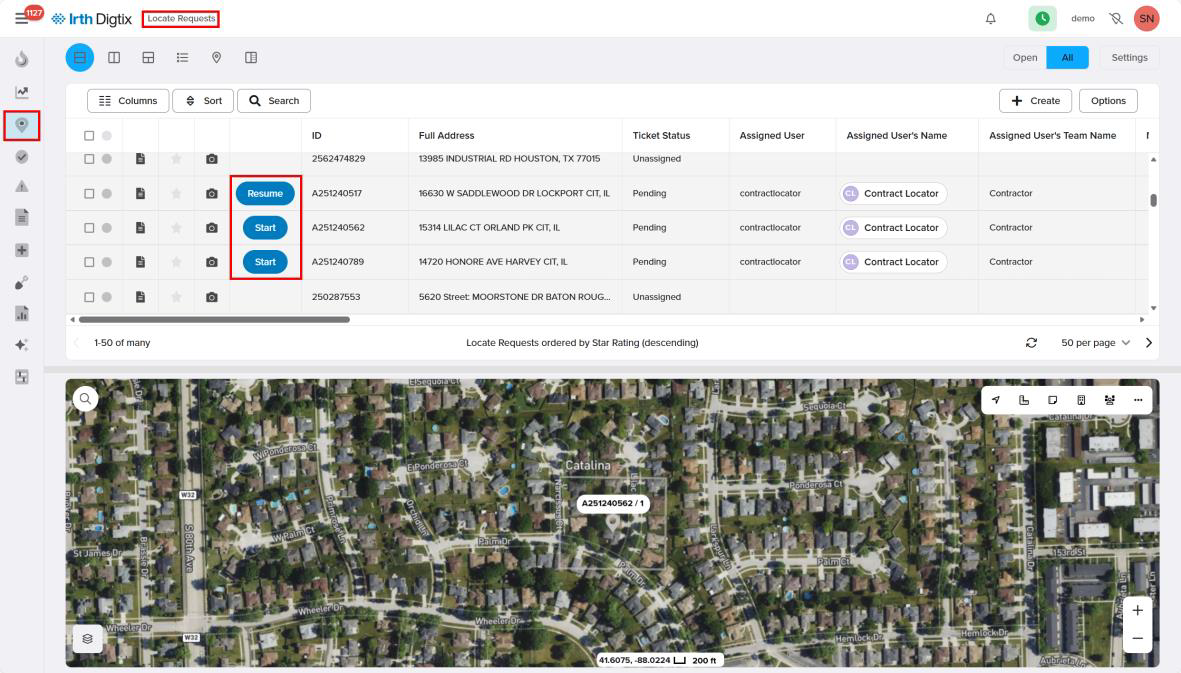
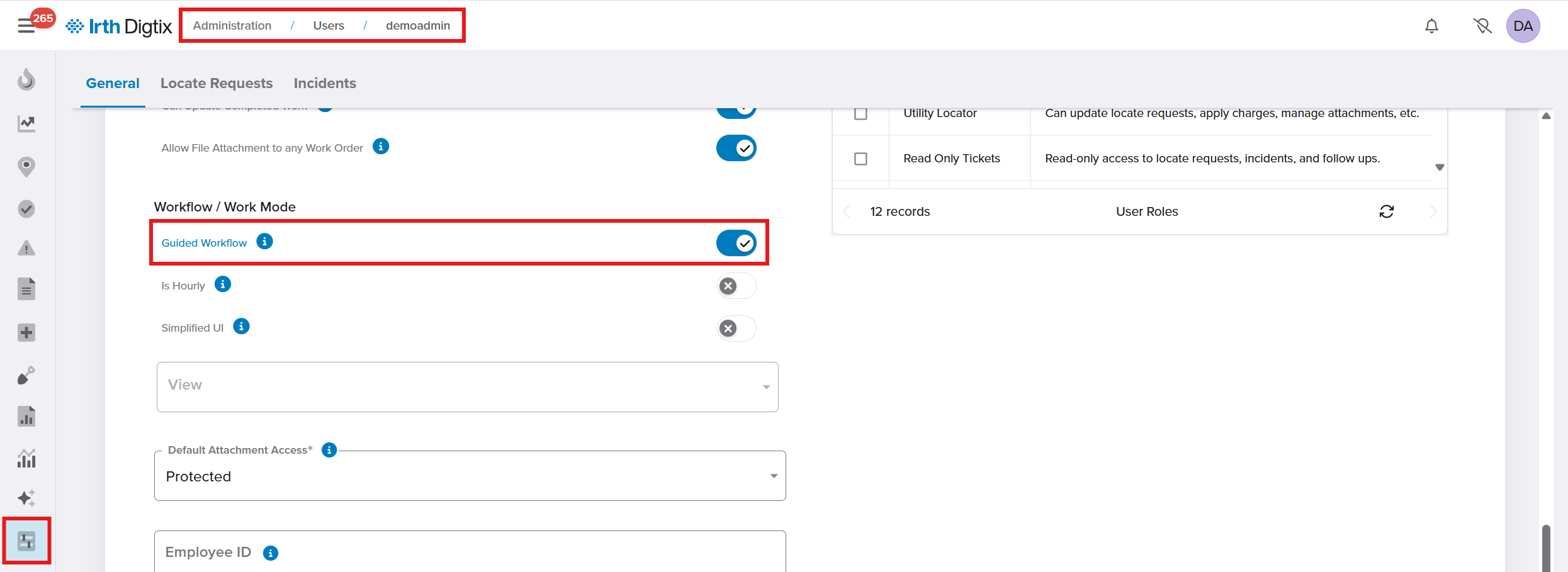
Administrators enable the feature per user at: Administration > Users > [User] > General tab > Workflow / Work Mode > Guided Workflow toggle
Things to Know:
- Guided Workflow is disabled by default and must be enabled per user by an administrator with permission to manage users.
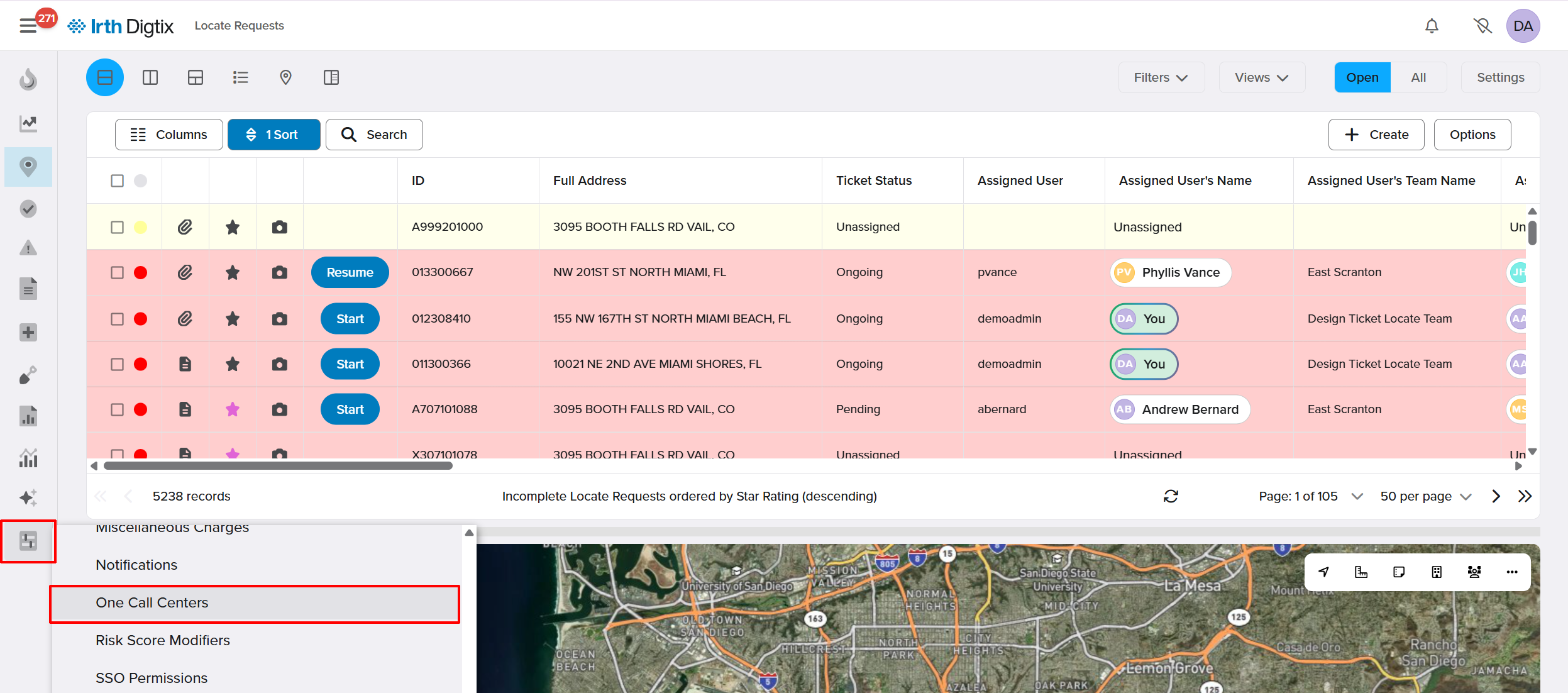
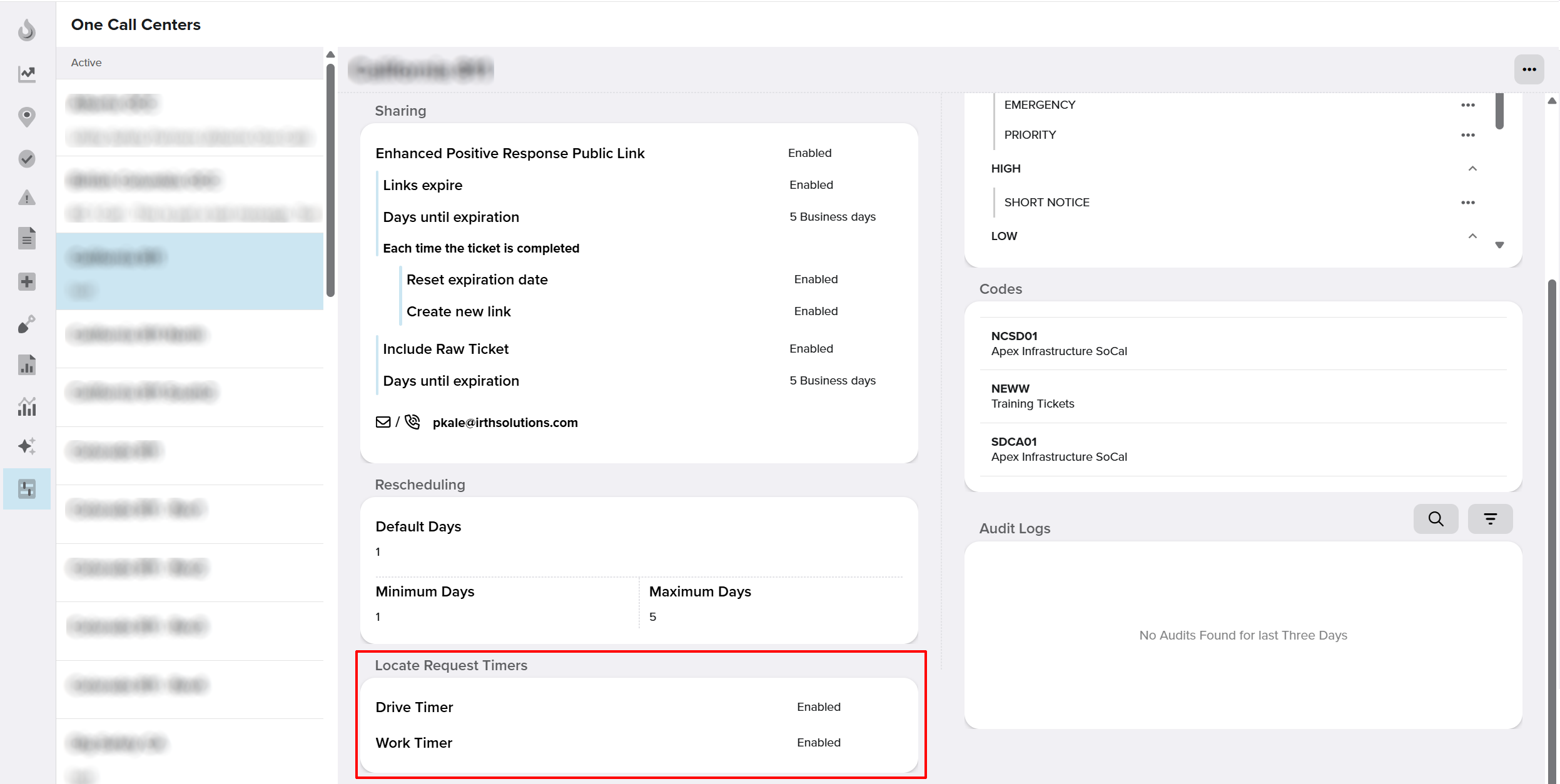
- Timer actions (Start/Stop) only function if the user's One Call Center has the Drive Timer and Work Timer permissions enabled.
- Users in this workflow do not have visibility into the Drive/Work Timers displayed at the top of the Work tab.
- Timers automatically stop if the user leaves the ticket screen unexpectedly — including closing the browser, navigating to another URL, using the browser back button, logging out, clocking out, or marking the ticket Completed.
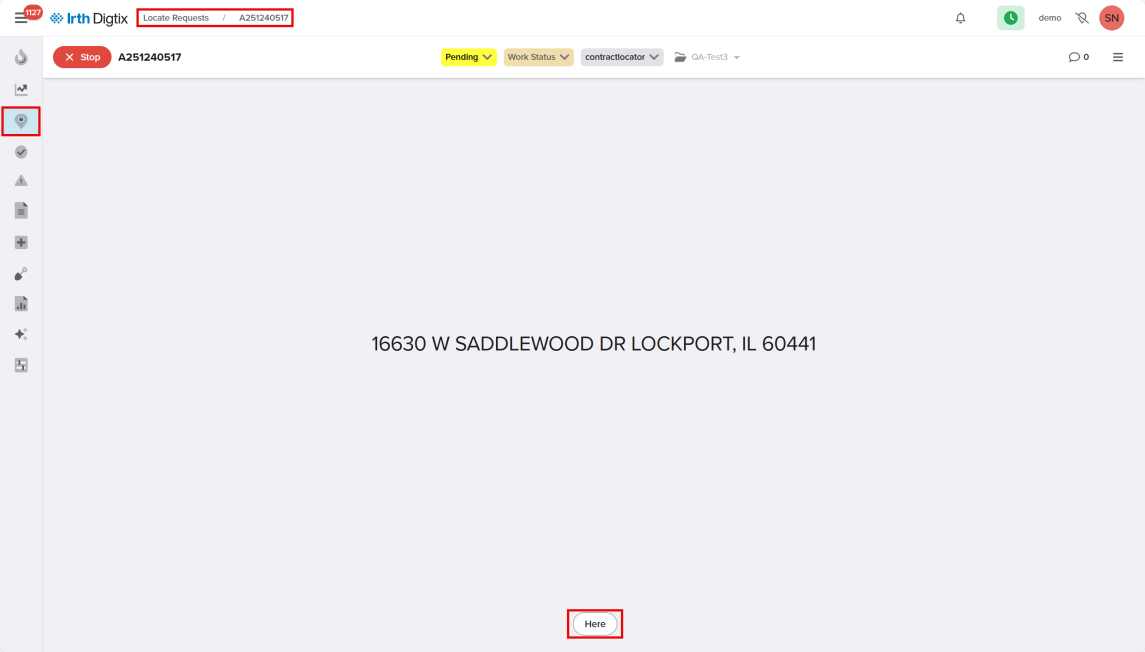
- While in the intermediate "traveling" screen, only limited ticket actions are available: Reassign Ticket, Update Ticket Status, Reschedule, and Acknowledge. All other actions and tabs are disabled until arrival is confirmed.
- This feature applies to the New UI of Digtix only.
Key Benefits/Use Cases:
- Accurate travel and work time tracking: Field locators no longer need to manually log travel vs. work time — the system automatically starts and stops the Drive Timer and Work Timer based on their actions, reducing time-entry errors.
- Supervisor visibility into field activity: Supervisors and administrators can monitor ticket progress and time spent per ticket in real time from the Locate Requests grid, improving oversight of field teams.
- Reduced accidental timer errors: Automatic safeguards (stopping timers on browser close, logout, clock-out, or ticket completion) prevent timers from running unintentionally, leading to cleaner, more reliable time data for payroll and productivity reporting.
How It Works:
Follow these steps to set up or use the Guided Workflow:
- Enable the permission: Ensure the user's One Call Center has the Drive Timer and Work Timer permissions enabled so timer actions can be recorded.
- Enable Guided Workflow for the user: An administrator navigates to Administration > Users > [User] > General tab and turns on the Guided Workflow toggle under Workflow / Work Mode.
- Start the ticket: The user clicks Start on a ticket from the Locate Requests grid or opens the ticket. An intermediate travel screen appears and the Drive Timer begins automatically.
- Confirm arrival: When the user reaches the job site, they click Here to confirm arrival. This stops the Drive Timer, starts the Work Timer, and automatically opens the Locate Request Details screen.
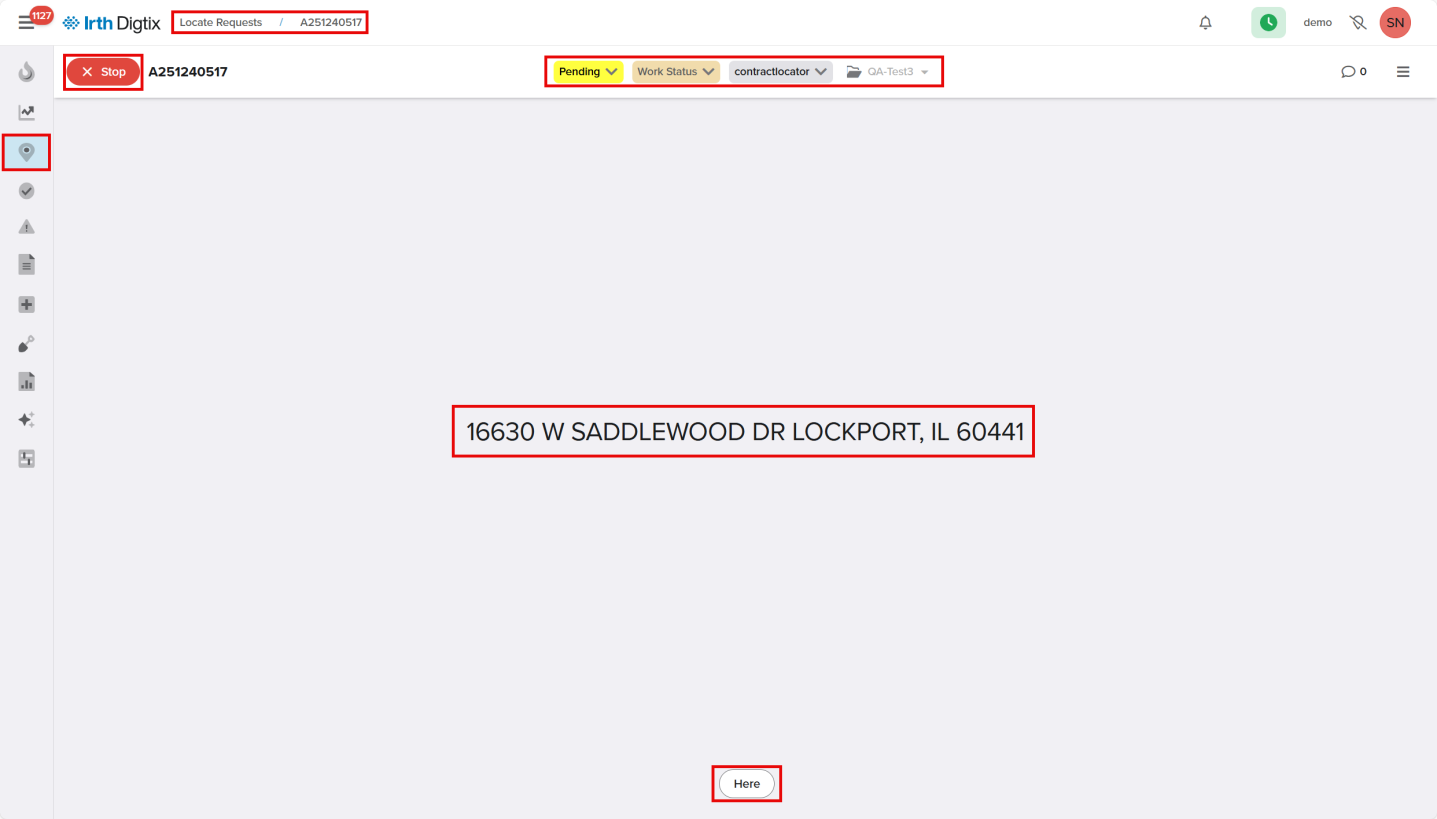
- Complete or stop the ticket: The user clicks Stop in the upper-left corner or updates the ticket status to Completed. Either action stops the Work Timer and returns the user to the Locate Requests grid.
- (Optional) Display time data in the grid: Supervisors can enable the Display Ticket Work Time Info toggle in the Columns menu of the Locate Requests grid to show the Time Tracked and Users On Task columns.
FAQ/Troubleshooting:
Q: Why can't a user see the Drive Timer or Work Timer? A: Users operating under Guided Workflow do not have visibility into the timers at the top of the Work tab by design; only supervisors/admins can view time totals via the Locate Requests grid columns.
Q: What happens if a user closes their browser mid-ticket? A: The timer automatically stops. This is one of several built-in safeguards (also triggered by logout, clock-out, navigating away, or using the back button) to prevent timers from running unintentionally.
Q: Why isn't the Start/Stop button working for a user? A: Confirm the user has Guided Workflow enabled on their profile and that the One Call Center has the Drive Timer and Work Timer permissions enabled. Without both, timer actions will not function.
Q: Can a user see time tracked on tickets they didn't work on? A: Yes, if a supervisor or administrator enables the Display Ticket Work Time Info column toggle, the Time Tracked and Users On Task columns are visible on the Locate Requests grid for all tickets.
Questions? Contact us!

Was this article helpful?
That’s Great!
Thank you for your feedback
Sorry! We couldn't be helpful
Thank you for your feedback
Feedback sent
We appreciate your effort and will try to fix the article