Responsibility Wizard
Purpose/Overview
In this article, you will learn about the Responsibility Wizard, a tool designed to simplify the process of creating and managing responsibility workflows. The wizard consolidates multiple configuration screens into a single, streamlined experience, making it easier to build and maintain automated processing rules.
The Responsibility Wizard is available for customers who have auto-processing configured and provides a more intuitive alternative to the traditional setup process.
Navigation Path:
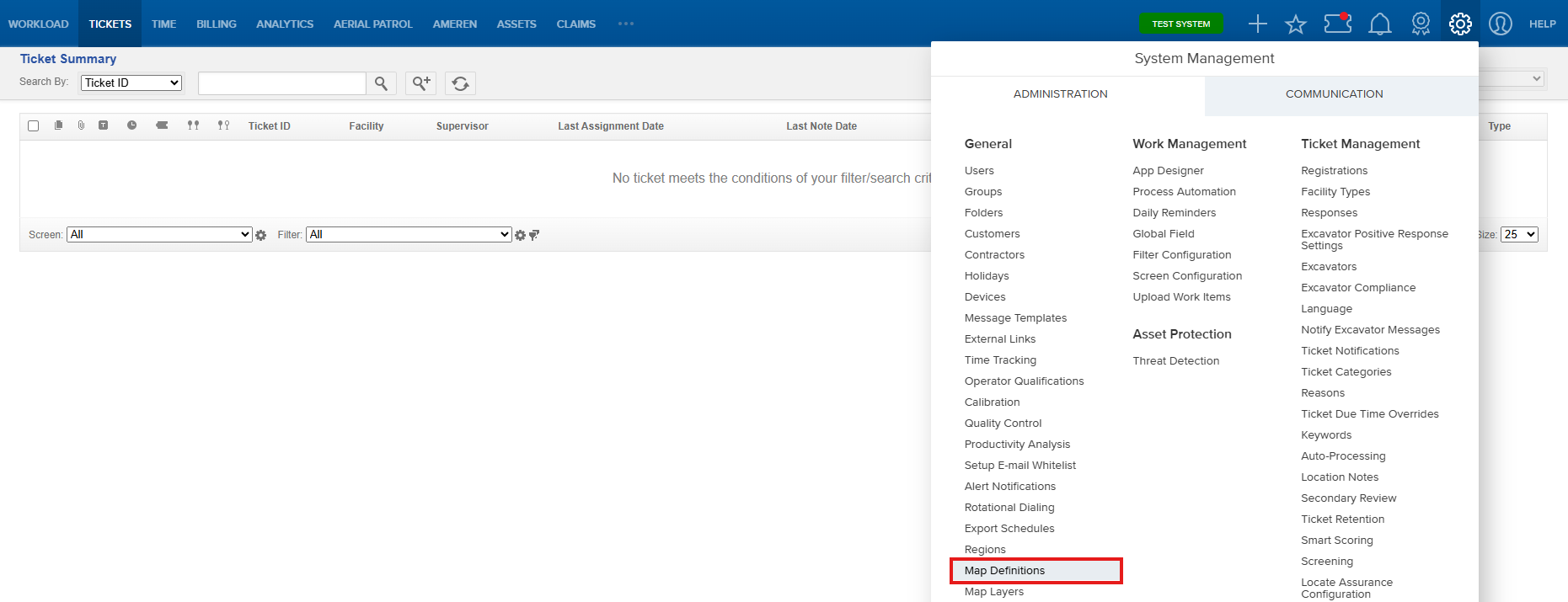
To access this feature, go to: Utilisphere > System Management > Administration > General > Map Definitions
Things to Know:
- The Responsibility Wizard is available for customers with auto-processing enabled.
- The wizard does not replace the existing responsibility configuration process.
- The traditional setup screens remain available for users who prefer the existing workflow.
- Some functionality, such as customer and facility selection options, may vary depending on your organization's configuration.
Key Benefits/Use Cases:
- Consolidated Experience: Previously, creating responsibility workflows required navigating through several different screens and interfaces. The Responsibility Wizard brings those configuration steps together in a single location.
- Easier Maintenance: By simplifying the setup process, organizations can create and manage responsibility workflows more efficiently and with less training.
- Improved User Experience: The wizard is designed to make a complex configuration process easier to understand and complete.
How It Works:
- Navigate to System Management > Administration > General > Map Definitions.
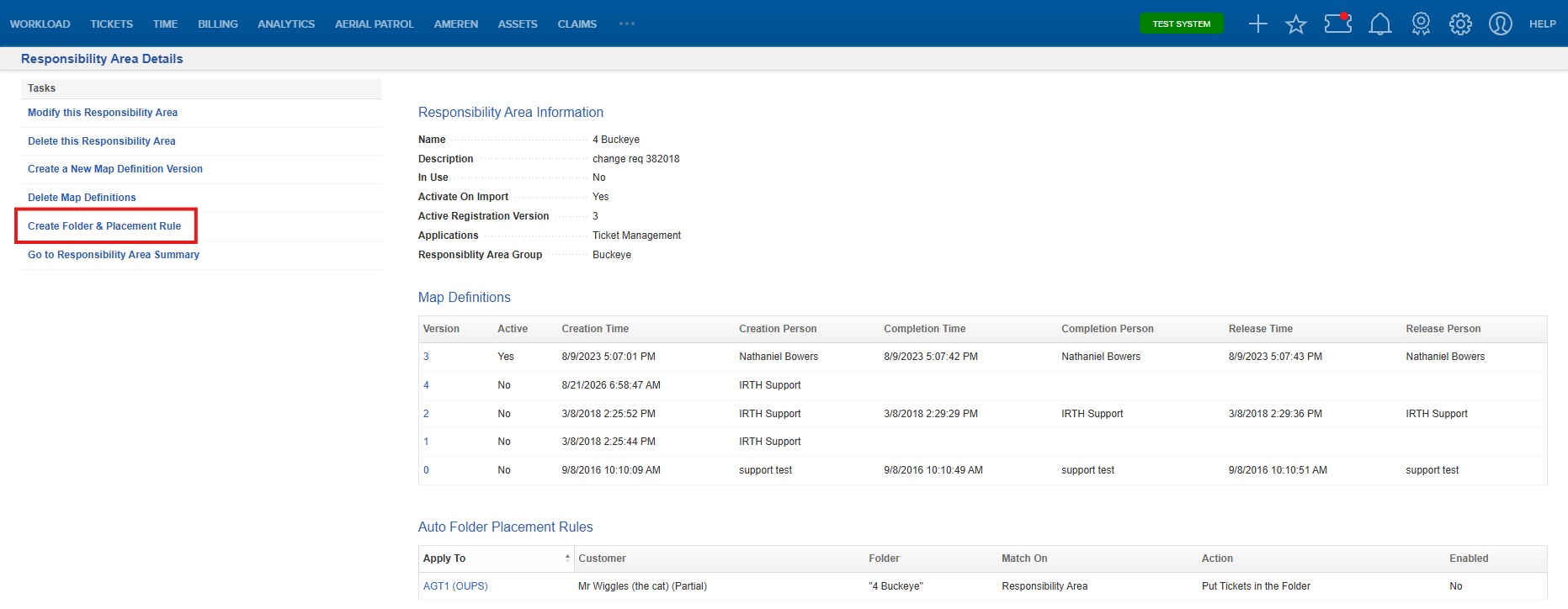
- Select Responsibility Area.

- Choose the responsibility area you want to work with.

- Select Create Folder & Placement Rules.
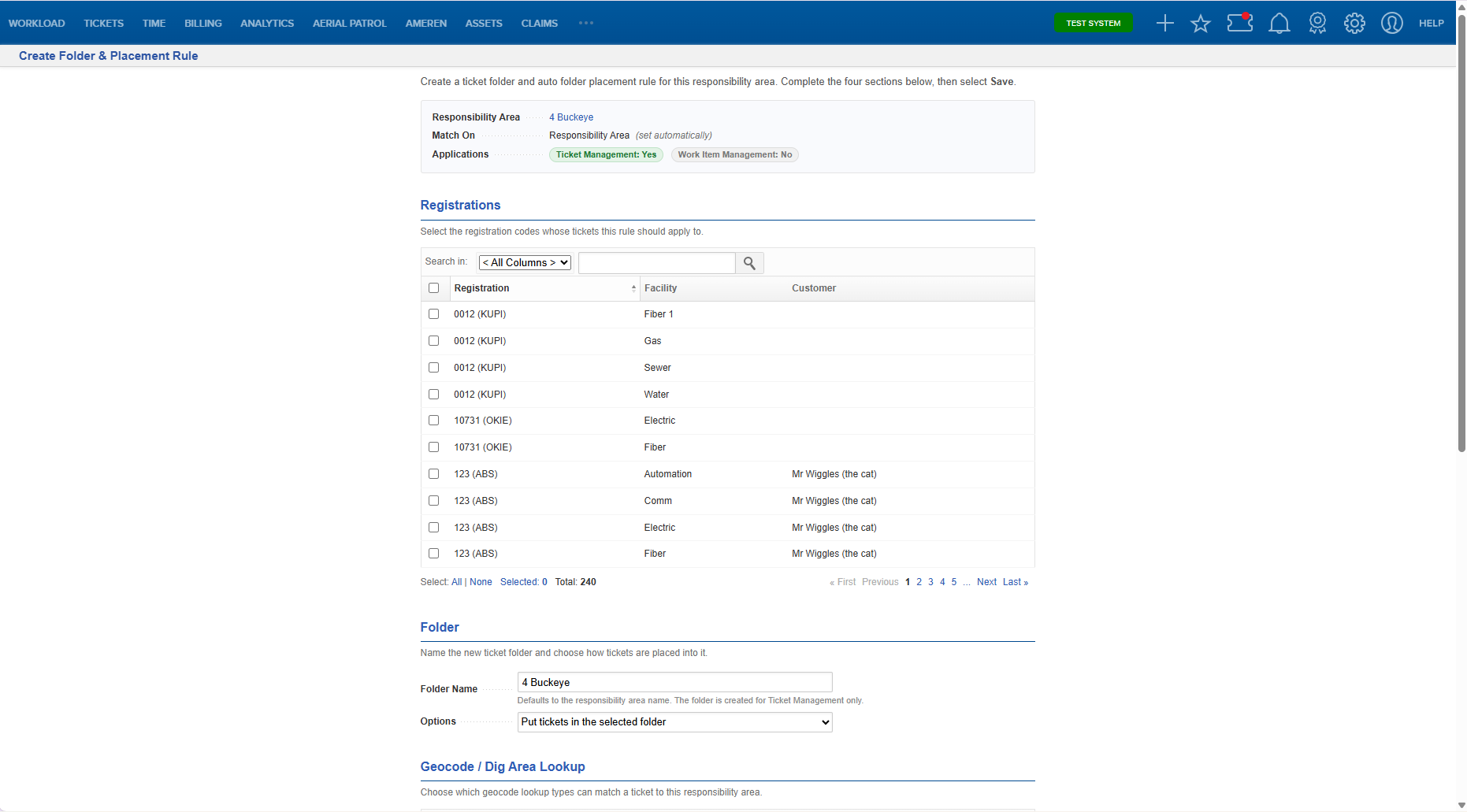
- You are now in the Responsibility Wizard. Select the appropriate options for your workflow, review your configuration, and then click Save to complete the setup.
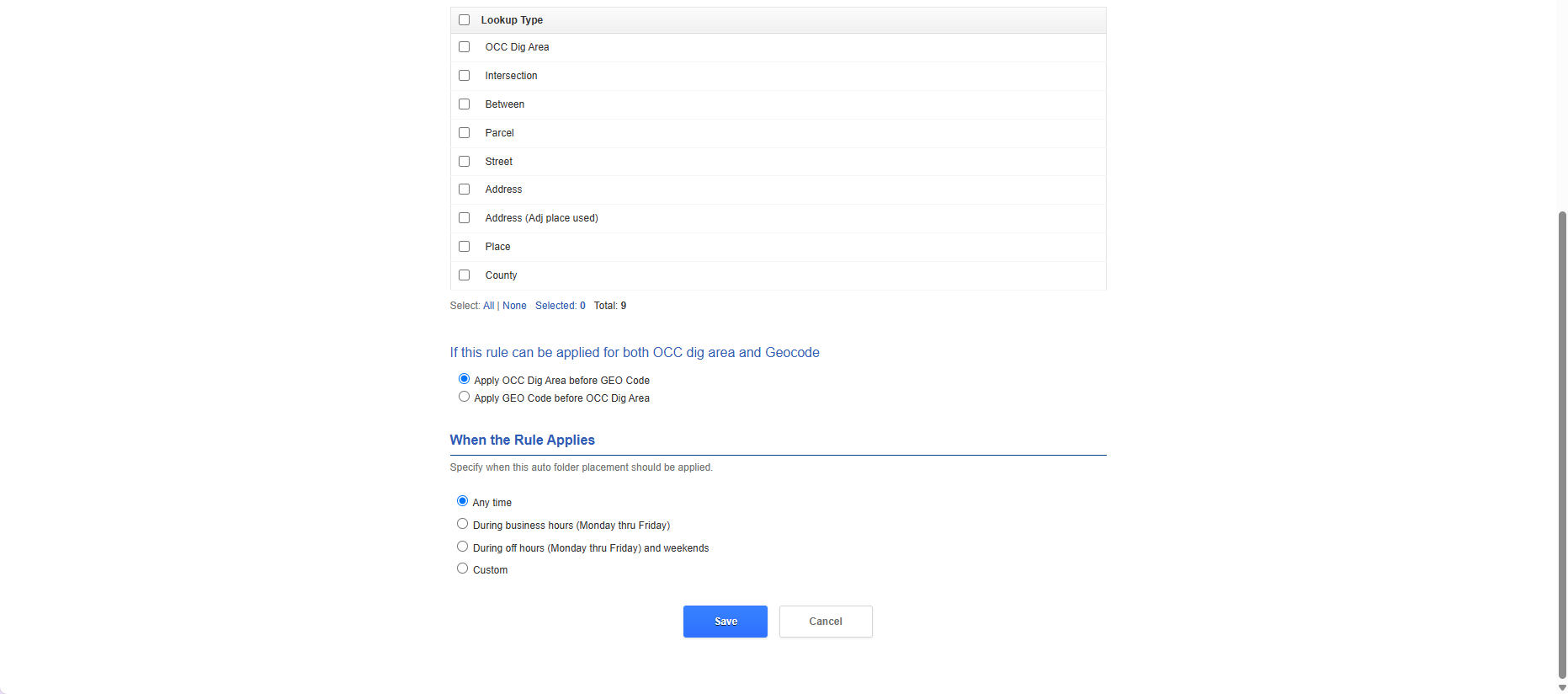
- Once completed, the responsibility workflow is available for use and can be managed from the Responsibility Area Details screen.
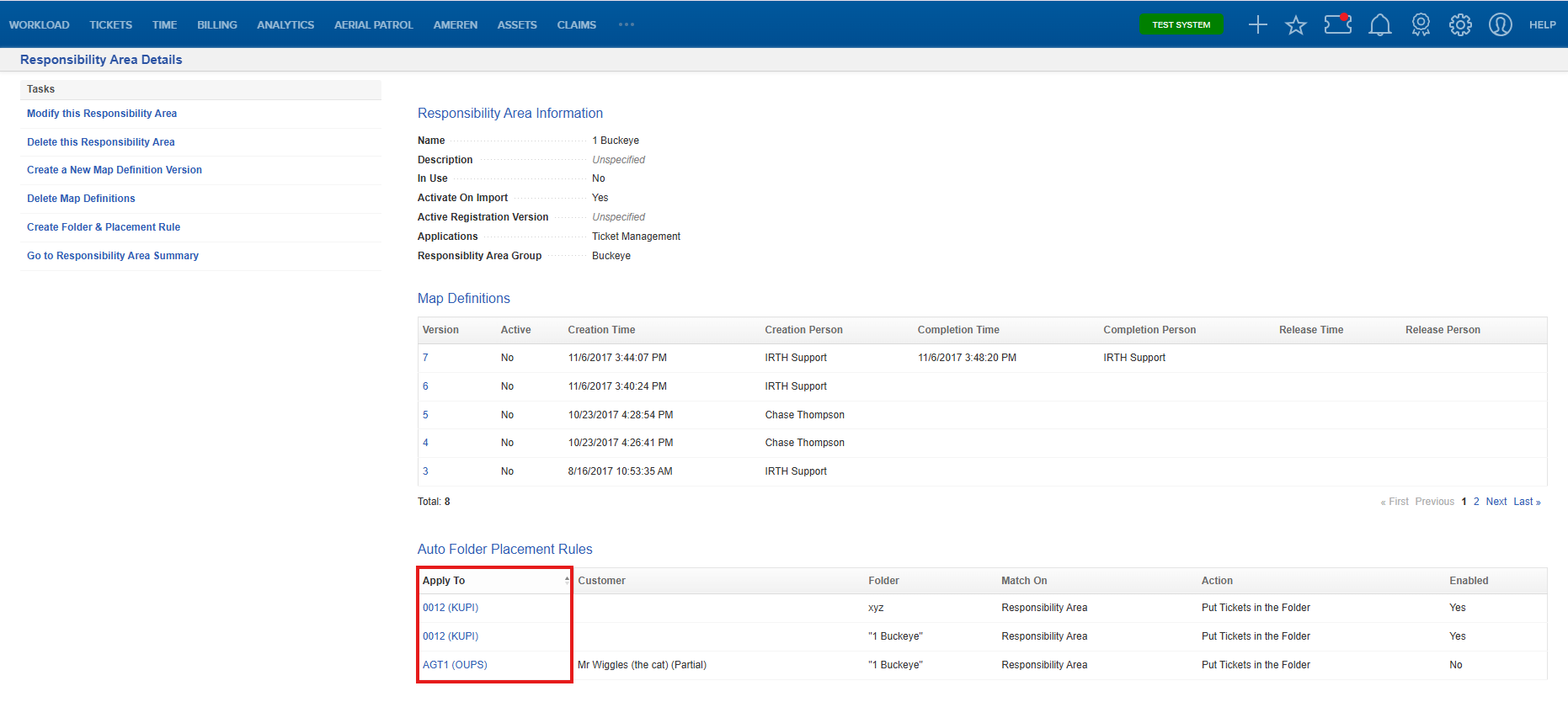
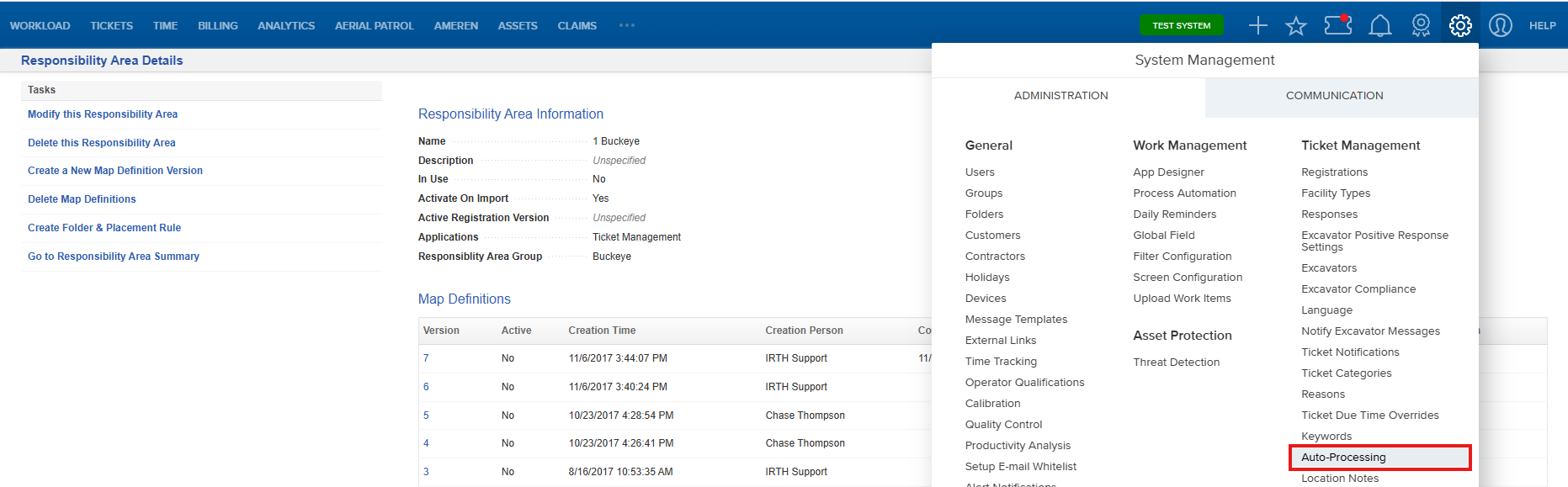
Note: The existing configuration method remains available. To view or manage your Auto Folder Placement rules, navigate to System Management > Administration > Ticket Management > Auto Processing and select Auto Folder Placement. ;etoN |
FAQ/Troubleshooting:
Q: Does the Responsibility Wizard replace the existing setup process?
A: No. The traditional responsibility configuration screens remain available. The wizard provides an easier, guided alternative for completing the same setup tasks.
Q: Who can use the Responsibility Wizard?
A: The wizard is intended for customers who have auto-processing enabled within their environment.
Q: Why should I use the wizard instead of the traditional method?
A: The wizard consolidates multiple configuration screens into a single workflow, making setup easier and more efficient.
Q: Will all users see the same options in the wizard?
A:. Not necessarily. Available options may vary based on your organization's configuration and permissions.
Questions? Contact us!

Was this article helpful?
That’s Great!
Thank you for your feedback
Sorry! We couldn't be helpful
Thank you for your feedback
Feedback sent
We appreciate your effort and will try to fix the article