iOS Camera Media Format Compatibility
Purpose/Overview
In this article, you will learn how to configure an iPhone or iPad to capture photos and videos in formats supported by Utilisphere.
Newer Apple devices may capture photos in High Efficiency Image Format (HEIF), typically saved with the .HEIC file extension, and videos in High Efficiency Video Coding (HEVC). Currently, Utilisphere does not support HEIC files. Attempting to upload or sync unsupported media may result in a sync error.
Changing the device’s camera format to Most Compatible allows the device to capture new photos as JPG files and videos using H.264. This setting is intended for field users who use an iPhone or iPad to capture and attach media in UtiliSphere.
Navigation Path:
To access this feature: iOS Settings > Camera > Formats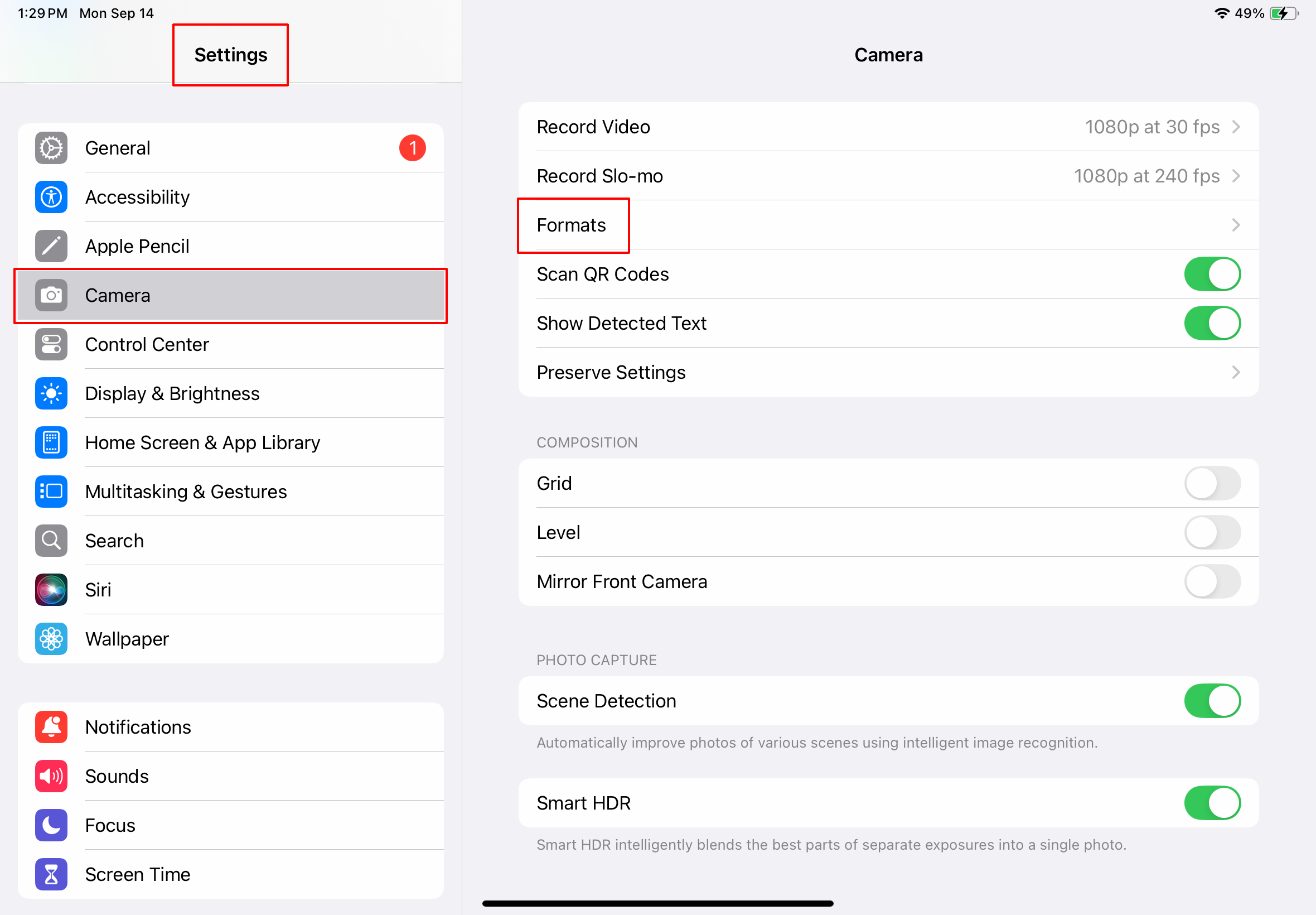
Things to Know:
- This setting must be changed in the Apple device’s iOS settings, not within Irth Mobile.
- Utilisphere does not currently support photos saved in the HEIC format.
- Select Most Compatible to capture new photos as JPG files and new videos using H.264.
- Changing this setting affects media captured after the change. Existing HEIC photos are not automatically converted to JPG.
- If the Formats option does not appear under the device’s camera settings, the device may not support HEIF or HEVC capture.
- On supported hardware, the Camera application in iOS defaults to HEIF and HEVC capture.
Key Benefits/Use Cases:
- Reduce media-related sync errors: Capture photos and videos in formats that can be uploaded and synced with Irth Mobile.
- Improve field workflows: Help field users attach media without needing to convert files before uploading them.
- Standardize device configuration: Configure supported Apple devices to use compatible media formats before they are distributed to field users.
How It Works:
Follow these steps to configure the device’s camera format:
From the iPhone or iPad Home Screen, open the Settings application.
Scroll down and select Camera.
Tap Formats.
Select Most Compatible.
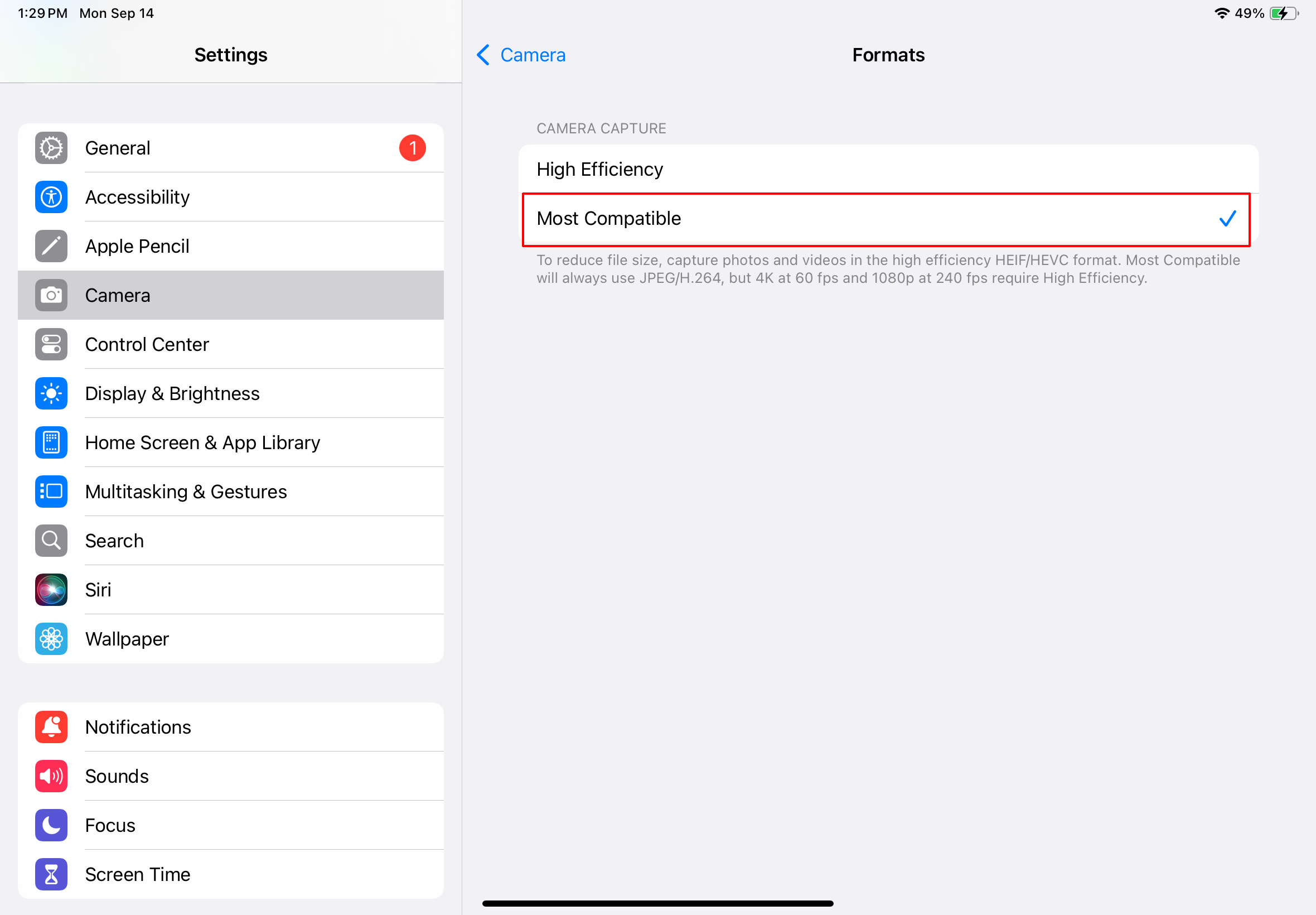
Use the Camera application to take a new photo or video. New photos will be captured as JPG files, and new videos will use H.264.
Open Utilisphere and attach the newly captured photo or video to the applicable record.
| Note: If the Formatsoption is not displayed, the device does not support capturing media in HEIF or HEVC. Important: Changing the camera setting does not convert photos or videos that are already stored on the device. If an existing HEIC image causes a sync error, capture a new photo after selecting Most Compatible or convert the existing file to a supported format before uploading it. |
FAQ/Troubleshooting:
Q: Why does a photo cause a sync error in Irth Mobile?
A: A common cause is an image captured in the HEIF format and saved as an HEIC file. Irth Mobile does not currently support the HEIC format. Change the device’s camera format to Most Compatible, and then capture a new photo.
Q: How do I make my iPhone take JPG photos?
A: Go to Settings > Camera > Formats, and then select Most Compatible. New photos will be captured as JPG files.
Q: Will changing the camera format convert my existing HEIC photos?
A: No. The setting applies only to new photos and videos captured after the change. Existing HEIC files must be converted separately or replaced with newly captured JPG images.
Q: Why don’t I see the Formats option under Camera settings?
A: The device may not support capturing media in HEIF or HEVC. If the option is unavailable, no camera format change is required through this setting.
Q: I selected Most Compatible, but the record still will not sync. What should I do?
A: Confirm that the photo was captured after the setting was changed. Previously captured images may still be saved as HEIC files. Also review the record for other unsupported attachments. If the issue continues, contact Irth Support.
Questions? Contact us!

Was this article helpful?
That’s Great!
Thank you for your feedback
Sorry! We couldn't be helpful
Thank you for your feedback
Feedback sent
We appreciate your effort and will try to fix the article