Camera Workflow
Click here to watch the training video.
Purpose/Overview
In this article, you will learn how to use the enhanced Camera Workflow in the Irth Mobile app. The updated camera experience is designed to make capturing, reviewing, annotating, and managing photos faster and more intuitive while completing tickets and work items in the field.
The new camera workflow streamlines photo collection by allowing users to capture multiple photos, easily add comments, review images with simple navigation controls, and remove unwanted photos before submission.
Navigation Path:
To access this feature, go to: Irth Mobile App > Ticket or Work Item
Things to Know:
- The enhanced Camera Workflow is available when adding photos to tickets and work items.
- Users can capture multiple photos during a single photo session.
- Photos can be reviewed before submission.
- Comments can be added to individual photos.
- Photos can be deleted before saving or submitting the record.
- Images can be viewed by scrolling horizontally through the photo gallery.
- The camera functionality is available on supported iOS and Android devices.
Key Benefits/Use Cases:
- Faster Photo Collection: Users can quickly capture multiple photos without repeatedly navigating back into the camera interface.
- Improved Photo Management: Captured images can be reviewed, commented on, and removed before submission, helping ensure only relevant photos are attached.
- Enhanced Field Documentation: Photo comments provide additional context for field personnel, supervisors, and office staff reviewing ticket or work item activity.
- Streamlined User Experience: The updated workflow follows modern mobile application standards, making photo capture more intuitive and reducing the time required to document field work.
How It Works:
Follow these steps for the Camera Workflow:
- Open the appropriate ticket or work item in the Irth Mobile app.
- Tap the Photo icon to launch your device's camera.
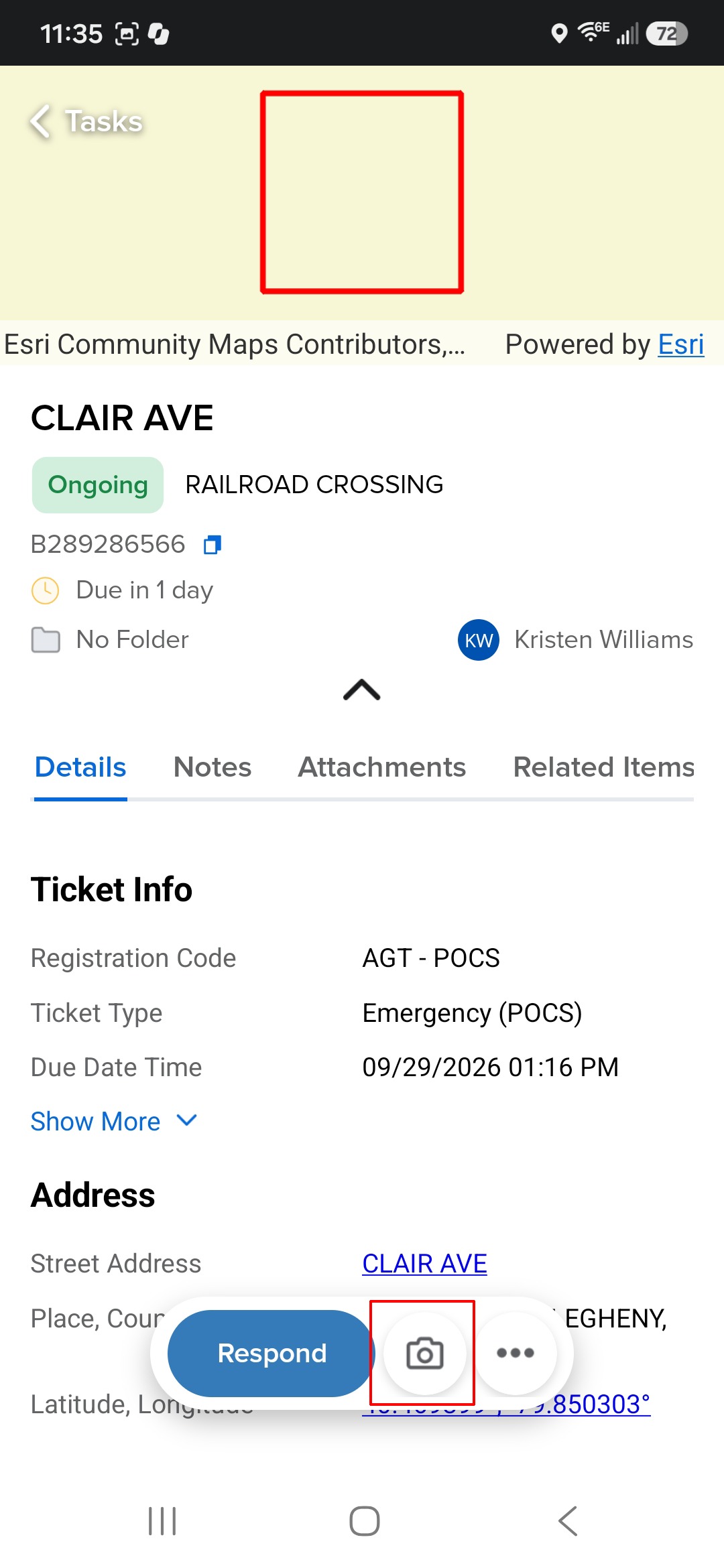
- Capture one or more photos as needed.
- The photo counter displays the total number of photos captured.
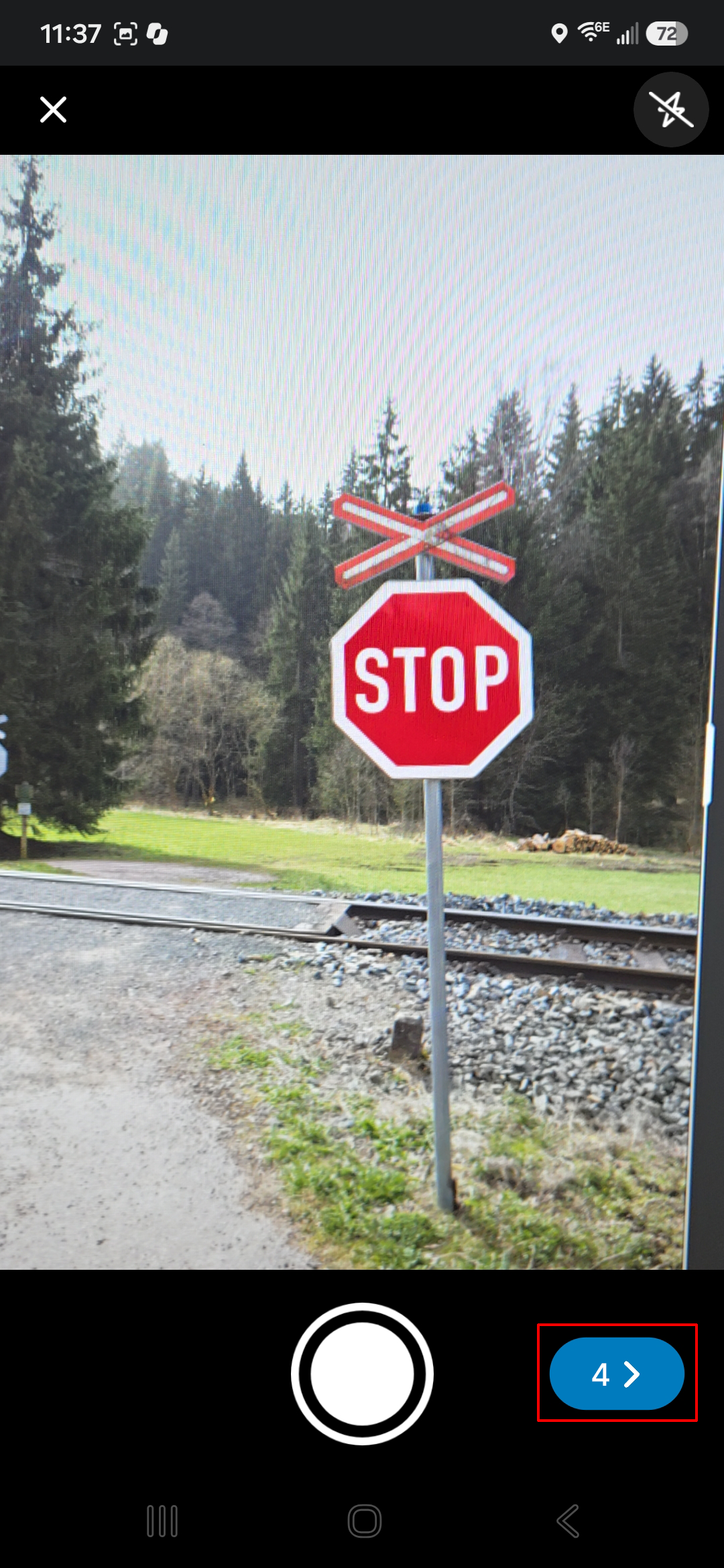
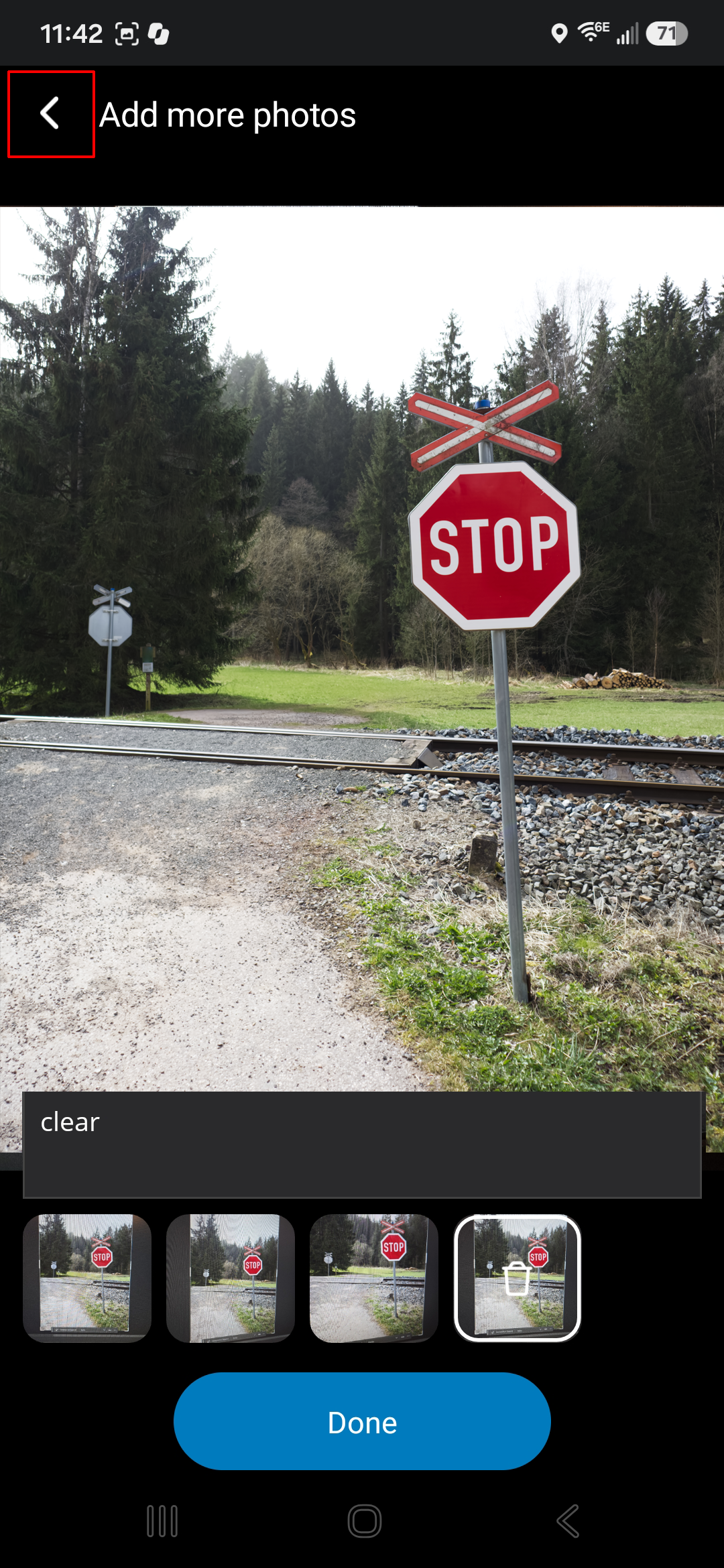
- Tap the photo counter to review the photos you have taken.
Select the Add More Photos arrow at the top of the screen to return to the camera and capture additional photos without exiting the photo review experience.
- Select a photo to highlight it. The highlighted photo is indicated by the trash can icon.
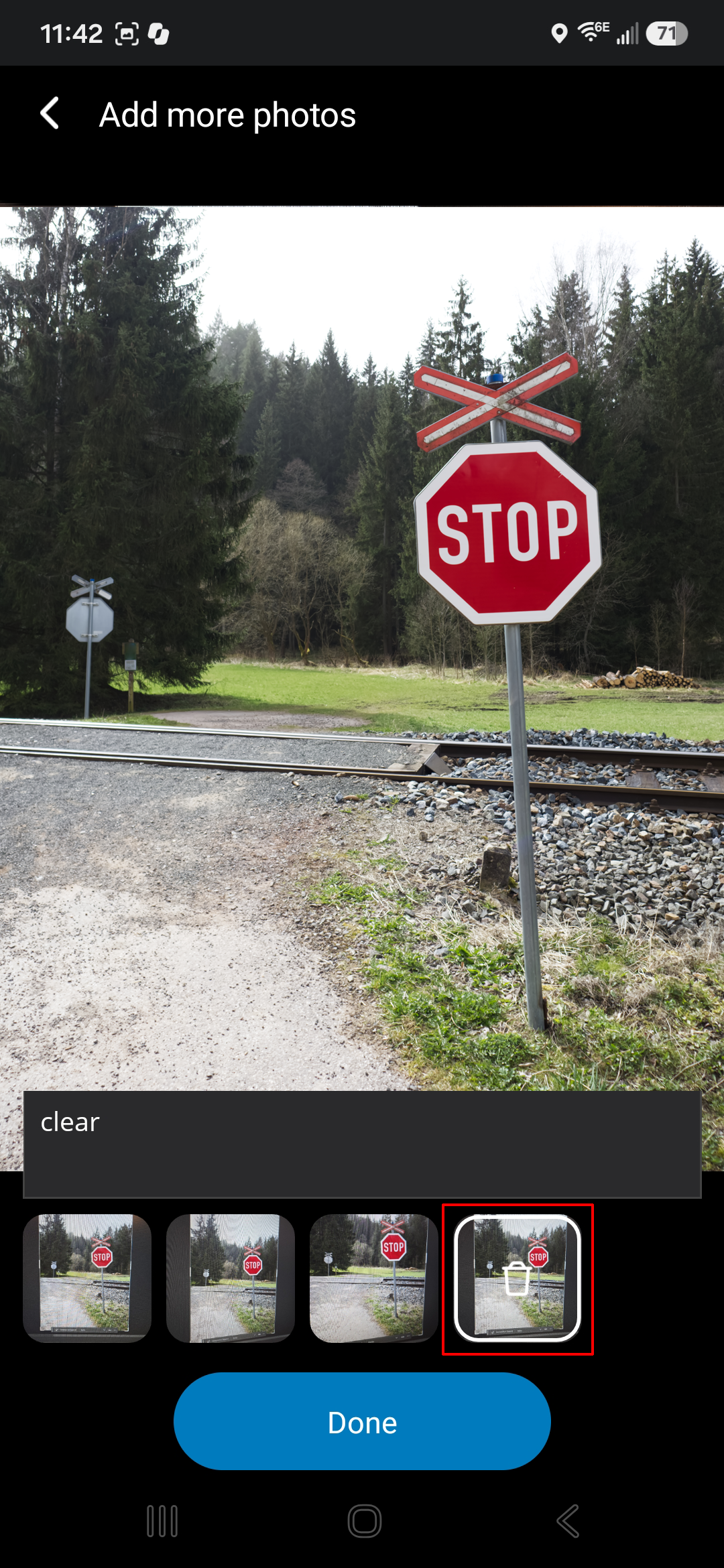
- After selecting a photo, you can:
- Add a comment to the photo.
- Delete the photo by tapping the trash can icon.
- When you have finished reviewing and managing your photos, tap Done to save your changes and return to the ticket or work item.
FAQ/Troubleshooting:
Q: Can I take multiple photos before submitting?
A: Yes. The Camera Workflow allows you to capture multiple photos during a single session and review them before submission.
Q: Can I add comments to photos?
A: Yes. Individual photo comments can be added to provide additional context and documentation.
Q: Can I delete a photo if I captured the wrong image?
A: Yes. Photos can be removed from the gallery before the ticket or work item is saved or submitted.
Q: Are photos available for both tickets and work items?
A: Yes. The Camera Workflow supports photo attachments for both tickets and work items.
Q: Why does the camera workflow look different from the legacy mobile application?
A: The enhanced Camera Workflow was redesigned to provide a more intuitive user experience, faster photo management, and improved efficiency for field users.
Questions? Contact us!

Was this article helpful?
That’s Great!
Thank you for your feedback
Sorry! We couldn't be helpful
Thank you for your feedback
Feedback sent
We appreciate your effort and will try to fix the article