STEPS TO COMPLETE A LOCATE REQUEST
This document describes the steps to complete a locate request within DigTix. Note that depending on your organization's workflow, this process may vary slightly. For example, you may be required to specify the time when you began and completed marking each utility, or the footage which was marked for each utility.
Step 1
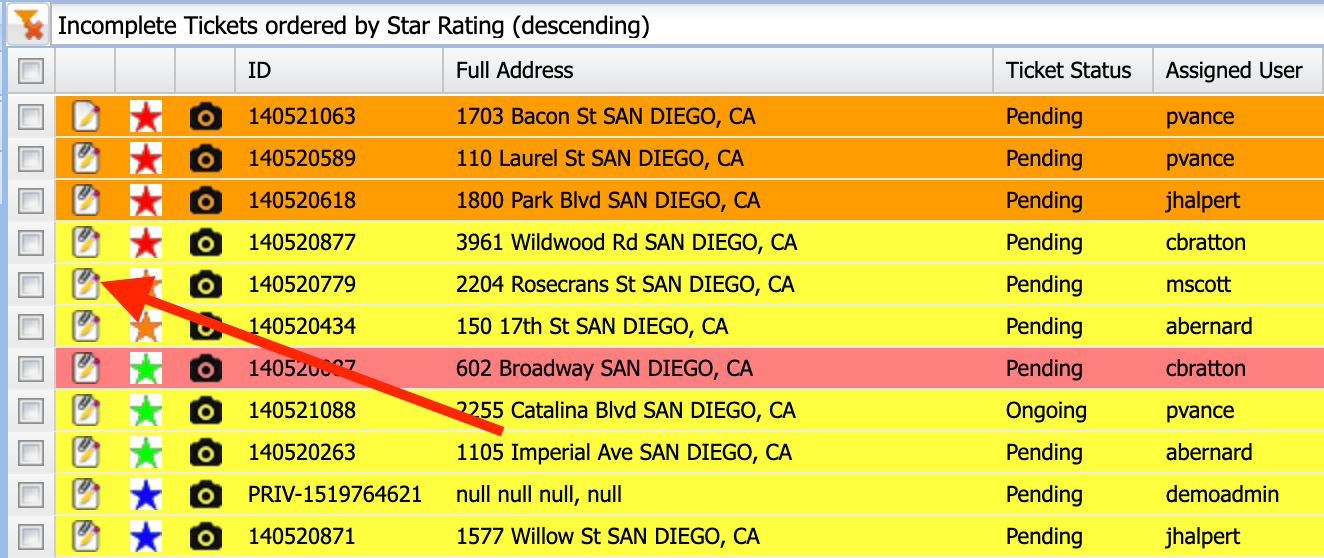
Open the ticket window by clicking on the ticket edit button, or by double clicking on the ticket row. The “Ticket Info” and “Raw Request” tabs contains information about the request such as where on the property to mark, the type of work being done, special instructions, etc. The “Service” tab is where documentation, notes, and close codes are entered.
Step 2
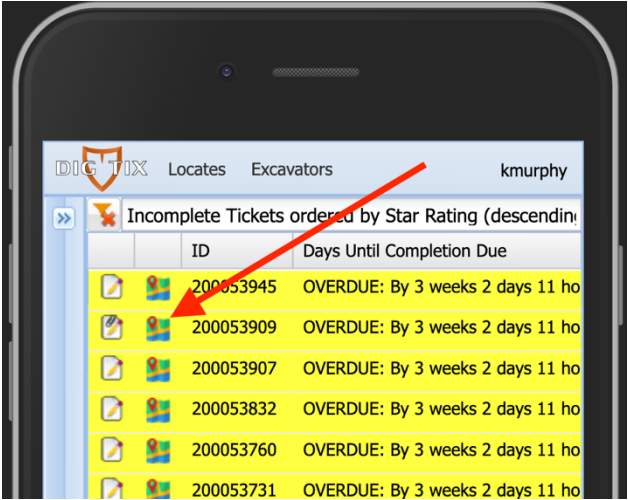
Drive to the ticket location. Voice navigation turn-by-turn directions can be used by opening DigTix on your mobile device (phone or tablet) and clicking the “Google Maps” icon next to the ticket you're completing.
Step 3
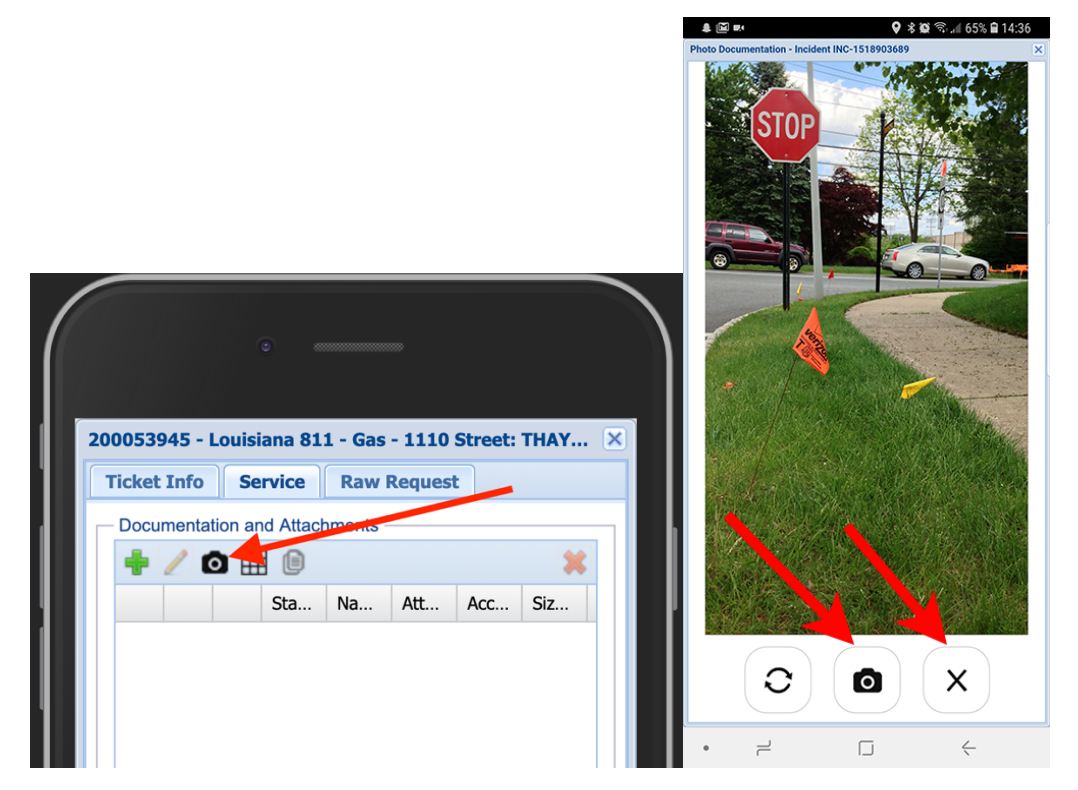
Perform the locate and document with photos (if required). On your phone, click the camera icon within in the “Documentation and Attachments” area to open your camera. Once your camera is opened, click the camera button to take and attach photos to the ticket. After photos are taken, click the “X” button to close your camera.
NOTE: It is recommended to use Google Chrome on all mobile devices except for Apple devices. On Apple devices, the Safari browser is recommended.
Step 4
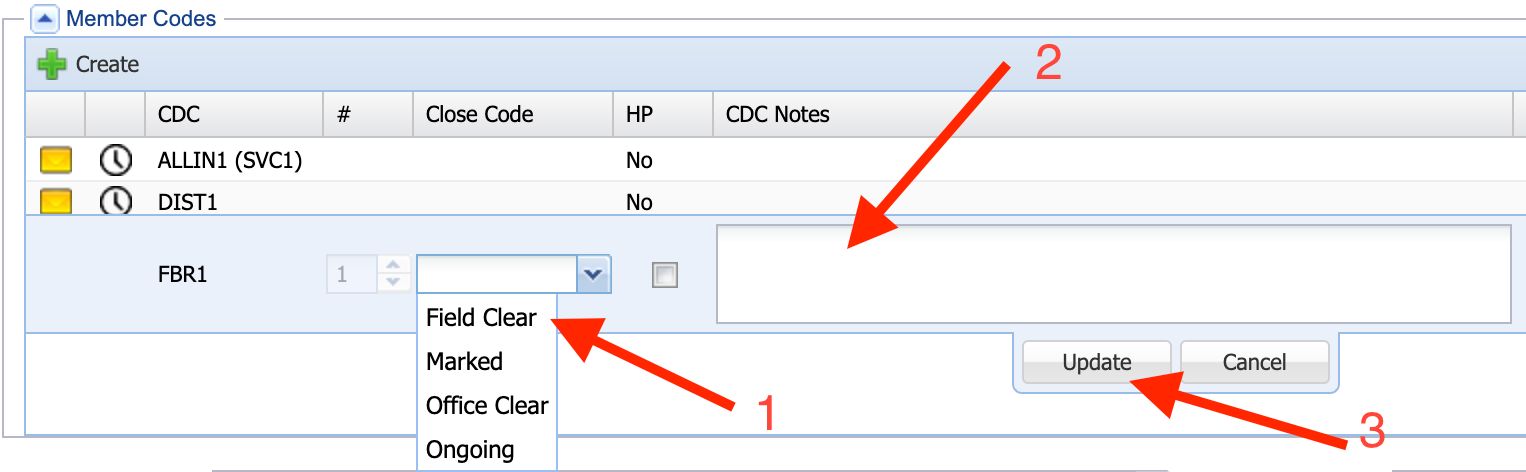
Apply the appropriate close code to each member code (1). Add any notes specific to the utility into the “CDC Notes” box (2). Click the “Update” button to submit the close out code and notes (3).
NOTE: If excavator positive response emails are being automatically sent by DigTix, the notes in the “CDC Notes” box will be included in the email to the excavator.
Step 5
Complete the ticket by updating the “Ticket Status” to “Completed” and clicking the “Submit Updates” button.
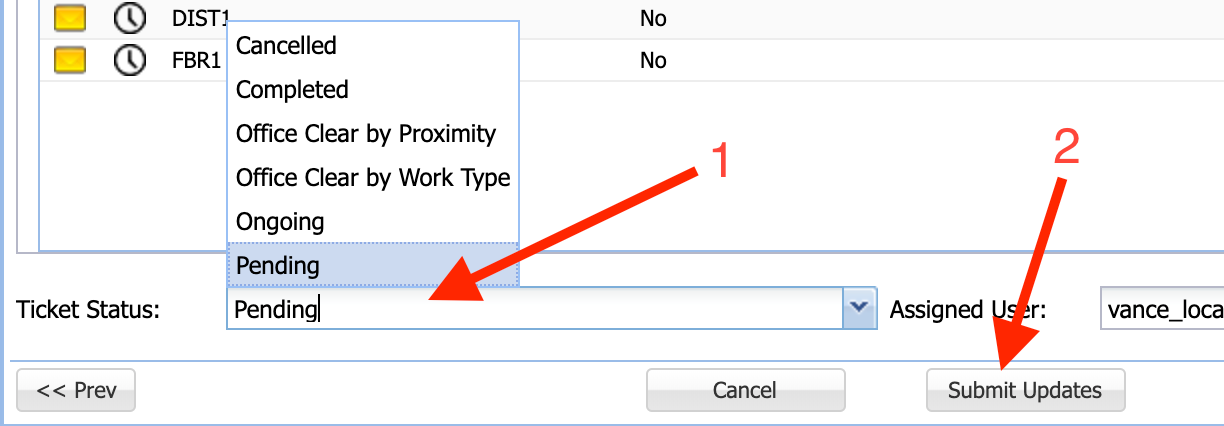
The ticket is now completed and will be removed from your work queue.
Was this article helpful?
That’s Great!
Thank you for your feedback
Sorry! We couldn't be helpful
Thank you for your feedback
Feedback sent
We appreciate your effort and will try to fix the article