OVERVIEW
Uploading large quantities of data to the cloud can pose challenges, especially for large files and inconsistent / slow network connectivity in the field. DigTix has several features to intelligently and reliably handle the upload and attachment of files to work orders (tickets, incidents, etc).
When a user requests to attach a file to a work order through the DigTix web application, DigTix caches the file data locally within the user's device. The file data stays cached locally until broadband network connection speeds are available, at which point the file data begins transferring to the DigTix cloud. After the file data completes its transfer to the DigTix cloud the file data is removed from the device's local cache.
For large file attachments, the file data is broken up into smaller pieces. These pieces are individually sent to the DigTix cloud in sequential order. Once all of the file pieces are successfully transferred, DigTix re-constructs the full file from the pieces and attaches the file to the work order.
These DigTix features ensure that attachment file data can be efficiently uploaded even when:
- There is no network connection.
- There is an unstable network connection.
- The network connection is not a broadband connection i.e. slow.
- The browser application crashes and must be restarted.
- The user's device crashes and must be restarted.
NOTE: Due to technical limitations imposed by Apple, files must be less than 128MB in size in order to be uploaded through their Safari browser.
NOTE: Due to security reasons, certain file types are unable to be uploaded to DigTix. The list of unsupported file extensions are: ade, adp, app, asp, bas, bat, cer, chm, cmd, com, cpl, crt, csh, der, exe, fxp, gadget, hlp, hta, inf, ins, isp, its, js, jse, ksh, lib, lnk, mad, maf, mag, mam, maq, mar, mas, mat, mau, mav, maw, mda, mdb, mde, mdt, mdw, mdz, msc, msh, msh1, msh2, mshxml, msh1xml, msh2xml, msi, msp, mst, ops, pcd, pif, plg, prf, prg, reg, scf, scr, sct, shb, shs, sys, ps1, ps1xml, ps2, ps2xml, psc1, psc2, tmp, url, vb, vbe, vbs, vps, vsmacros, vss, vst, vsw, vxd, ws, wsc, wsf, wsh, xnk
FILE UPLOAD MANAGER
Attachment files which are in the process of being transferred are listed in the File Upload Manager. Whenever one or more files are being uploaded, a button at the top of the page will display information on the progress of the file uploads. Clicking this button will provide access to the The File Upload Manager.
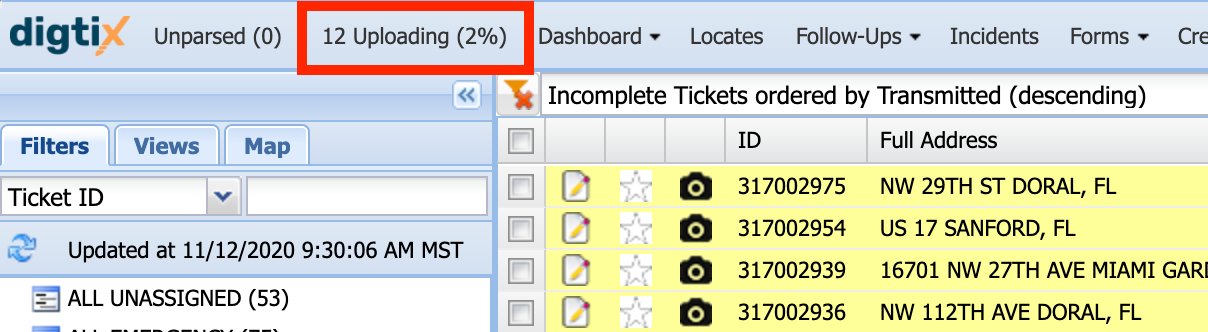
Figure 1: File Upload Manager Button Displaying Progress of "12 Uploading (2%)"
The File Upload Manager window tracks the file upload progress of Ticket Attachments and other files being uploaded to DigTix. It provides the ability to pause, resume, and cancel uploads.
A. Overall Upload Progress. The data transfer progress for all files currently being uploaded.
B. Start and Pause Buttons. These buttons will start or pause the selected file upload(s), respectively.
C. Cancel Button. This button will cancel the selected file upload(s). Cancelled file uploads cannot be resumed, they must be restarted from 0%.
D. File Upload List. The list of files currently being uploaded and details about their type, status, progress, data transfer speed, estimated time remaining, when the upload was started, when the upload was completed, and when the upload will expire if it is not completed.
E. File Upload Status. The status of each file upload. Files uploads can have the following statuses:
offline pending: The file has been saved within the local device cache and is awaiting a broadband internet connection to prepare the file data for upload.
waiting: The file is being prepared for upload.
ready: The file is ready and queued for upload.
uploading: The file’s data is being transferred to the DigTix server.
paused: The file upload is paused. The file upload can be resumed by selecting the file in the list and clicking the “Start” button.
cancelled: The file upload has been cancelled. Cancelled uploads cannot be resumed.
incomplete: The file upload was interrupted due to the closing of the DigTix application before the file upload could be completed. The file upload can be resumed by dragging and dropping the file on the File Upload Manager window.
error: An error occurred during the file upload. The file upload can be resumed by dragging and dropping the file on the File Upload Manager window.
completed: The file upload was successfully completed.
F. Download Cached File. This button is shown for file uploads which have not yet completed. It allows the user to save the file from their browser's local storage to their device's hard disk.
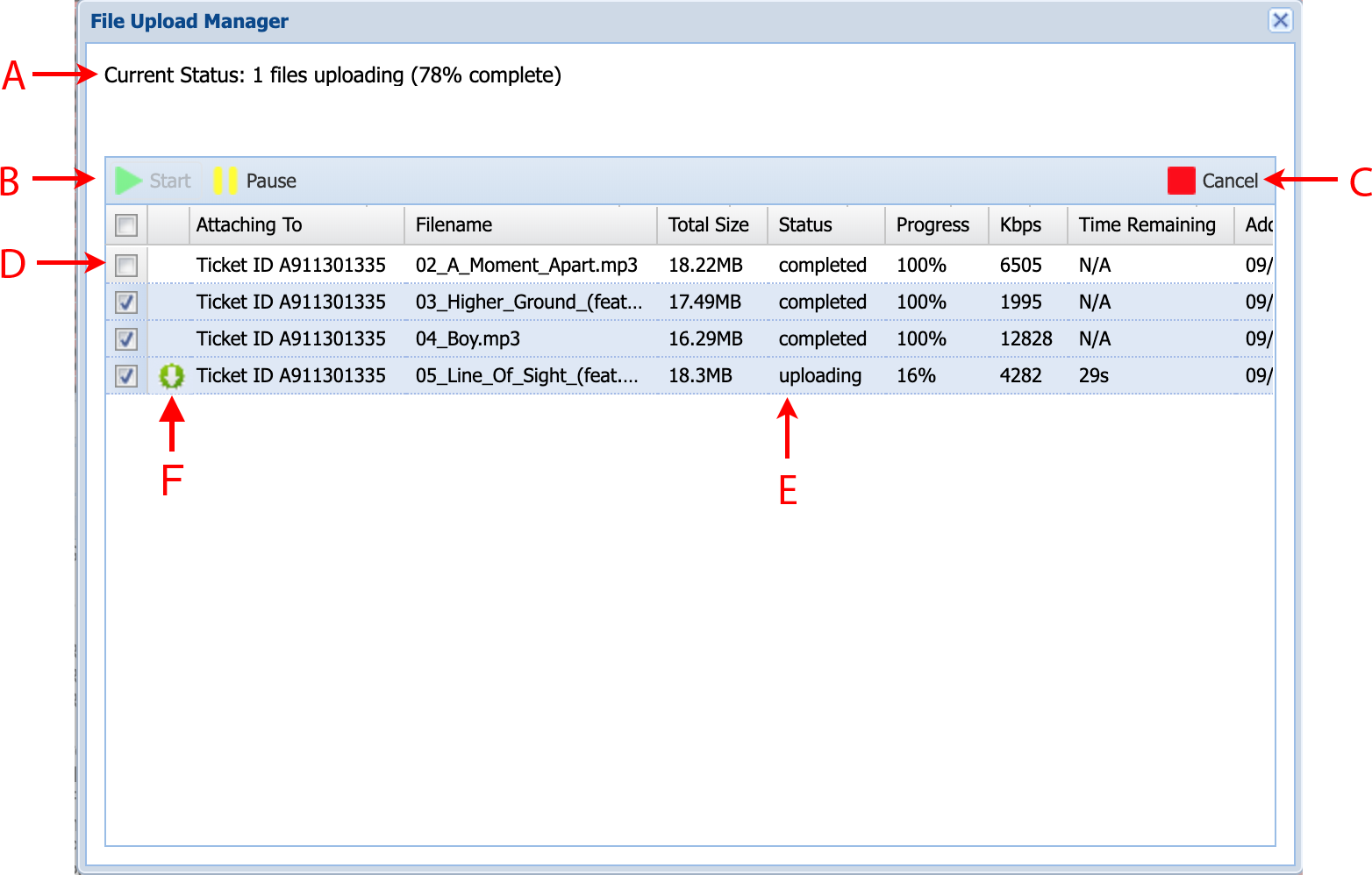
Figure 2: File Upload Manager Window
INCOMPLETE FILE UPLOADS
Occasionally there may be files which fail to complete the upload process. These are called "incomplete" file uploads and can occur when:
- The local device cache is cleared.
- The local device cache quota is exceeded. More information here.
- The maximum amount of concurrent DigTix uploads (1,000) has been exceeded.
- An extended amount of time without network connectivity.
- A device error occurs on the local device or mobile hotspot serving the device.
When a file upload is incomplete, it is indicated in the File Upload Manager button.
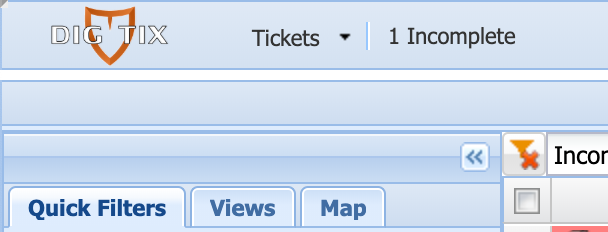
Figure 3: File Upload Manager Button Displaying "1 Incomplete"
Opening the File Upload Manager will provide instructions on how to complete the file upload. Incomplete file uploads which are not completed prior to their expiration date will be automatically removed from the local device cache.
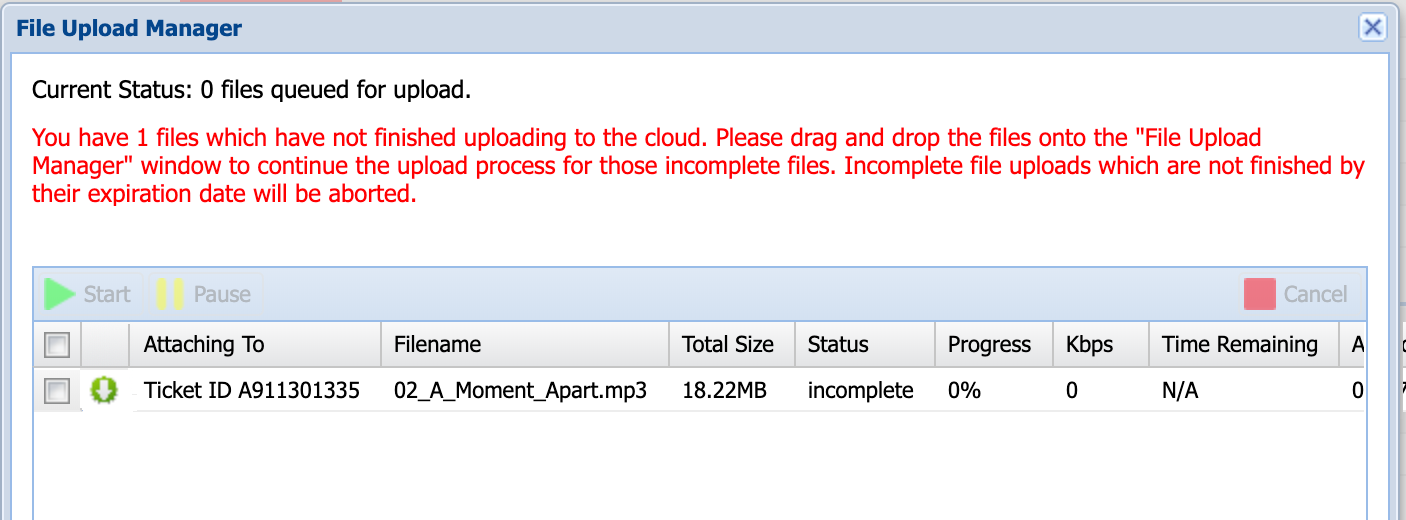
Figure 4: Instructions for Completing an Incomplete File Upload
For more information on troubleshooting incomplete file uploads, please refer to this guide.
Was this article helpful?
That’s Great!
Thank you for your feedback
Sorry! We couldn't be helpful
Thank you for your feedback
Feedback sent
We appreciate your effort and will try to fix the article