OVERVIEW
This document describes the steps that should be taken when a file attachment is marked as 'Incomplete' within the File Upload Manager. For more information on file attachments and the File Upload Manager, refer to the documentation found here. If all of the steps below have been completed and the user file upload will not complete the upload and attachment process, please contact your DigTix support personnel.
TROUBLESHOOTING STEPS
- Ensure the user is accessing DigTix from a supported browser: Google Chrome, Mozilla Firefox, or Apple Safari. NOTE: Microsoft Internet and Explorer and Microsoft Edge browsers are not supported.
- Ensure the user is accessing DigTix from the same device that the file upload was initiated on. For example, if a user initiated the file upload from their smart phone, the user should attempt to complete that file from their smart phone (not another device such as their laptop or tablet). The File Upload Manager displays the type of device which was used to initiate the file upload.
- Ensure the user does not have any other applications which are using significant network throughput. Having other applications open which use the network (including multiple DigTix tabs) can decrease the transfer speed of the file upload.
- Ensure the user's device has a broadband connection to the internet. Typically, wired or high-speed WiFi connections work best. Note that even though mobile network reception is good (4 or 5 "bars" of service), it may not necessarily provide the necessary broadband throughput required to upload files.
- Ensure the user's device has sufficient available hard drive space. It is recommended that 5GB or more of free hard drive space is available.
- Refresh the DigTix page. This will trigger DigTix to start (or continue) the upload of the file.
- If the user is on WiFi, turn off the WiFi service, wait a few seconds, and turn the WiFi service back on. Once WiFi has been re-established, refresh the DigTix page again.
- If the user is using a network hotspot device (sometimes referred to as a "jetpack" or "MiFi"), restart the network hotspot device. Once the device is restarted and network connectivity has been re-established, refresh the DigTix page again.
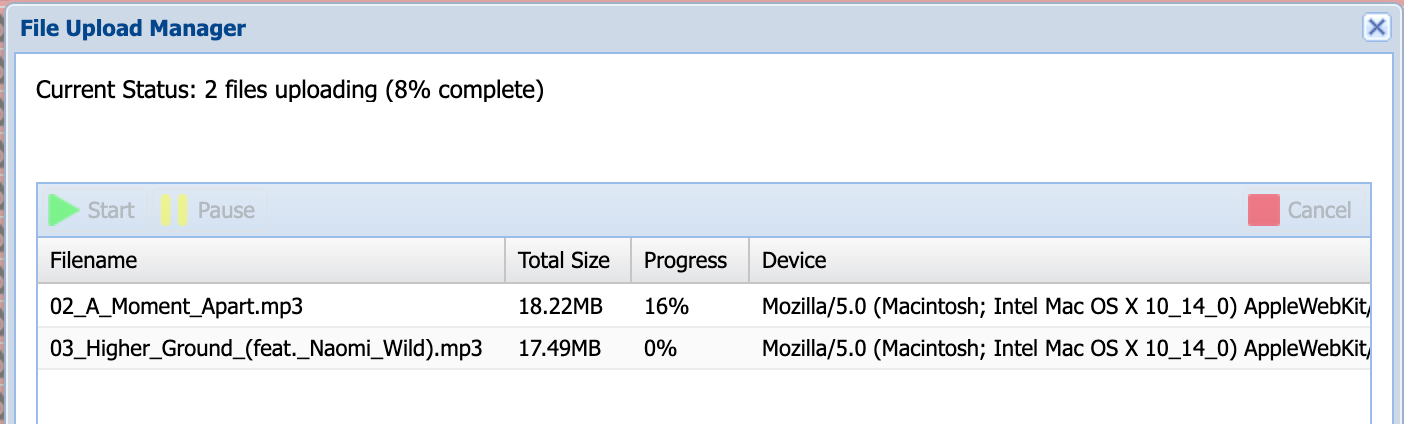
Figure 1: File Upload Manager Indicates "Device" where File was Uploaded
If all of the steps above have been taken and the file upload(s) are still marked as 'incomplete', the file upload(s) may need to be restarted. This can be done by clicking the "Download" button next to the appropriate entry in the file upload. This will save that file back to your device. From there you can re-attach the file to the appropriate ticket.
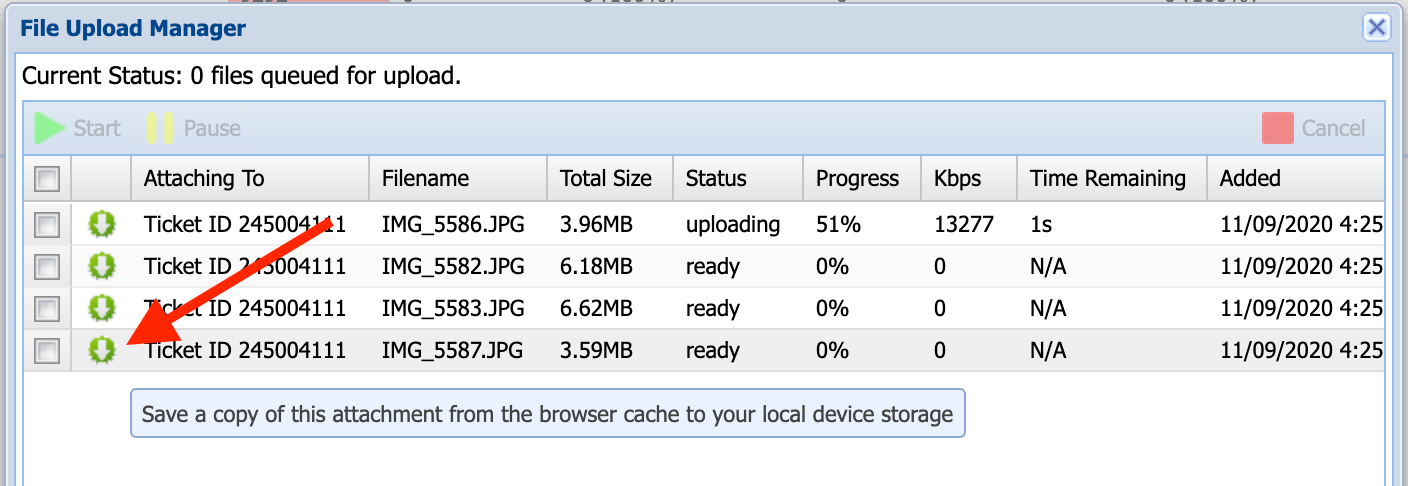
Figure 2: Saving Cached File Upload to Local Device Storage
Was this article helpful?
That’s Great!
Thank you for your feedback
Sorry! We couldn't be helpful
Thank you for your feedback
Feedback sent
We appreciate your effort and will try to fix the article