Locate Request Advanced
In this article, we will cover advanced functions useful to a Locator to organize and complete work more efficiently.
Create Custom Views
Within DigTix, you have the option to create a custom layout for the Ticket Grid. These are referred to as Custom Views. The first step to creating a Custom View is to fully understand the functionality of the Ticket Grid. Then we will turn hide or show which information is desired to be displayed.
Ticket Grid
The Ticket Grid holds all information about each loaded ticket in a tabular format. It can be thought of as a highly interactive spreadsheet, much like Microsoft’s Excel. Each row in the grid is a locate request and each column represents a field or attribute for that ticket. Double-clicking a row will open the Ticket Window for that ticket. Fields (columns) can be hidden, shown, reordered, and resized. Tickets (rows) may be sorted and/or filtered by one or multiple fields. Below is a diagram explanation of all Ticket Grid features.
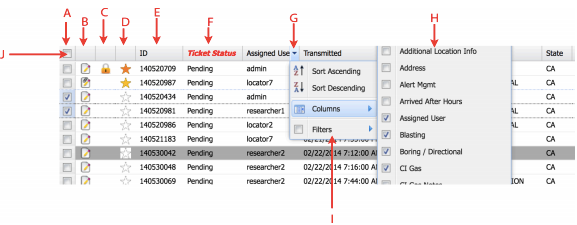
Figure1: Ticket Grid
A. Ticket Selection Column. Clicking the checkbox on a ticket row will select that ticket. Actions such as bulk updates or routing may be performed to selected tickets via the Ticket Toolbar.
B. View Contracts Column. Clicking the contracts icon on a ticket row will open the Ticket Window directly to the Research Tab. A contract icon that includes a paperclip indicates that the ticket has one or more attachments.
C. Locked Ticket Indicator. A lock icon indicates that the ticket has been locked. Locked tickets are unable to be updated except by the person who locked the ticket. Users can lock and unlock tickets that are assigned to them from the Ticket Toolbar.
D. Important Ticket Column. Tickets may be assigned one of five importance levels from 1 (yellow) to 5 (red). Important tickets always appear at the top of the ticket grid except if they are filtered out.
E. Ticket Column. A ticket column that does not have any filter or sorting applied to it. Columns may be re-ordered within the grid by dragging and dropping the column header. Columns may be resized by clicking and dragging the edge of the column header to the desired width. Clicking a column header will sort the grid by that field.
F. Filtered Ticket Column. A ticket column that has one or more filters applied to it. The column header will contain red bold text.
G. Column Menu Button. Hovering your mouse over a column will display the column menu button. Clicking on this button will display a menu with options for that column.
H. Column Selection Menu. Within the column header menu, users may select what columns are shown or hidden in the grid. Shown columns have a checkbox next to their field name while hidden columns do not. Click on the columns to toggle them as shown or hidden.
I. Column Menu. Each column has a menu containing options for sorting, filtering, or toggling which columns are shown. Depending on the type of data in the column, different filters may be available. For example, a column showing a date/time will allow the user to select a date or date range from a calendar.
J. Select All Tickets Button. Click the ticket selection column header to select/deselect all of the tickets in the current grid page.
Left Control Panel
The left control panel contains three tabs. This lesson will cover the Filters Tab and Views Tab. The left control panel can be collapsed and expanded by clicking the expand / collapse button in the top right of the panel.
Filters
The Filters tab contains a set of common, predefined ticket filters ("Quick Filter") that the user may apply with a single click. Each quick filter is able to be manually applied directly within the ticket grid. For example, clicking on the "ALL EMERGENCY" item is effectively the same as filtering the "Internal Priority" column of the ticket grid by "EMERGENCY". The Quick Filters panel is simply to make applying commonly used filters more efficient - less clicks and no typing!
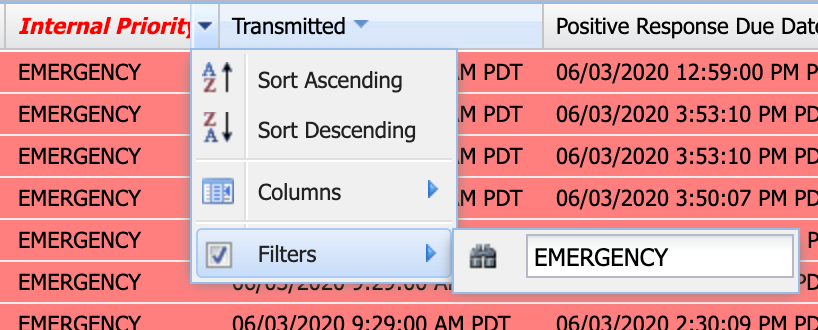
Only one Quick Filter may be applied at any given time i.e. applying a Quick Filter will remove the previous Quick Filter, if one exists. Each Quick Filter includes the number of incomplete locate requests that match that filter in parentheses.
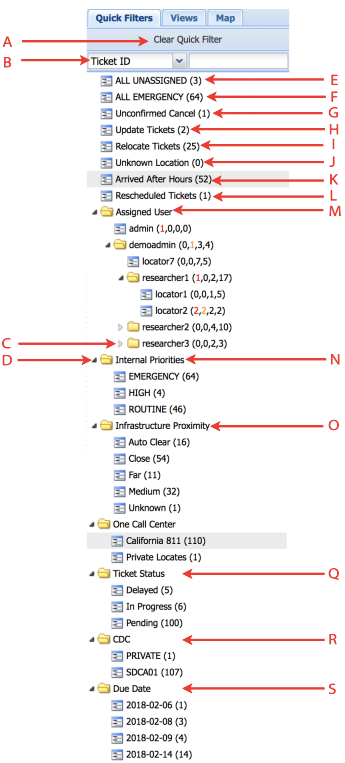
Figure 2: Quick Filters Tab on the Left Control Panel
A. Clear Quick Filter Button. Clears the active quick filter. (NOTE: This has been moved to the left of the ticket grid's status bar).
B. Quick Text Filter. Select one of three ticket fields to filter in the dropdown on the left: Ticket ID, CDC, Close Code, Street, City, County, or Excavator. Type in the textbox to the right of the dropdown to filter the tickets matching the input to the selected ticket field.
C. Unexpanded Node. A triangle with a closed folder indicates a node that is not expanded. Click the triangle to expand the contents of the node.
D. Expanded Node. A solid black triangle indicates a node that has been expended. Click the solid black triangle to collapse the node.
E. ALL UNASSIGNED Quick Filter. Filter all tickets that do not have an assigned user.
F. ALL EMERGENCY Quick Filter. Filter all tickets with emergency priority.
G. Unconfirmed Cancel Quick Filter. Filter all tickets that have some evidence of cancellation but have not yet been cancelled.
H. Update Tickets Quick Filter. Filter all tickets that are updates of a previous ticket.
I. Relocate Tickets Quick Filter. Filter all tickets that are re-locates of a previous ticket.
J. Unknown Location Quick Filter. Filter all tickets that do not have a valid location (latitude / longitude).
K. Arrived After Hours Quick Filter. Filter all tickets that arrived outside of normal business hours, as defined within the "Holidays" and "Normal Working Hours" sections of the DigTix Administration page.
L. Rescheduled Tickets Quick Filter. Filter all tickets that have had their due date rescheduled.
M. Assigned User Quick Filters. Filter tickets that are assigned to a particular user. The users are organized in a tree hierarchy based on their manager. The three parenthesized numbers indicate the number of open overdue, due today, due tomorrow, and future-due tickets (respectively) assigned to each user. On non-touch (i.e. non-mobile) devices, users can re-assign tickets by dragging and dropping rows from the Ticket Grid onto usernames within this section.
N. Internal Priorities Quick Filters. Filter tickets based on their priority. These priorities are configured within the "Internal Priorities" section of the DigTix Administration page.
O. Infrastructure Proximity Quick Filters. Filter tickets based on their proximity to existing infrastructures. These categories are defined within the "Proximity Categories" and configured within the "Infrastructures" sections of the DigTix Administration page.
P. One Call Center Quick Filters. Filter tickets based on their originating One Call Center. These call centers are configured within the "OneCallCenters" section of the DigTix Administration page.
Q. Ticket Status Quick Filters. Filter tickets based on their current status. These statuses are are configured within the "Ticket Statuses" section of the DigTix Administration page.
R. CDC Quick Filters. Filter tickets based on the presence of a CDC within the ticket. These CDCs are configured within the "CDCs" section of the DigTix Administration page.
S. Positive Response Due and Locate Completion Due Quick Filters. Filter tickets based on their positive response or locate completion due dates. For more information on these due dates, please refer to the article DigTix PR Compliance and Due Date Management.
Views Tab
The Views tab provides the ability to create and manage Ticket Views. A Ticket View consists of a combination of applied ticket filters, displayed columns, and sorted fields. They are designed so that DigTix users can easily define and view ticket information that they are frequently interested in.
Ticket Views are exclusive for each DigTix user. A new Ticket View is created by applying the desired filter(s), showing the desired column(s), and applying the desired sorting to the Ticket Grid and pressing the “Save Current View” button. The user is prompted to give a name to the new filter before it is saved. Once saved, the user can apply the Ticket View simply by clicking on it in the list of Ticket Views. This will apply all of the filters, columns, and sorters to the tickets. Ticket Views can be updated and deleted to fit each DigTix user’s evolving needs.
As an example, a user may want to regularly monitor recent locate requests that are being excavated by “Acme Excavation Company”. A Ticket View may be created which filters out locate requests being excavated by Acme Excavation, ordered by the most recent requests and displays the excavator’s contact information such as name, phone number, and email. By creating such a Ticket View, the user may access this information at any time with a single click to the Ticket Views list.
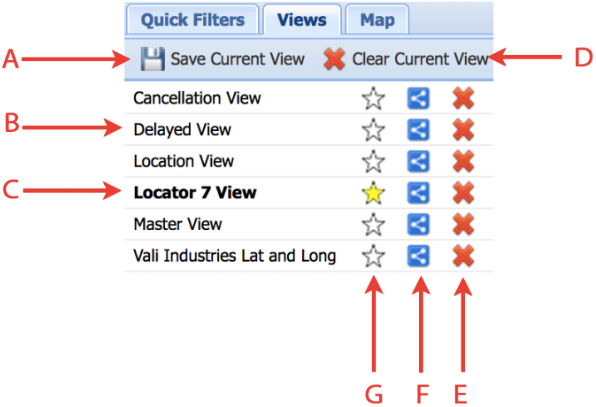
Figure 3: Views Tab
A. Save Current View Button. Save the filters, columns, and sorters currently applied to the Ticket Grid as a new Ticket View. The user will be prompted to provide a name to the view before it is created. If the name provided is already defined as a Ticket View, it will overwrite that Ticket View.
B. Non-Default View. Clicking on any Ticket View in the Views list will apply that
Ticket View’s filters, columns, and sorters to the Ticket Grid.
C. Default View. This is the Ticket View that is applied to the Ticket Grid when DigTix is initially loaded. It appears in bold and has a yellow star next to it.
D. Clear Current View. This removes all filters, columns, and sorters defined by the currently applied Ticket View.
E. Delete Ticket View Button. Clicking this will prompt the user to confirm the deletion of the
corresponding Ticket View. Deleted Ticket Views cannot be recovered.
F. Share View Button. Clicking this will allow the user to specify the user(s) to share that view with. The view is copied to the specified user(s) account(s) provided they do not have a view defined with the same name.
G. Default Ticket View Button. Clicking this will set the corresponding Ticket View as the default Ticket View. Only one default Ticket View may be specified for any DigTix user.
Bulk Update in the Ticket Grid
Bulk update of tickets allows the user to update multiple tickets together, saving time and headache. After selecting the tickets that the user would like to update, click on the Bulk Update icon in the Ticket Toolbar as seen in Figure 4.
The bulk update tool guides the user through four easy pages:
1. What field(s) do you want to update?
2. What do you want to update the field(s) to?
3. Review changes.
4. Execute changes and view results.
Due to performance reasons, it is not recommended to update more than 50 tickets at one time
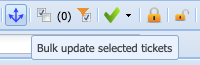
Figure 4: Bulk Update Icon
Once the Bulk Update icon is selected, a Bulk Ticket Update pop up window will appear, as seen in Figure 5. There are many fields that the user can choose on Page 1 to perform a bulk update. Some are related to the ticket itself while others relate to the contract(s) that belong to the selected tickets. Finally, there are actions such as Rescheduling or Re-calculating Geocodes, Priorities, Assignment, and Proximity that can be performed on the selected tickets.
The list of selected ticket ID are displayed at the top of the window. Select the actions and/or fields desirable for updating and click the “Next” button to move onto Page 2.
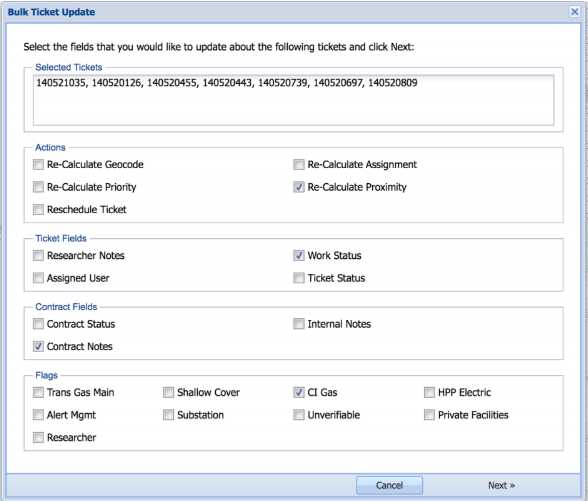
Figure 5: Page 1 of the Bulk Ticket Update Window
Page 2, provides the values for the fields you chose to update on Page 1. This step will look different based on what you selected on Page 1. Once the desired values have been provided, click the “Next” button to move onto Page 3.
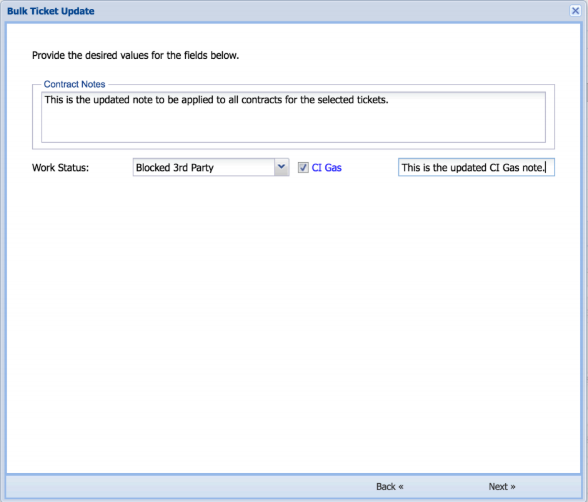
Figure 6: Page 2 of the Bulk Ticket Update Window
Page 3 is where you do a final review of the updates being made before applying the changes. It is important to carefully review all changes being requested to ensure accuracy and avoid errors. If an issue is spotted, click the “Back” button to revise the fields and/or values. Otherwise, click “Execute” to perform the bulk update and move on to Page 4.
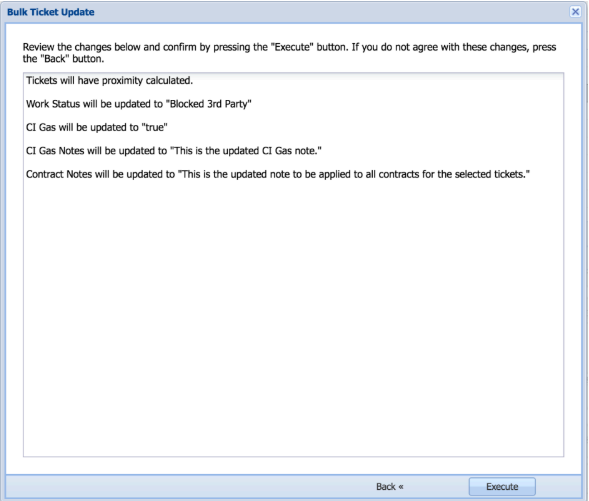
Figure7: Page 3 of the Bulk Ticket Update window
Once the bulk update has been completed, Page 4 will display the results of the operations. It is important to confirm that all operations were successful. Certain operations may fail due to data validation or permission restrictions. Failed operations will be shown with a red “FAILED” message along with the reason for failure. After review of the bulk update results, click the “Finish” button to close the bulk update window. The tickets that were selected for the bulk update operation will be automatically deselected.
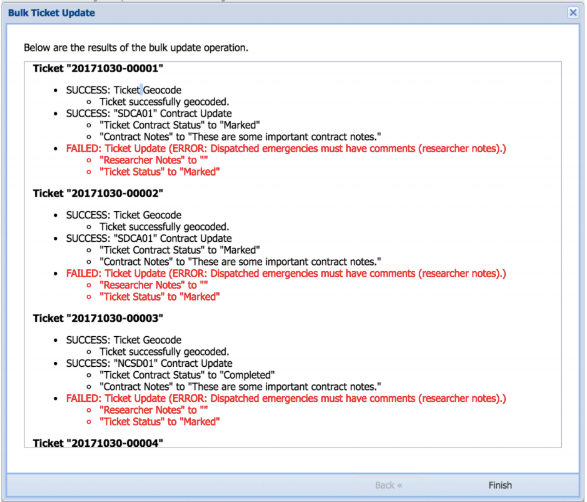
Figure 8: Page 4 of the Bulk Ticket Update Window
Selective Ticket Filtering
Users may now filter specific locate requests by selecting which tickets they would like to filter and then click the "Filter selected tickets" button, which looks like a checkmark accompanied by a funnel. This is especially useful for identifying and focusing on the jobs you'd like to complete next. Filtered tickets appear by themselves in both the grid and map for easy route planning.
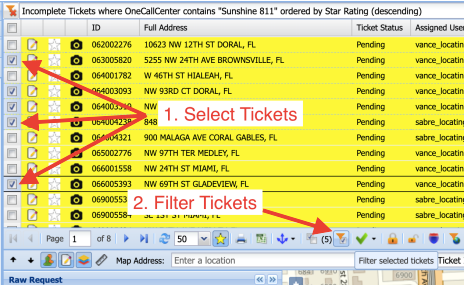
Figure 9: Selecting Tickets
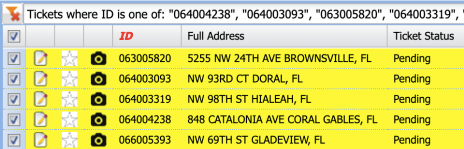
Figure 10: Filtered Tickets
Viewing Attachments
Attachments can be seen in the Ticket Grid with the icons that look like a piece of paper. If the paper has a paper clip attached to it, then that ticket includes an attachment. Examples are below in Figure 11. Clicking on the ticket attachment will automatically pull up the Service Tab of the Ticket Window.
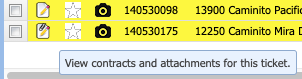
Figure 11: Tickets with and without attachments
When an attachment is "Private", it is "internal only" i.e. it will not be visible to authenticated third party users and it will not be included on any responses sent out from DigTix (for example, a positive response email sent to the excavator). When an attachment is "Protected", it may be visible to authenticated third party users and it may be included on responses sent out from DigTix (for example, a positive response email sent to the excavator).
Was this article helpful?
That’s Great!
Thank you for your feedback
Sorry! We couldn't be helpful
Thank you for your feedback
Feedback sent
We appreciate your effort and will try to fix the article