LOGIN
All DigTix users must be authenticated by their unique username and secret password to perform any action within DigTix.
If a DigTix user forgets their password, it can be recovered by clicking on the “Forgot your password?” link as shown below. The user will be prompted for their username and receive an email at the address associated with that user account. If you do not see the email in your inbox, be sure to check your spam and/or trash folders. The email will contain a temporary password which the user can use to log in. Upon login with the temporary password, the user will be required to choose a new password to use going forward.
If you're not sure what your password is, do not attempt to repeatedly guess your password! DigTix features a security measure which will block user accounts after five consecutive incorrect login attempts. Blocked accounts must contact a DigTix user with Administrator privileges and request them to unblock their account.
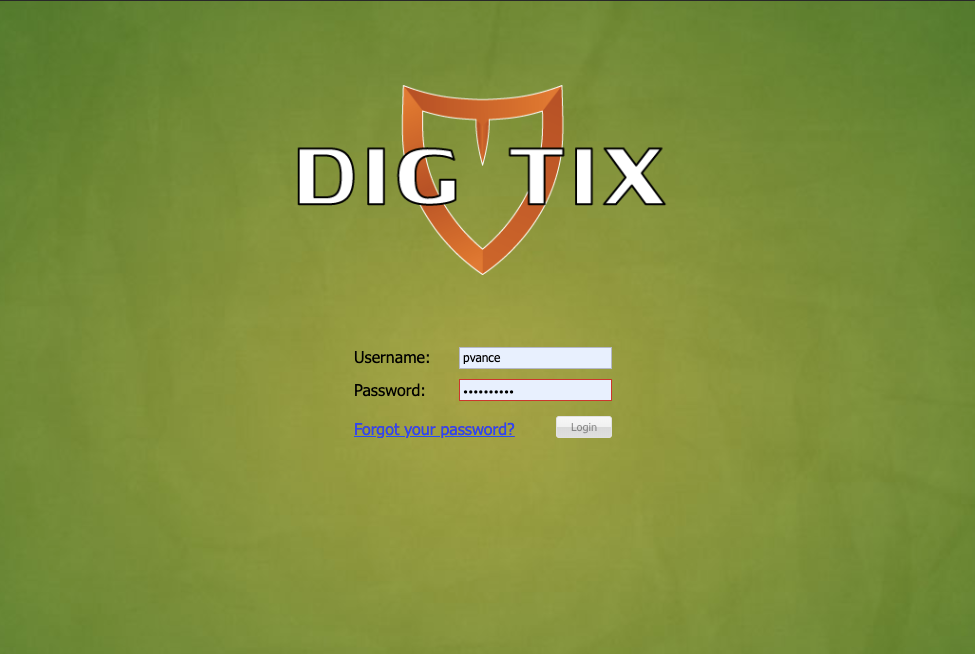
Figure 1: Login Page
LOCATES PAGE
The Locates page can be accessed via the "Locates" button in DigTix's main menu at the top of the page. The Locates page provides all of the functionality necessary to view and complete locate requests. The Tickets page is broken into 3 main sections (shown below) that interact with each other.
By default, only incomplete locate requests are displayed.
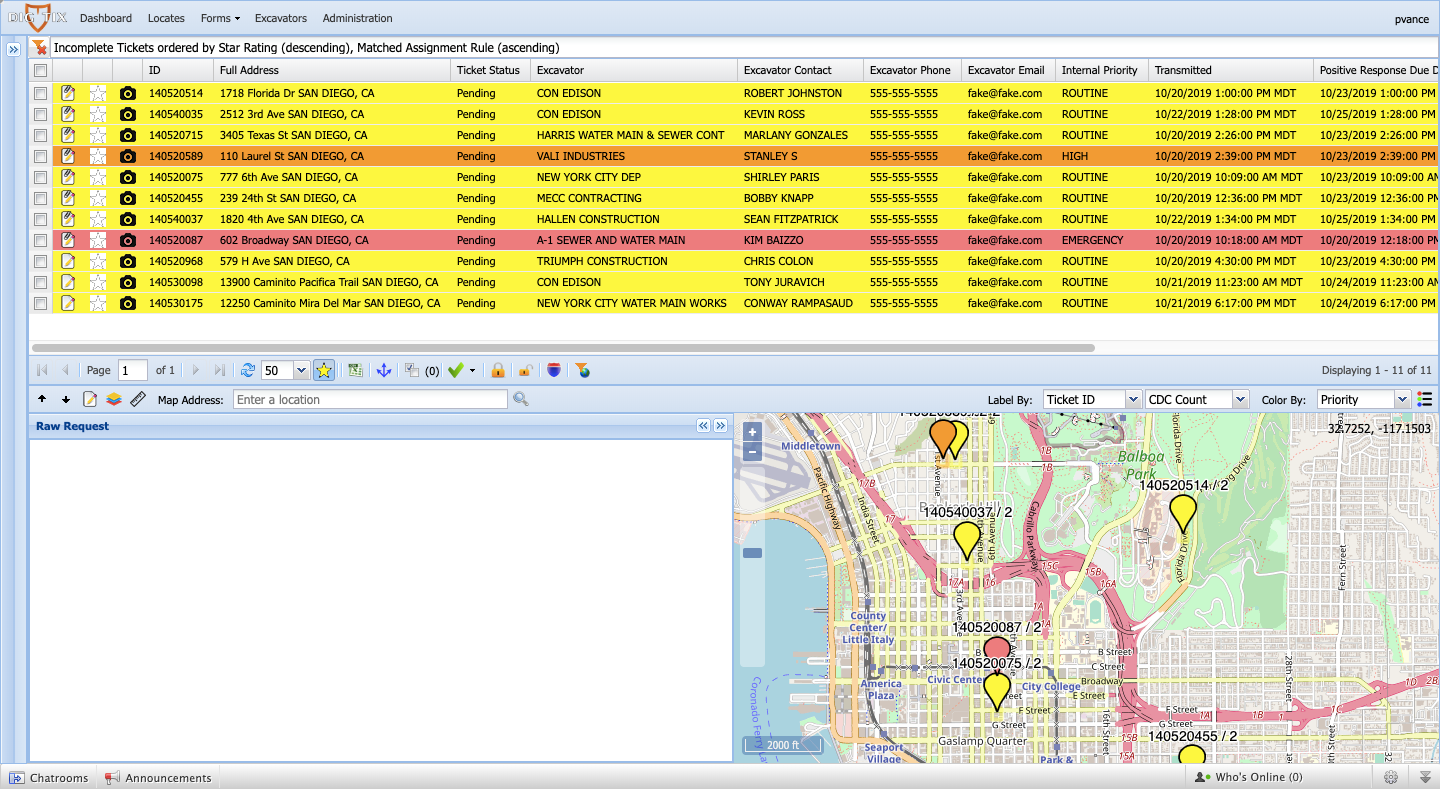
Figure 2: Locates Page
LOCATES GRID
The Locates Grid holds all information about each loaded locate request in tabular format. It can be thought of as a highly interactive spreadsheet, much like Microsoft’s Excel. Each row in the grid is a locate request and each column represents a field or attribute for that locate.
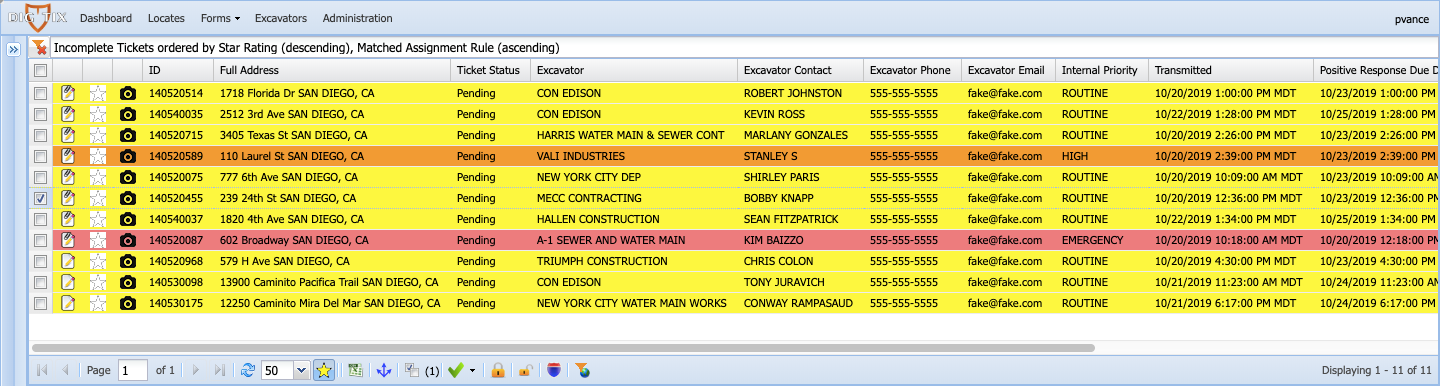
Figure 3: Locates Grid
LOCATES MAP
All locate requests listed in the grid are visualized as a labelled marker on a map. Clicking on a row in the grid will pan the map to that locate request's location.
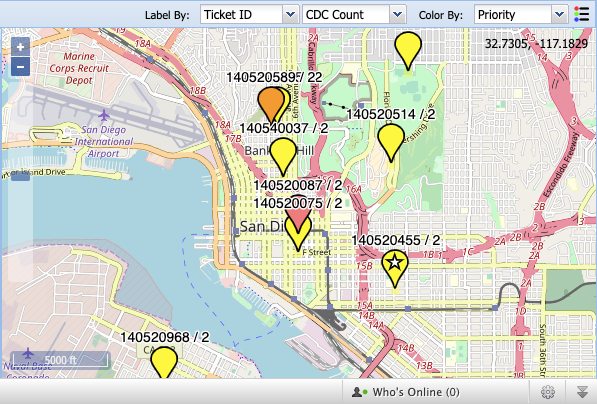
Figure 4: Locates Map
RAW REQUEST
The "Raw Request" panel is a condensed display of the locate request, or the raw request as it was emailed from 811 call center. This window will appear blank until a locate request is clicked within the grid or map. All of the information in this window will be filtered and displayed in the locates grid.
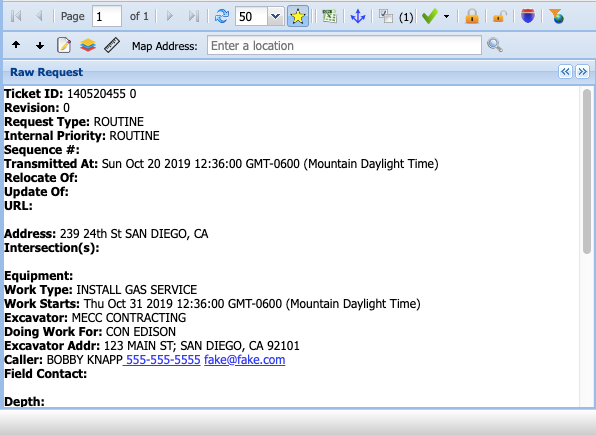
Figure 5: Raw Request Panel
HOVER OVER MAP MARKER FOR SUMMARY
By hovering your mouse or cursor over the locate request, a pop-up will be displayed with basic information about that ticket.
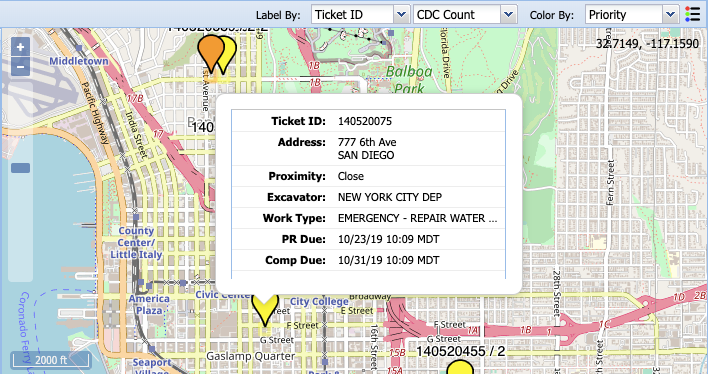
Figure 6: Map Marker Summary
SELECT ALL LOCATE REQUESTS
By clicking the check box in the top left corner of the locates grid you will automatically select all locate requests displayed in the grid. You can also deselect all of the locate requests by clicking the box again. Locate requests can be individually selected by clicking on their individual boxes. Locate requests can also be individually selected by clicking on the ticket icons in the map. Selected locate requests are indicated via a white star in the map marker.
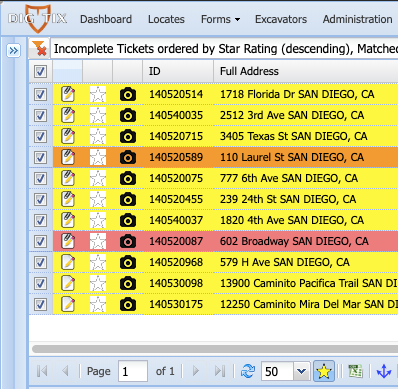
Figure 7: Select All Locate Requests
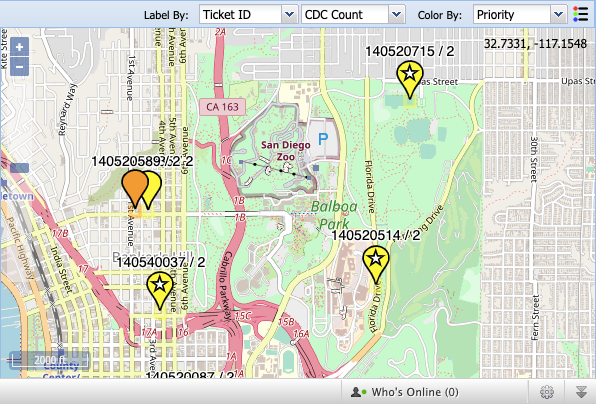
Figure 8: Selected Locates in the Map
FILTERING SELECTED LOCATE REQUESTS
Once you've selected the locate requests you'd like to focus on, it is possible to filter only those locate requests such that they are the only locate requests displayed in the grid and map. To do so, click the "Filter Selected Tickets" button" which is located on the toolbar between the locate requests grid and map.
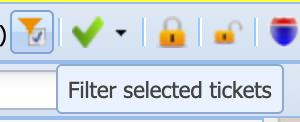
Figure 9: Filter Selected Tickets Icon
ROUTE LOCATE REQUESTS
Routing provides the most efficient driving directions for visiting multiple locate request sites. Traffic and road closures are considered to determine the quickest route to visit all of the desired ticket locations. After selecting the desired tickets and clicking the “Route Selected Tickets” button, the user will be prompted for a start address and an end address. This is where the driving route will begin and end, respectively. If location tracking is enabled, it is possible to start and/or end the route from your current location.
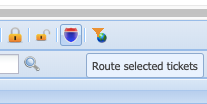
Figure 10: Route Tickets Icon
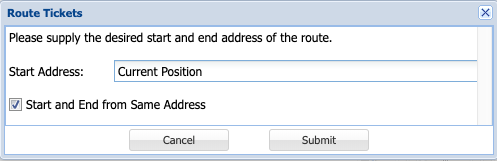
Figure 11: Route Tickets Pop-Up Window
The most efficient route is determined and then displayed on the map (see screenshot below). The route is displayed as a solid red line. Red circles denote turns and can be clicked on for directions. Green circles indicate the arrival of a selected ticket.
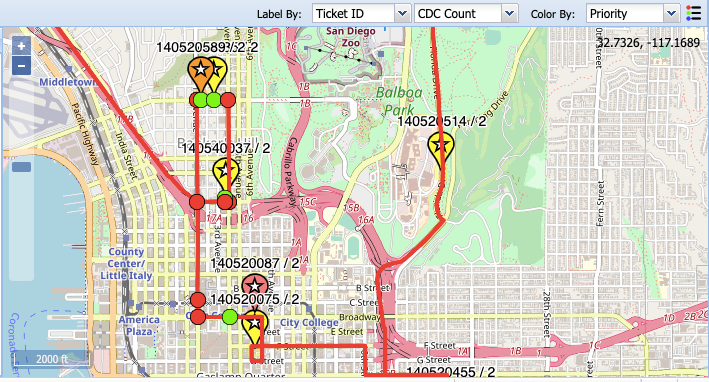
Figure 12: Route Displayed in the Map Window
Turn by turn directions are listed on a temporary “Route” tab in the Left Control Panel. Note that DigTix determines the suggested order in which to visit locate requests, from top to bottom.
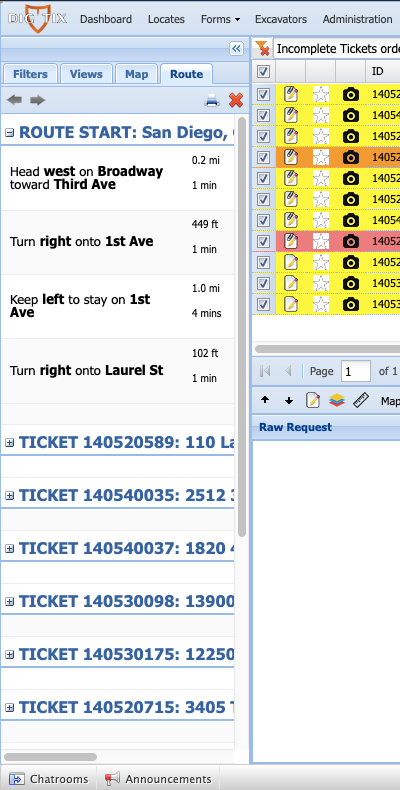
Figure 13: Ticket Route Directions
VOICE NAVIGATION TURN BY TURN DIRECTIONS
When accessing DigTix from a mobile device such as a phone or a tablet, it is possible to activate voice navigation turn by turn directions for safe, hands-free driving to any ticket's location. Within the ticket grid, click on the map icon to begin voice navigation turn by turn to that ticket's location.
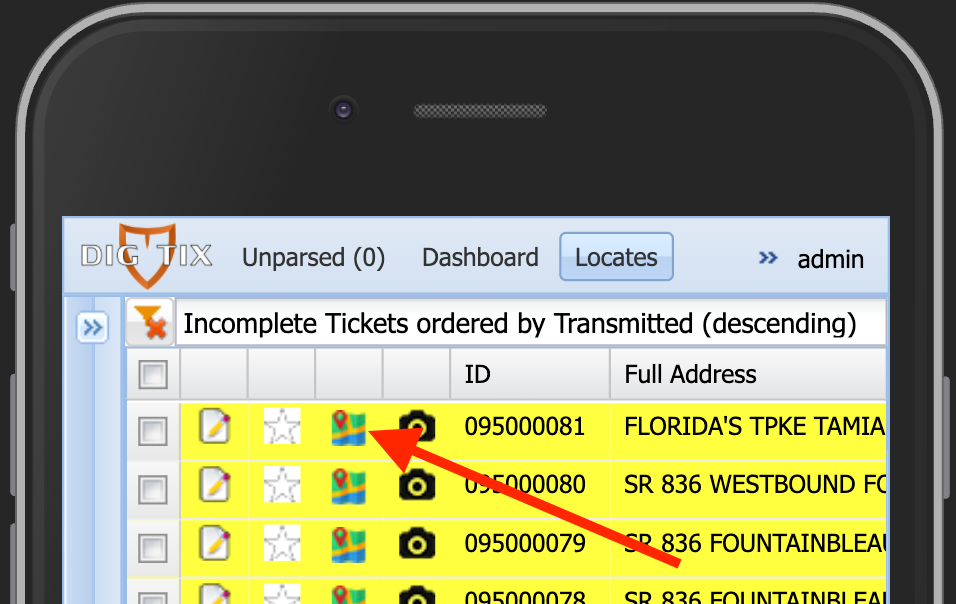
Figure 14: Voice Navigation Turn by Turn Directions Button
OPEN LOCATE REQUEST
Upon arrival at your first locate requests, click on the appropriate row in the ticket grid. This will pull up the raw request in the Raw Request Window and zoom in on the ticket location in the map. DigTix displays the scope of the work within a colored polygon. This is the area where the excavation company plans to dig.
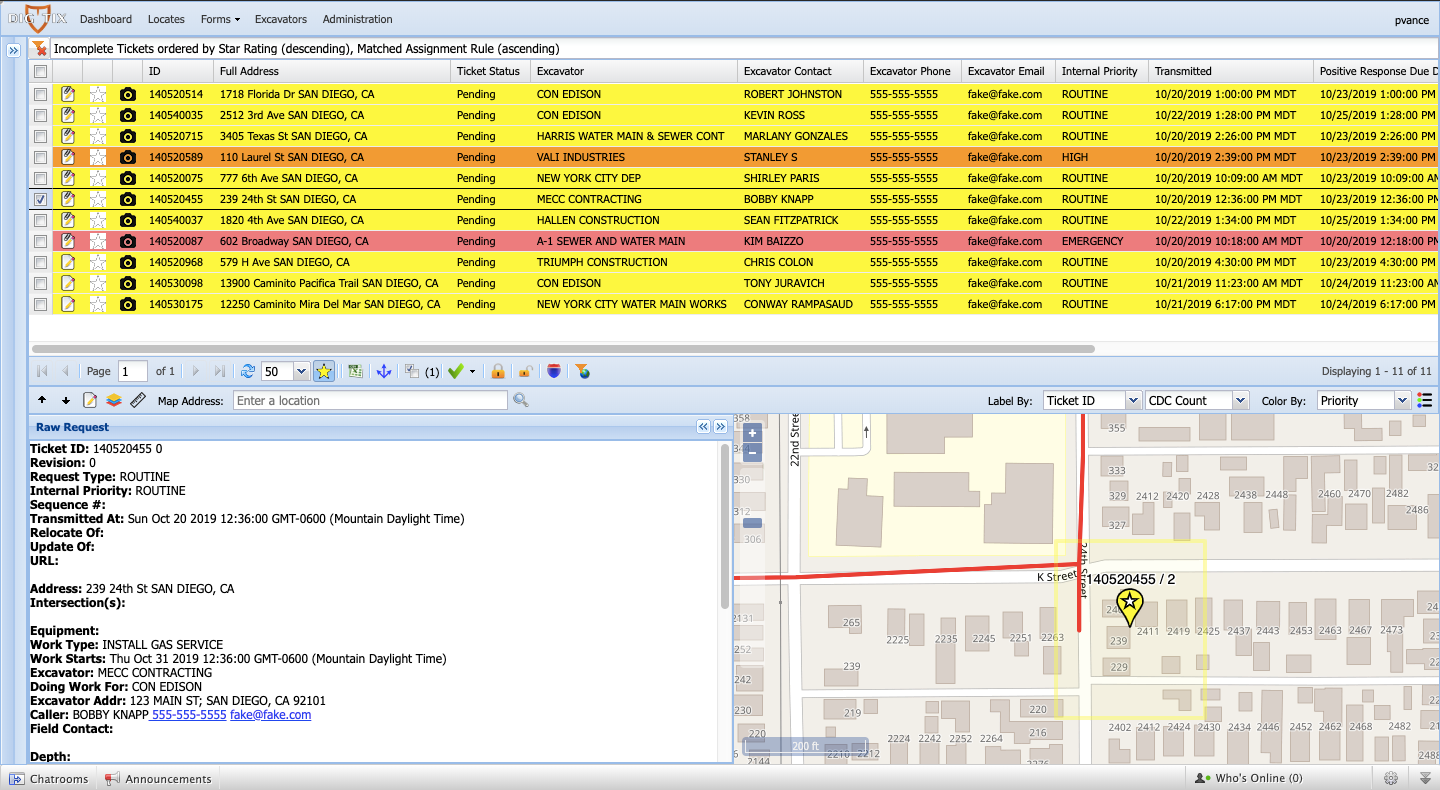
Figure 15: Focusing on a Locate Request
LOCATE REQUEST WINDOW
The Ticket Window allows a user to view and update information for a locate request. This information is organized into several tabs. Each tab serves a specific purpose detailed below. Only one Ticket Window can be displayed at any given time.
If you are viewing DigTix on a mobile device it will appear similar to the image below.
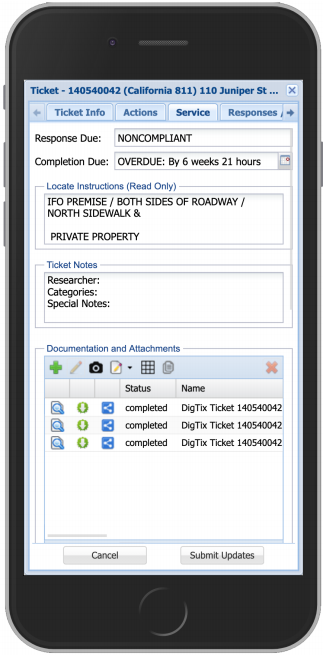
Figure 16: Mobile View of Ticket Window
TICKET INFO TAB
The Ticket Info Tab is the default tab and displays the information processed from the 811 call center. All information in this tab is read-only and cannot be updated.
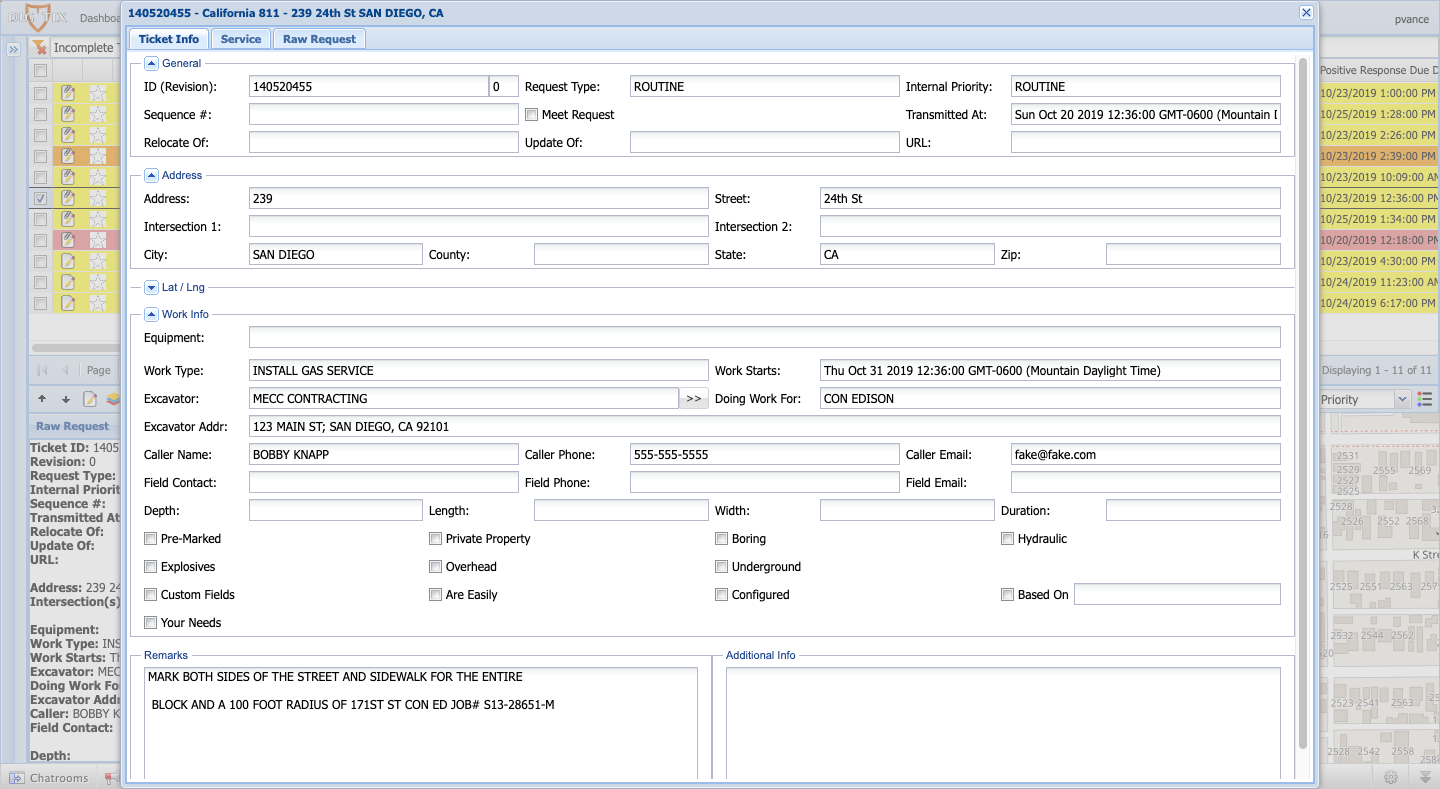
Figure 17: Ticket Info Tab
SERVICE TAB
The Service Tab is where research / annotation, time tracking, file attachment, and completion of the locate request takes place.
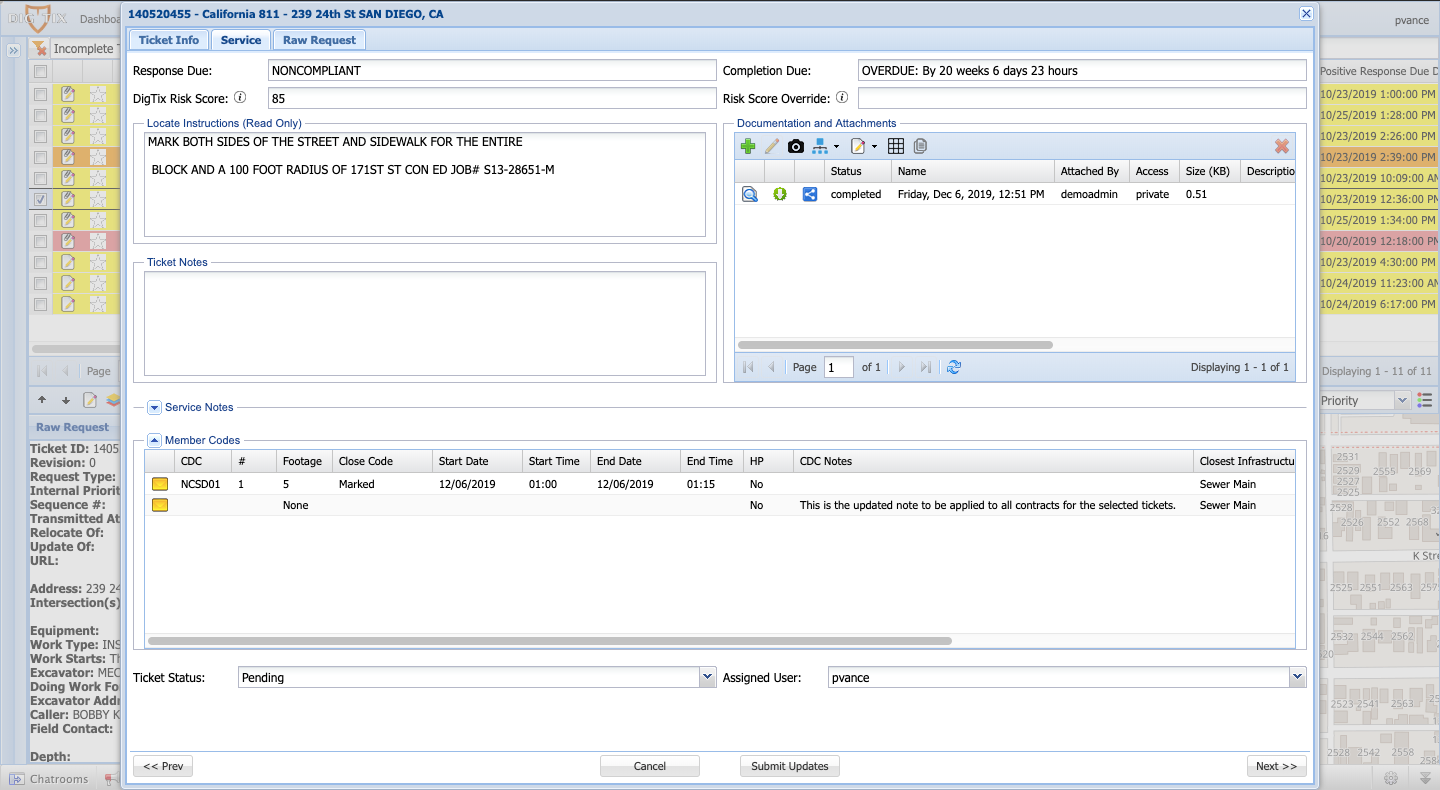
Figure 18: Service Tab
Locate Instruction
Instructions that are attached to the original request from 811 will appear in the "Locate Instructions" text box.
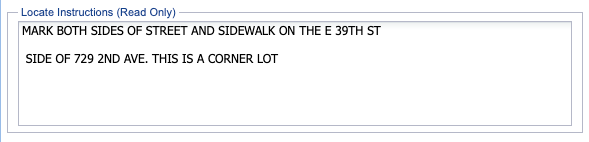
Figure 19: Locate Instructions Section
TICKET NOTES
Notes can be added to the locate request in the "Ticket Notes" section of the Service Tab.
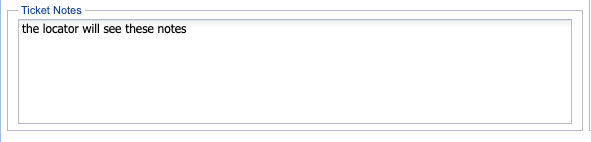
Figure 20: Ticket Notes Section
PHOTO ATTACHMENTS
To take a photo of your markings, click on the camera icon in the Documentation and Attachments section. This will automatically link to the camera in your device, as shown below. NOTE: If your device does not have an integrated camera, the camera icon will not appear.
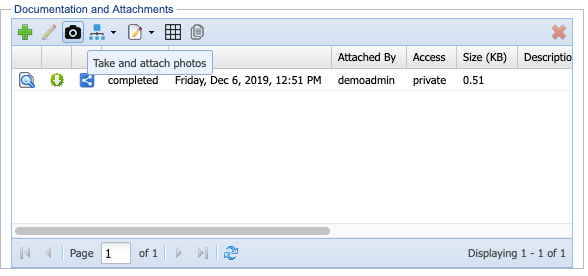
Figure 21: Documents and Attachments Section
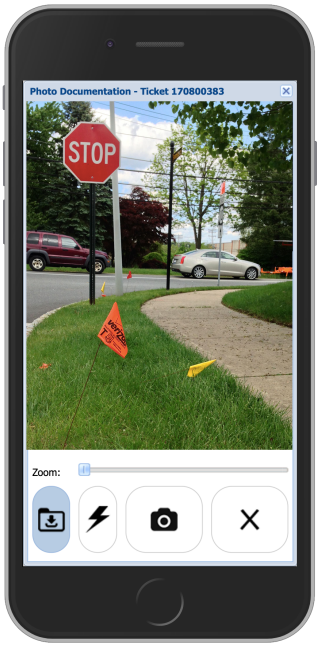
Figure 22: Camera Photo View
Zoom: This allows you to get a closer view.
Download Image: This button can be toggled on and off. When toggled on, DigTix will save a copy of each photo taken to the device's local storage. NOTE: Due to limitations imposed by manufacturers, this feature is not available on iOS devices.
Camera Flash On/Off: This toggles your camera’s flash on and off, helping in low light situations.
Take Picture: This will capture the image on the screen. You will be able to take multiple photos in row in a “Rapid Fire” style without exiting the camera. These pictures will be automatically compressed, uploaded, and attached to the ticket.
Exit: This will exit the photo mode.
MEMBER CODES
Member codes (also called "CDCs") represent a specific utility type. For example, gas, water, fiber, high pressure gas, electric mains, service lines, etc. Certain 811 call centers handle member codes differently, so be sure to get familiar with what each member code represents for your organization.
Within the DigTix ticket window, the "Member Codes" section lists all of the member codes associated with that ticket.
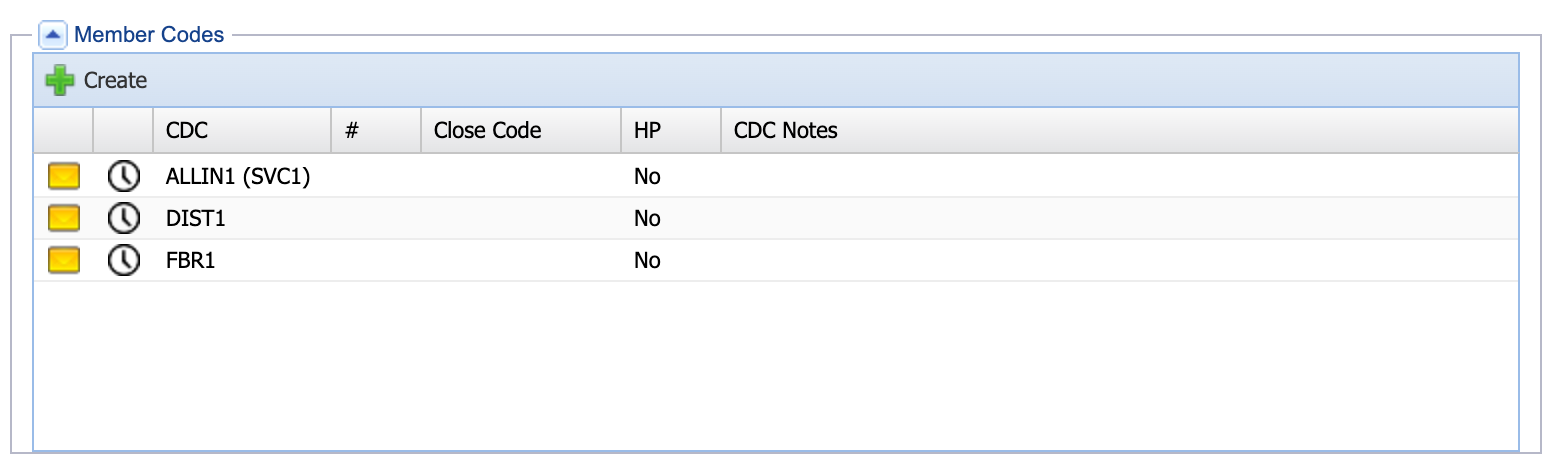
Figure 23: Member Codes Section
There may be one or more member codes on a ticket. A "Close Code" should be applied to each member code in order to complete the ticket.
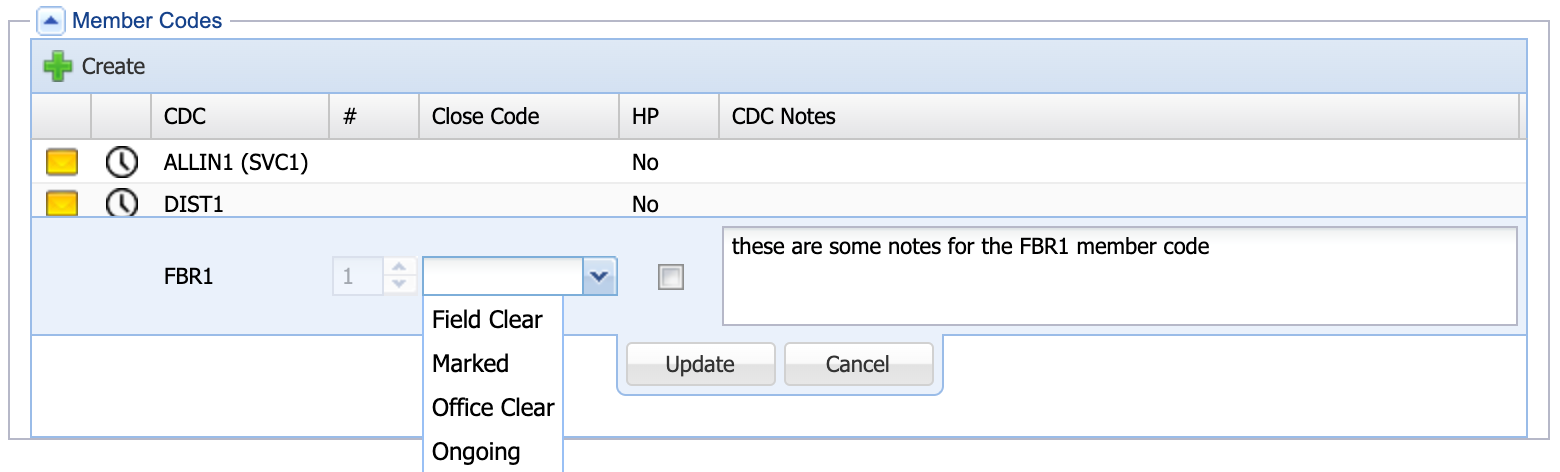
Figure 24: Applying Close Codes and Notes
It may be required to specify start and end times, footage, or notes in order to apply a close code to each member code. NOTE: The "CDC Notes" field is for notes specific to that member code / utility. These notes may appear in positive responses sent to the 811 call center and/or the excavator.

Figure 25: Specifying Footage, Start and End Times
TICKET STATUS
Once each member code is updated, you may change the status of the overall ticket to reflect your work. If all of the member codes have been completed and the work for the locate request is finished, you can complete the ticket by updating the ticket to a completed status and clicking "Submit Updates". This will remove the ticket from your work queue and archive it for later research or auditing.

Figure 26: Ticket Status Bar
RESEARCH COMPLETED LOCATE REQUESTS
To review completed locate requests, toggle the green check icon. This button is located on the toolbar between the grid and map. You can choose to see only incomplete locate, only completed locates, or all locates (regardless of completion state).
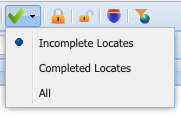
Figure 27: Completed / Incomplete Locates Icon
If you know the ID of the ticket you're looking for, you can type it into the "Ticket ID" box to the left of the locate request grid, under the "Filters" tab.
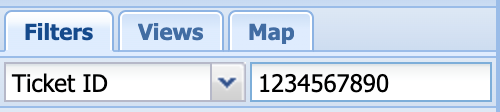
Figure 28: Finding a Ticket by ID
NOTE: You can also search for a specific ticket using any ticket attribute (street name, excavator name, etc).
Was this article helpful?
That’s Great!
Thank you for your feedback
Sorry! We couldn't be helpful
Thank you for your feedback
Feedback sent
We appreciate your effort and will try to fix the article