Alert Notifications
Purpose/Overview
In this article, you’ll learn how to configure Alert Notifications in Utilisphere. This feature allows you to send notifications when specific alerts are created, ensuring that critical system events, errors, or maintenance updates are communicated promptly.
Alert Notifications help administrators and operations teams stay informed about issues such as failed transmissions, API errors, or system maintenance, reducing downtime and improving response times.
Navigation Path:
To access this feature, go to: Utilisphere > System Management > Administration > General > Alert Notifrications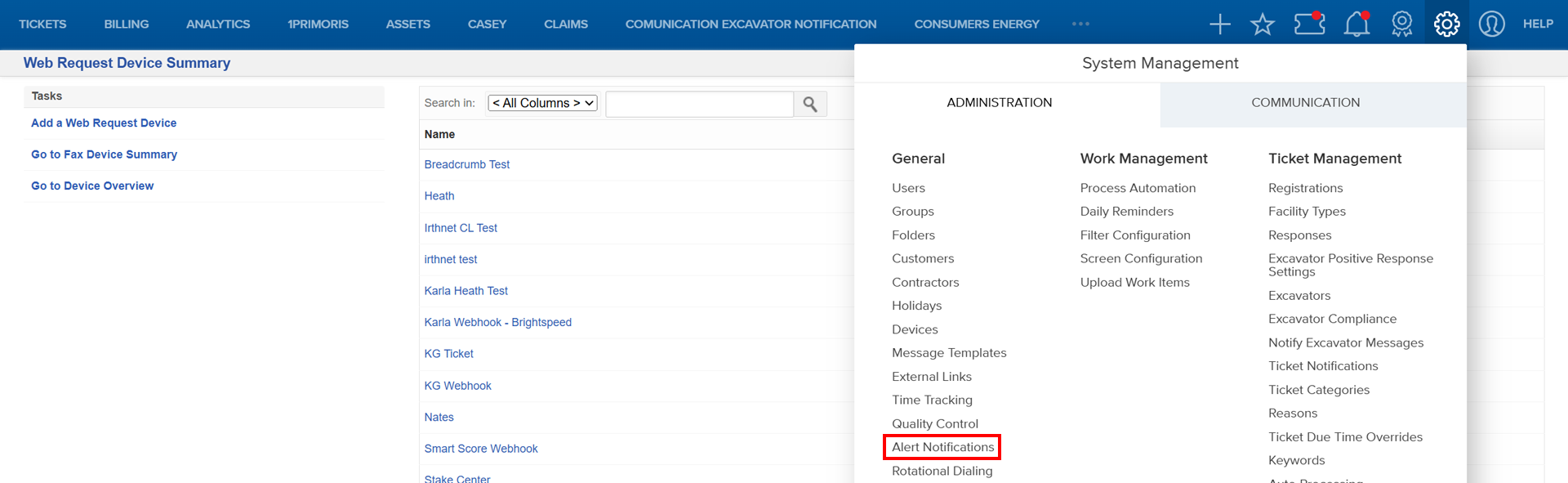
Things to Know:
Permissions: Requires administrative access to System Management > Administration > General > Alert Notifications.
Platform Variations: Available on all supported browsers; ensure pop-ups are enabled for configuration screens.
Known Limitations:
- Notifications must be enabled to function.
- Device-based notifications require prior device setup.
Key Benefits/Use Cases:
Notify administrators immediately when API errors occur, reducing troubleshooting time.
Alert teams about failed transmissions to prevent ticket delivery delays.
Communicate planned system maintenance to all users for better preparedness.
How It Works:
Add or Modify an Alert Created Notification
- Navigate to System Management > Administration > General > Alert Notifications.
- On the Alert Created Notification screen, click Add an Alert Created Notification.

- Complete the Add an Alert Created Notification form and click Save.
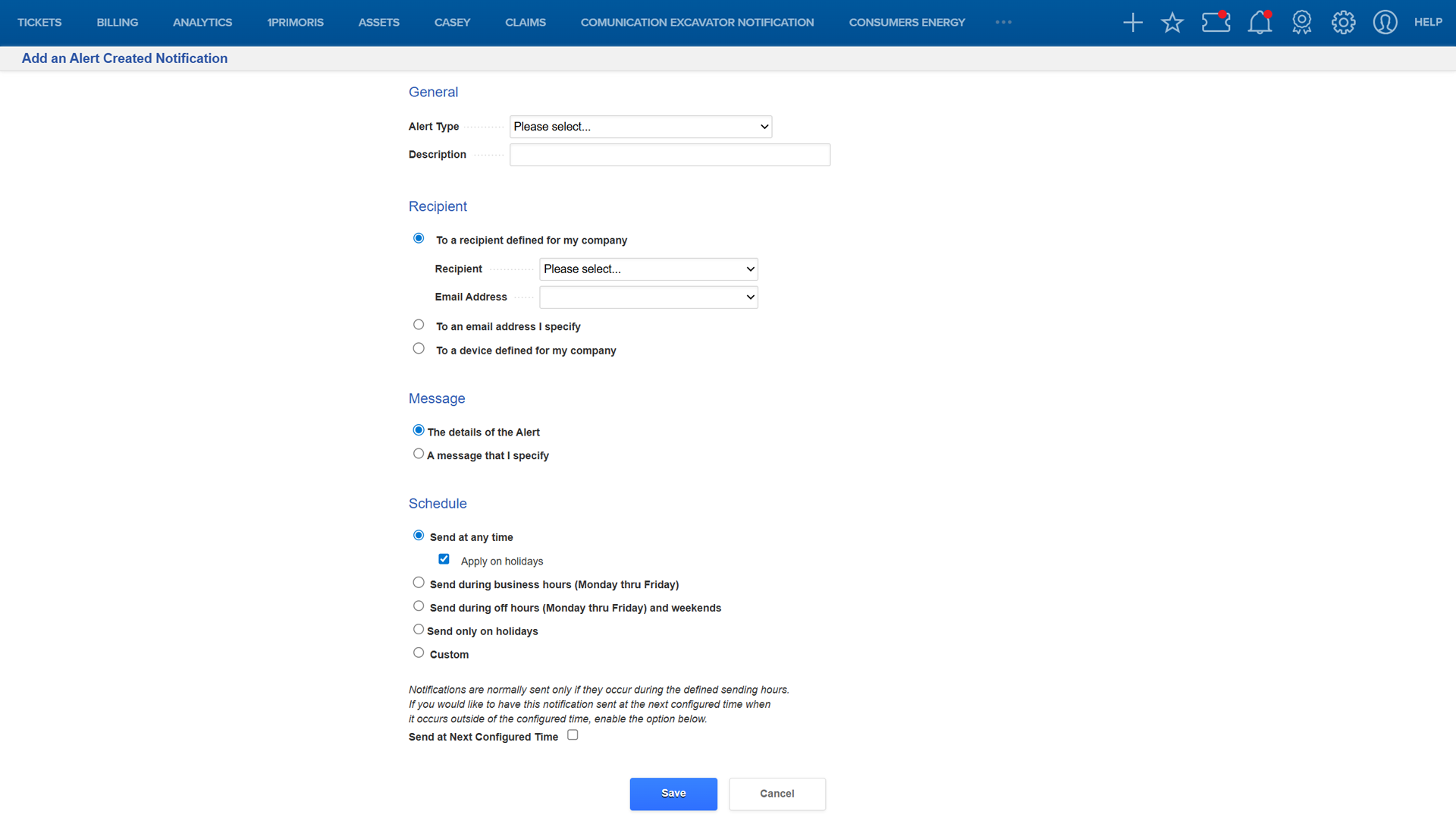
NOTE: To Modify a Notification, click the notification name in the Type column on the Alert Created Notifications screen, make the necessary edit, and click Save. |
Enable or Disable Notifications
- From the Alert Created Notification page: Click Enable/Disable Notifications, select the notifications, and click Enable or Disable.
- From the Notification Detail page: Click Enable/Disable this Notification to toggle its status.
Related Features/Next Steps:
FAQ/Troubleshooting:
Q: Why am I not receiving alerts?
A: Ensure the notification is enabled and the recipient settings are correct.
Q: Can I send alerts to multiple recipients?
A: Yes, you can specify multiple email addresses or use a device configured for group notifications.
Q: What happens if an alert type is not listed?
A: Contact your system administrator to confirm if custom alert types are supported.
Questions? Contact us!

Was this article helpful?
That’s Great!
Thank you for your feedback
Sorry! We couldn't be helpful
Thank you for your feedback
Feedback sent
We appreciate your effort and will try to fix the article