OVERVIEW
In situations where technical information needs to be collected from a client device running DigTix, it is possible to
STEPS
1. Login to your DigTix account as you normally would.
2. After logging in, click on the URL bar within your web browser and update the URL from https://companyname.digtix.com/ext/ to https://companyname.digtix.com/ext/?
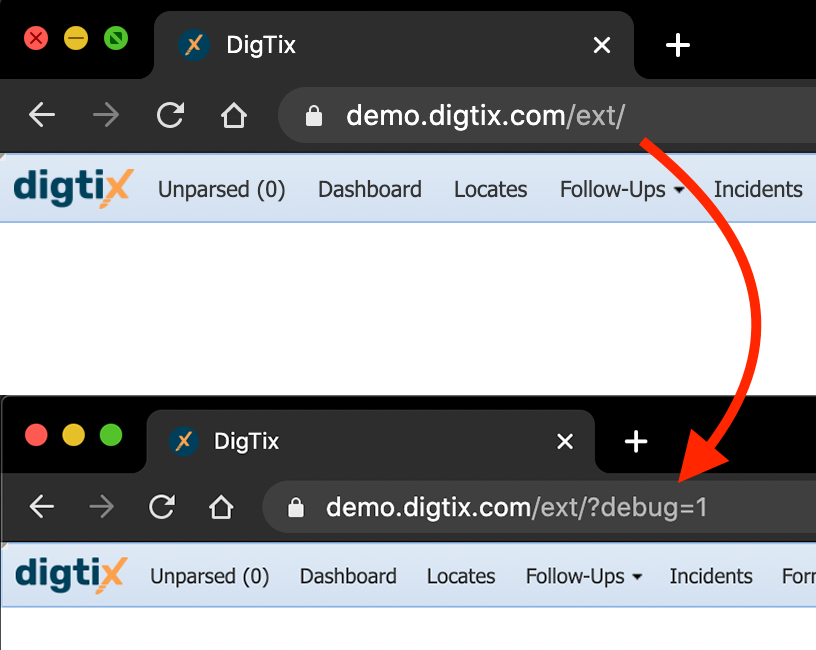
3. After DigTix initializes, perform the relevant actions within DigTix as you normally would.
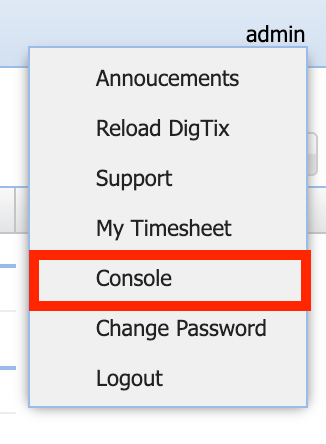
4. After you have performed the relevant actions, click on the account menu in the top right corner, and then click on "Console". This will open the DigTix debug console.
5. On the DigTix console window that appears, click on the "Export" button towards the top right corner of the window. This will download a diagnostic text file to your device.
NOTE: Certain iOS devices have a limitation that prevents the ability to export messages from the console. In these situations, the "Export" button will not appear. Instead, the messages must be copied and pasted to a file manually, or screenshots of the messages must be taken.
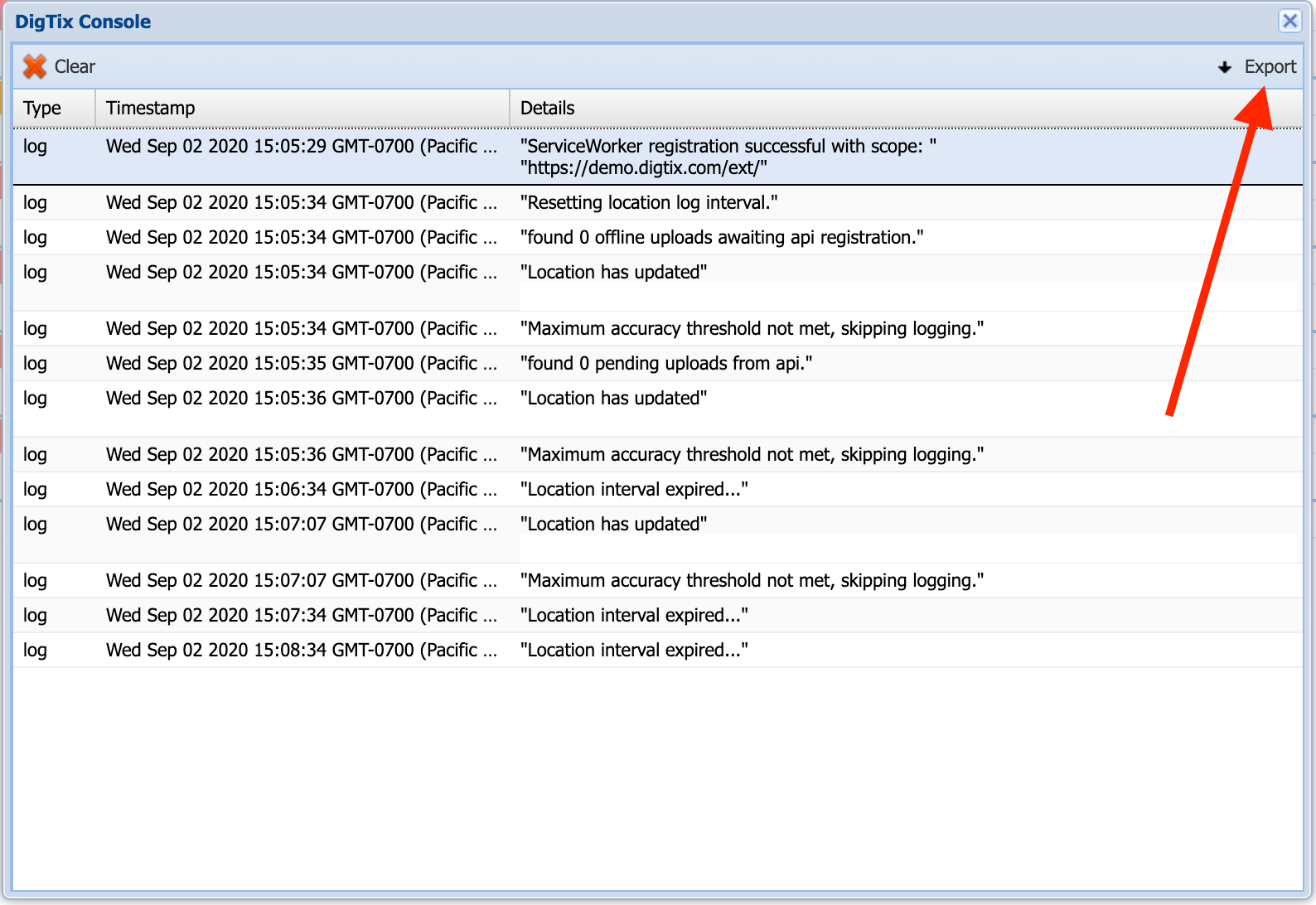
6. Provide the downloaded diagnostic text file to the appropriate party for analysis.
Was this article helpful?
That’s Great!
Thank you for your feedback
Sorry! We couldn't be helpful
Thank you for your feedback
Feedback sent
We appreciate your effort and will try to fix the article