OVERVIEW
Tickets can be assigned if they fall within specific geographic areas. Use the polygon tool to define boundaries of a user's coverage within Google Maps.
Create a polygon rule condition by following these steps:
1. Navigate to the "Ticket Assignment" section of the Administration page.
2. Open the rule you'd like to add a polygon to by double-clicking on it.
3. Click on the "Create" button at the top of the "Conditions" section to create a new rule condition.
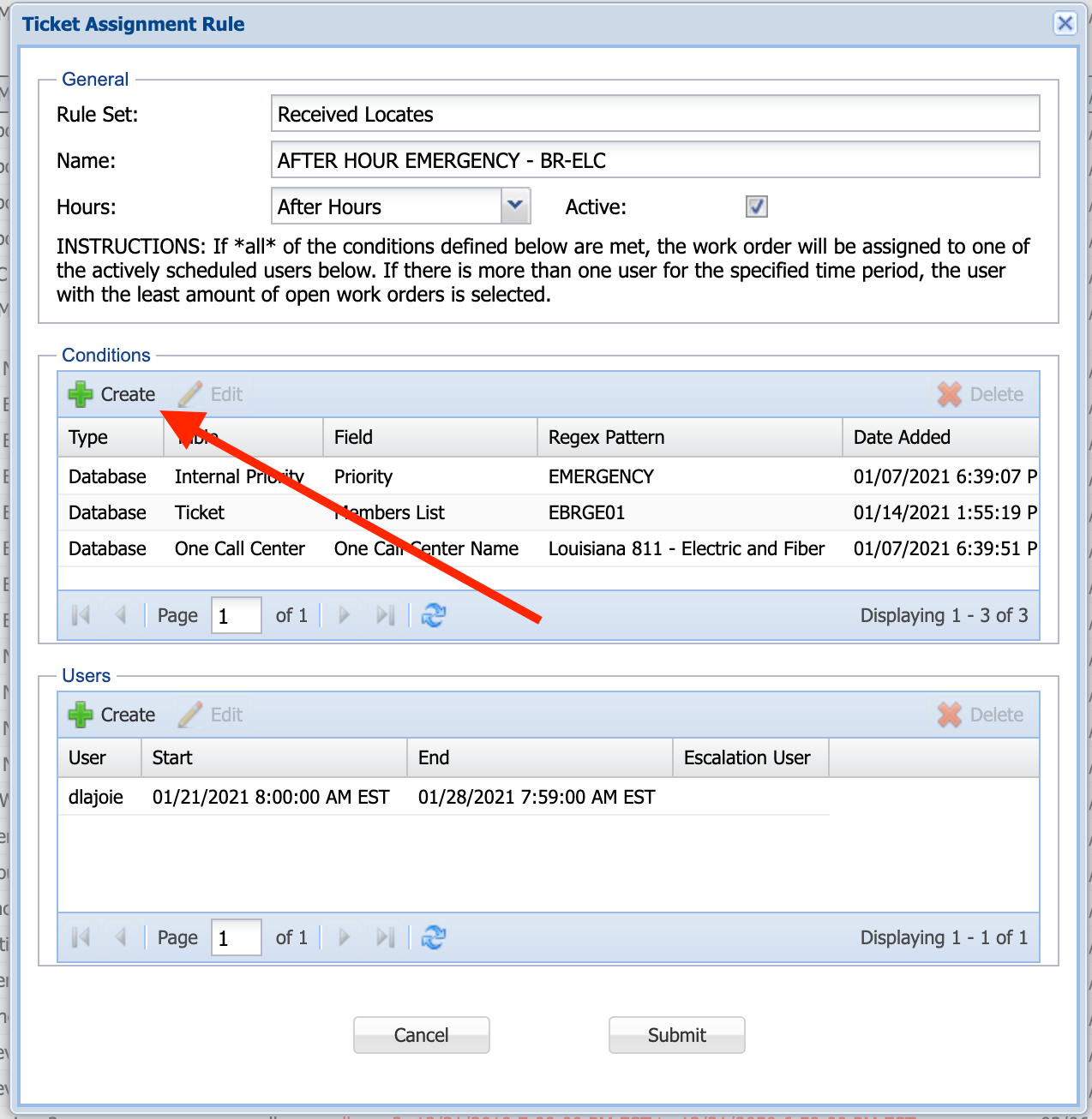 Figure 1: Ticket Assignment Rule where Conditions are created
 4. Under the "Type" field, select "Geo Polygon". This will bring up Google Maps below.
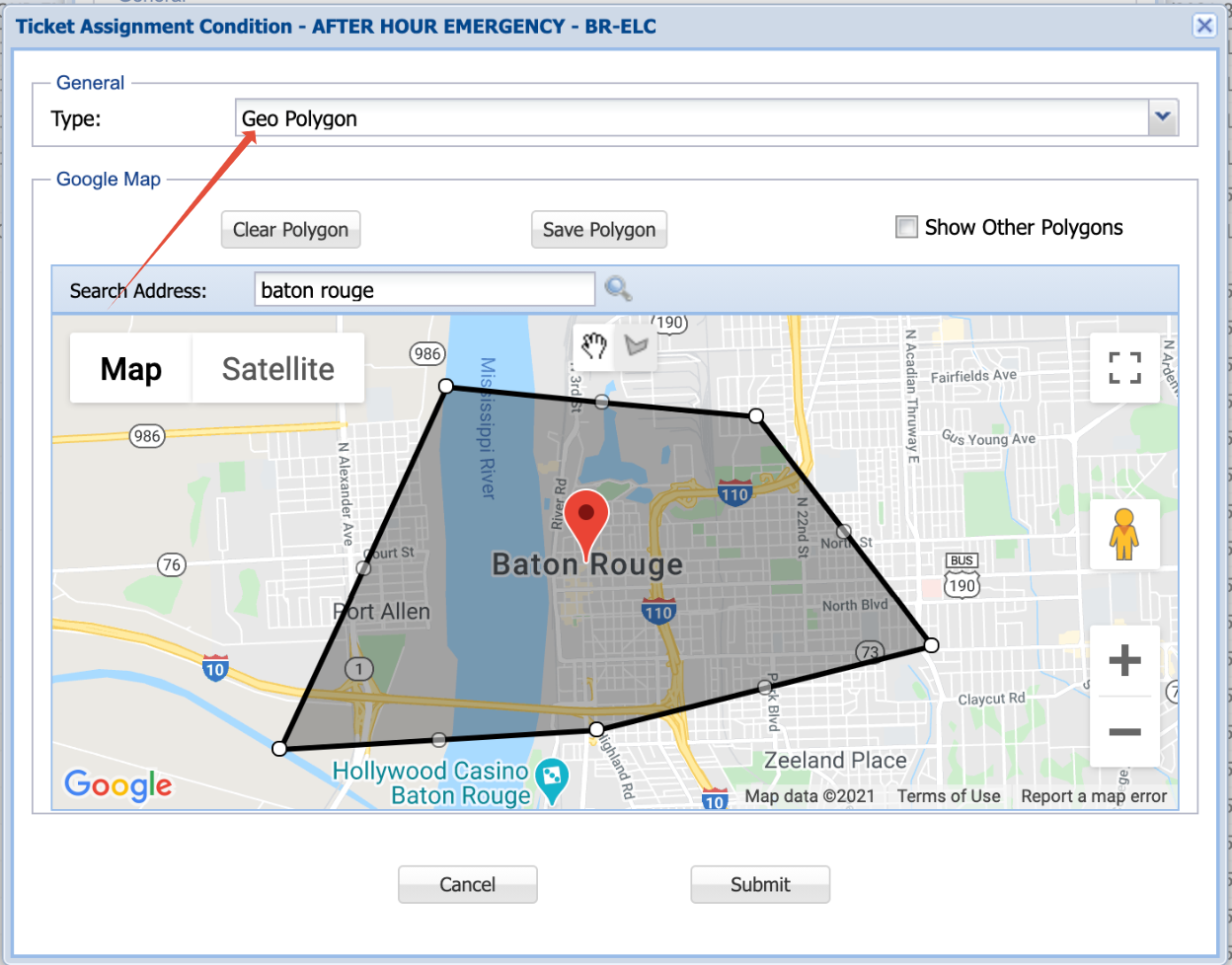 Figure 2: Geo Polygon condition rule type
5. Click on the polygon drawing tool button and draw the polygon around the area you'd like to add to the rule. Note that you can search for an address or city in the search bar, which "baton rouge" has already been entered. This will zoom the map into Baton Rouge.
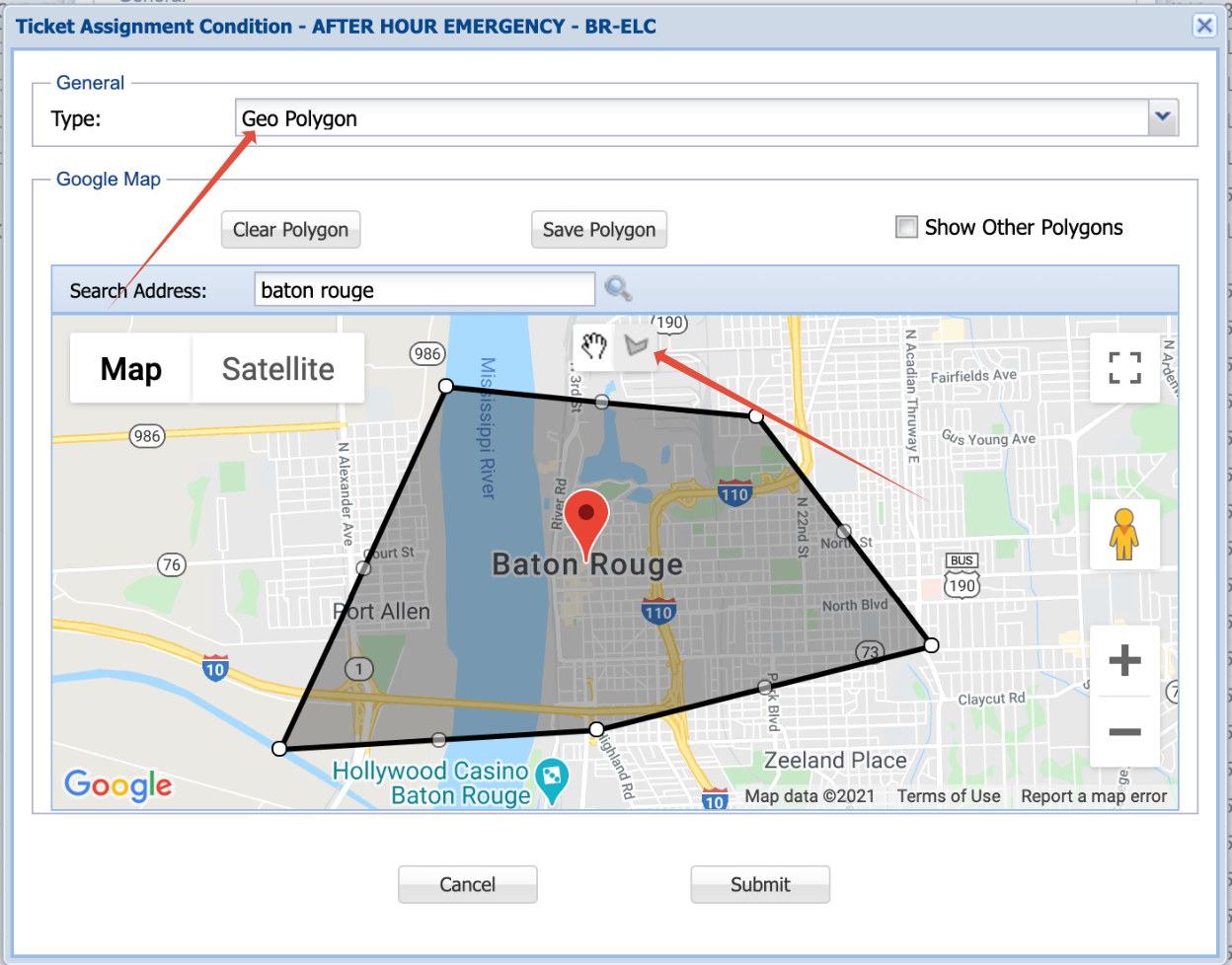 Figure 3: Polygon Drawing tool
 6. Once your polygon is created, click "Save Polygon" and then "Submit". This will save your polygon and add it to the rule's conditions.
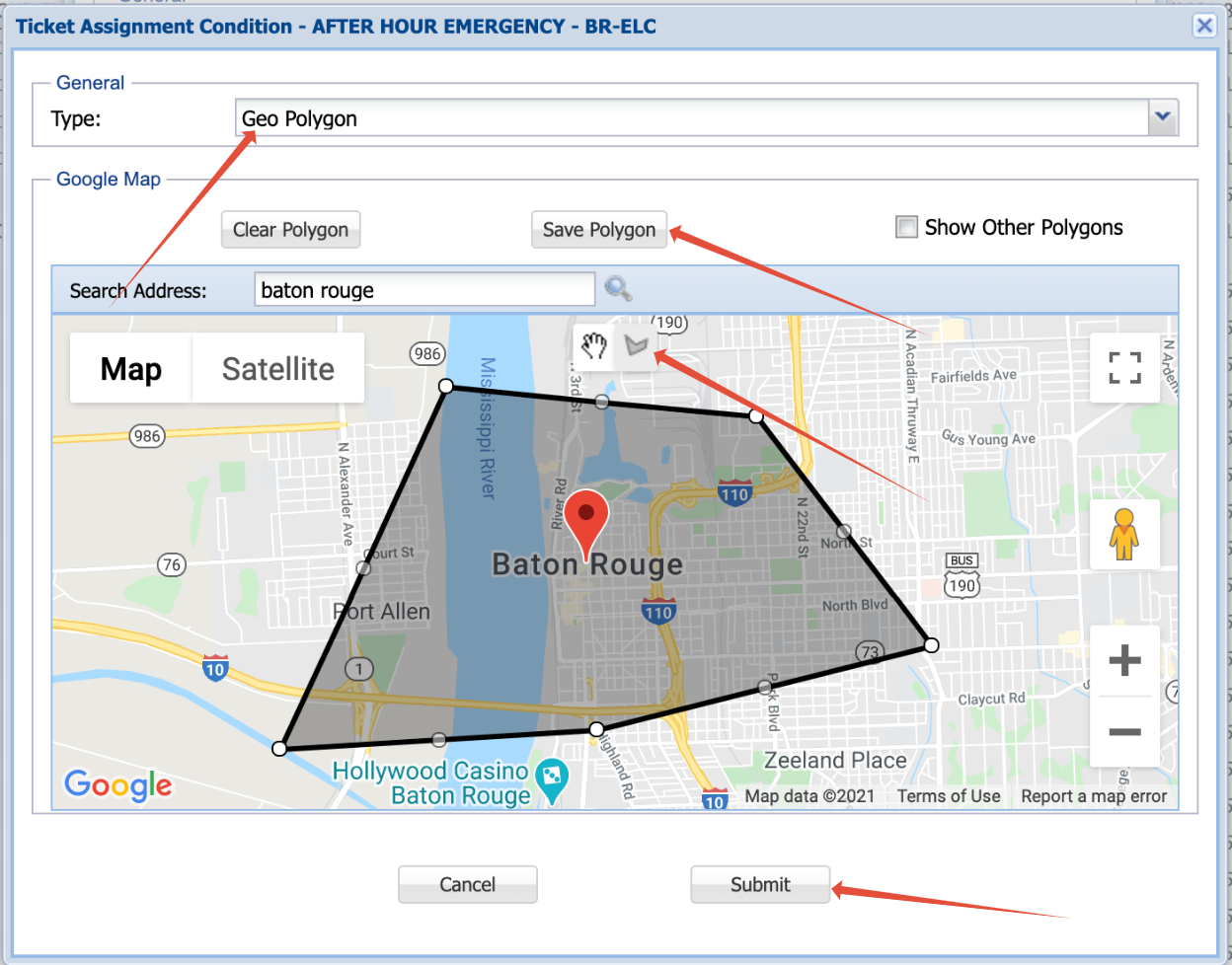 Figure 4: Saving the polygon and Submitting
Was this article helpful?
That’s Great!
Thank you for your feedback
Sorry! We couldn't be helpful
Thank you for your feedback
Feedback sent
We appreciate your effort and will try to fix the article