Auto Process Override Rules
Purpose/Overview
In this article, you will learn how Auto Process Override Rules function within the overall ticket processing workflow in UtiliSphere, including processing order, ticket update behavior, and recent enhancements to improve ticket handling accuracy.
Navigation Path:
To access this feature, go to:
Utilisphere > System Management > Administration > Ticket Management > Auto-Processing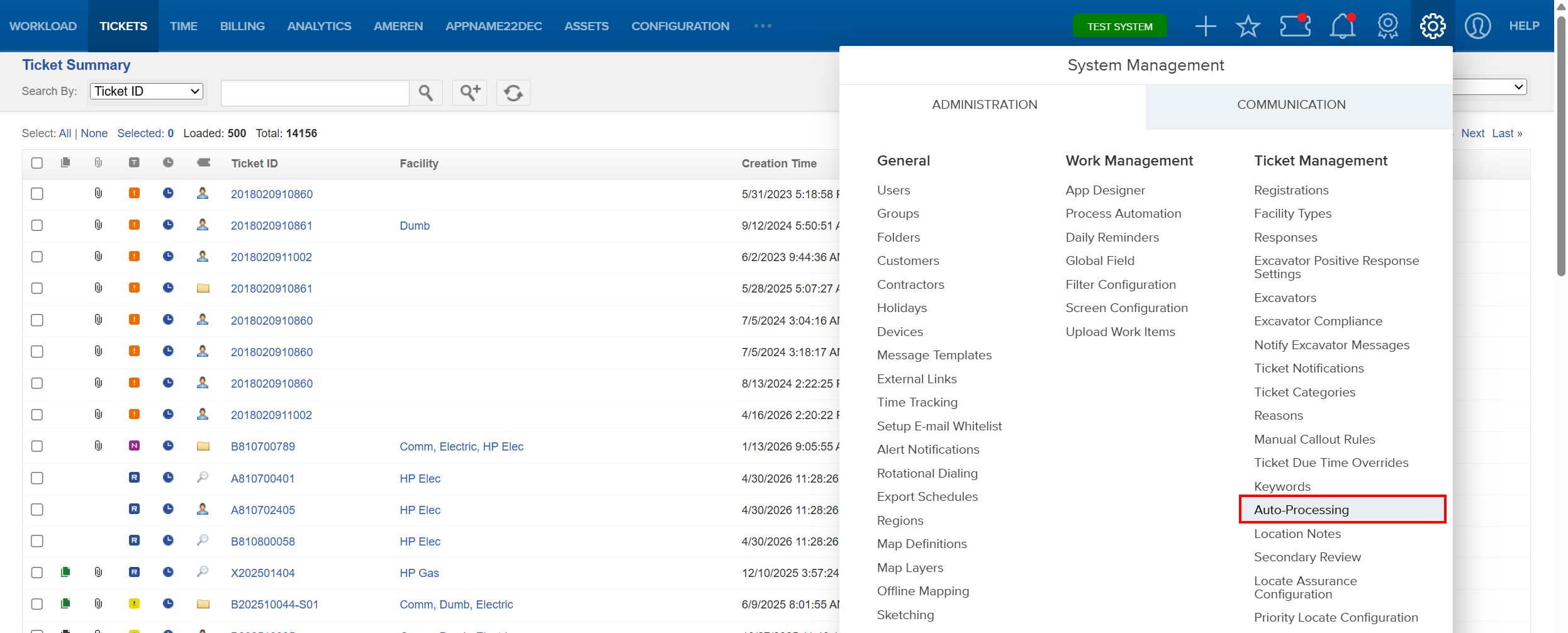
Things to Know:
- Auto Process Override Rules are applied before all other auto-processing rules, including Auto Response, Auto Folder Placement, and Auto Assignment.
- When an override rule is triggered, no additional processing rules will be applied to that ticket.
- Ticket processing follows a defined order:
- Auto Process Apply Recommendation Schedules
- Auto Process Override Rules
- Auto Response
- Auto Folder Placement
- Auto Assignment
- Processing behavior may be impacted by configuration settings such as category priority, exclusion conditions, and rule criteria.
- Some one call centers use In Reference tickets, but not all centers support or send them.
Key Benefits/Use Cases:
- Manual Override for Exception-Based Ticket Processing: Override standard automation when a ticket requires strict or exception-based handling, ensuring precise control over processing outcomes
- Stop Rule Execution to Prevent Unintended Actions: Prevent unintended responses, assignments, or folder placement by stopping downstream rules when specific criteria are met
- Enhance Accuracy for Complex Ticket Updates and Conditions: Improve ticket handling accuracy when working with ticket updates, cancel scenarios, or complex rule conditions
How It Works:
Follow these steps to setup or enable:
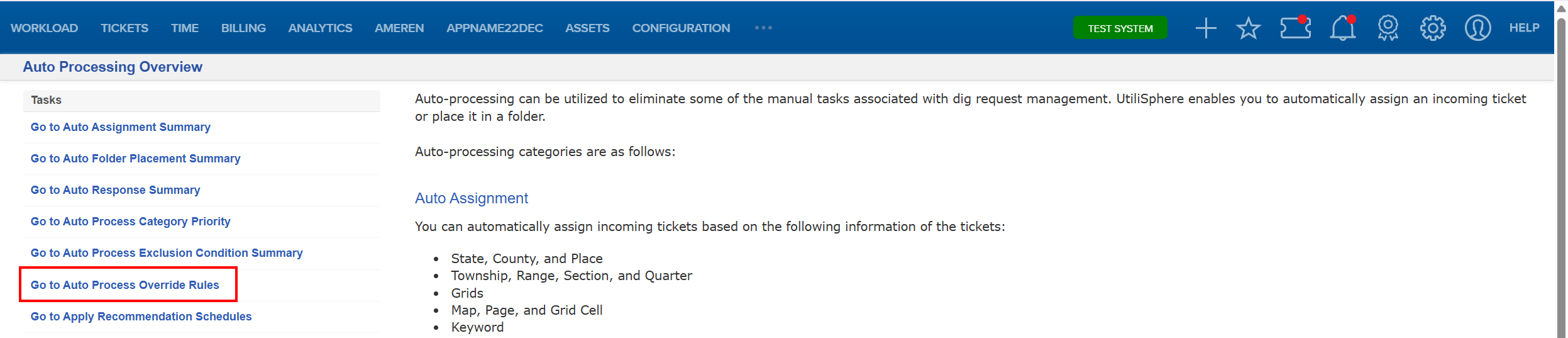
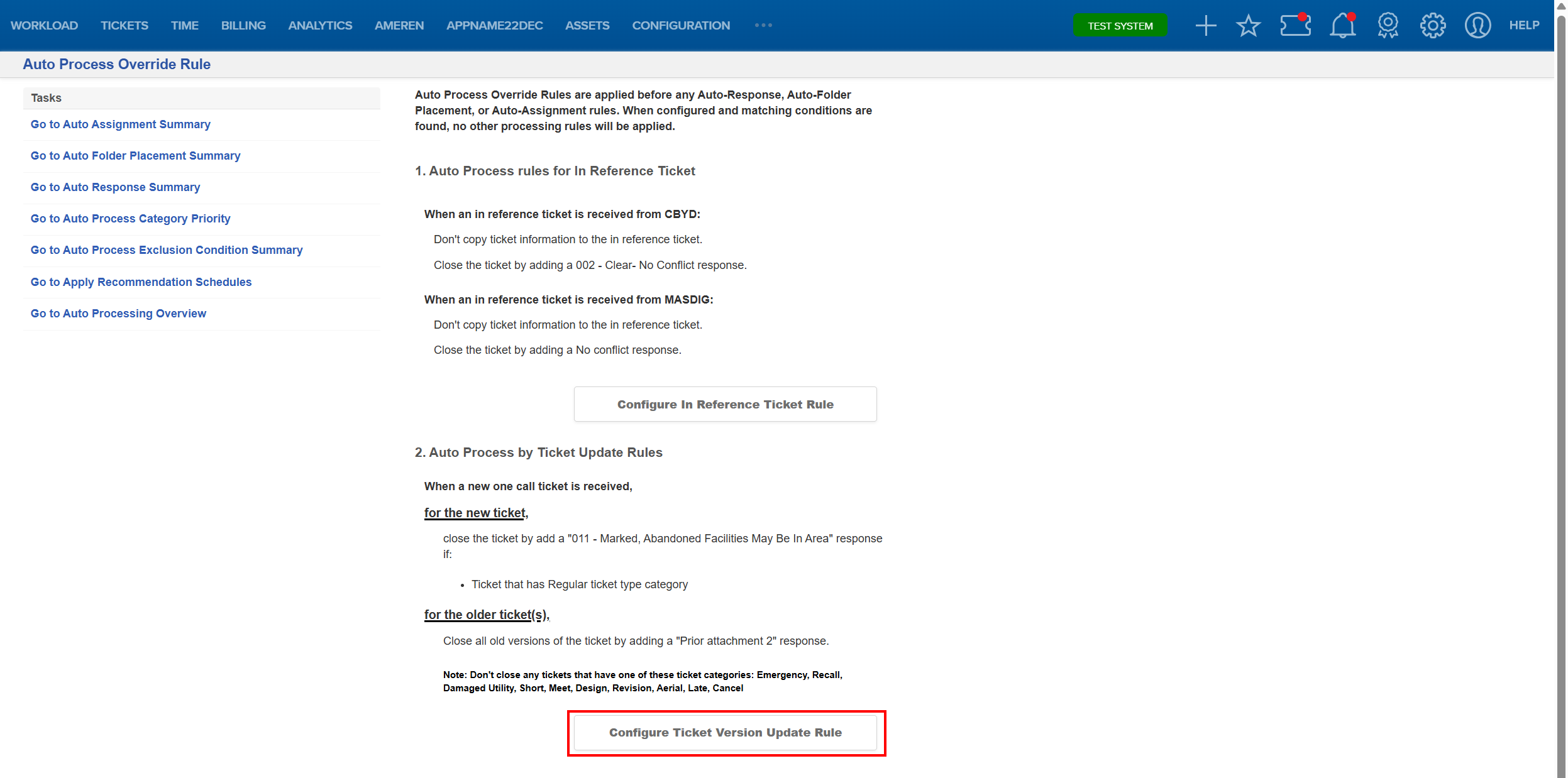
- Navigate to System Management > Administration > Ticket Management > Auto-Processing and choose Go to Auto Process Override Rules.
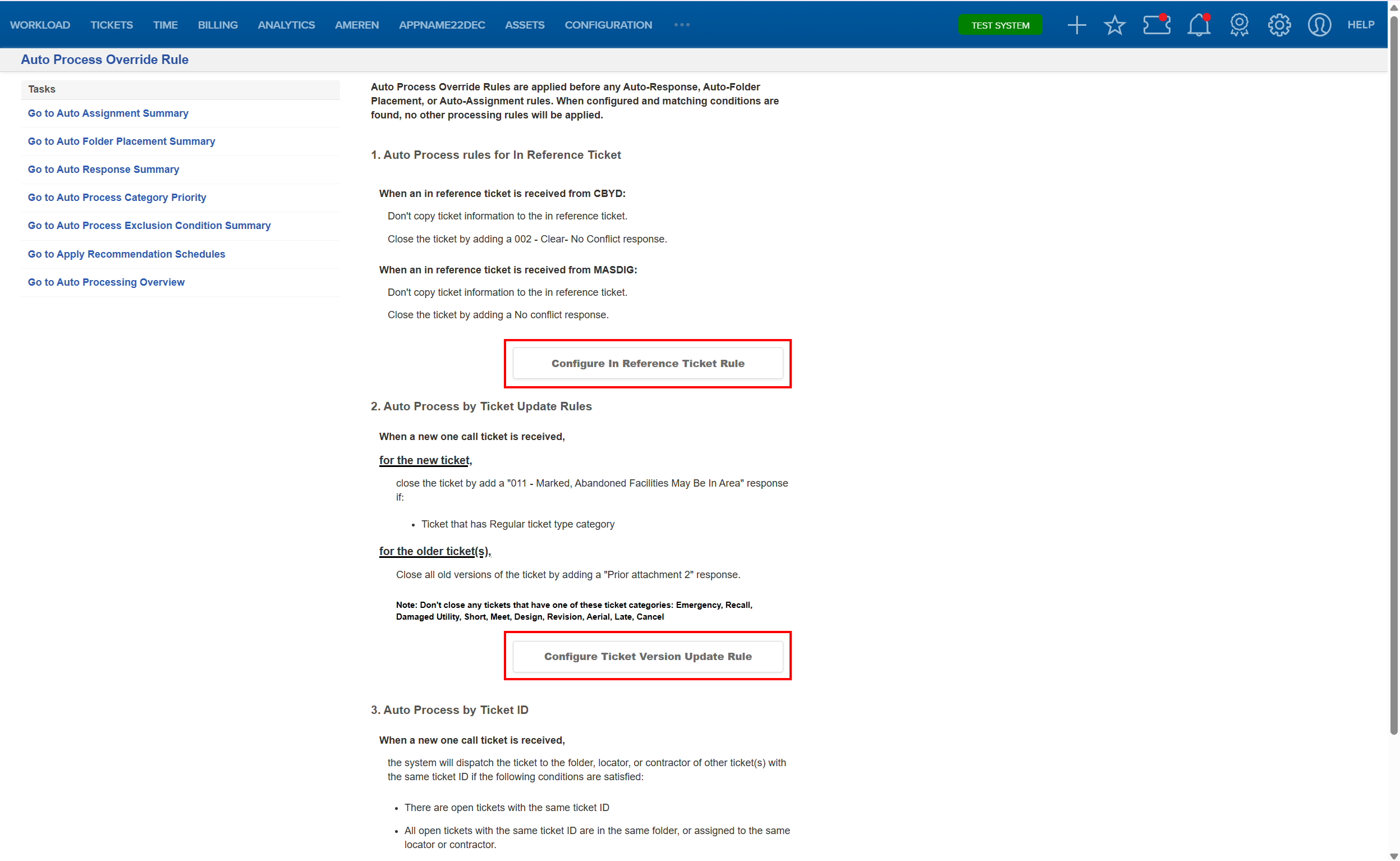
- Select the Configure button for the rules you want to work with.
- Define the criteria that will trigger the override.
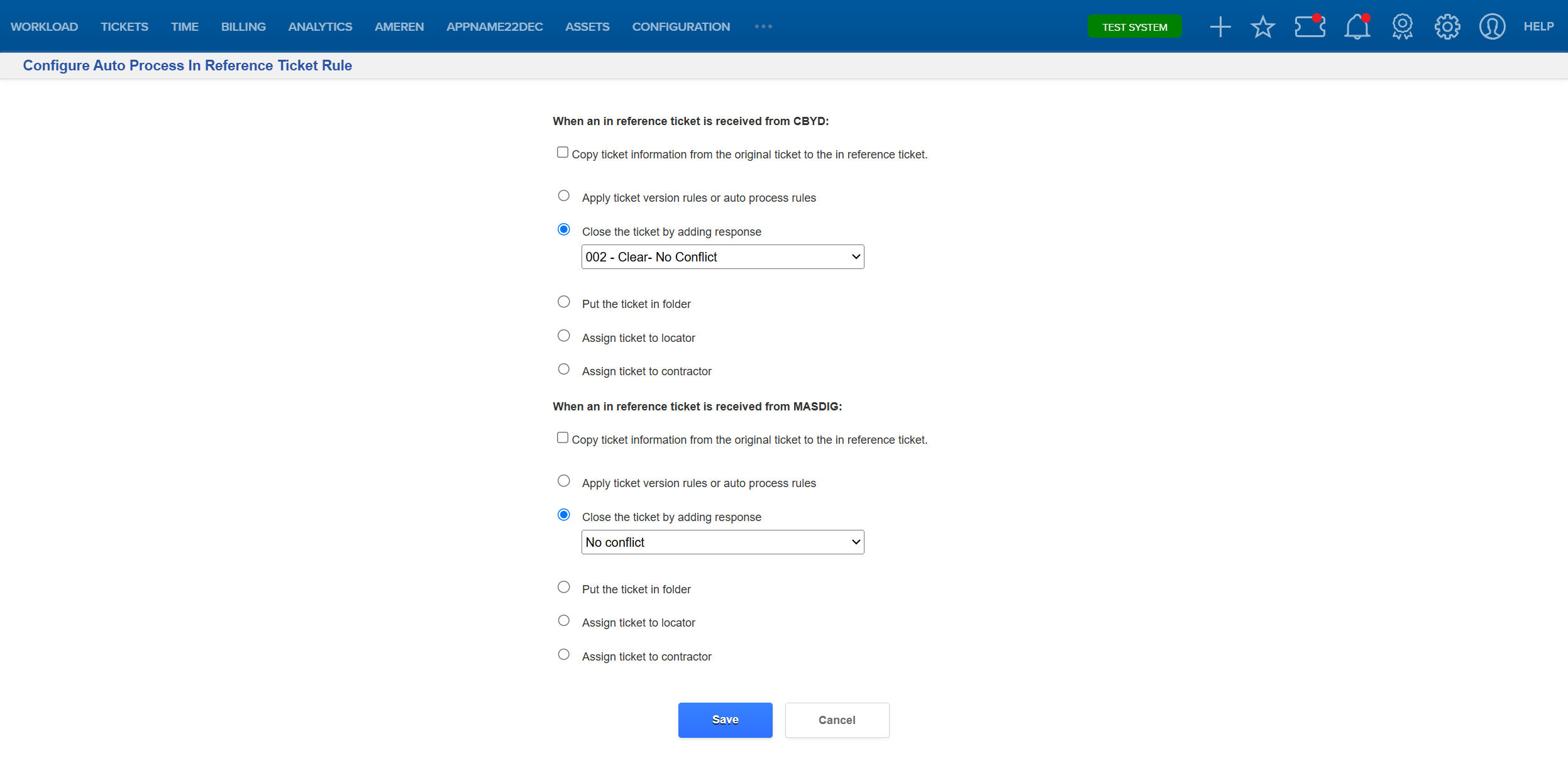
- Save the rule to ensure it is evaluated before all other auto-processing rules.
- Cancel tickets are no longer included in Auto Process Override rules for ticket update processing
- Cancel tickets have been reclassified to prevent unintended auto-close behavior
- Older ticket versions will now remain open unless explicitly matched
To work with these changes, go to Auto Process Override Rules and select the Configure Ticket Version Update Rule button.
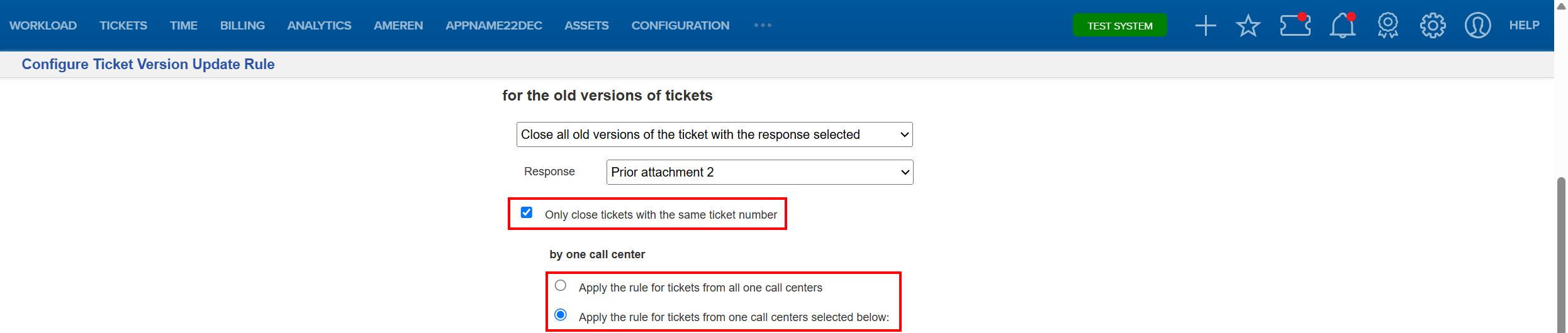
Select Only close tickets with the same ticket number, then choose the appropriate One Call Center option that aligns with your setup. Once selected, click Save to apply your changes.
FAQ/Troubleshooting:
Q: Why are my Auto Response or Assignment rules not applying?
A: If an Auto Process Override Rule is triggered, it will prevent all other processing rules from running.
Q: Why are older ticket versions no longer closing automatically?
A: Recent updates changed how ticket versions are handled to prevent unintended closures. Older tickets now remain open unless explicitly matched by rules.
Q: How do I verify which rule processed a ticket?
A: Review the ticket history and processing logs to identify which auto process rule was applied.
Questions? Contact us!

Was this article helpful?
That’s Great!
Thank you for your feedback
Sorry! We couldn't be helpful
Thank you for your feedback
Feedback sent
We appreciate your effort and will try to fix the article