The Home Screen
Purpose/Overview
In this article, you will learn about the new Utilisphere Home Screen and how you can use it to access the areas of the application you use most quickly.
When you sign in to Utilisphere, the Home Screen provides a central starting point where you can select from your available experiences. The experiences displayed are based on your permissions, helping you quickly navigate to the tools and features relevant to your work.
Navigation Path:
To access this feature, log in to Utilisphere
After signing in, you are directed to the Home Screen, where you can select an available experience.
Things to Know:
- The Home Screen serves as your starting point when you sign in to Utilisphere.
- You only see experiences that you have permission to access.
- Available experiences may include:
- Tickets
- Workload (Workload Manager)
- Power BI
- Exports
- Training
- What’s New
- All users have access to Training and What’s New at minimum.
- The existing navigation ribbon remains available across the top of the page, so you can continue navigating through Utilisphere using the familiar menu options.
Key Benefits/Use Cases:
- Quick Access to Your Work: Start from one central location and select the Utilisphere experience you need.
- Personalized Experience: The Home Screen displays experiences based on your permissions, keeping the options relevant to your role and responsibilities.
- Simplified Navigation: Move directly to areas such as Tickets, Workload, Power BI, or Exports without beginning on the Ticket Summary screen.
- Continued Access to Familiar Navigation: You can still use the navigation ribbon at the top of the page to move throughout Utilisphere.
How It Works:
When you sign in to Utilisphere, you are directed to the Home Screen instead of automatically starting on the Ticket Summary screen.
The Home Screen displays the experiences available to you based on your permissions. Select an experience to navigate to that area of Utilisphere.
Depending on your permissions, you may see options for Tickets, Workload, Power BI, Exports, Training, and What’s New.
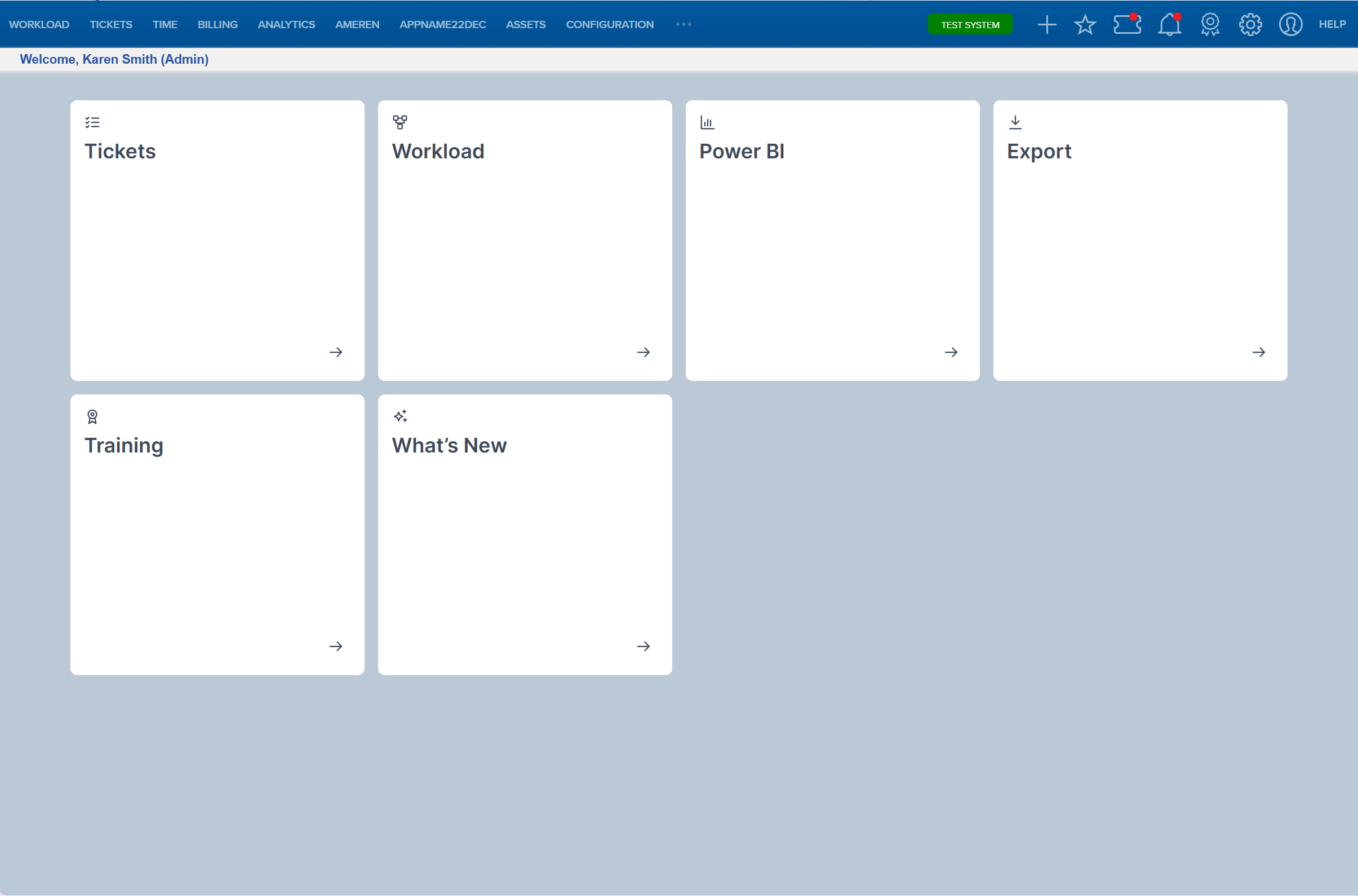
If you need to access another area of Utilisphere, you can return to the Home Screen or continue using the navigation ribbon at the top of the page.
FAQ/Troubleshooting:
Q: Why don’t I see all of the experiences on my Home Screen?
A: The experiences displayed on the Home Screen are based on your permissions. You will only see the experiences you have permission to access.
Q: Which experiences can appear on the Home Screen?
A: Available experiences include Tickets, Workload (Workload Manager), Power BI, Exports, Training, and What’s New. The experiences you see depend on your permissions.
Q: Will everyone see the same Home Screen options?
A: No. Available experiences vary based on user permissions. However, all users have access to Training and What’s New.
Q: Can I still use the existing Utilisphere navigation?
A: Yes. The existing navigation ribbon remains available across the top of the page.
Q: Why am I seeing the Home Screen instead of the Ticket Summary screen when I log in?
A: The Home Screen is now the starting point for accessing your available Utilisphere experiences. From there, you can select the area you want to work in.
Questions? Contact us!

Was this article helpful?
That’s Great!
Thank you for your feedback
Sorry! We couldn't be helpful
Thank you for your feedback
Feedback sent
We appreciate your effort and will try to fix the article