Access Field, Screen, and Team from Utilisphere
Purpose/Overview
In this article, you will learn how to access the new full-web experiences for Screen, Field, and Team directly from the Utilisphere interface.
This feature provides a seamless way to explore the updated user interface and user experience while maintaining your existing login session. When enabled, links are available within the legacy menus that open the new experiences in a separate browser tab and automatically transfer your authenticated session.
Navigation Path:
To access these features, go to:
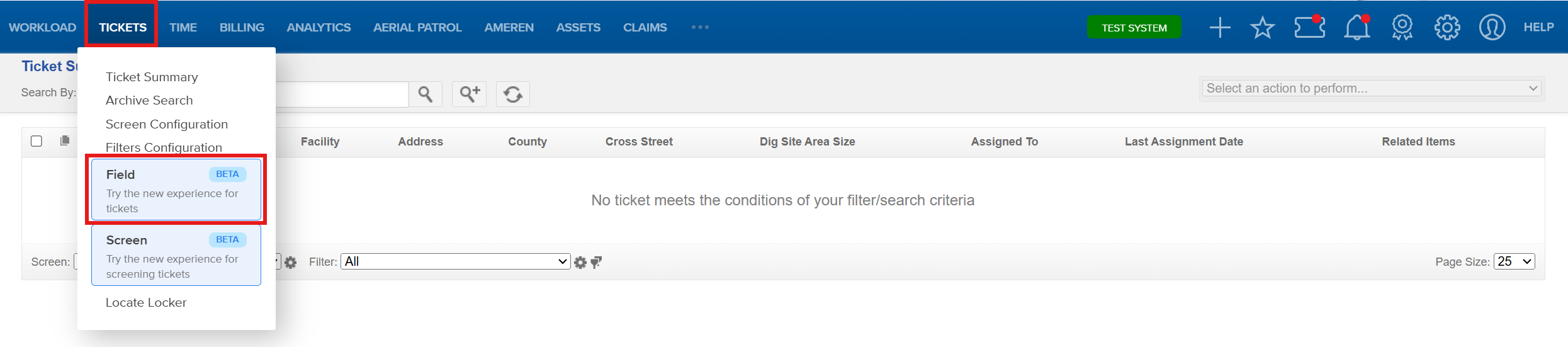
- Tickets > Field
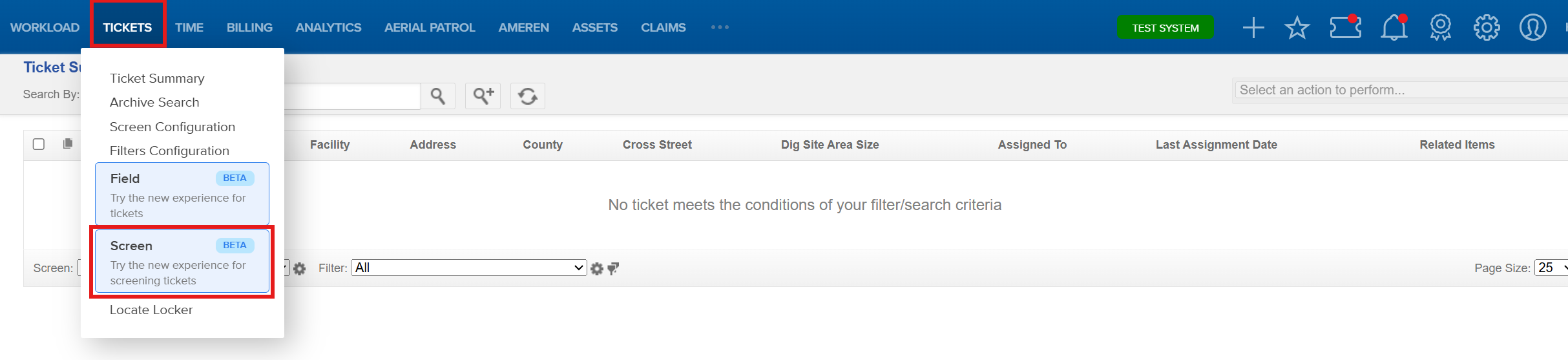
- Tickets > Screen
- Workload Manager > Team
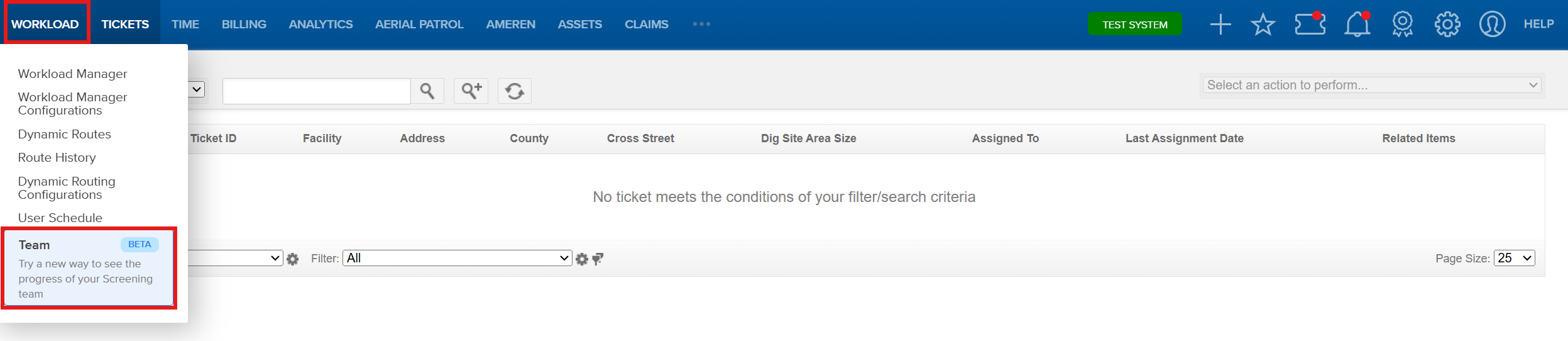
The menu options are displayed within the Utilisphere interface when the feature has been enabled for your environment.
Things to Know:
Permissions Required: The following permissions can be assigned independently to control access to the new web experiences:
- New Web Screen Experience
- New Web Field Experience
- New Web Team Experience
Users will only see menu options for the experiences they have permission to access.
- Access to the new web experiences is controlled by an environment-level feature toggle.
- The destination URL is automatically determined based on the environment you are using, such as Development, Stage, Sandbox, or Production.
- The new experience opens in a separate browser tab.
- No additional login is required when your session is successfully transferred.
- The Team experience also honors existing Workload Manager permissions.
- If you do not see one or more of the menu options, contact your administrator to verify that the feature is enabled and that you have been granted the appropriate permissions.
Key Benefits/Use Cases:
- Explore the Modern User Experience: Quickly access the new Screen, Field, and Team applications directly from the familiar Utilisphere navigation without leaving your existing workflow.
- Seamless Authentication: Move between the legacy interface and the new web experiences without needing to sign in again, improving productivity and reducing login interruptions.
- Gradual User Adoption: Organizations can introduce users to the new UI/UX while continuing to provide access through the existing Utilisphere navigation menus.
How It Works:
When you sign in to Utilisphere, the system automatically generates an authentication token and stores it for your active session. When you select one of the available new web experience links, Utilisphere opens the selected application in a new browser tab and securely transfers your authenticated session.
This allows you to move directly into the new experience without signing in again.
- Sign in to Utilisphere.
- Navigate to the appropriate menu:
- Tickets for Screen or Field.
- Workload Manager for Team.
- Select the desired experience.
- A new browser tab opens.
- Your authenticated session is transferred automatically.
- Begin using the selected new web experience.
Field
The Field experience is accessed from the Tickets menu and opens the new Field workflow in a separate browser tab.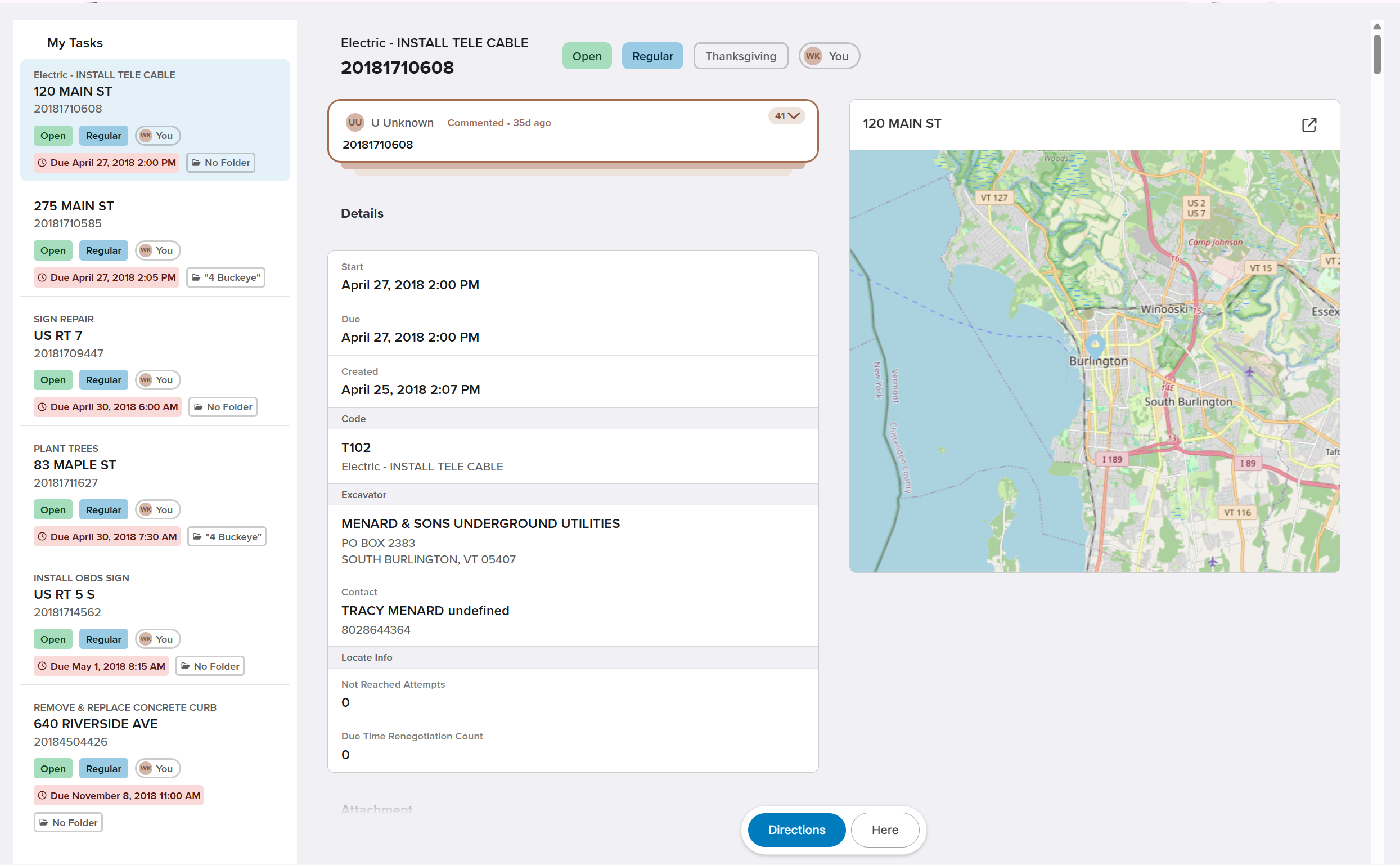
Screen
The Screen experience is accessed from the Tickets menu and opens the new Screen workflow in a separate browser tab.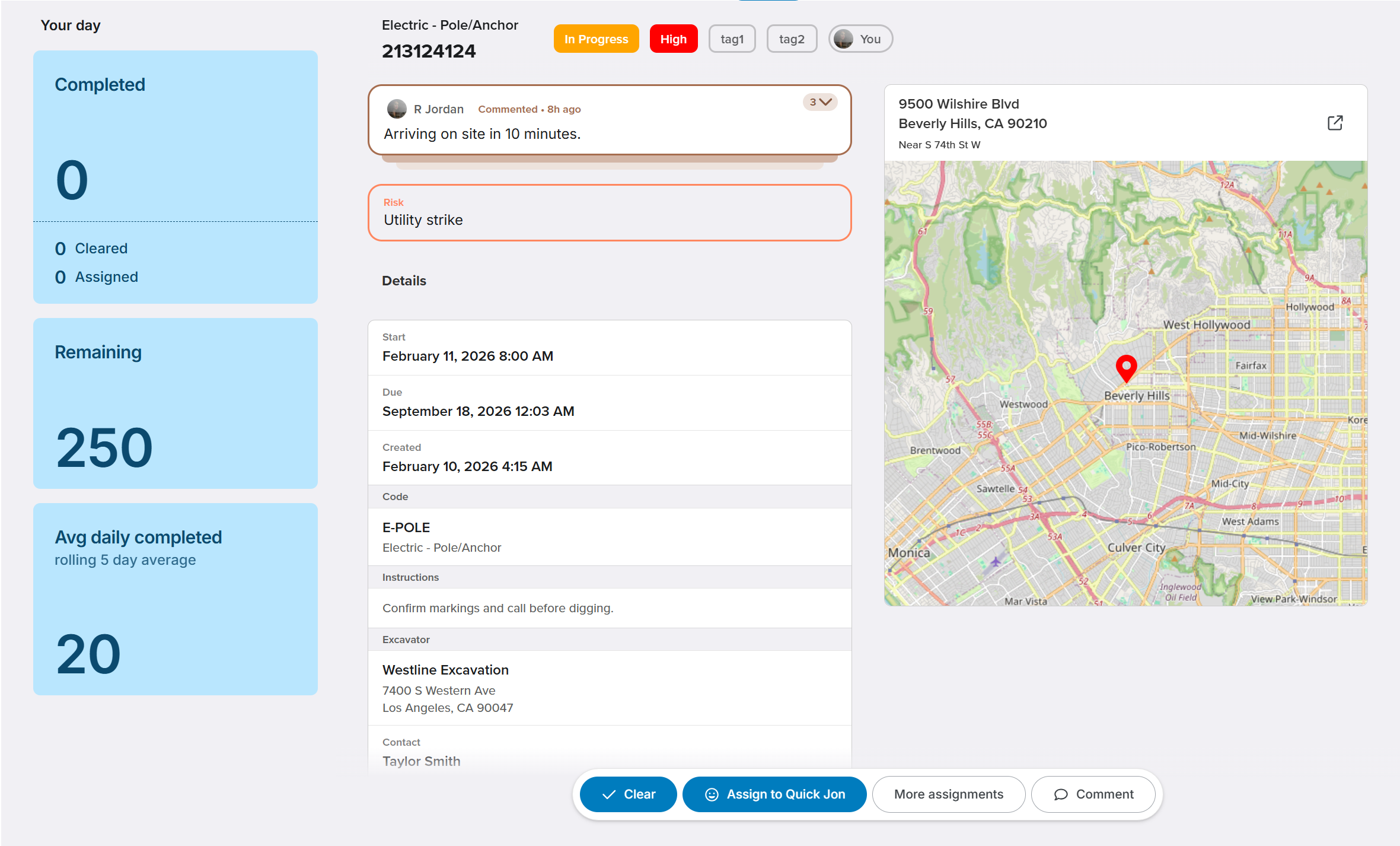
Team
The Team experience is accessed from the Workload Manager menu and opens the new Team workflow in a separate browser tab. Access is governed by both the New Web Team Experience permission and existing Workload Manager permissions.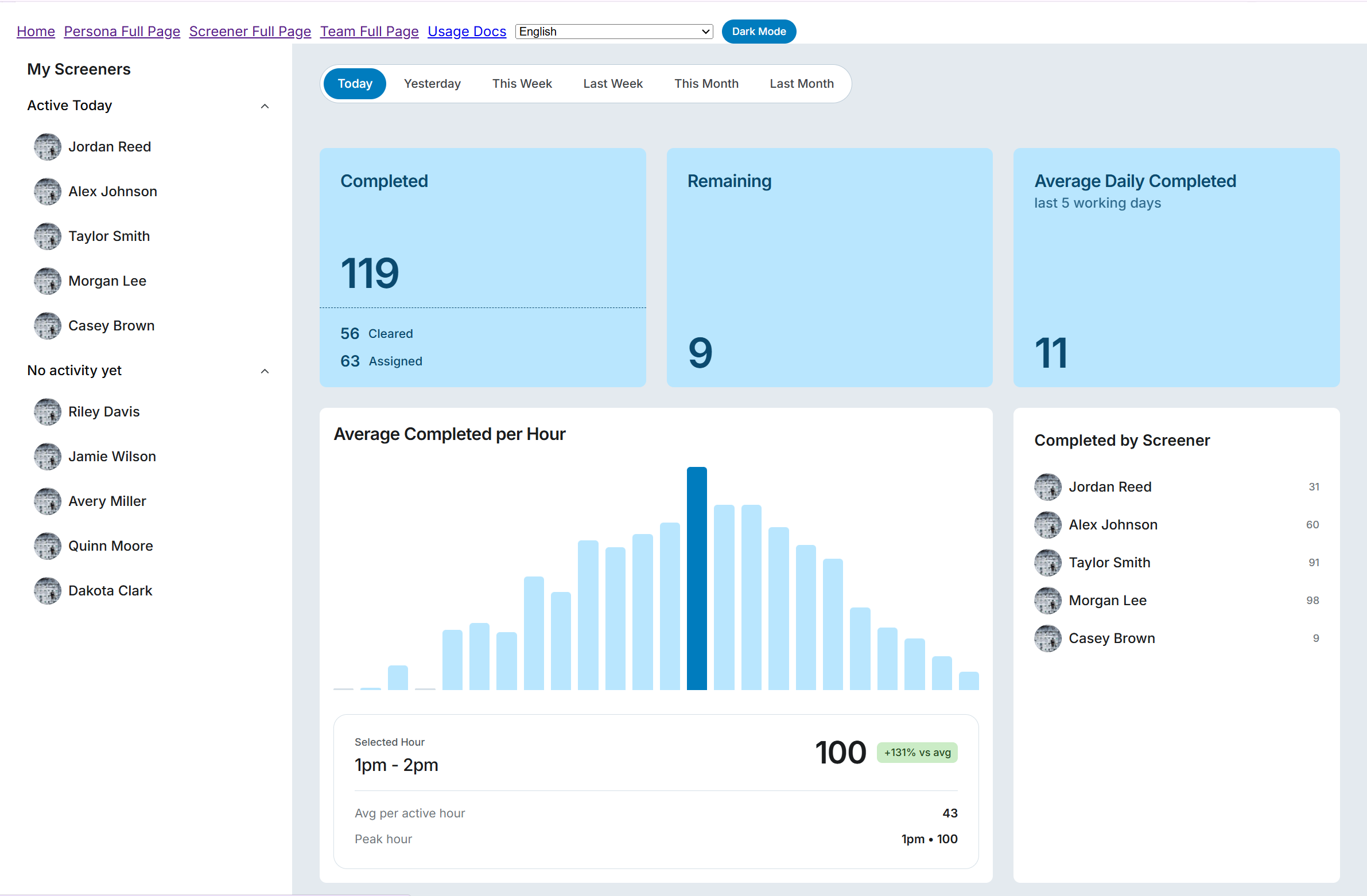
Related Features/Next Steps:
- Field Overview (Irth Training video)
- Screen Overview (Irth Training video)
- Team Overview (Irth Training video)
FAQ/Troubleshooting:
Q: Why don't I see the Screen, Field, or Team menu options?
A: Verify that the feature toggle has been enabled for your environment and that you have been assigned the appropriate New Web Experience permissions.
Q: Why am I being prompted to sign in again?
A: If your authentication session has expired or the token transfer was unsuccessful, you may be prompted to authenticate again. Contact your administrator if the issue persists.
Q: Will opening a new web experience close Utilisphere?
A: No. The selected experience opens in a separate browser tab, allowing you to continue using Utilisphere and the new application simultaneously.
Q: Can I access the Team experience without Workload Manager permissions?
A: No. The Team experience requires both the New Web Team Experience permission and the appropriate Workload Manager access rights.
Questions? Contact us!

Was this article helpful?
That’s Great!
Thank you for your feedback
Sorry! We couldn't be helpful
Thank you for your feedback
Feedback sent
We appreciate your effort and will try to fix the article