Purpose/Overview
The Screen and Team features provide users with streamlined, role-specific experiences for managing tickets, screening activities, and team performance. These experiences are designed to simplify the application interface by presenting workflows and information relevant to the user's responsibilities.
The features are enabled through a combination of System Settings and Group Permissions. An administrator must first enable the New Web Experience links at the system level and then grant the appropriate permissions to the user group.
Important: The features are presented as BETA experiences. Availability and functionality may vary depending on the application's configuration and release.
Navigation Path:
The setup requires two configuration areas.
Step 1 – Enable New Web Experience Links
Administration > System Settings > Modify New Web Experience Settings
Step 2 – Grant Feature Permissions
System Management > Groups > [User Group] > Select Permissions
Things to Know:
- You must have administrative access to modify System Settings and Group Permissions.
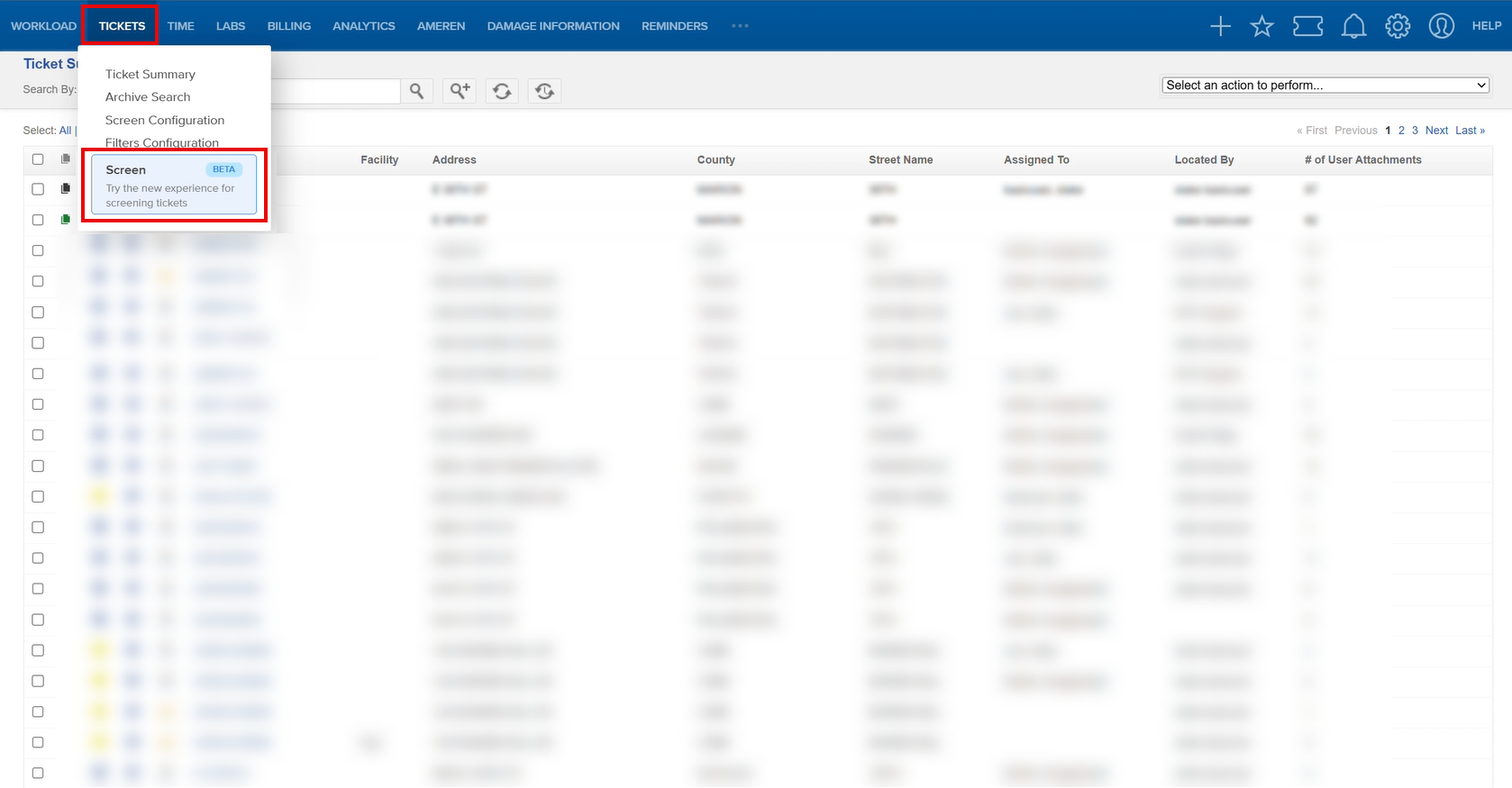
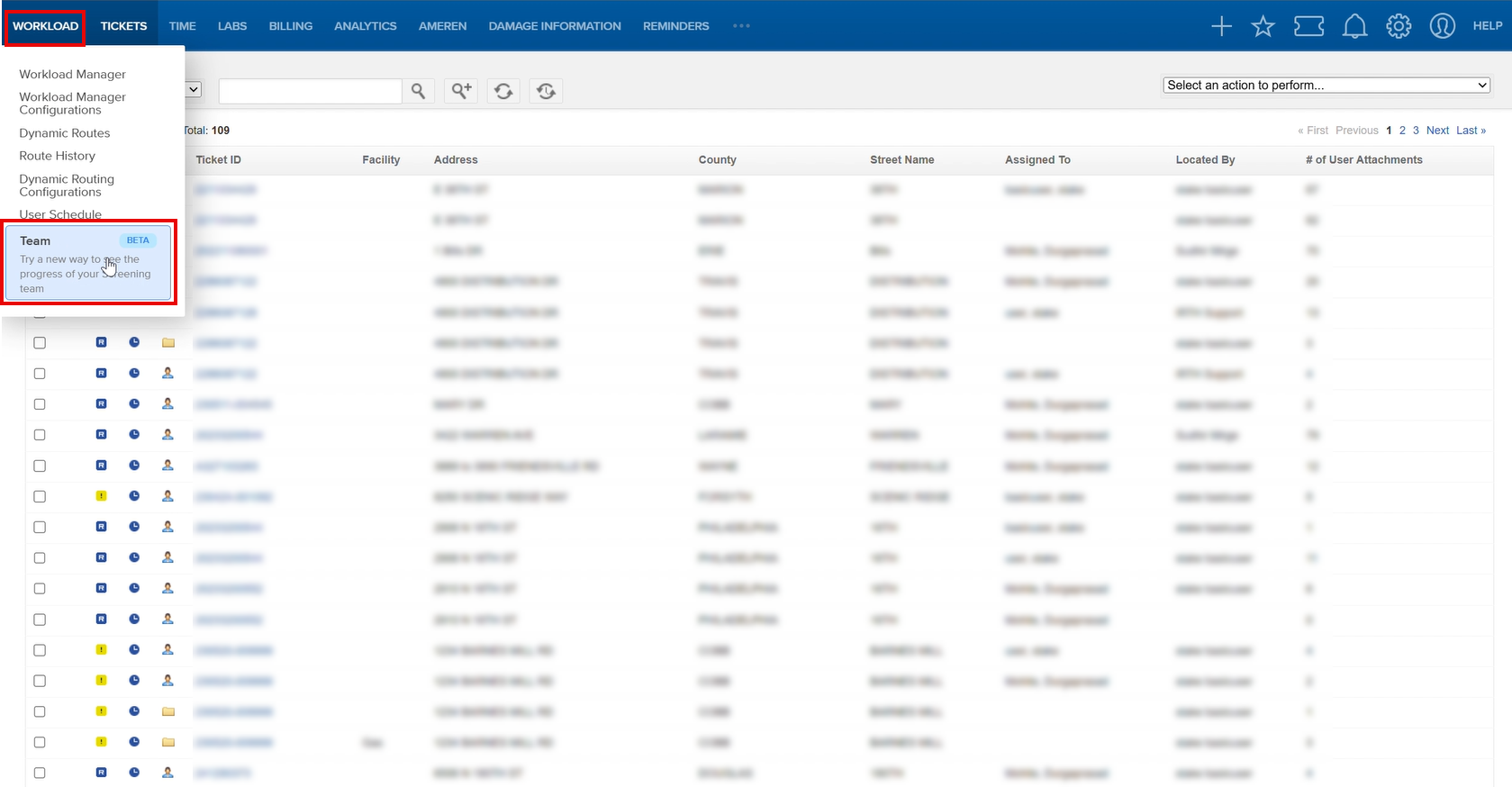
- The New Web Experience links must be enabled before users can access the Screen, or Team experiences.
- Feature access is controlled through group permissions. Enabling the system setting alone does not automatically provide access to all users.
- The two feature permissions are:
NewWebScreenExperienceNewWebTeamExperience
How It Works:
Enabling these experiences requires system-level configuration followed by group-level permission configuration.
The recommended configuration sequence is:
- Enable the New Web Experience links.
- Open the user group that should receive access.
- Grant the Screen and Team permissions.
- Save the group permissions.
- Verify that the features appear in the appropriate application menus.
- Test the experience using a user assigned to the configured group.
Part 1: Enable New Web Experience Links
- From the Administration menu, select System Settings.
- Select Modify New Web Experience Settings.
- Select Enable New Web Experience Links.
- Click Save.
This enables the new Field, Screen, and Team experience links at the system level.

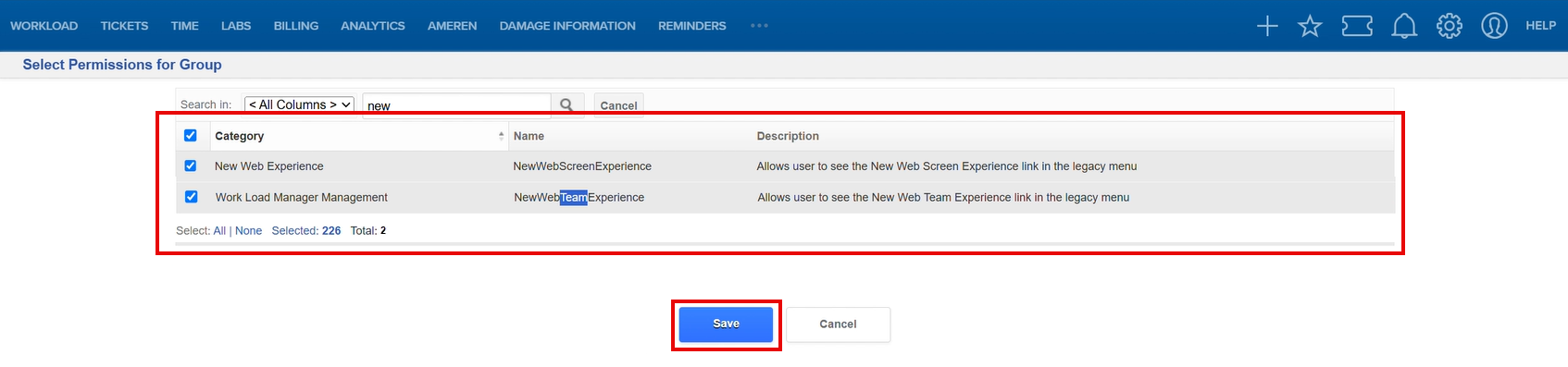
Part 2: Configure User Group Permissions
- Open System Management using the gear icon.
- Select Groups and open the required user group.
- Select Select Permissions.
- Search for new.
- Select the required permissions:
NewWebScreenExperienceNewWebTeamExperience
- Click Save.
Assign only the permissions required for the user's role.
Related Features/Next Steps:
FAQ/Troubleshooting:
Q: I enabled New Web Experience Links, but users cannot see Screen or Team.
A: Enabling the system setting only enables the new web experience links at the system level. Verify that the appropriate permissions have also been granted to the user's group: NewWebScreenExperience, and/or NewWebTeamExperience.
Q: Can I enable only one of the experiences?
A: Yes. The experiences have separate permissions. You can grant only the permission required for a particular user group.
Q: Is Screen and Team available to all users by default?
A: No. Based on the configuration shown, access is controlled through group permissions. Administrators should explicitly grant the appropriate permissions to the intended user groups.
Q: Are these new experiences part of the legacy interface?
A: The permissions are specifically described as allowing users to see the New Web Experience links in the legacy menu. The screenshots also identify Field, Screen, and Team as BETA experiences.
Questions? Contact us!

Was this article helpful?
That’s Great!
Thank you for your feedback
Sorry! We couldn't be helpful
Thank you for your feedback
Feedback sent
We appreciate your effort and will try to fix the article