Purpose/Overview
The Bulk Payments Update feature enables users to efficiently manage and reconcile large volumes of payment data within the application. It is particularly useful during client onboarding and ongoing operations where payments are processed externally (e.g., via QuickBooks, SAP, or PeopleSoft).
Reconciliation ensures that payments already completed outside the system (via check, bank transfer, or direct deposit) are accurately reflected within the application. This helps maintain consistency between financial systems and operational records.
Designed for enterprise-scale usage, this feature supports bulk imports of up to 10,000 records per file, making it ideal for high-volume payment processing.
Navigation Path:
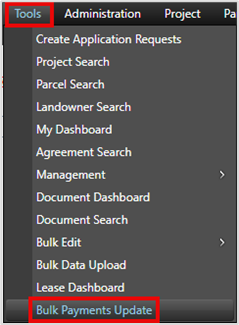
To access this feature: Tools > Bulk Payments Update
Things to Know:
- Access to this feature is role-based and restricted to authorized users only.
- Only payments associated with projects accessible to the logged-in user are included in downloads.
- Payments must belong to active agreement terms to be eligible.
- Each payment is displayed at the payee level:
- Multiple payees = multiple rows
- Single payee = single row
- Default downloadable payment statuses include:
- Approved
- Sent to SAP
(Configurable viaBulkPaymentUpdate.Statuses.ToIncludeForDownload)
- Status updates during upload are limited to:
- Paid
- Delivered
- Reconciled
(Configurable viaBulkPaymentUpdate.Statuses.ToIncludeForUpdate)
- Leaving fields blank in the upload file may overwrite existing data, depending on system configuration.
Key Benefits/Use Cases:
- Client Onboarding: Quickly import and reconcile historical payment data processed in external systems, ensuring seamless system transition.
- Financial Reconciliation: Update payment statuses and details in bulk after processing payments externally, reducing manual effort and errors.
- Enterprise Payment Processing: Handle large-scale payment updates (up to 10,000 records) efficiently, improving operational scalability.
How It Works:
Follow these steps to setup or enable:
Step 1: Download Template
- Navigate to Tools > Bulk Payments Update
- Download the required template:
- Bulk Payment Update.xlsx (for payment reconciliation)
- Bulk Load Pay Variables.xlsx (for pay variables import)

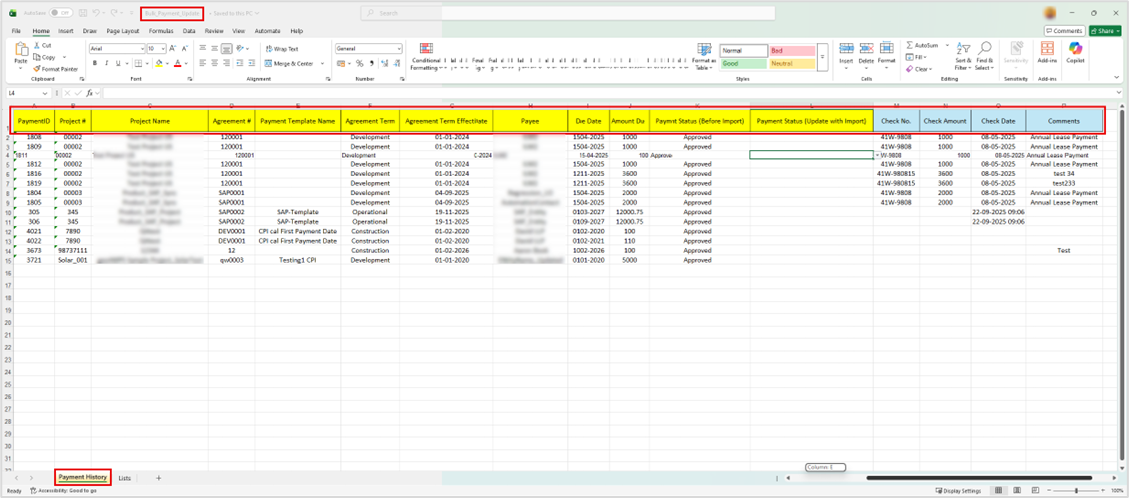
Step 2: Prepare Data
- Populate the template with required details such as:
- Status
- Check Number
- Check Amount
- Check Date
- Comments
- Ensure all values follow system formats and configurations.
Step 3: Upload File
- Return to the Bulk Payments Update page
- Select the completed file
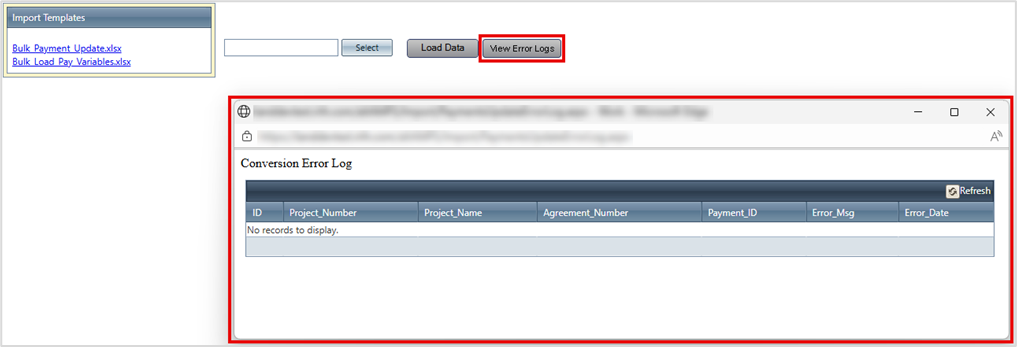
- Click Load Data to initiate processing

Step 4: System Processing & Validation
- The system processes the file immediately
- Validation checks include:
- Valid status values
- Correct date formats
- Proper numeric formatting
- Field length limits
Step 5: Review Results
- View success or failure messages
- Use View Error Logs to identify and fix issues
- Re-upload corrected files if needed
Bulk Import Pay Variables
This functionality allows users to create or update pay variables in bulk, which are used in payment calculations.
Steps:
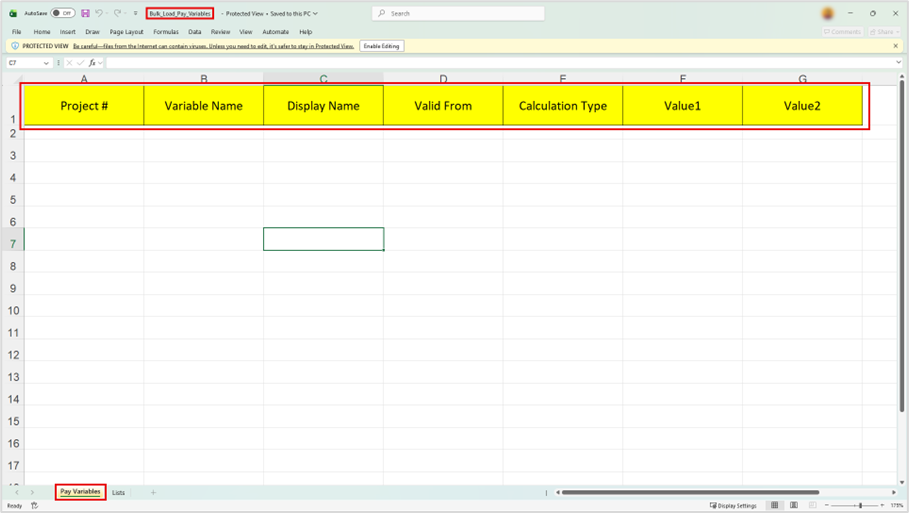
- Download Bulk Load Pay Variables.xlsx template

- Populate required fields with correct formats and dropdown values
- Upload the file and click Load Data
- Review validation results and error logs if applicable
Validation Checks Include:
- Required fields must be filled
- Data formats must be correct
- Values must match system configurations
Upon successful upload, pay variables are available for use in payment calculations.
Related Features/Next Steps:
FAQ/Troubleshooting:
Q: Why are some payments not included in the downloaded template?
A: Only payments linked to accessible projects and active agreement terms are included. Additionally, status filters may limit the results.
Q: What happens if my upload file contains errors?
A: The system skips invalid records and logs detailed errors. Use the View Error Logs option to identify and correct issues.
Q: Can I update all fields in bulk?
A: Only specific fields (Status, Check Number, Amount, Date, Comments) are supported for updates based on system configuration.
Questions? Contact us!

Was this article helpful?
That’s Great!
Thank you for your feedback
Sorry! We couldn't be helpful
Thank you for your feedback
Feedback sent
We appreciate your effort and will try to fix the article