Purpose/Overview
The Bulk Document Generation feature allows users to generate documents for multiple records simultaneously from the Search screen. Users can select one or more document templates and generate documents in bulk for search results returned from Project, Parcel, or Agreement searches.
This feature helps streamline document creation, reduces manual effort, and improves efficiency when generating the same type of document for multiple records. Users can also receive email notifications when document generation jobs are completed and optionally add generated documents directly to the corresponding record's Documents tab.
Navigation Path:
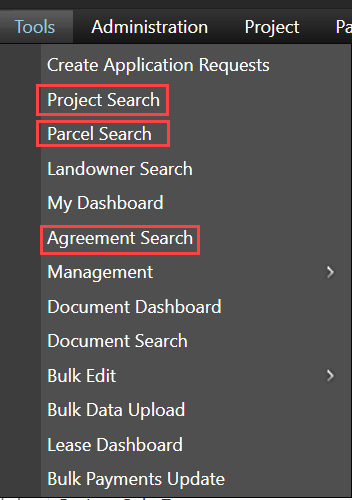
To access this feature: Tools > Search (Project/Parcel/Agreement) > Bulk Document Generation Panel
Things to Know:
- Bulk Document Generation is available from the Project, Parcel, and Agreement Search screens.
- Users can select multiple templates for document generation.
- Generated documents can optionally be added to the Documents tab of the associated Project, Parcel, or Agreement record.
- Email notifications can be configured to notify users when document generation is complete.
- Bulk Document Generation is not available for searches that return results across multiple projects.
Key Benefits/Use Cases:
Generate Documents for Multiple Records
Generate documents for multiple Project, Parcel, or Agreement records in a single operation, eliminating the need to create documents individually.
Automate Large-Scale Document Creation
Select one or more templates and generate documents in bulk, reducing manual processing time and increasing productivity.
Track and Monitor Generation Jobs
Each document generation request creates a job that can be monitored for progress and status, providing visibility into the document generation process.
Receive Completion Notifications
Configure email notifications to receive updates when document generation jobs have successfully completed.
How It Works:
Follow these steps to generate documents in bulk:
Step 1: Run a Saved Search
- Navigate to Tools > Search (Project/Parcel/Agreement).
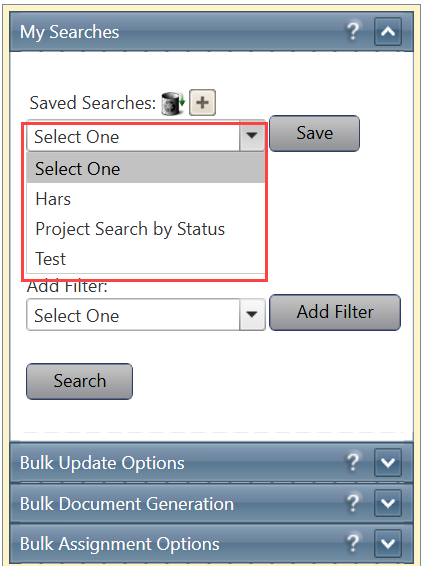
- Select a search from the Saved Searches dropdown.
- Select a filter using the Add Filter dropdown.
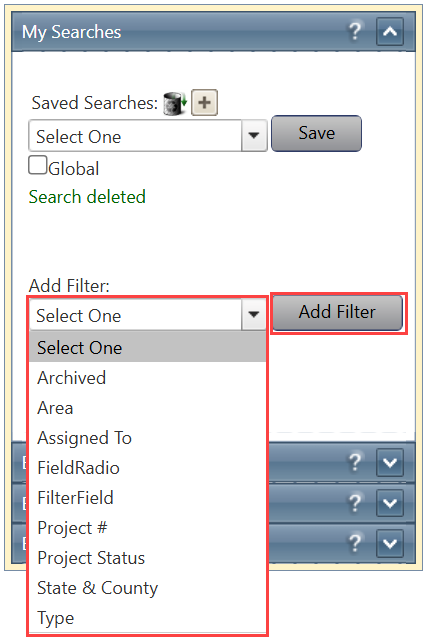
- If necessary, click Add Filter to create additional filters.
- Click Search to display the Search Summary Grid.
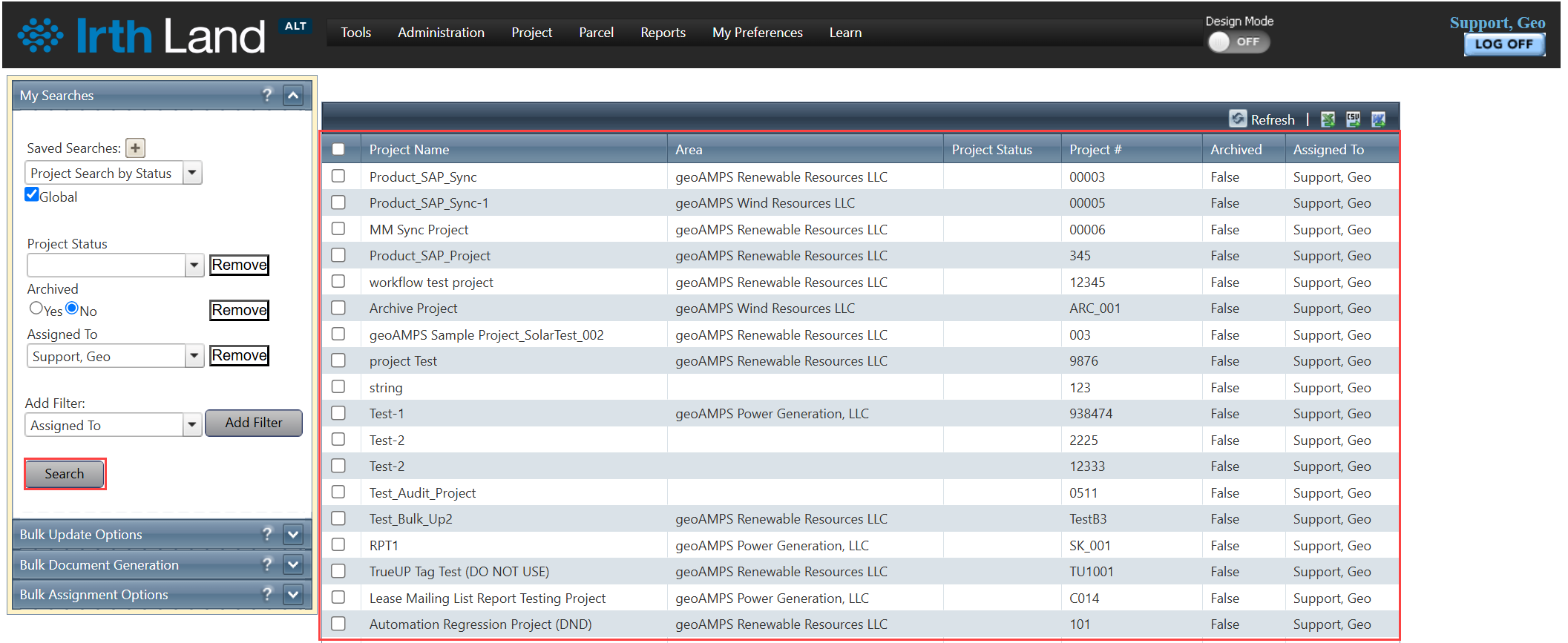
Step 2: Open Bulk Document Generation
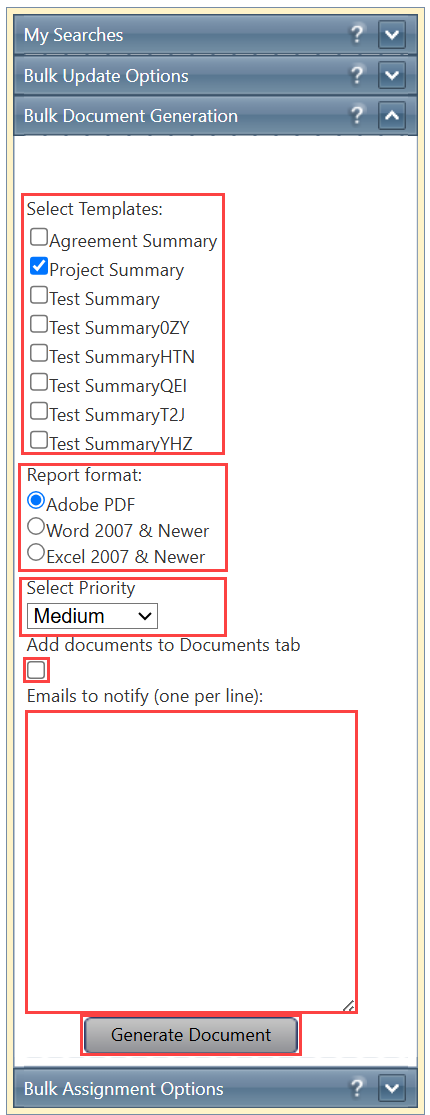
- From the Search Summary Grid, click the Bulk Document Generation panel.
- Select the required Template(s).
- Select the desired Report Format.
- Select the appropriate Priority level.
Step 3: Configure Document Options
- Select or clear the Add Documents to Documents Tab checkbox.
- When selected, generated documents are automatically added to the Documents tab of the corresponding Project, Parcel, or Agreement record.
- Enter one or more email addresses to receive completion notifications.
Step 4: Generate Documents
- Click Generate Document.
- A document generation job is created.
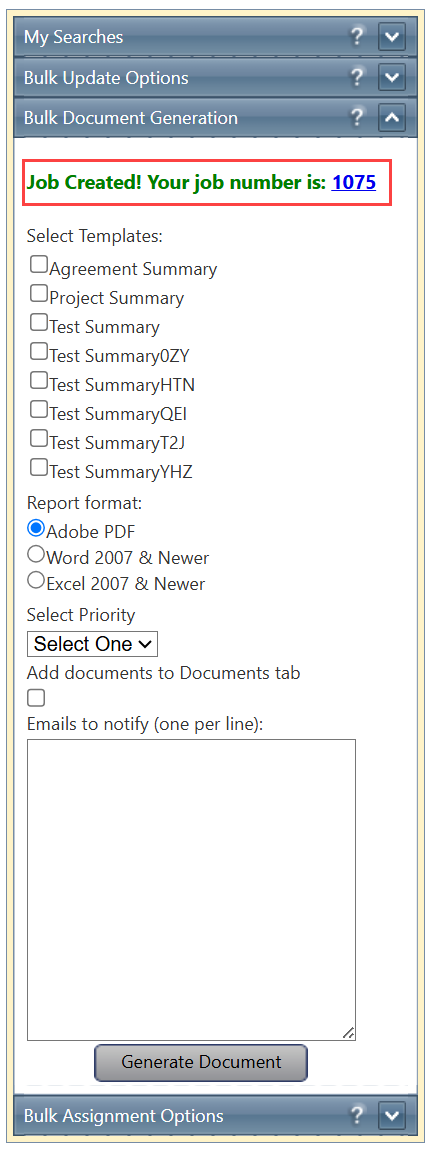
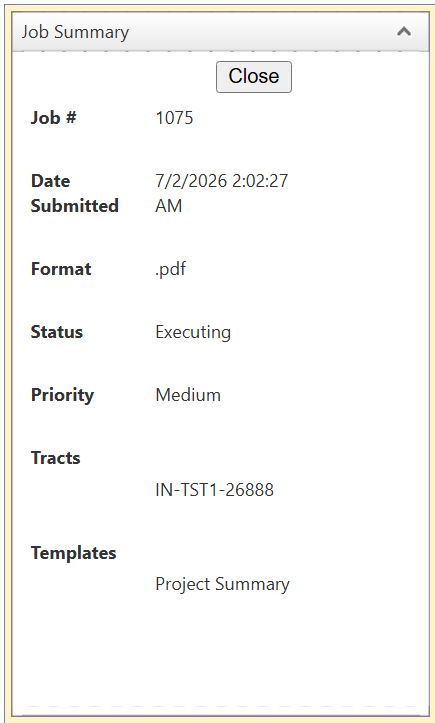
- Click the generated Job Number to view detailed information about the job.
Step 5: Monitor Job Status
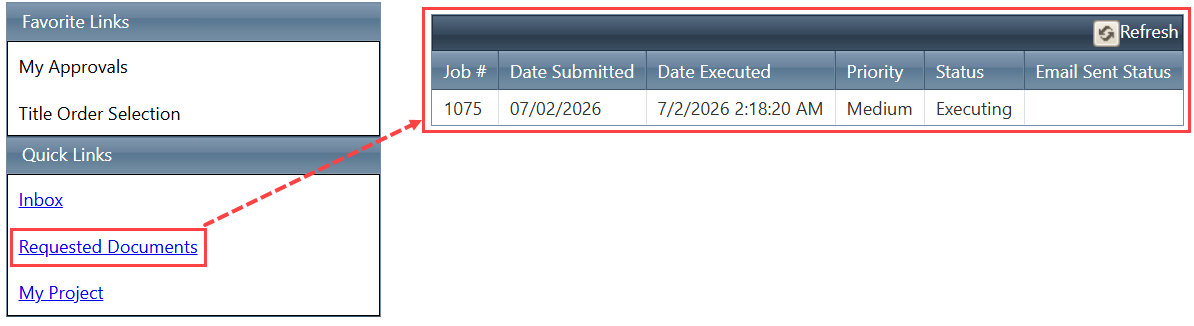
- Navigate to My Dashboard.
- Locate the corresponding document generation request.
- Review the final status of the job.
FAQ/Troubleshooting:
Q: Can I generate documents for records from multiple projects in a single search?
A: No. Bulk Document Generation is not available for searches that return results across multiple projects.
Q: Can generated documents be automatically stored with the record?
A: Yes. Select the Add Documents to Documents Tab checkbox to automatically add generated documents to the corresponding Project, Parcel, or Agreement record.
Q: How do I know when document generation is complete?
A: Enter one or more email addresses before generating documents. An email notification will be sent when the job is completed. You can also monitor the status from My Dashboard.
Q: Can I view details about a document generation job?
A: Yes. After clicking Generate Document, a job is created. Select the corresponding Job Number to view detailed job information.
Questions? Contact us!

Was this article helpful?
That’s Great!
Thank you for your feedback
Sorry! We couldn't be helpful
Thank you for your feedback
Feedback sent
We appreciate your effort and will try to fix the article