Map Authentication Administration
Purpose/Overview
In this article, you will learn about Map Authentication Administration, a consolidated admin page for configuring and managing the credentials used to secure custom Esri map layers. Previously, authentication data for these layers was split across two separate tables (client/secret + OAuth credentials in one, shared tokens in another), and administrators had to navigate to multiple screens to configure a single layer's authentication.
This feature combines all authentication types (Client ID/Secret, User OAuth, and Shared Token) into a single "Map Authentication" configuration that can be created once, named for easy reference, and applied to any number of layers. It's intended for company administrators who manage custom Esri layer integrations and need a faster, less error-prone way to set up and maintain credentials, especially when the same authentication is reused across many layers.
The feature also introduces expiration tracking for shared tokens, including proactive alerting before and after a token expires, so authentication doesn't silently break map layers in production.
Navigation Path:
To access this feature, go to: System Management > Administration > General > Map Layers
From this page, administrators can create, edit, and delete Map Authentication configurations, and assign a configuration to one or more layers.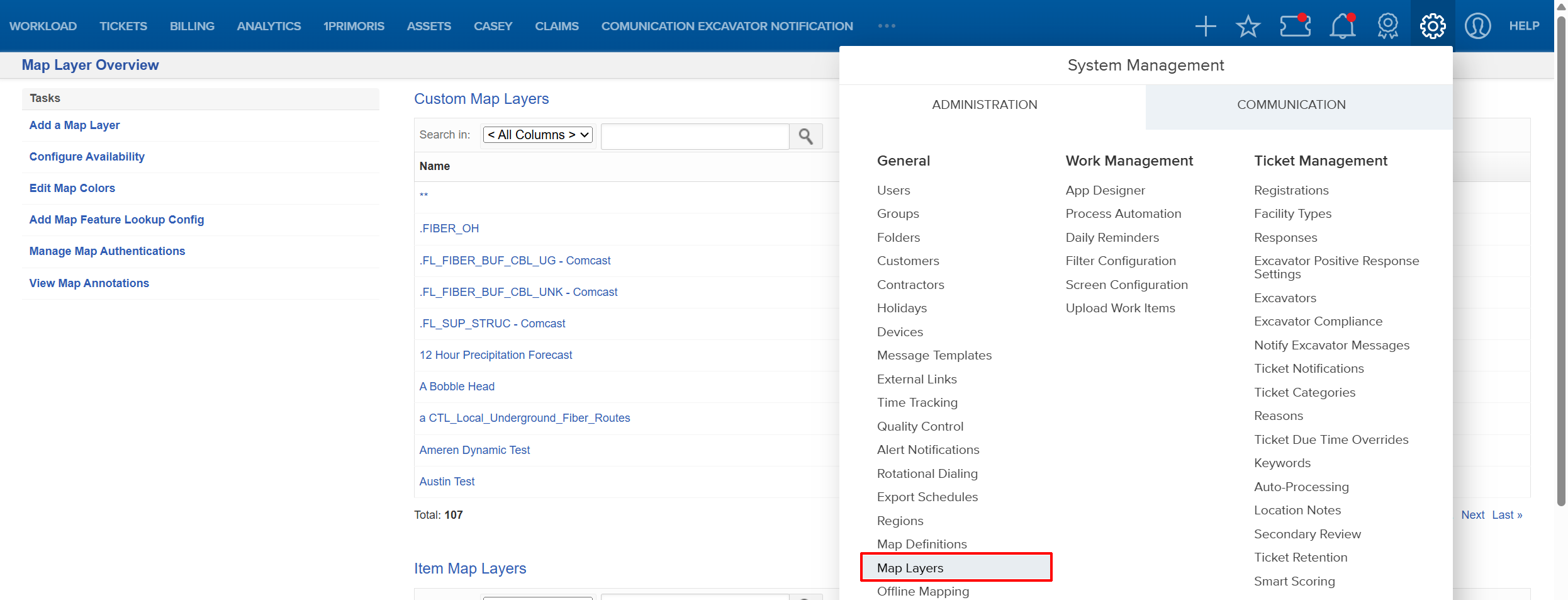
Things to Know:
- Only users with company administrator (or equivalent map configuration) permissions can view or manage the Map Authentication page.
- A Map Authentication configuration cannot be deleted while it is still assigned to one or more layers; it must be reassigned or the layers must be updated first.
- Deleting a Map Authentication configuration (or clearing its expiration date, for Shared Token types) is required to stop an active expiration alert; updating the expiration date to a future date also resolves the alert.
- Sensitive values (client secret, token, shared token) are masked by default (
••••••••) and can be revealed individually using the show/hide toggle next to each field. - Audit history entries for these configurations mask the entire long description by default, rather than masking individual values within it, since audit text is unstructured. Use the show/hide toggle on the audit entry to reveal the full detail when needed.
- Existing layers that use a Shared Token with no expiration date were migrated with a
NULLexpiration date and were treated as already expired for alerting purposes.
Key Benefits/Use Cases:
- Faster setup for shared credentials: An administrator managing dozens of layers that all use the same Esri subscription token can create one named "Shared Token" configuration and apply it to every relevant layer in a single step, instead of re-entering the same credentials layer by layer.
- Reduced risk of expired-token outages: Because Shared Token configurations now require an expiration date, and the system alerts the company starting 7 days before expiration (and daily while expired), administrators can renew tokens before layers stop working, rather than discovering the outage after the fact.
- Simplified auditing and troubleshooting: With authentication consolidated into one table and one admin page, support and admin staff have a single place to check which authentication a layer is using, its type, and its status — cutting down on time spent cross-referencing multiple screens.
How It Works:
Follow these steps to set up or manage Map Authentication:
- Navigate to System Management > Administration > General > Map Layers.
- Click Manage Map Authentication.

- Select Add a Map Authentication and fill out the form.
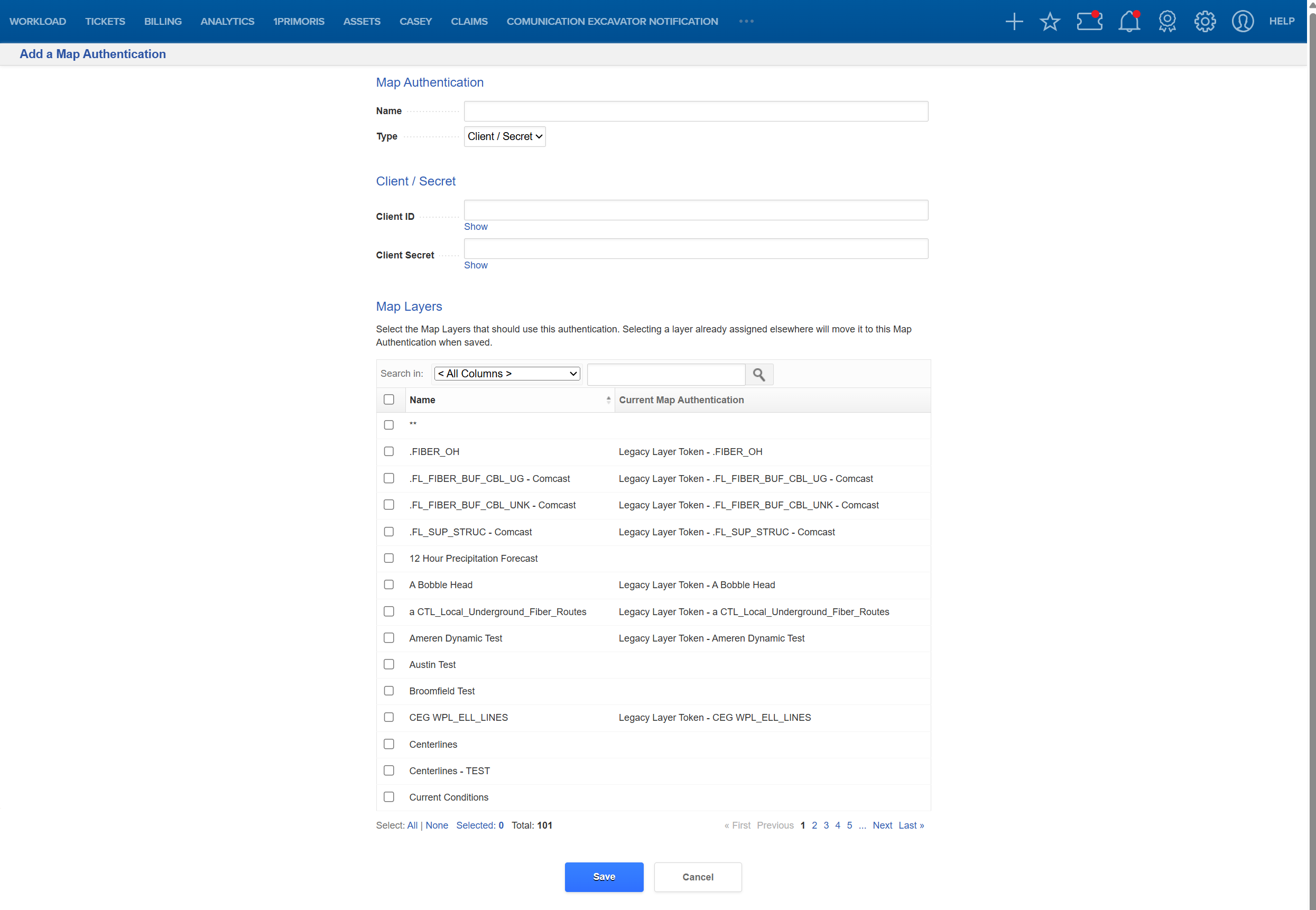
Assign your configuration to a layer: Use the built-in list of map layers to select which layer(s) to apply this authentication configuration to.
- Save the configuration: The new Map Authentication is now available for assignment to layers.
When using a Shared Token, you must provide the expiration date. This expiration date forces an alert inside the Utilisphere full web application to remind you to update the token. You can also configure an Alert Notification (provide link to Alert Notification configuration page) to send you an email when that token has expired.
FAQ/Troubleshooting:
Q: What happened to the old ESRI_CLIENT_TOKEN and MAP_LAYER_TOKEN configurations after the upgrade?
A: All existing authentication records were migrated automatically into the new Map Authentication configurations, and layers were updated to point to their migrated record. No manual re-entry of existing credentials is required.
Q: I have a layer that used a Shared Token with no expiration date before this update. Why am I seeing an expiration alert now?
A: Shared Tokens now require an expiration date. Any migrated Shared Token that previously had no expiration date was set to have no date (NULL) and is treated as expired for alerting purposes, so you'll see a daily alert until you enter a valid expiration date or delete the configuration if it's no longer needed.
Q: How do I stop the expiration alert from firing every day?
A: Open the Map Authentication configuration, update the expiration date to a future date and save, or delete the configuration entirely if the token is no longer used. The alert will stop generating once the date is no longer within 7 days of expiring or has been resolved.
Q: Can I see the actual token or secret value instead of the masked dots?
A: Yes. Use the show/hide toggle next to any masked field on the Map Authentication page to reveal the actual value. The same toggle is available on related audit history entries, though audit entries mask the entire change description rather than individual fields.
Q: Can I apply one Map Authentication configuration to many layers at once?
A: Yes. Use the bulk assignment option, available either from the Map Authentication configuration page or a dedicated assignment page, to apply a single configuration to multiple selected layers without editing each layer individually.
Questions? Contact us!

Was this article helpful?
That’s Great!
Thank you for your feedback
Sorry! We couldn't be helpful
Thank you for your feedback
Feedback sent
We appreciate your effort and will try to fix the article