SSO Configuration and Conversion Process
Purpose/Overview
In this article, you will learn how to configure Single Sign-On (SSO) in Digtix and understand how user accounts are created and converted when using an identity provider such as Microsoft Active Directory.
SSO allows users to securely access Digtix using their organization’s existing authentication system, eliminating the need for separate passwords. It simplifies user management, improves security, and ensures consistent access control across your organization.
This feature is intended for administrators and IT personnel responsible for configuring authentication, managing user access, and maintaining user profiles within Digtix.
Navigation Path:
To access this feature, go to:
Digtix > Administration > SSO Permissions (for user setup & validation)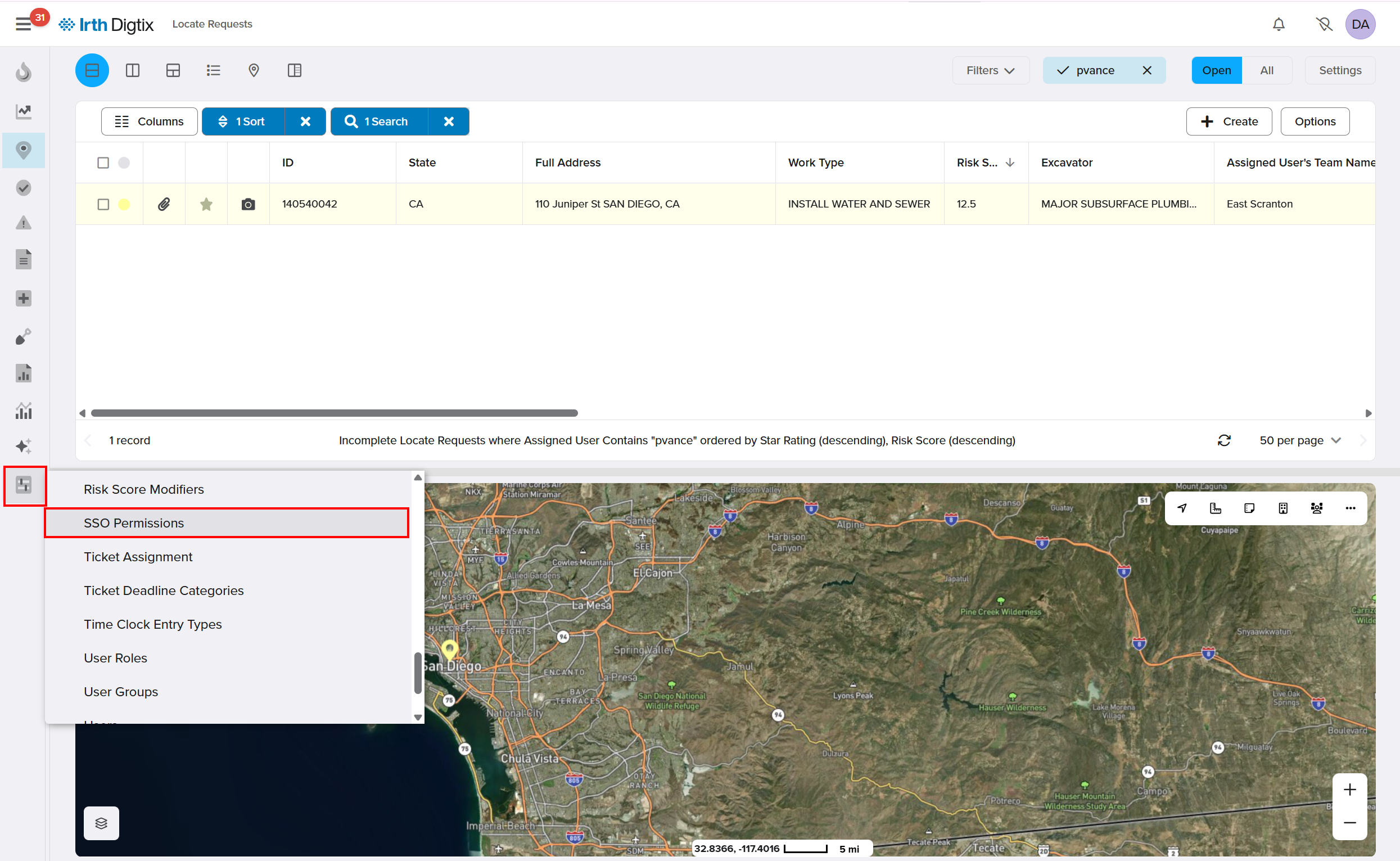 Digtix > Administration > Users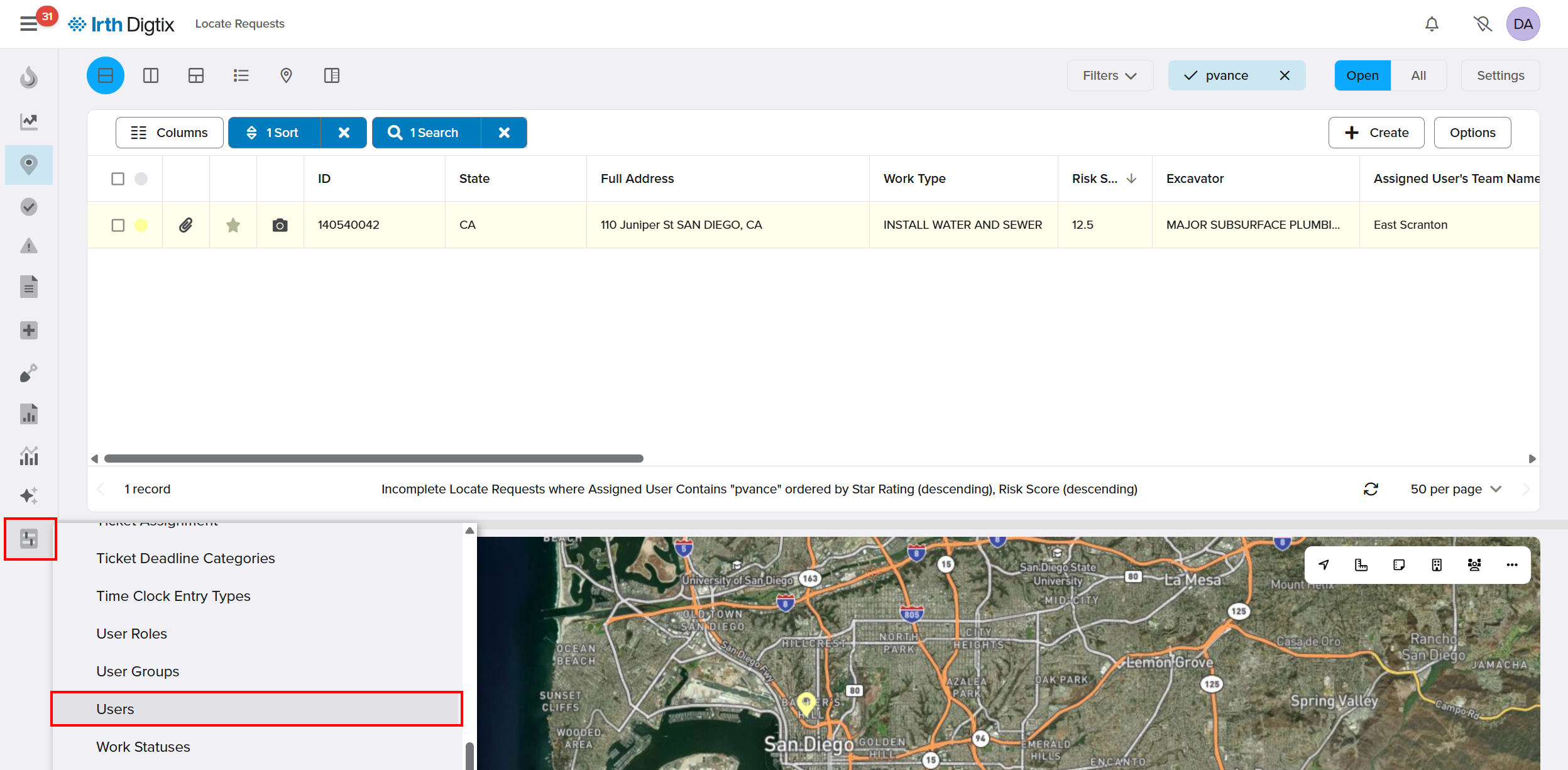
Things to Know:
Required Data from Identity Provider:
SSO integration requires two key fields:- SSO User Key: A unique identifier (recommended: user email)
- SSO Permission Key: Determines user access and permissions
Optional Fields:
- First Name
- Last Name
- Email (if not used as User Key)
- Phone Number
- Manager Identifier
Permissions Mapping Required:
SSO Permissions must be configured in Digtix to assign default user roles and settingsExisting Users:
User profiles are not overwritten during SSO login—existing configurations remain intactDependency on IT Configuration:
Mapping between the identity provider and Digtix must be completed before SSO can be used
Key Benefits/Use Cases:
Simplified User Access: Allow users to log in using their existing company credentials, reducing password management issues.
Automated User Provisioning: Automatically create new user accounts with predefined permissions when users log in for the first time.
Centralized Access Control: Manage user roles and revoke access through your identity provider without manual user updates in Digtix.
How It Works:
Follow these steps to configure and use SSO in Digtix:
Define Required SSO Fields
Work with your IT team to configure the identity provider to send:
- A unique SSO User Key (recommended: email address)
- An SSO Permission Key (such as a group name or role)
Optional user details may also be included for profile population.
Configure SSO Permissions in Digtix
- Navigate to Administration > SSO Permissions
- Create or edit an SSO Permission entry
- Map the SSO Permission Key to user defaults, such as:
- Identity Provider
- Data Permissions
- Manager
- Team
- Default Permission Groups
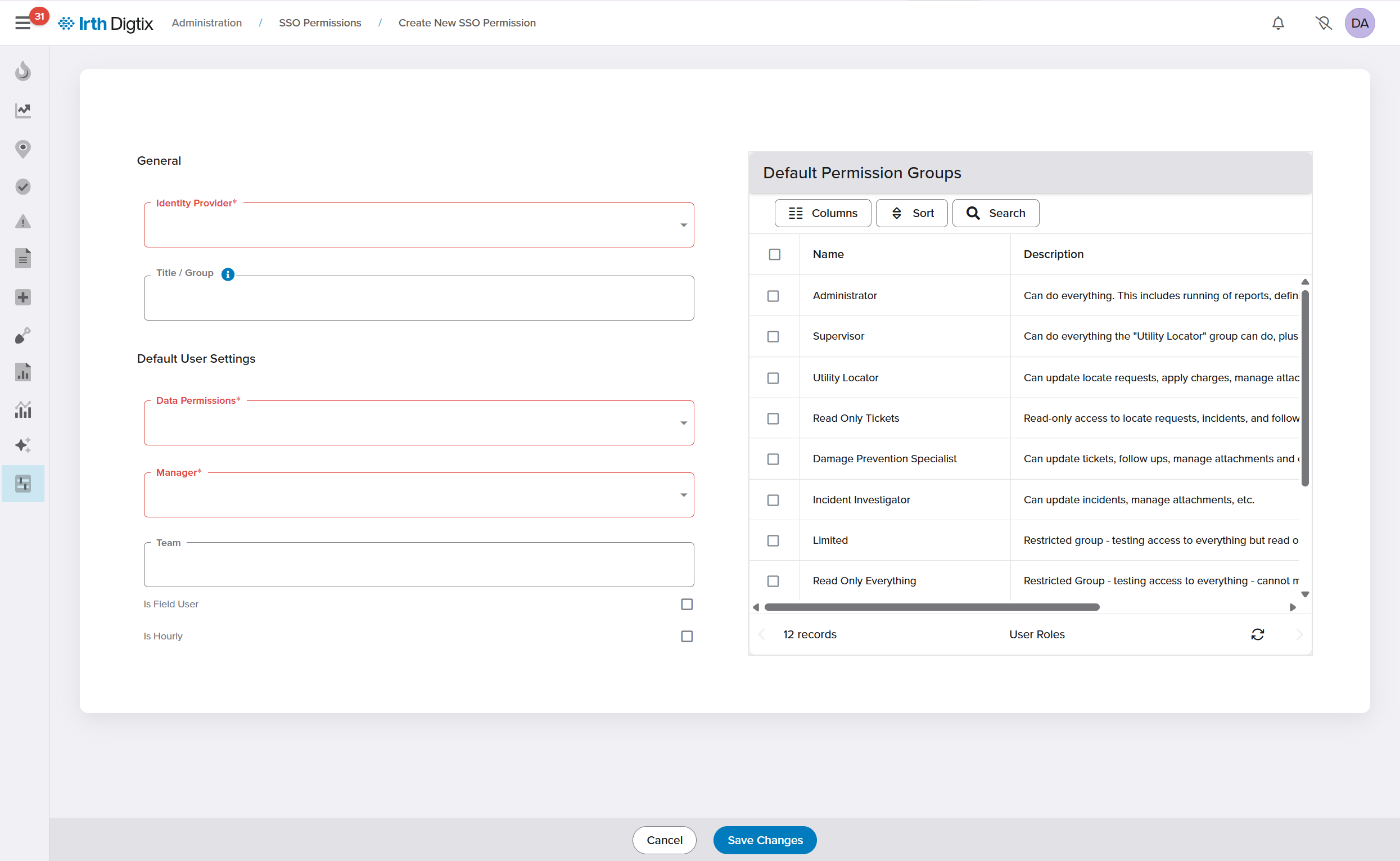
- Click Save changes.
New users logging in via SSO will automatically receive these default settings.
Validate User Login Scenarios
Digtix handles users differently based on their login status:
New Users: A new account is automatically created using SSO data and assigned default permissions
Existing Users (First SSO Login): The user account is automatically converted from password-based authentication to SSO
Existing Users (Future Logins): Access is granted based on their SSO Permission Key configuration
Users are authenticated seamlessly and assigned appropriate permissions
Manage User Access
To remove or adjust access:
- Update or remove the user’s group in the identity provider
OR - Modify or delete the corresponding SSO Permission entry in Digtix
Access is updated without needing manual changes to individual user accounts
FAQ/Troubleshooting:
Q: Why is a new user not getting the correct permissions?
A: Verify that the correct SSO Permission Key is being sent and mapped in the SSO Permissions section.
Q: Will SSO overwrite an existing user’s settings?
A: No. Existing user profiles are not changed during SSO login. Defaults only apply to new users.
Q: How do I remove a user’s access to Digtix?
A: Remove the user from the identity provider group or delete the corresponding SSO Permission entry in Digtix.
Q: What happens if SSO mapping is not configured properly?
A: Users may not be able to log in or may not receive correct permissions. Work with your IT team to confirm mapping.
Questions? Contact us!

Was this article helpful?
That’s Great!
Thank you for your feedback
Sorry! We couldn't be helpful
Thank you for your feedback
Feedback sent
We appreciate your effort and will try to fix the article