Downloading & Logging in to the Irth Utilisphere Mobile
Purpose/Overview
In this article, you’ll learn how to download and log in to the Irth Utilisphere Mobile App. This guide explains why the app is useful, who it’s designed for, and how it helps field teams stay productive with real-time access and offline capabilities.
Things to Know:
Permissions: Your account must have at least one Mobile Profile assigned or a Mobile Profile set as Default.
Supported Devices:
Hardware: Must support the two most recent OS versions (Android or iOS).
Software: App runs on the latest two versions for your platform.
Internet Access: Required for downloading and first-time login.
Offline Mode: The app caches data for offline use; changes sync automatically when you reconnect.
App Updates: Updates may be staged by app stores; for faster access, manually update when available.
Need Help? Contact your company administrator or Irth Support if you’re unsure about environment selection or encounter access issues.
Key Benefits/Use Cases:
Field Efficiency: Access tickets and forms on the go, reducing downtime.
Offline Capability: Continue working even without coverage; data syncs automatically later.
Secure Access: Supports Single Sign-On (SSO) for streamlined, secure login.
How It Works:
How It Works: Step-by-Step Download and Login
Install the App
- Search for “Utilisphere” in the App Store or Google Play.
- Confirm the app icon matches the latest Irth logo.
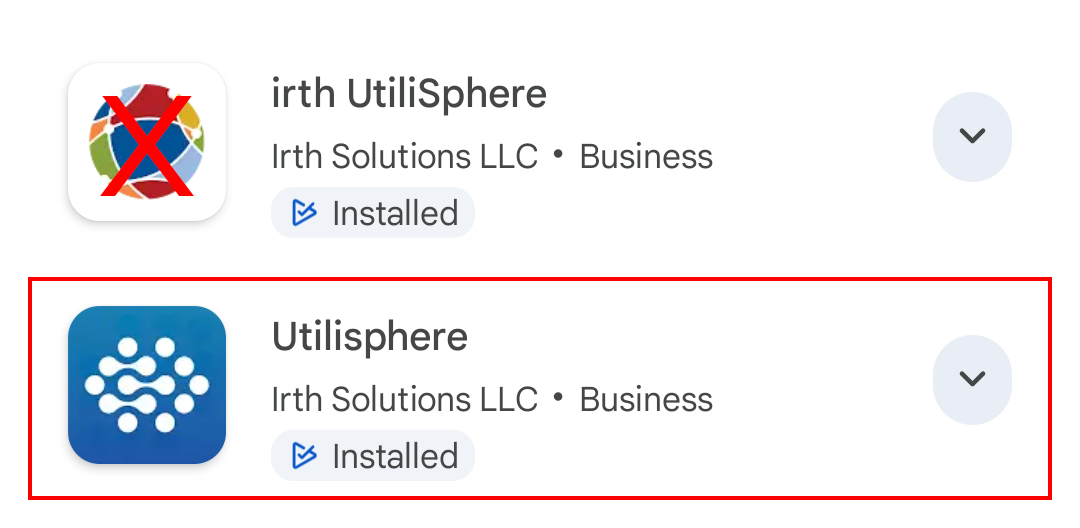
- Download and install.
Log In
- Open the app and enter your Username and Password, SSO, or Microsoft.
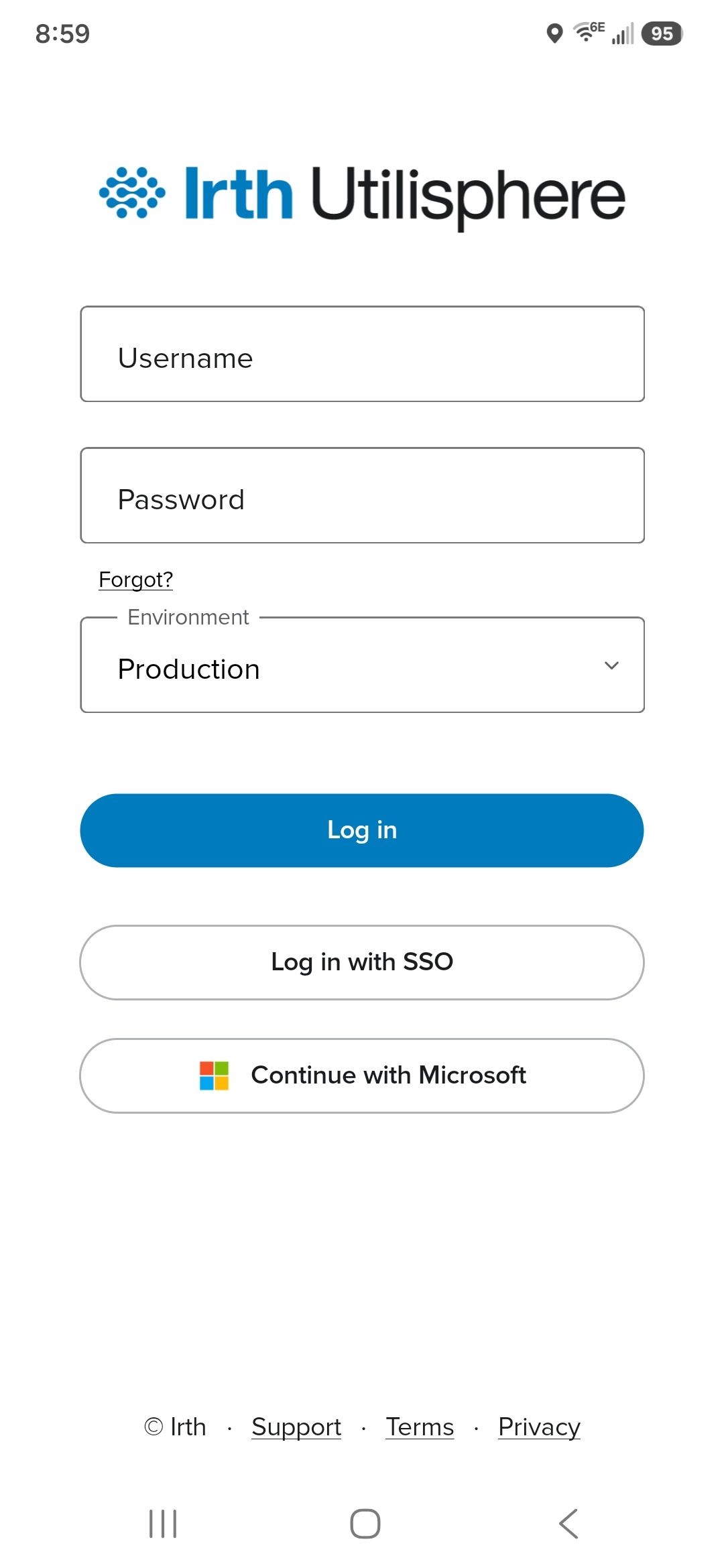
- Choose the environment matching your usual web URL (e.g., Prod, Prod-CL) and tap Log in.
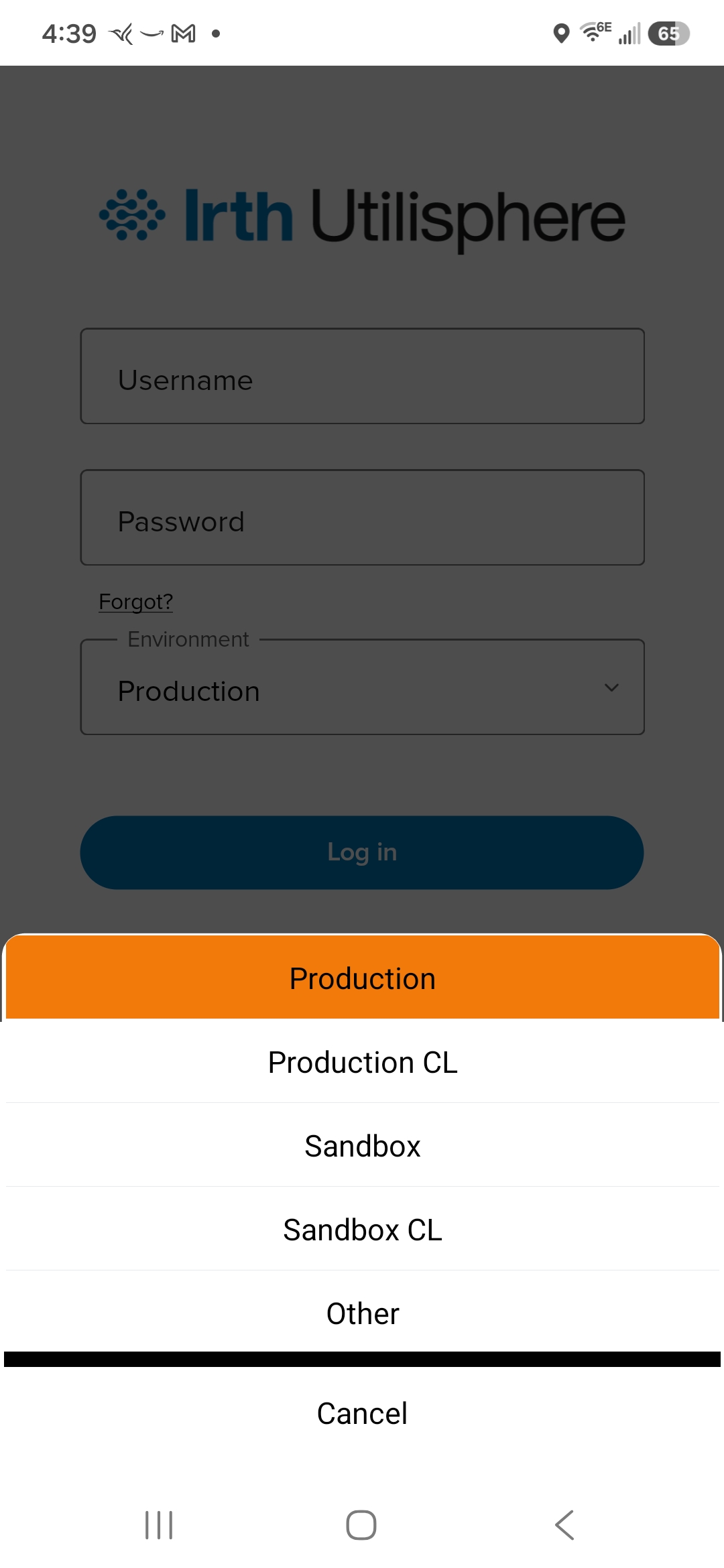
- Using SSO?
- Select Production or Production CL (SSO works only in these environments).
- Tap SSO, enter your Company Code, and log in.
- If you see an error, verify the Company Code and confirm your company has whitelisted IP:
64.128.112.130. - Complete any two-factor authentication if prompted.
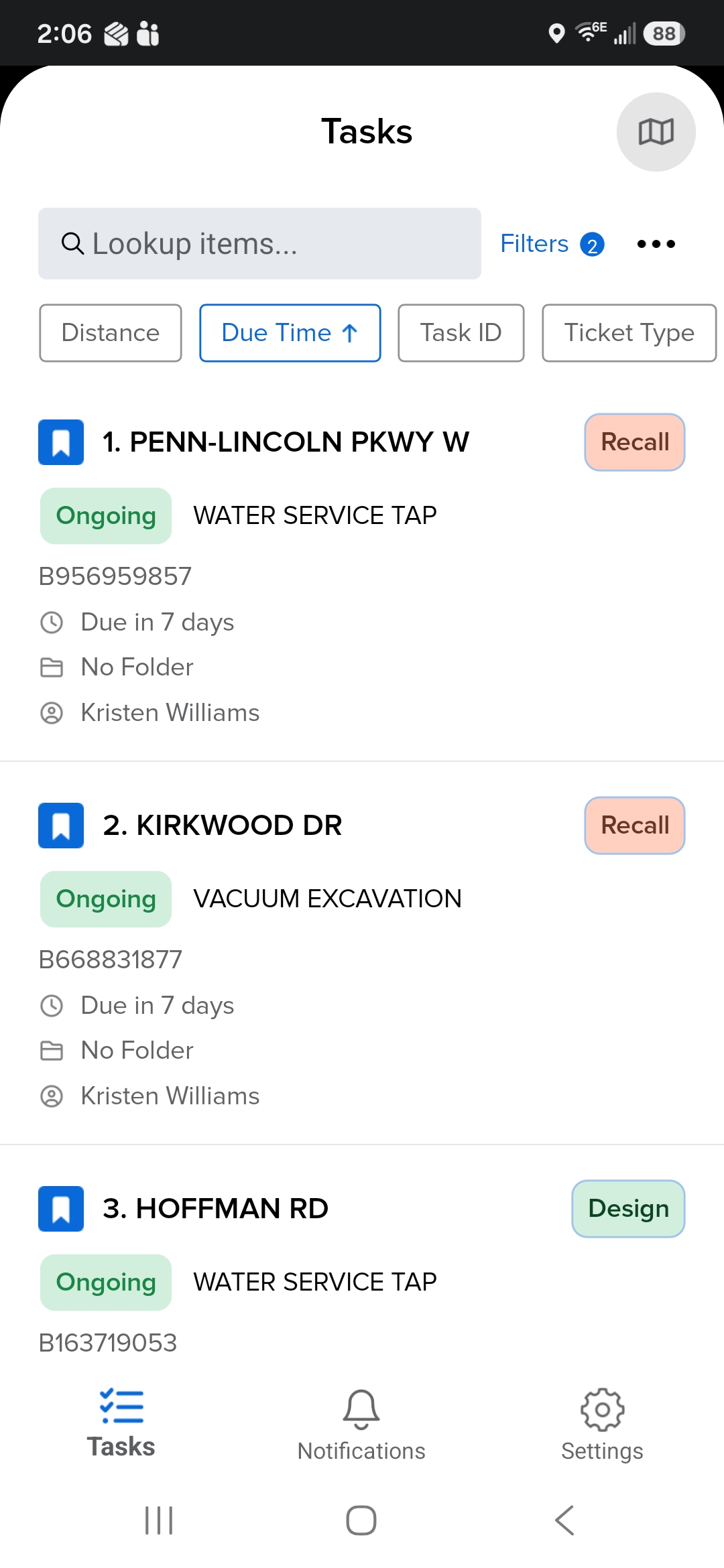
- After logging in, tickets and workflows sync automatically, and you're ready to use Irth Mobile in the field!
Related Features/Next Steps:
Irth Mobile Installation Video
FAQ/Troubleshooting:
Q: What if I can’t find my environment?
A: Contact your company administrator for the correct environment details.
Q: Why am I getting an SSO error?
A: Check your Company Code and confirm IP whitelisting.
Q: Can I work offline?
A: Yes! The app caches data and syncs automatically when you reconnect.
Questions? Contact us!
Was this article helpful?
That’s Great!
Thank you for your feedback
Sorry! We couldn't be helpful
Thank you for your feedback
Feedback sent
We appreciate your effort and will try to fix the article