User Access Troubleshooting Guide (New UI)
Purpose/Overview
In this article, you will learn how to troubleshoot user access issues when a user is unable to log in to Digtix. This guide walks administrators through common validation steps such as confirming browser compatibility, verifying the correct login environment, checking user status, and resolving password or account‑lock issues. This article is intended for administrators and support personnel responsible for managing user access. If all steps have been completed and access issues persist, contact your Digtix support personnel for further assistance.
Navigation Path:
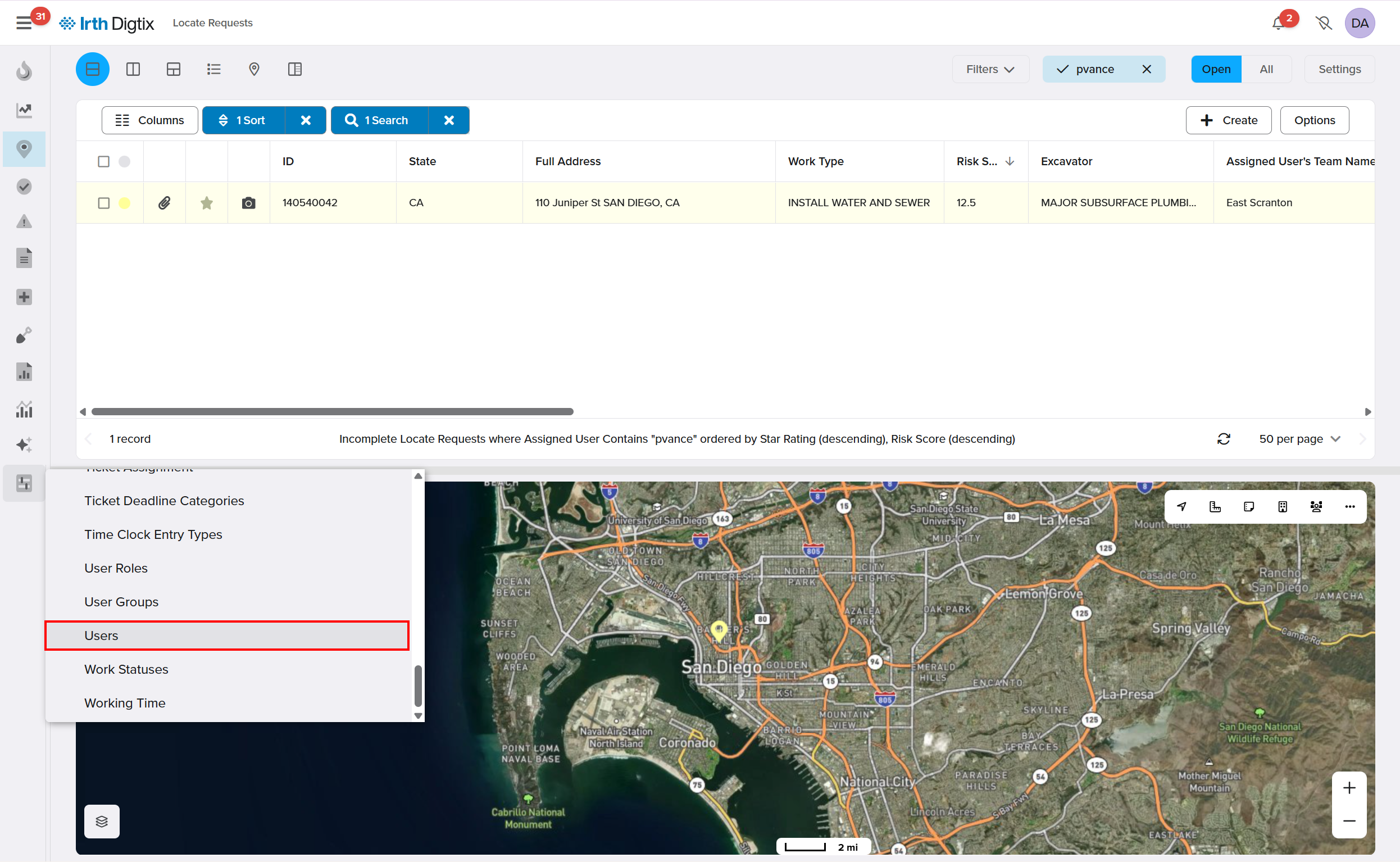
To access this feature: Digtix > Administration > Users
Things to Know:
Permissions: Administrative access is required to view and manage users.
Browser Support: Digtix should be accessed using a modern, supported browser (Chrome, Edge, Firefox, or Safari).
Case Sensitivity: Usernames and passwords are case‑sensitive.
Security Controls: Users are automatically disabled after five consecutive failed login attempts.
Key Benefits/Use Cases:
- Quickly Restore User Access: Identify and resolve common login issues such as inactive or disabled accounts.
- Reduce Support Escalations: Follow a consistent checklist to rule out common configuration and credential problems before escalating.
- Ensure Proper User Configuration: Confirm users have valid email addresses and correct permission group assignments.
How It Works:
Follow these troubleshooting steps if a user cannot access Digtix:
Confirm Browser and Login URL
- Ensure the user is accessing Digtix from a major, supported internet browser.
- Verify the login URL is correct for your organization.
- The hostname should match your company’s environment (for example:
acme.digtix.com).
- The hostname should match your company’s environment (for example:
Verify the User Exists and Is Active
- Ask the user to confirm their username.
- Log in to Digtix using an administrative account.
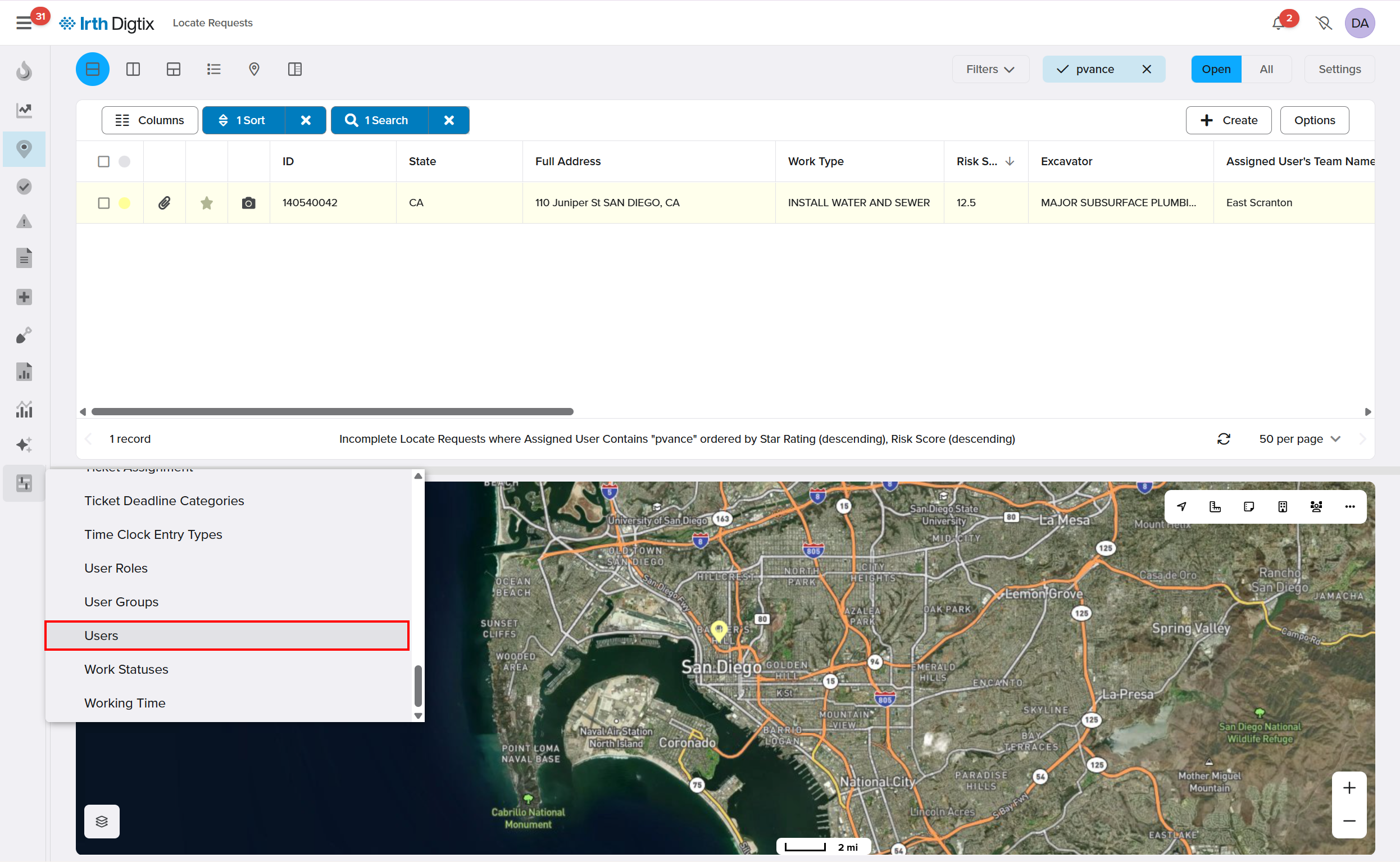
- Navigate to Administration > Users.
- Use the Search bar to find the user, making sure the Include Inactive toggle is selected.
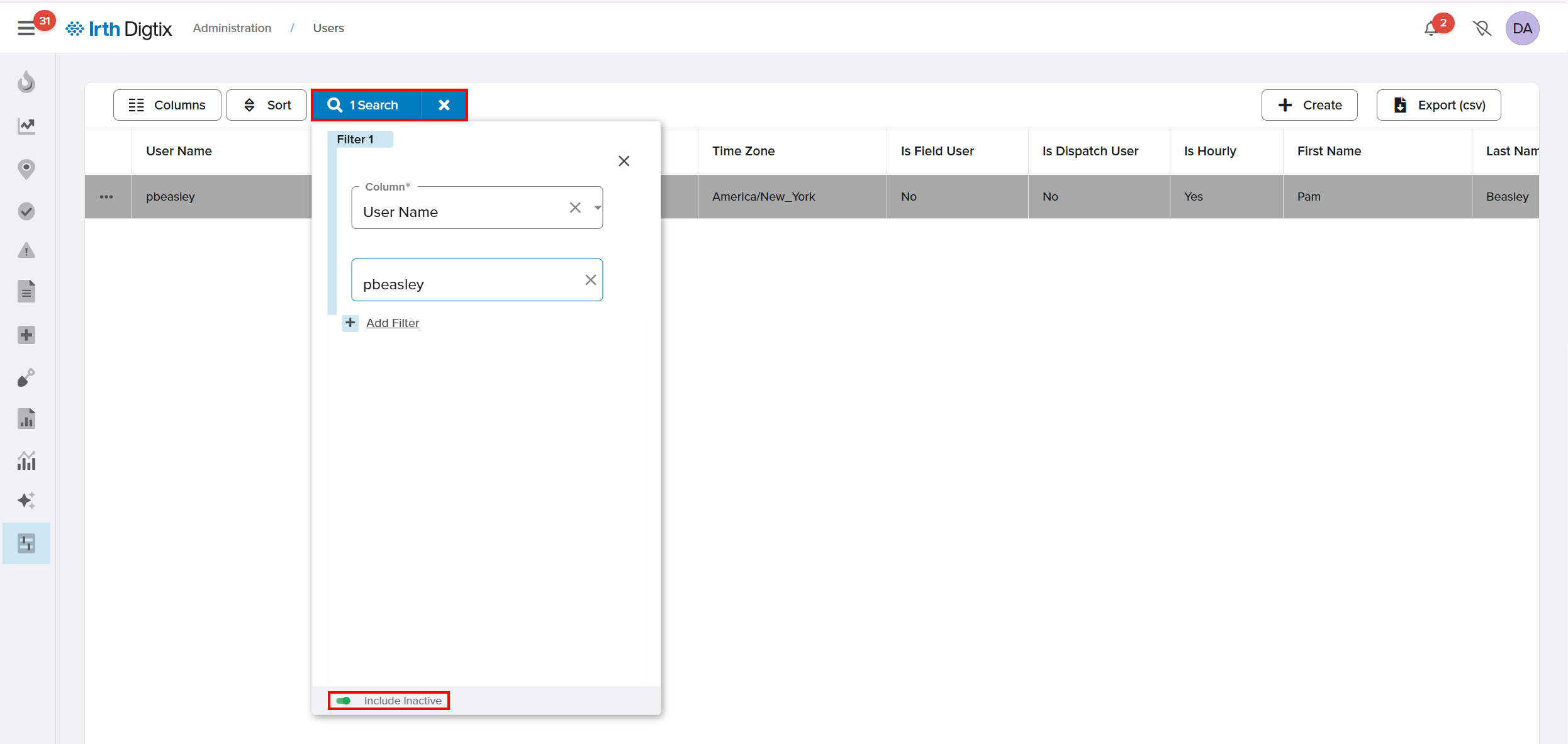
NOTE: Usernames are case-sensitive.
If the user is inactive, enable the Active toggle and Save Changes.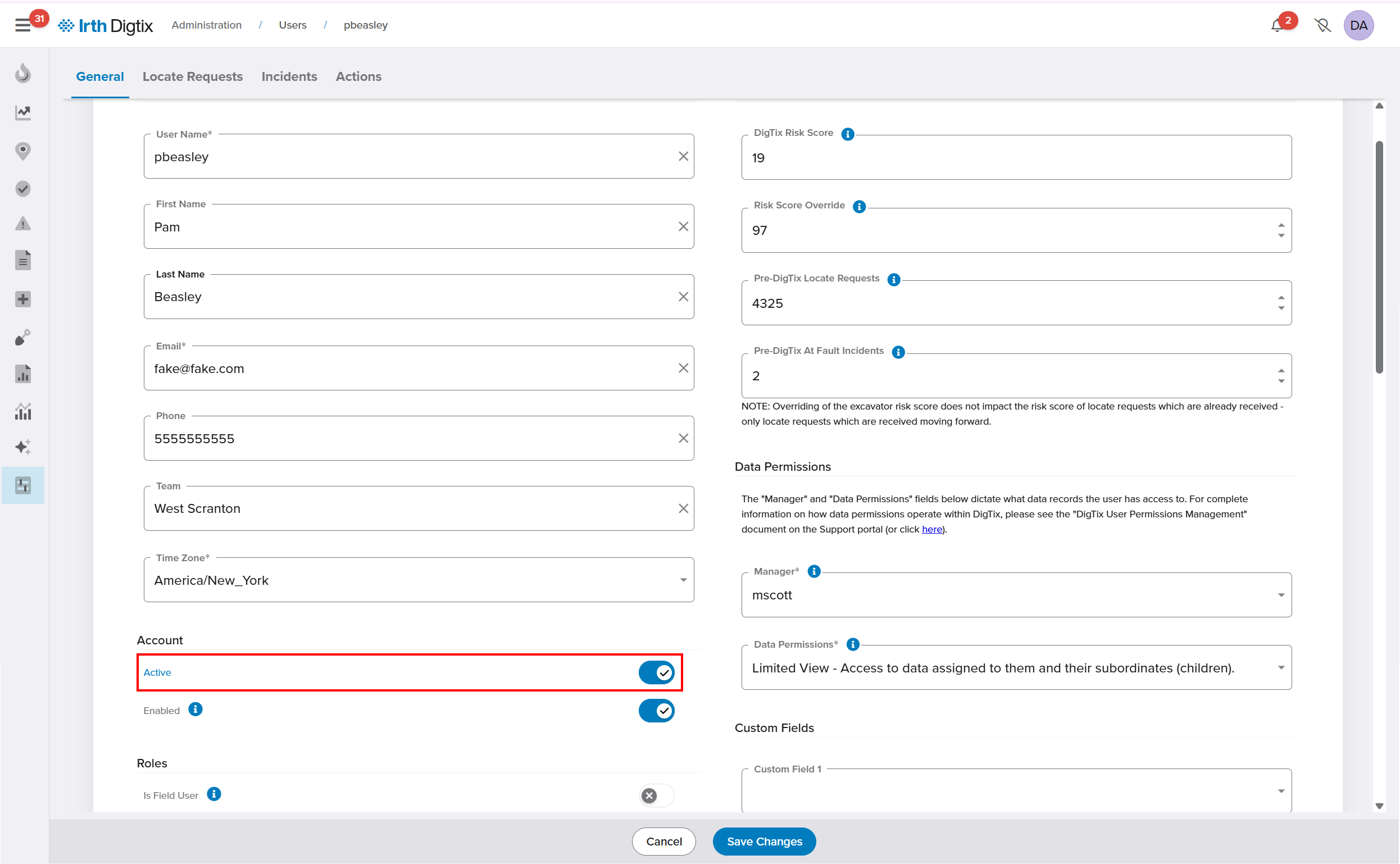
Verify the User’s Email Address
- Confirm the email address listed on the user profile is correct.
- If incorrect, update the email address and click Save Changes.
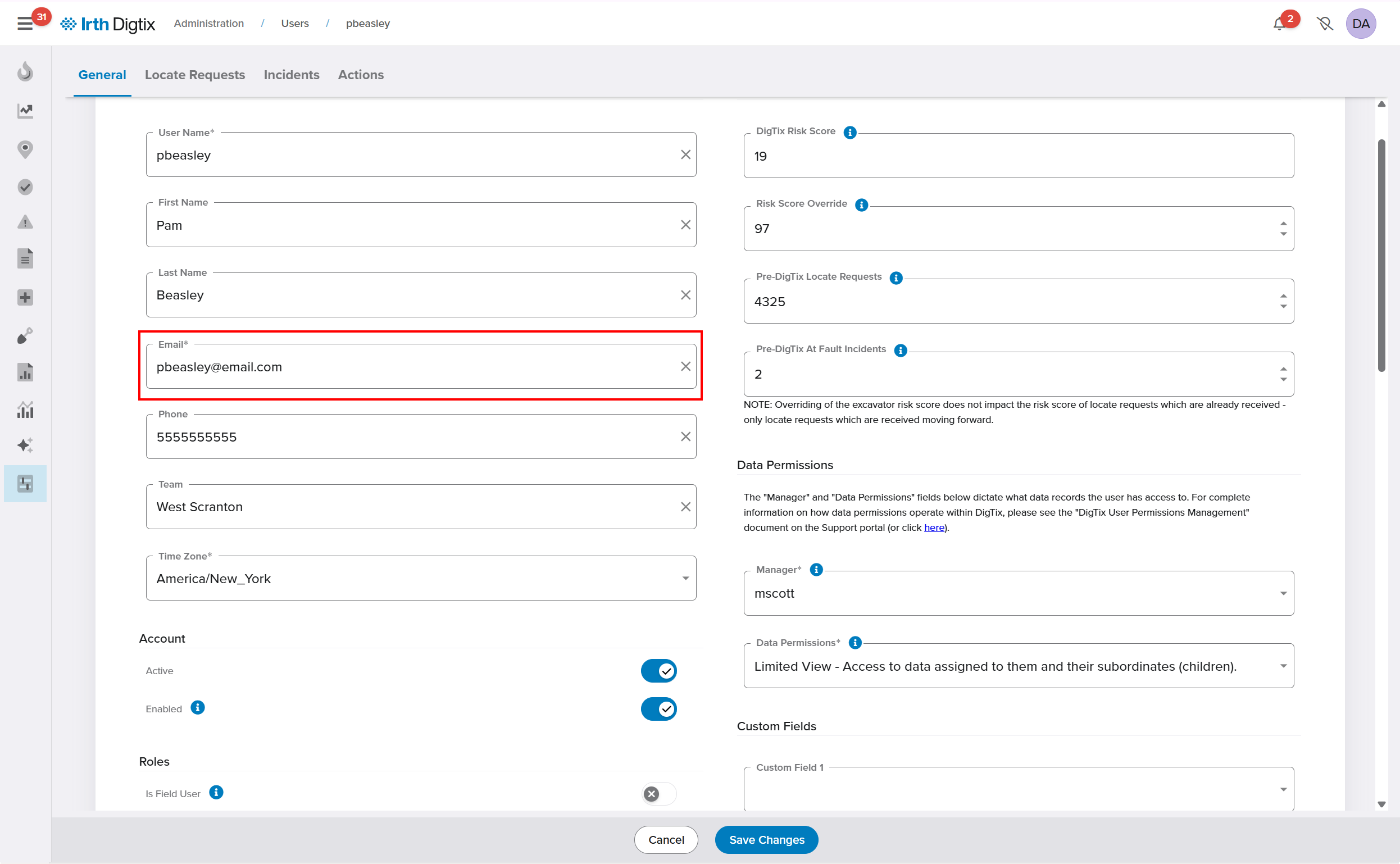
NOTE: A correct email address is required for password recovery and system notifications.
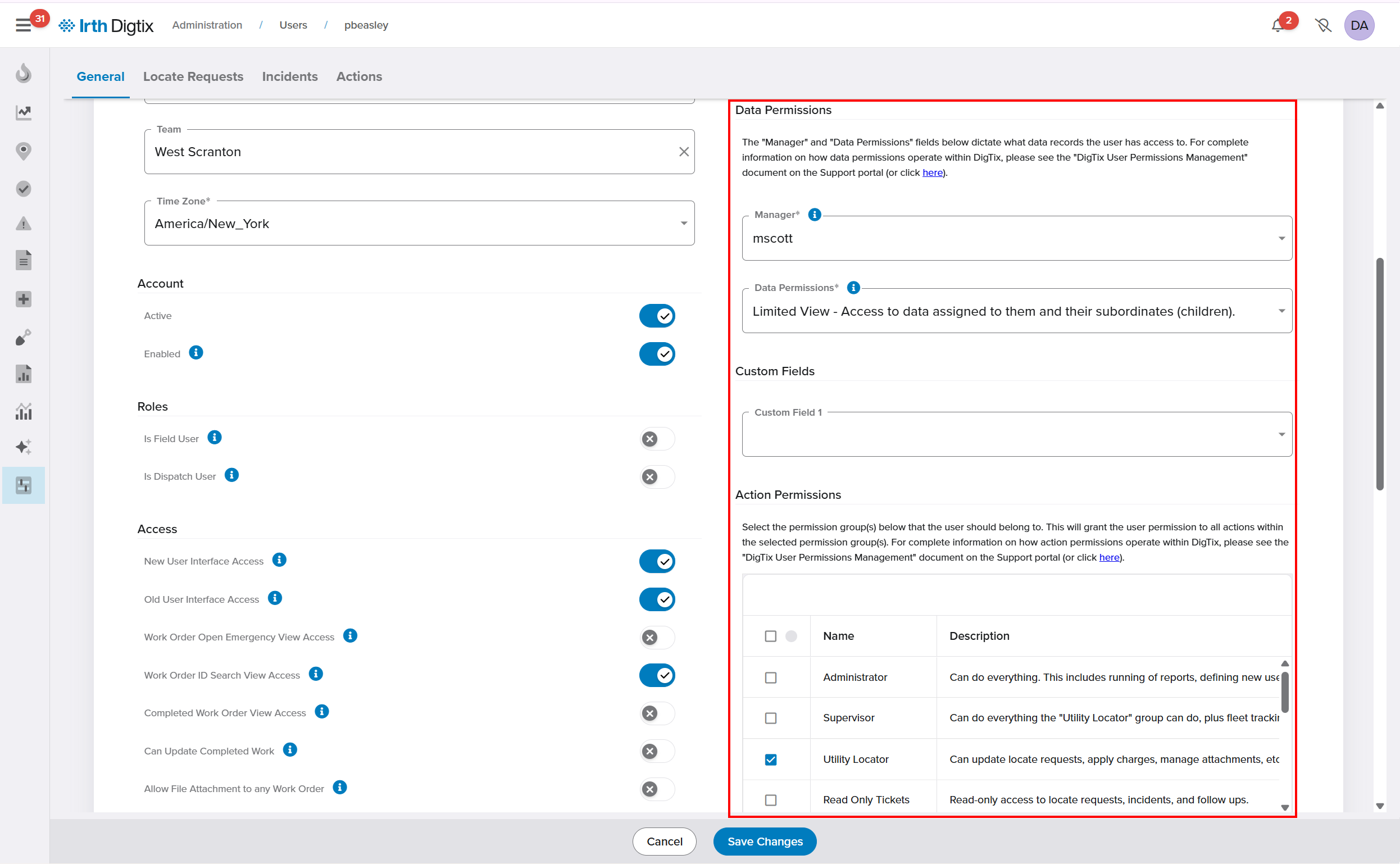
Verify Permission Groups
- Review the user’s Permission Groups.
- Ensure appropriate permissions are selected based on the user’s role.
- Update selections if needed and click Save Changes.
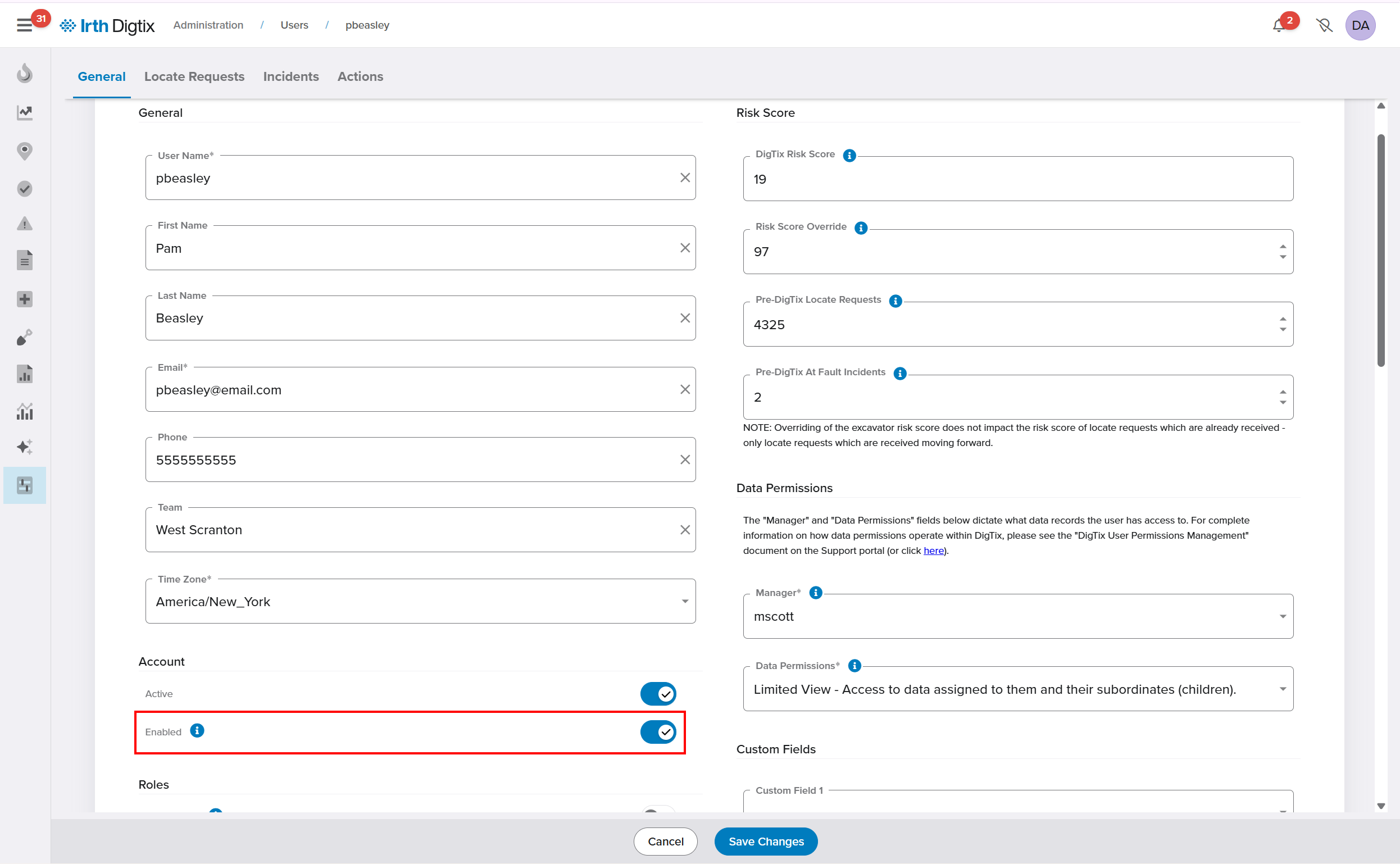
Ensure the User Is Enabled
- Users are automatically disabled after five consecutive failed login attempts as a security measure.
- If the Enabled toggle is off, toggle it on and Save Changes.
Reset the User’s Password (If Needed)
If the user does not know their password:
- Instruct them to select Forgot your password? on the login page.
- The user must enter their username.
- Digtix will send a temporary password to the user’s email address.
- Upon login, the user is required to change their password.
NOTE: Depending on organizational email filters, the password recovery email may be routed to Spam or Junk. Have the user check those folders if the email is not received.
FAQ/Troubleshooting:
Q: Why is the user unable to log in even with the correct password?
A: The account may be disabled due to repeated failed login attempts or marked as inactive. Verify both the Active and Enabled settings.
Q: The user didn’t receive the password reset email—what should I check?
A: Confirm the email address on the user profile is correct and have the user check spam or junk folders.
Q: Does changing permission groups affect user access?
A: Yes. Incorrect or missing permission groups may prevent users from accessing required features.
Questions? Contact us!

Was this article helpful?
That’s Great!
Thank you for your feedback
Sorry! We couldn't be helpful
Thank you for your feedback
Feedback sent
We appreciate your effort and will try to fix the article