Dispatching Overview
Purpose/Overview
In this article, you will learn how dispatching works in Digtix and how to configure dispatch users and ticket statuses to support efficient locate request screening.
Dispatching helps organizations determine whether a locate request needs to be sent to the field for investigation or can be cleared without a site visit. This process, often called screening, reduces unnecessary dispatches and improves overall operational efficiency.
By using dispatch tools in Digtix, teams can:
- Identify requests that require fieldwork
- Clear requests with no conflict
- Reduce technician workload, travel time, and fuel costs
This feature is intended for administrators and Super Users responsible for configuring dispatch workflows and managing user access.
Navigation Path:
To access this feature, go to :
Digtix > Administration > Users (for assigning dispatch users)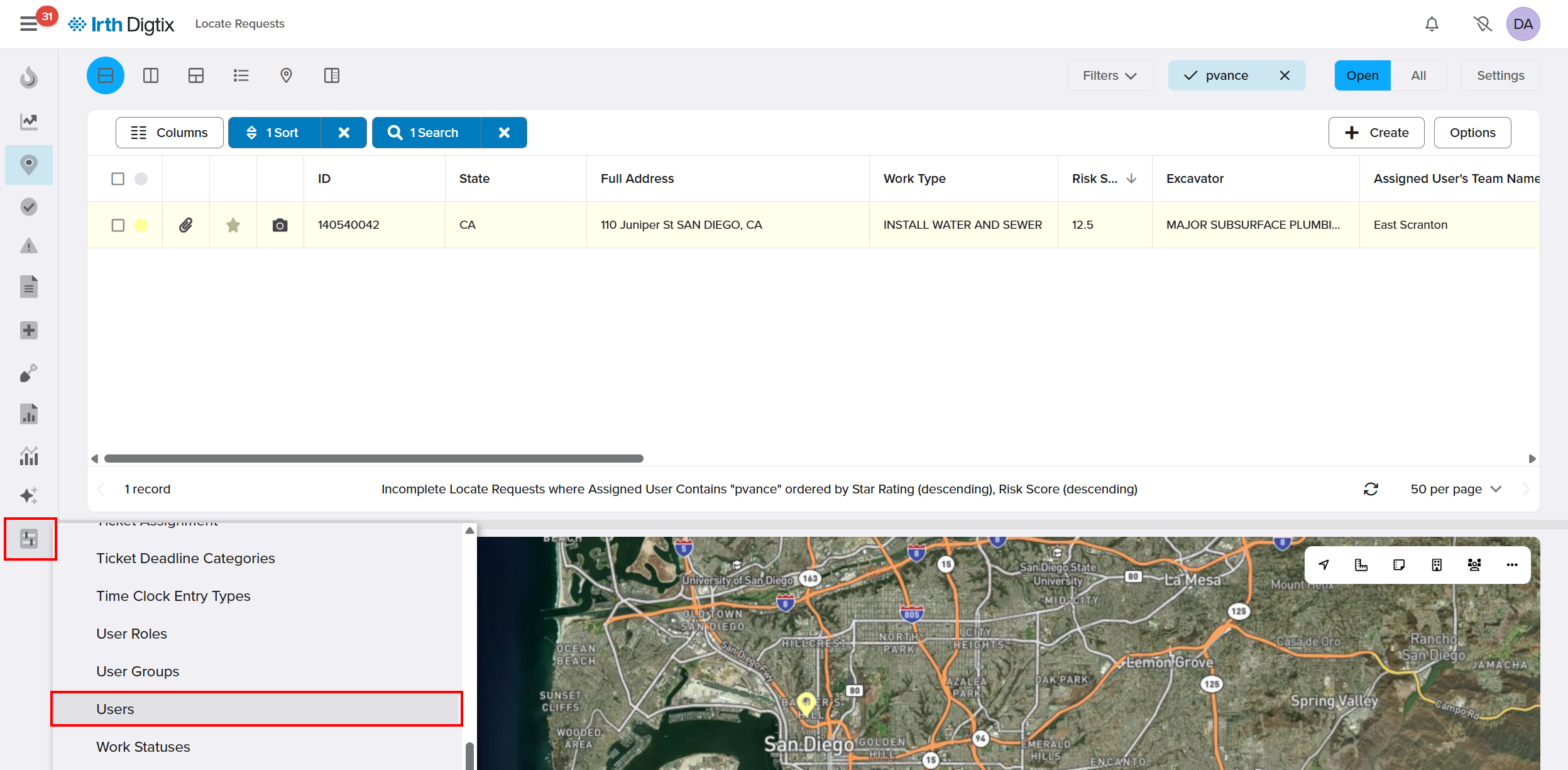
Digtix > Administration > Locate Request Statuses (for configuring dispatch statuses)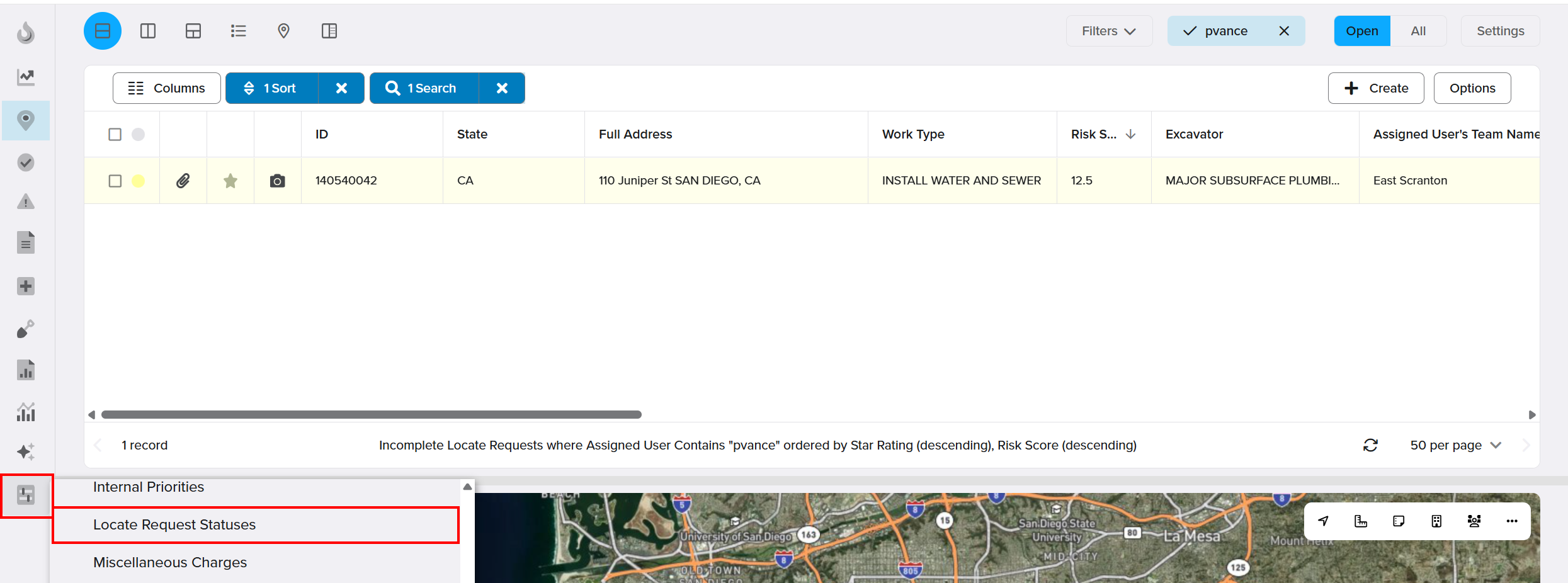
Things to Know:
Permissions: Only users with administrative access can configure dispatch users and ticket statuses.
Dispatcher Access: Users must have the Is Dispatch User setting enabled to access dispatch tools.
Status Configuration Required: Dispatch functionality depends on properly configured ticket statuses marked as available to dispatch users.
Screening Outcomes: Requests may be marked as:
- Cleared
- Cleared by Proximity
- Cleared by Work Type
- Cleared by Excavator
Key Benefits/Use Cases:
Reduce Unnecessary Field Work: Quickly identify requests that do not require on-site investigation, reducing technician workload.
Improve Operational Efficiency: Streamline dispatch decisions to minimize delays and optimize resource allocation.
Lower Operational Costs: Decrease fuel consumption, fleet mileage, and overall damage prevention expenses.
How It Works:
Follow these steps to configure dispatching in Digtix:
Enable Dispatch Users
- Navigate to Administration > Users
- Select the user you want to configure, toggle Is Dispatch User on, and Save the changes.
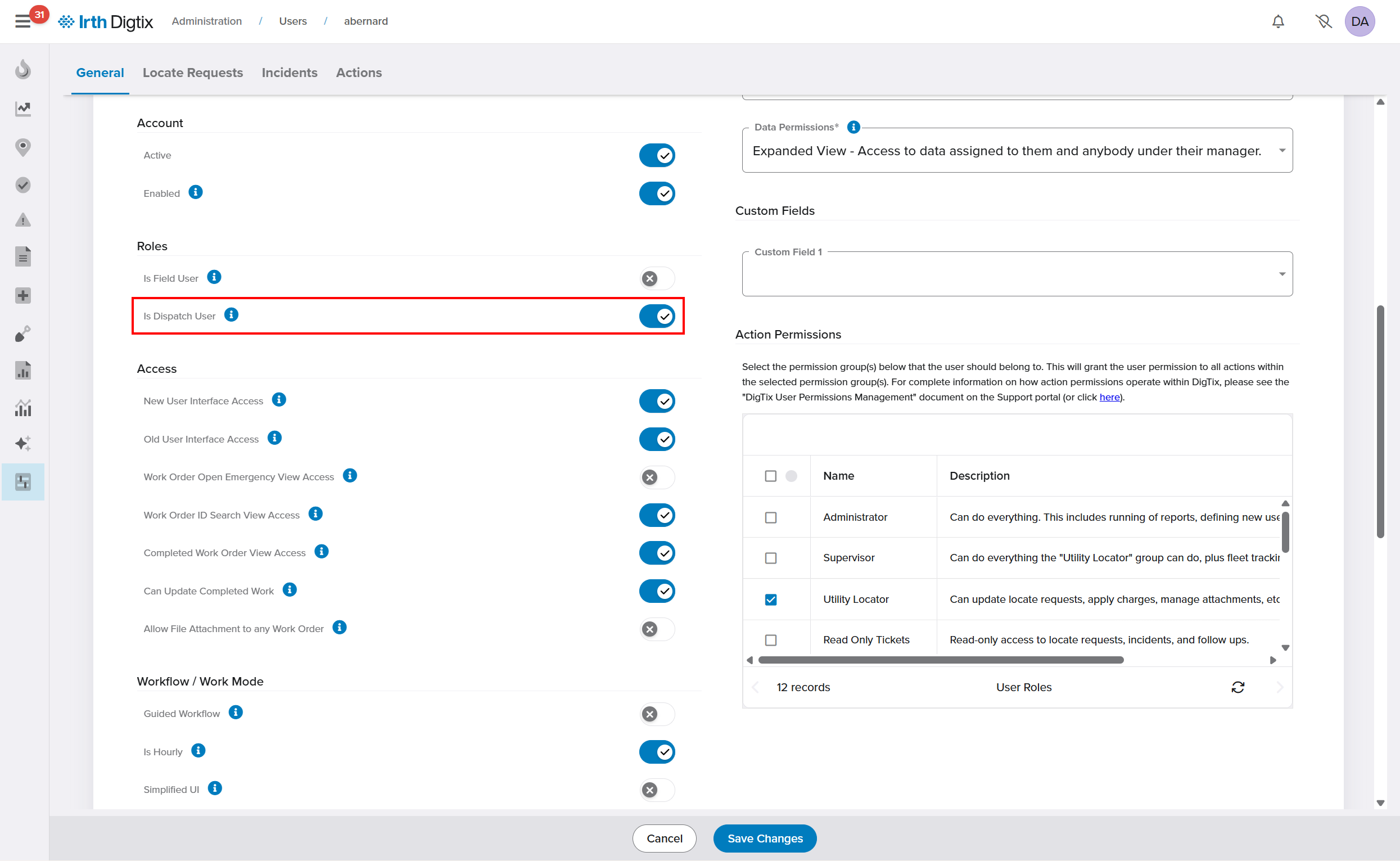 The user now has access to dispatch-specific tools.
Configure Dispatch Ticket Statuses
- Navigate to Admin > Locate Request Statuses
- Select an existing status or create a new one. check Available to Dispatcher in the status configuration window, and Save the changes.
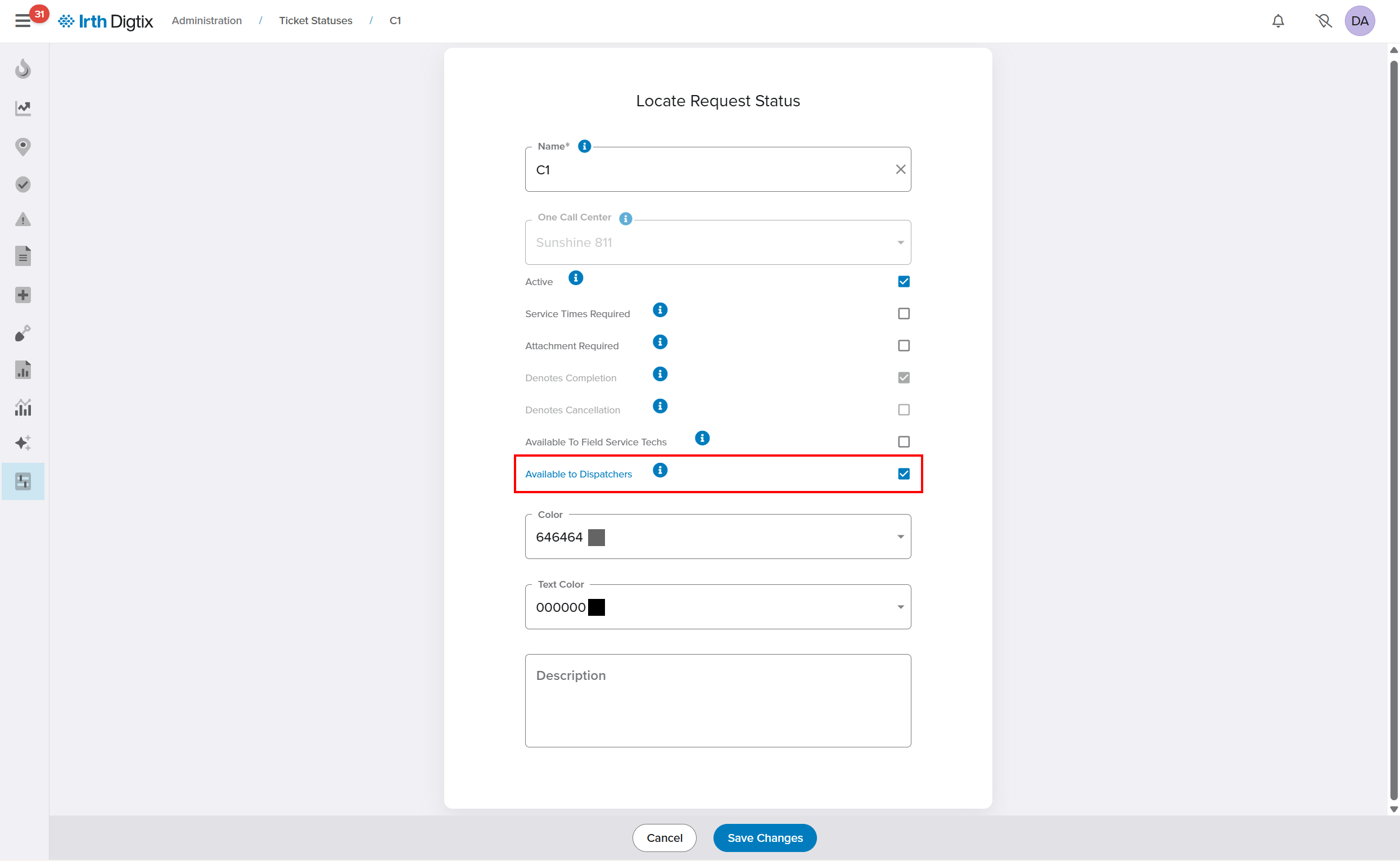 The status appears as an option for dispatch users during ticket screening.
FAQ/Troubleshooting:
Q: Why doesn’t a user see dispatch options?
A: Ensure the user has the Is Dispatch User option enabled in their profile.
Q: Why are no statuses available when screening tickets?
A: Confirm that ticket statuses are configured with Available to Dispatchers enabled.
Q: Should I delete unused statuses?
A: It’s recommended to deactivate unused statuses instead of deleting them to preserve reporting history.
Questions? Contact us!

Was this article helpful?
That’s Great!
Thank you for your feedback
Sorry! We couldn't be helpful
Thank you for your feedback
Feedback sent
We appreciate your effort and will try to fix the article