INTRODUCTION
It may not be necessary to send a field technician to locate utilities for every locate request received by 811. Screening locates is the process where it is determined whether the locate request actually needs to be dispatched to the field for a user to perform a site visit and locate underground utilities. If a locate request does not need to be dispatched to the field, it is commonly referred to as "Cleared", "Screened", or "No Conflict"
DigTix provides the ability for organizations to efficiently and accurately determine which locate requests should be dispatched to the field and which can be cleared without any visit in the field. Implementing a screening process saves time, fleet milage, and fuel consumption, significantly reducing damage prevention costs.
DISPATCH USERS
The first step in leveraging dispatchers within DigTix is to define which DigTix users are dispatchers. Dispatch users have access to a special set of dispatch tools within DigTix which are detailed below. To designate a DigTix user as a dispatcher, simply check the "Is Dispatch User" checkbox on the user configuration window.
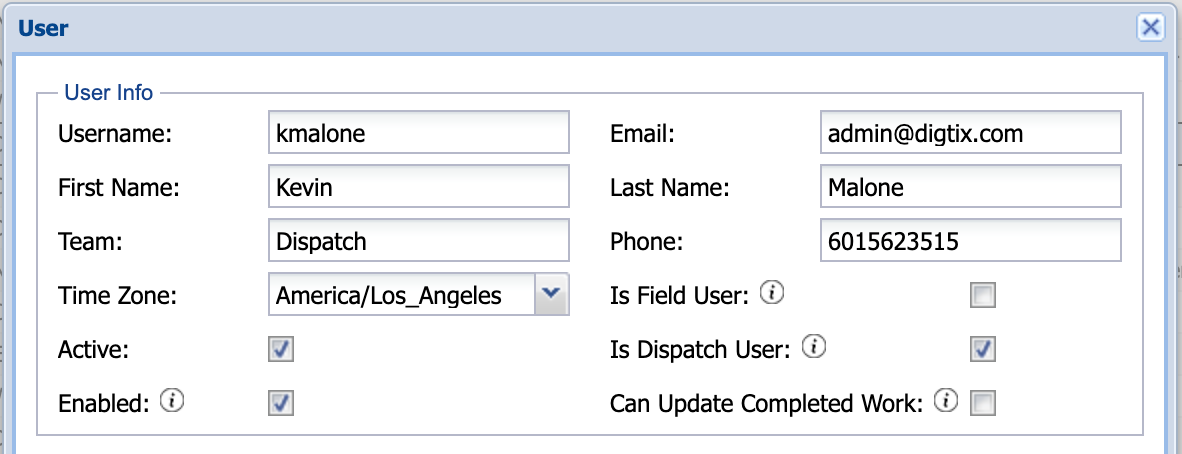
Figure 1: Configuring User as a "Dispatch User"
DISPATCH TICKET STATUSES
The final step in leveraging dispatchers within DigTix is to configure which statuses are available to the dispatch users. Typically these statuses include "Cleared", "Cleared by Proximity", "Cleared by Work Type", "Cleared by Excavator", or similar. These statuses will be presented as options for dispatch users to screen a ticket with (more information below). To make a ticket status available to dispatch users, simply check the "Available to Dispatchers" checkbox on the ticket status configuration window.
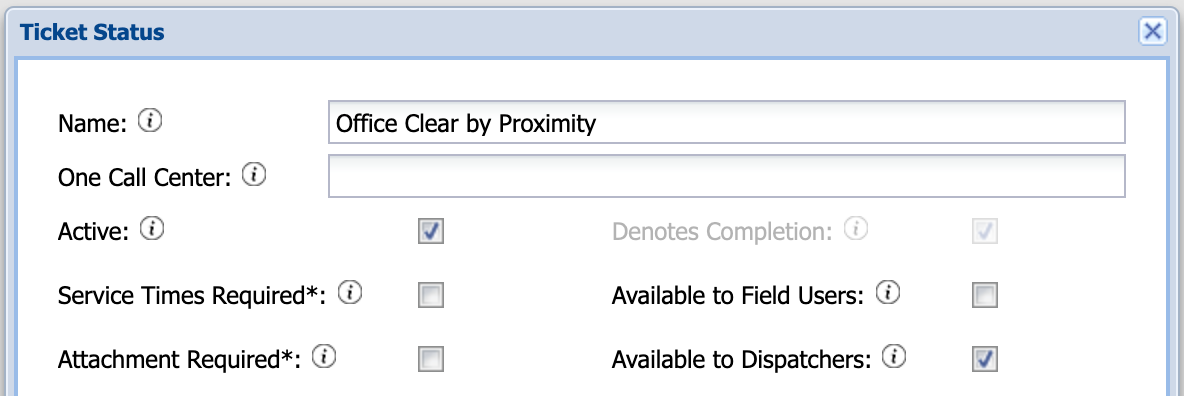
Figure 2: Configuring Ticket Status to be Available to Dispatch Users
DISPATCH UI
When a dispatch user logs into DigTix, they will be presented a special interface which allows them to quickly assess locate requests to determine whether those locates should be dispatched to the field or cleared.
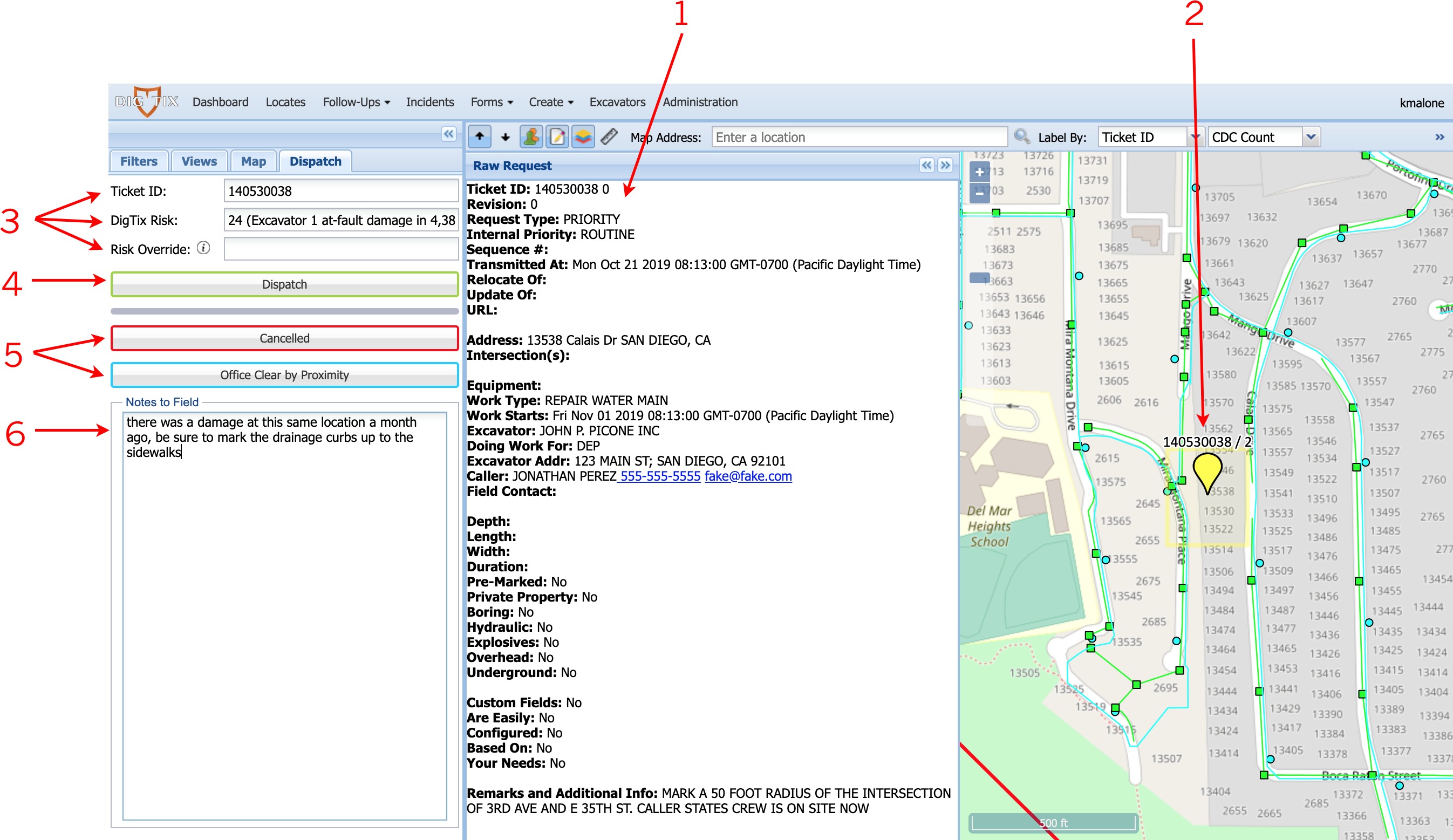
Figure 3: Dispatch UI Elements
- The raw locate request information is presented in a consistent format, regardless of what 811 call center it was received from.
- The map shows the scope of the excavation work (in yellow) in relation to infrastructure GIS data that has been loaded to DigTix (in green and blue).
- The ticket ID and risk score information. For more information on risk scores, click here.
- The "Dispatch" button. Clicking this button will dispatch the ticket to the appropriate field technician, as determined by the configured "Dispatched Locates" ticket assignment rule set.
- Ticket statuses which have been configured as "Dispatch Ticket Statuses" (see section above). Clicking one of these buttons effectively screens the ticket. The ticket is not dispatched to the field.
- Any notes that are entered here are saved to the ticket when dispatched or cleared. In the case that the ticket is dispatched, these notes are displayed to the locate technician.
When a ticket is dispatched or screened via one of the buttons shown above (#5 or #6), the next ticket in the dispatchers queue is automatically loaded for dispatching or screening.
Was this article helpful?
That’s Great!
Thank you for your feedback
Sorry! We couldn't be helpful
Thank you for your feedback
Feedback sent
We appreciate your effort and will try to fix the article