Purpose/Overview
The PowerBI Dashboard feature allows users to create, customize, and share interactive dashboards for reporting and data analysis. Users can build dashboards from an existing dashboard, a standard product template, or a blank template to meet specific business reporting requirements.
This feature provides flexibility in designing operational, analytical, and management reports while leveraging available product reporting views and datasets.
Navigation Path:
To access this feature: Reports > PowerBI Dashboards
Things to Know:
- The user who creates a dashboard is automatically granted access to the report.
- Additional users or roles can be granted access after the dashboard is created.
- Dashboard changes are not saved automatically. Users must select Save Changes to retain modifications.
- Both the Default Product Template and Blank Template provide access to the same reporting views and datasets.
- By default, dashboard visualizations display only records that contain data. Users can enable the Show items with no data option where supported.
Key Benefits/Use Cases:
Create Operational Dashboards
Build dashboards using standard product reporting views to monitor operational activities and business performance.
Design Custom Business Reports
Create specialized dashboards with custom layouts, KPIs, metrics, and visualizations tailored to specific reporting requirements.
Share Reporting Across Teams
Configure dashboards that can be shared with multiple users or roles while maintaining controlled access through permissions.
How It Works:
Creating a New Dashboard
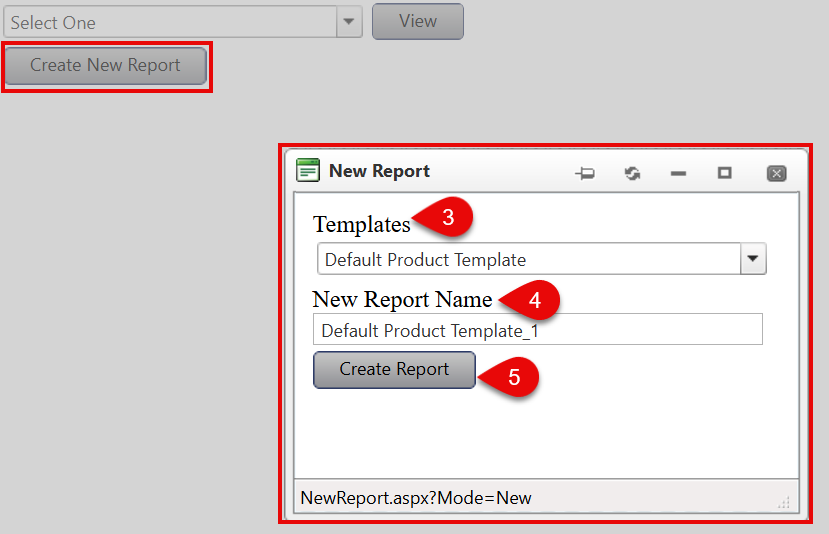
Users can create a new dashboard by selecting Create New Report. The dashboard can be created from an existing dashboard, the Default Product Template, or a Blank Template.
To create a new dashboard:
- Navigate to Reports > PowerBI Dashboards.
Click Create New Report.
The Create New Report window opens.

- From the dashboard selection dropdown, choose one of the following:
- Existing Dashboard – Creates a copy of the selected dashboard.
- Default Product Template – Creates a new dashboard using the standard reporting structure.
- Blank Template – Creates a completely new dashboard.
- Enter a name in the New Report Name field.
- Click Create Report.
The dashboard opens in edit mode, allowing users to configure layouts, datasets, filters, and visualizations.
Dashboard Templates
- Default Product Template – Provides a standard reporting framework using available product reporting views. Ideal for operational dashboards and reports based on standard product data.
- Blank Template – Starts with an empty dashboard canvas, allowing complete customization of layouts, KPIs, metrics, and visualizations.
Note: Both templates provide access to the same reporting views and datasets and allow users to create fully customized dashboards.
Designing and Saving a Dashboard
After creating a dashboard, users can configure dashboard components, display records with no data, and save their changes using the dashboard editor.
To configure and save a dashboard:
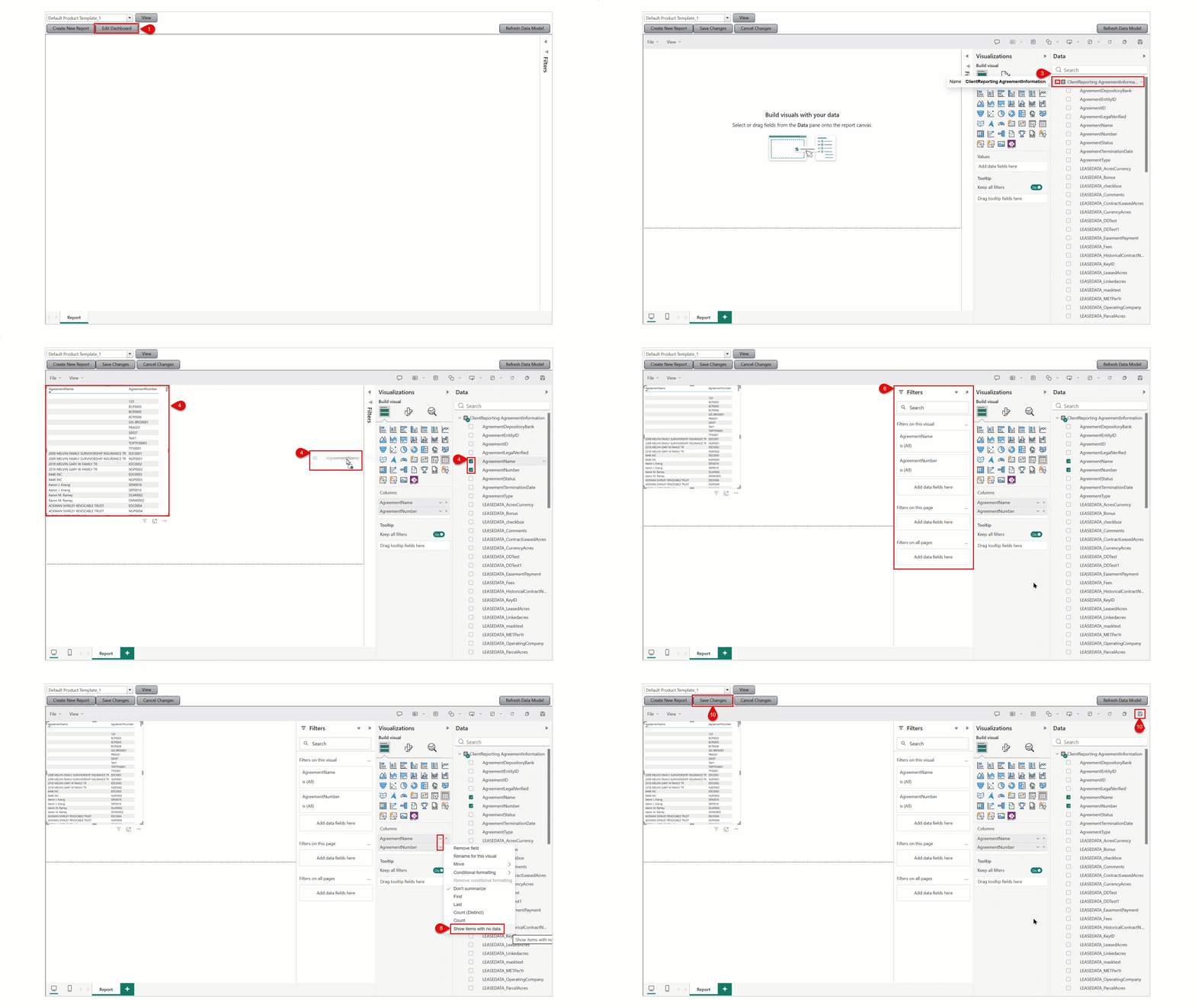
- Click Edit Dashboard.
- Select the Data tab and search for reporting view containing the required data.
- Expand Product Reporting Views to display available reporting datasets and fields.
- Add the desired fields from the reporting view to the dashboard by clicking the checkbox or drag & drop.
- Create visualizations such as: Charts, Tables, Grids, KPI Indicators, Summary Metrics
- Configure filters and slicers to allow users to refine displayed data.
- Arrange dashboard components as needed.
- To display records with null or empty values, right-click the applicable field or select the down arrow and select Show items with no data. The visualization updates to include records without data where supported.
- Repeat the process until the dashboard contains all required reporting elements.
- Click Save Changes.
The dashboard configuration is saved and available for future use.
Note: Any changes made to a dashboard are not retained until Save Changes is selected.
Related Features/Next Steps:
FAQ/Troubleshooting:
Q: What is the difference between the Default Product Template and the Blank Template?
A: Both templates allow users to create fully customized dashboards. The Default Product Template provides a standard reporting framework, while the Blank Template starts with an empty dashboard canvas.
Q: Can I create a dashboard by copying an existing dashboard?
A: Yes. When creating a new dashboard, select an existing dashboard from the dashboard selection dropdown to create a duplicate that can be modified independently.
Q: Why are my dashboard changes not appearing when I reopen the report?
A: Changes are not saved automatically. Ensure that Save Changes is selected before leaving the dashboard.
Q: How can I display records that do not contain data?
A: Right-click the applicable field and select Show items with no data. This option displays records with null or empty values where supported.
Q: Who can access a newly created dashboard?
A: By default, only the dashboard creator has access. Additional users or roles must be granted permissions if broader access is required.
Questions? Contact us!

Was this article helpful?
That’s Great!
Thank you for your feedback
Sorry! We couldn't be helpful
Thank you for your feedback
Feedback sent
We appreciate your effort and will try to fix the article