Purpose/Overview
The SSRS (SQL Server Reporting Service) Dashboard enables users to access and run out-of-the-box (OOTB) reports within the system. It provides a centralized interface where reports are organized into categories, making it easy to locate, execute, and export data-driven insights.
This feature is designed for business users, analysts, and administrators who need quick access to operational and reporting data. It helps streamline reporting workflows, reduces dependency on manual data extraction, and improves decision-making through structured and accessible reports.
Navigation Path:
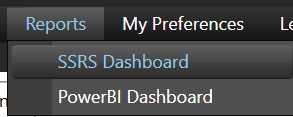
To access this feature: Reports > SSRS Dashboard
Things to Know:
- Report categories (Parent Nodes) are configured by the system administrator.
- Reports can appear in multiple categories if assigned accordingly.
- Reports without a category are displayed under No Category.
- Not all reports support duplication.
- If a report description is not configured, the description popup will appear blank.
Key Benefits/Use Cases:
- Access Standard Reports: Quickly view predefined reports without requiring manual configuration, improving efficiency.
- Custom Report Variations: Duplicate existing reports to create tailored versions for specific business needs.
- Data Export & Sharing: Export reports in formats like PDF or Excel for sharing and offline analysis.
How It Works:
Follow these steps to access and use the SSRS Dashboard:
Step 1: Navigate to SSRS Dashboard
Go to Reports > SSRS Dashboard from the main menu. The dashboard displays a report selection dropdown with categorized reports.
Step 2: Select a Report
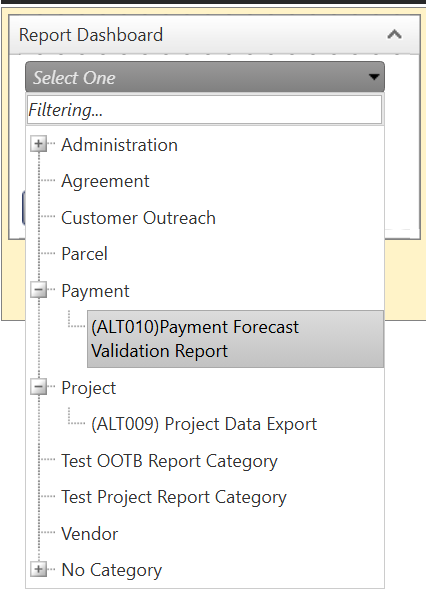
- Open the Report dropdown.
- Reports are organized as:
- Parent Node: Business Flow or Category
- Child Node: Individual report names
- Select the required report from the list.
Step 3: Configure Report Parameters
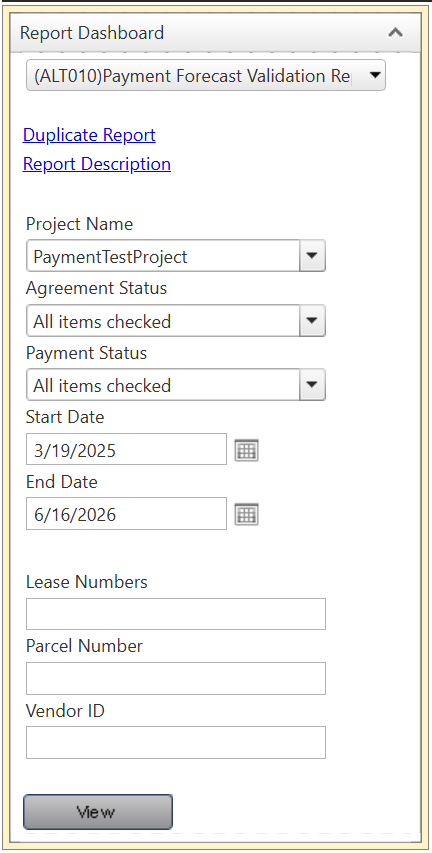
- Enter the required parameters, which may include:
- Single-select or multi-select dropdowns
- Date selectors (calendar inputs)
- Radio button options
Step 4: Run the Report
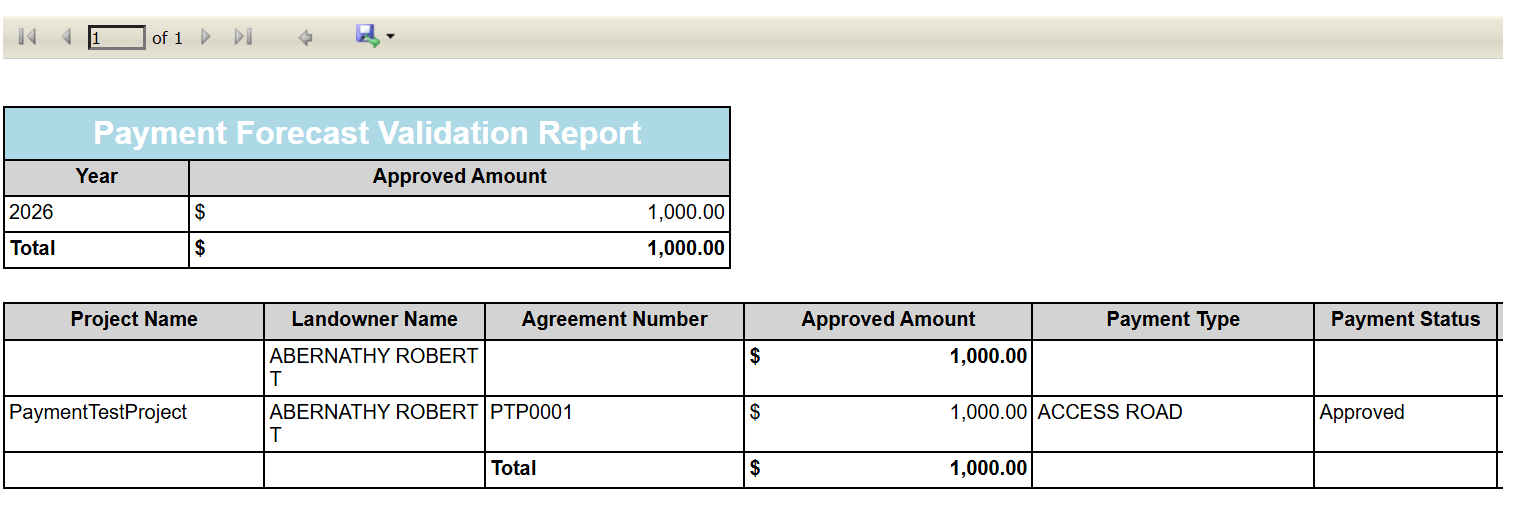
- Click View to generate the report.
- The report will be displayed in a grid layout for easy review.
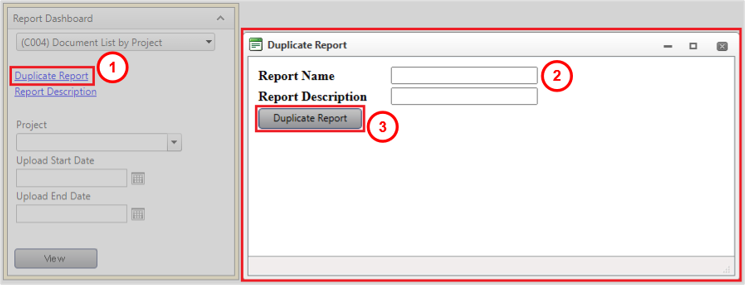
Step 5: (Optional) Duplicate a Report
- Click the Duplicate link (if available).
- Enter:
- New Report Name
- Optional Description
- Click Duplicate Report.
- The new report will appear in the dropdown list.
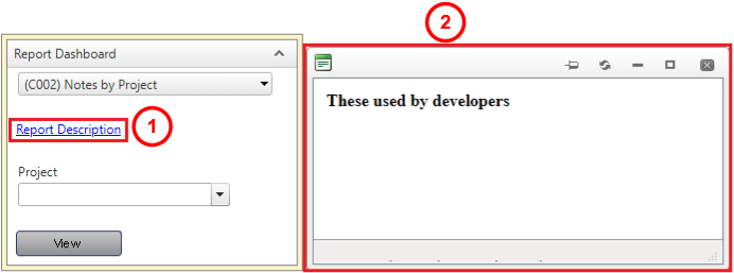
Step 6: View Report Description
- Click the Report Description link (above parameters).
- A popup will display the description configured by the administrator.
Step 7: Use Additional Features
- Pagination: Navigate through report pages using arrow controls.
- Export: Click the export (floppy disk) icon to download reports in formats such as PDF or Excel.

Related Features/Next Steps:
FAQ/Troubleshooting:
Q: Why can’t I see a specific report?
A: The report may not be assigned to your role or category. Contact your administrator for access.
Q: Why is the Duplicate option not available?
A: Only certain reports support duplication. If the option is not visible, duplication is not supported for that report.
Q: Why is the Report Description blank?
A: The administrator may not have configured a description for that report.
Questions? Contact us!

Was this article helpful?
That’s Great!
Thank you for your feedback
Sorry! We couldn't be helpful
Thank you for your feedback
Feedback sent
We appreciate your effort and will try to fix the article