Purpose/Overview
The Search feature allows users to locate projects, parcels, documents, agreements/leases, and landowners using user-defined search criteria. Searches can be saved and reused, making it easier to access frequently used search configurations without rebuilding search criteria each time.
The search functionality is consistent across all search pages, providing a standardized experience regardless of the record type being searched. Users can create personal searches or share search configurations with other users through global searches.
Navigation Path:
To access a search page, navigate to one of the following locations:
- Tools > Project Search
- Tools > Parcel Search
- Tools > Document Search
- Tools > Landowner Search
- Tools > Agreement Search
Select the search type that corresponds to the information you want to locate.
Things to Know:
- Users can only view projects, parcels, agreements, landowners, documents, and other records to which they have been assigned access.
- The available search filters vary depending on the search page being used.
- Saved searches are displayed in alphabetical order within the Saved Searches dropdown list.
- The visibility of the Delete Search option is controlled by the Can Use Global Search permission setting.
- The columns displayed in the search results grid may vary based on your organization's implementation.
- The Open in Pop-up and Open in Current Window options are not available on the Document Search page.
- Text-based filters support wildcard searching using the asterisk (*) character.
Key Benefits/Use Cases:
Quickly Locate Records
Search for projects, parcels, landowners, agreements, or documents using specific criteria to quickly find the information you need.
Save Frequently Used Searches
Create and save search configurations for recurring tasks, eliminating the need to recreate search criteria each time.
Share Standard Search Templates
Create global searches that can be shared across teams or departments to ensure consistent reporting and record retrieval.
Export Search Results
Export search results to Excel, CSV, or Word formats for reporting, analysis, or data sharing.
How It Works:
1. Creating or Selecting a Saved Search
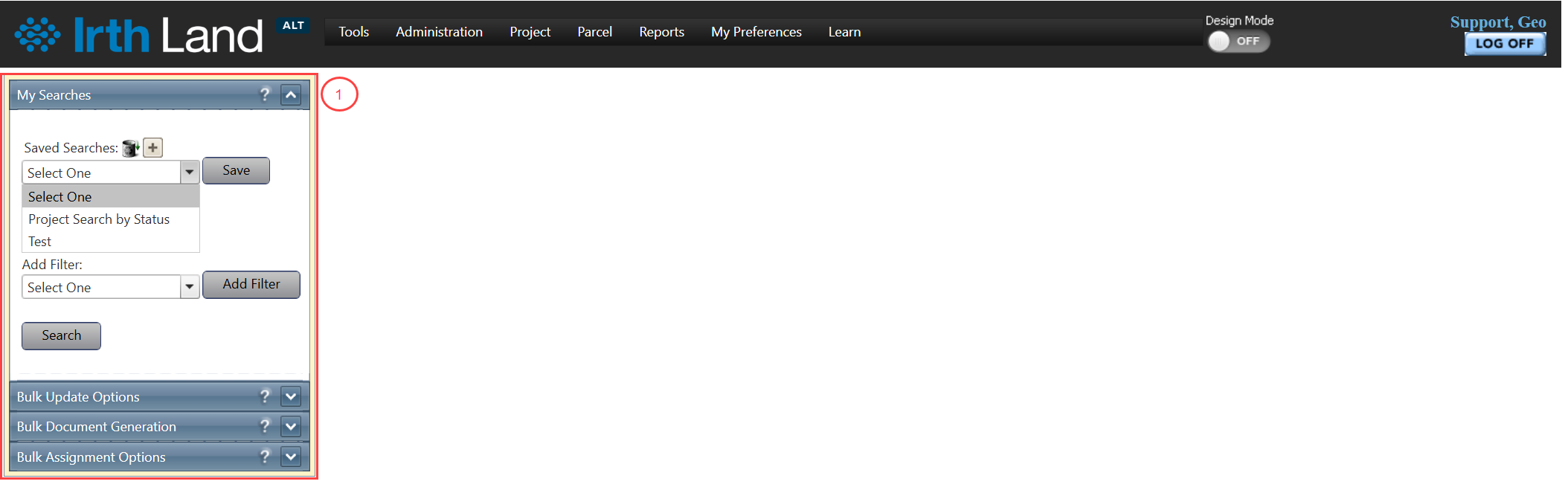
Before records can be searched, a saved search must be selected or created.
- Select a search from the Saved Searches dropdown list.
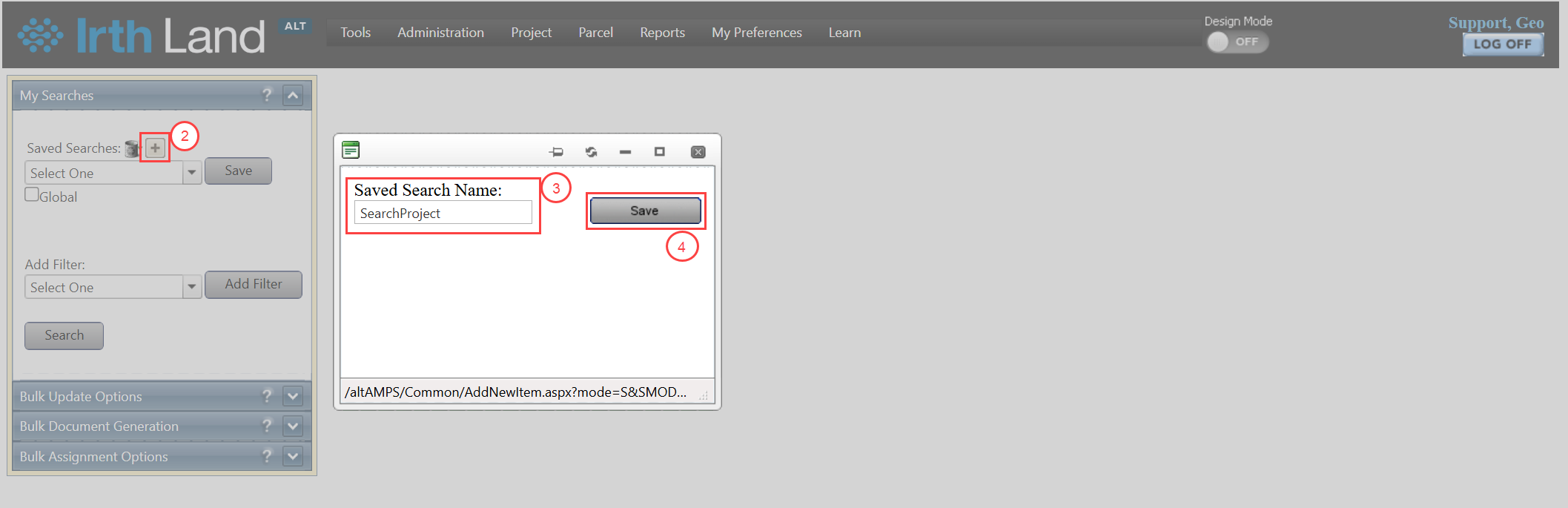
- If no saved searches exist, click the Add (+) button.
- Enter a name for the search in the pop-up window.
- Click Save.
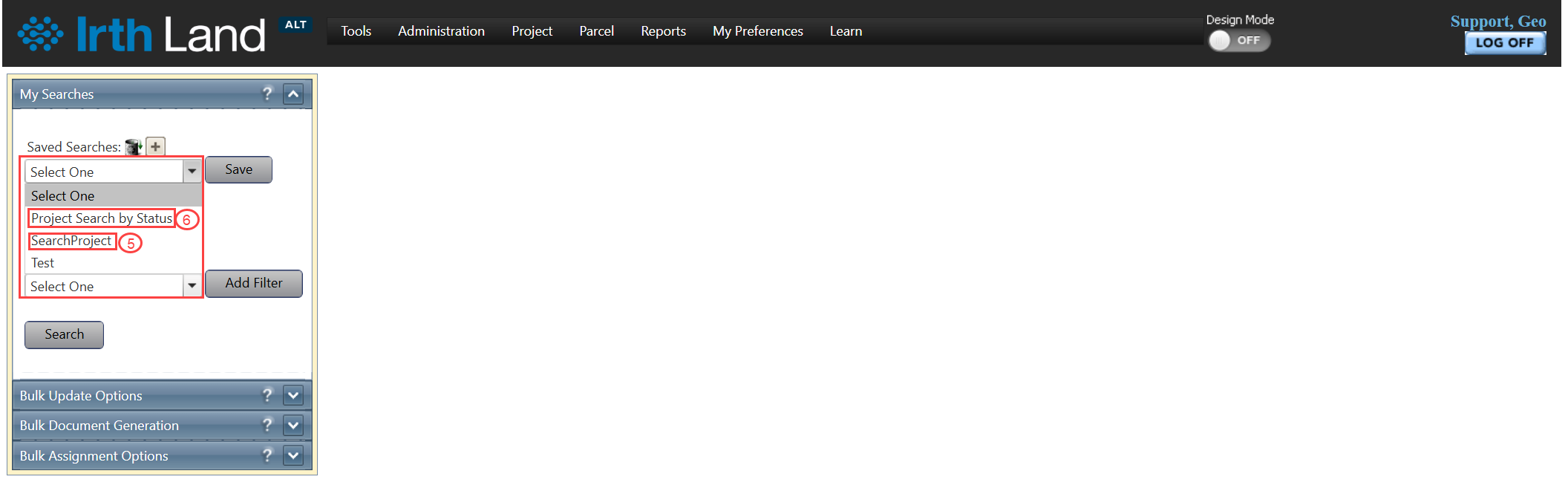
- The Saved Searches list refreshes automatically, and the newly created search becomes the selected search.
- Previously created searches remained available and can be selected from the Saved Searches dropdown list at any time.
2. Deleting a Saved Search
To remove an existing saved search:
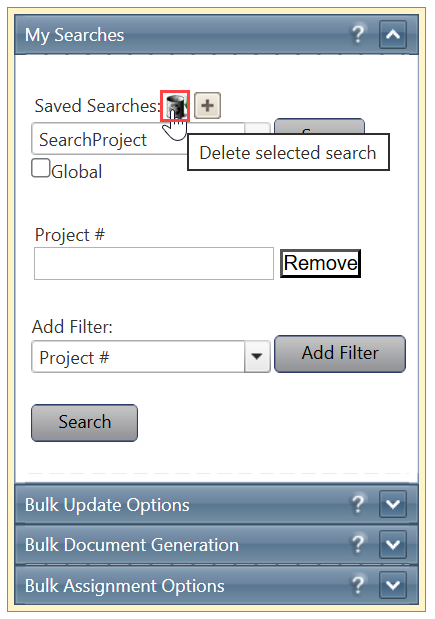
- Select the saved search from the Saved Searches dropdown.
- Click the Delete (Trash Bin) icon.
- A Search Deleted notification appears, confirming the search has been removed.
Note: The Delete option is available only to users with the appropriate permissions.
3. Saving Searches for Other Users
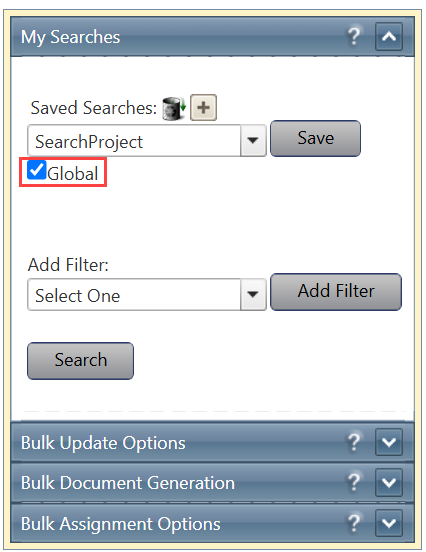
The Global checkbox determines whether a saved search is private or shared.
- When Global is selected, the search is available to all users in the system.
- When Global is not selected, the search is available only to the user who created it.
Global searches are useful for creating standardized search templates that can be shared across teams or departments.
4. Adding Search Filters
Filters define the criteria used to locate records.
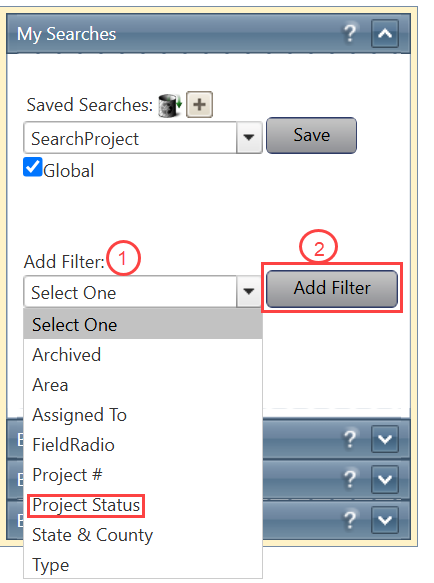
To add filters:
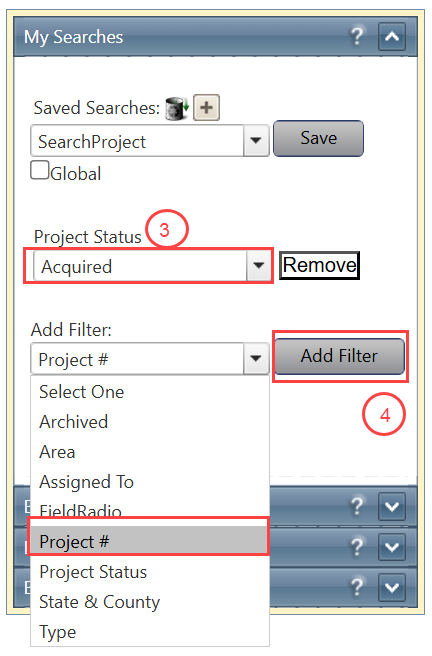
- Select a field from the Add Filter dropdown.
- Click Add Filter.
- Enter or select the desired search criteria.
- Repeat as needed to add additional filters.
- Click Save to save the search configuration.
The available filters depend on the selected search page.
5. Removing Search Filters
To remove a filter:
- Locate the filter you want to remove.
- Click Remove.
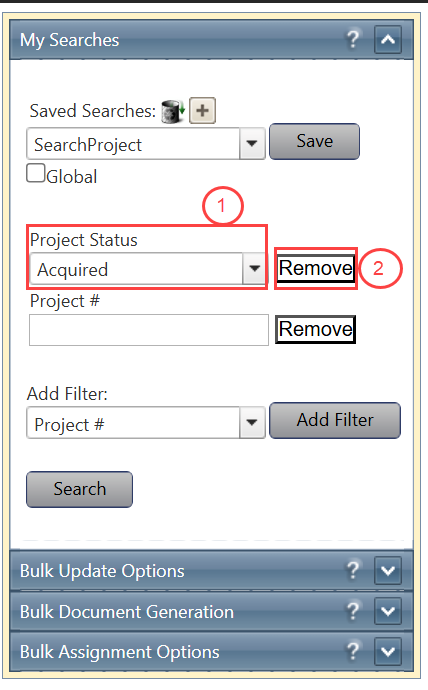
The filter is immediately removed from the search configuration.
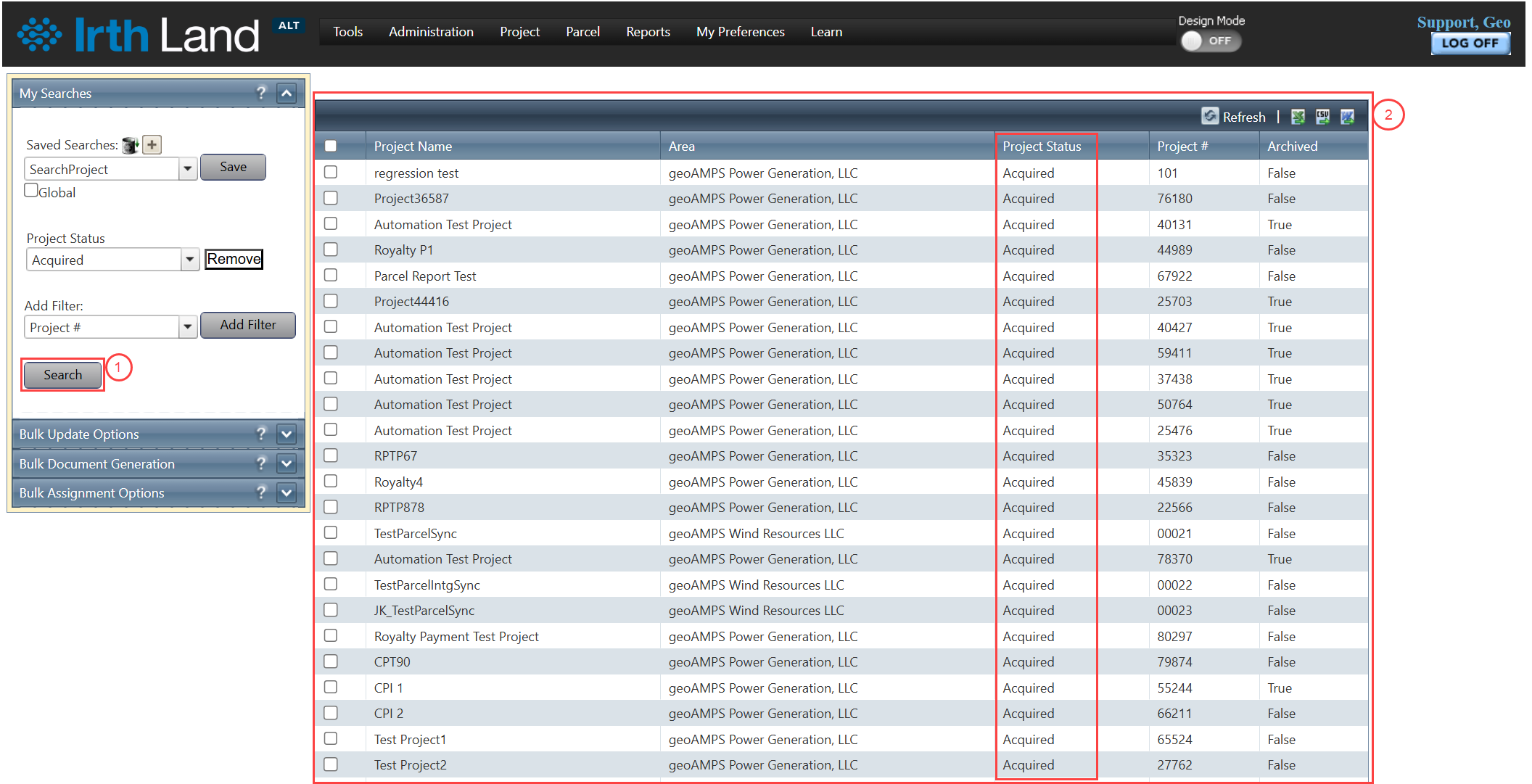
6. Running a Search
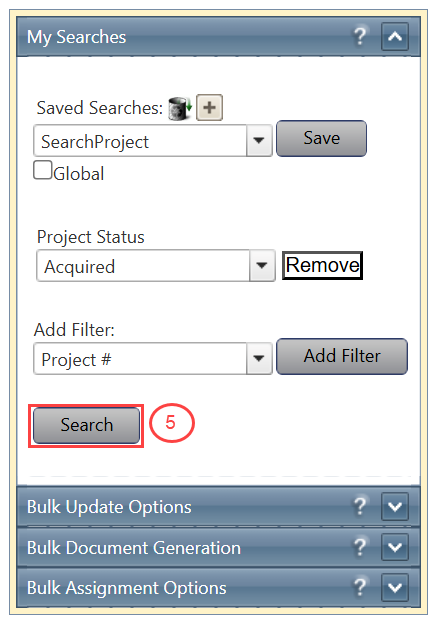
After filters have been added and search criteria entered:
- Click Search.
- The system displays all records that match the specified criteria.
The results grid displays summary information for each matching record.
Additional filters can be added at any time to further narrow the results.
Note: Text-based filters support wildcard searches using the asterisk (*) character. Wildcard searches are useful when only part of a value is known.
7. Opening Search Results
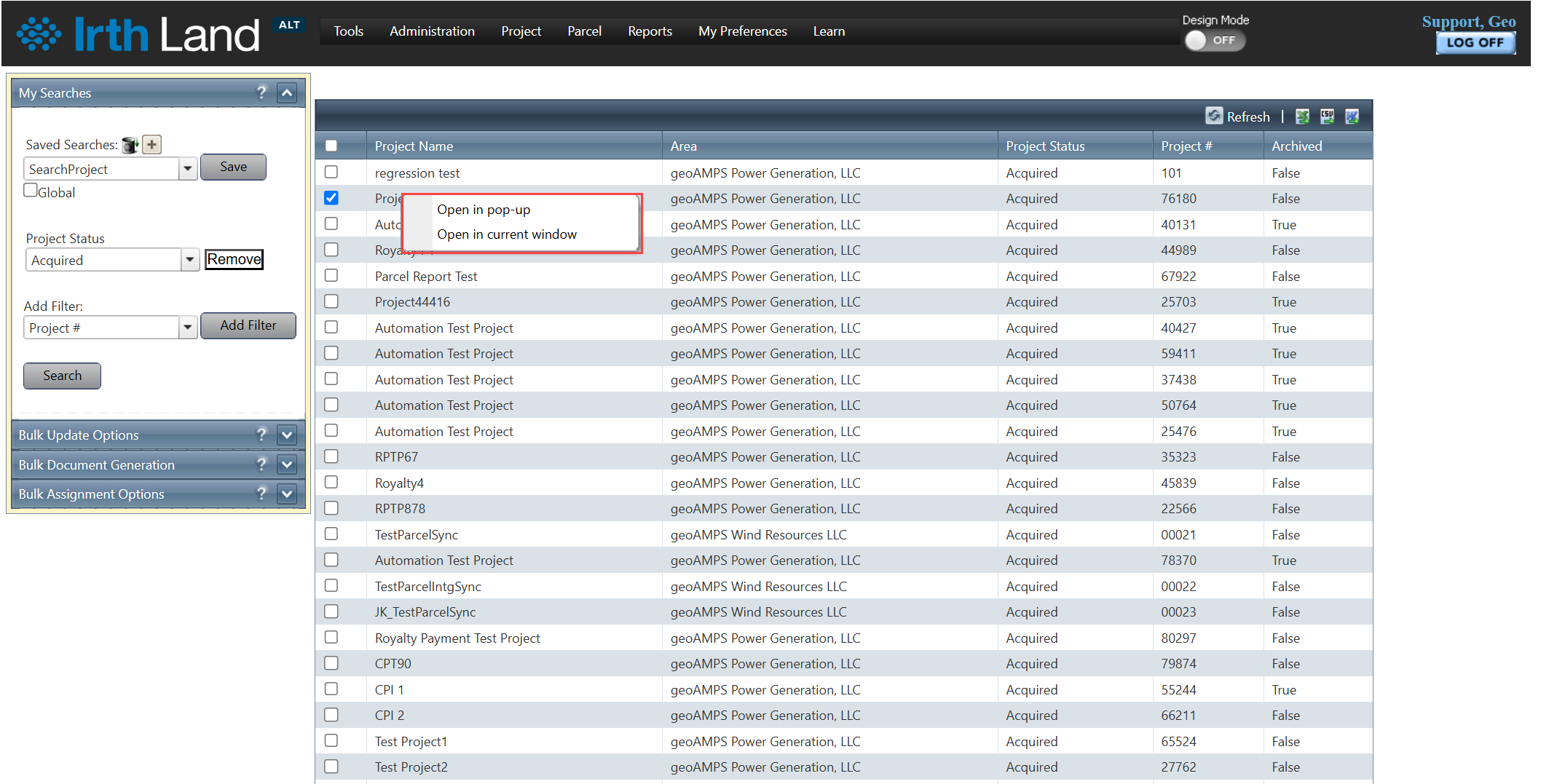
To open a record from the search results:
- Right-click the desired record in the results grid.
- Select one of the following options:
- Open in Pop-up
- Open in Current Window
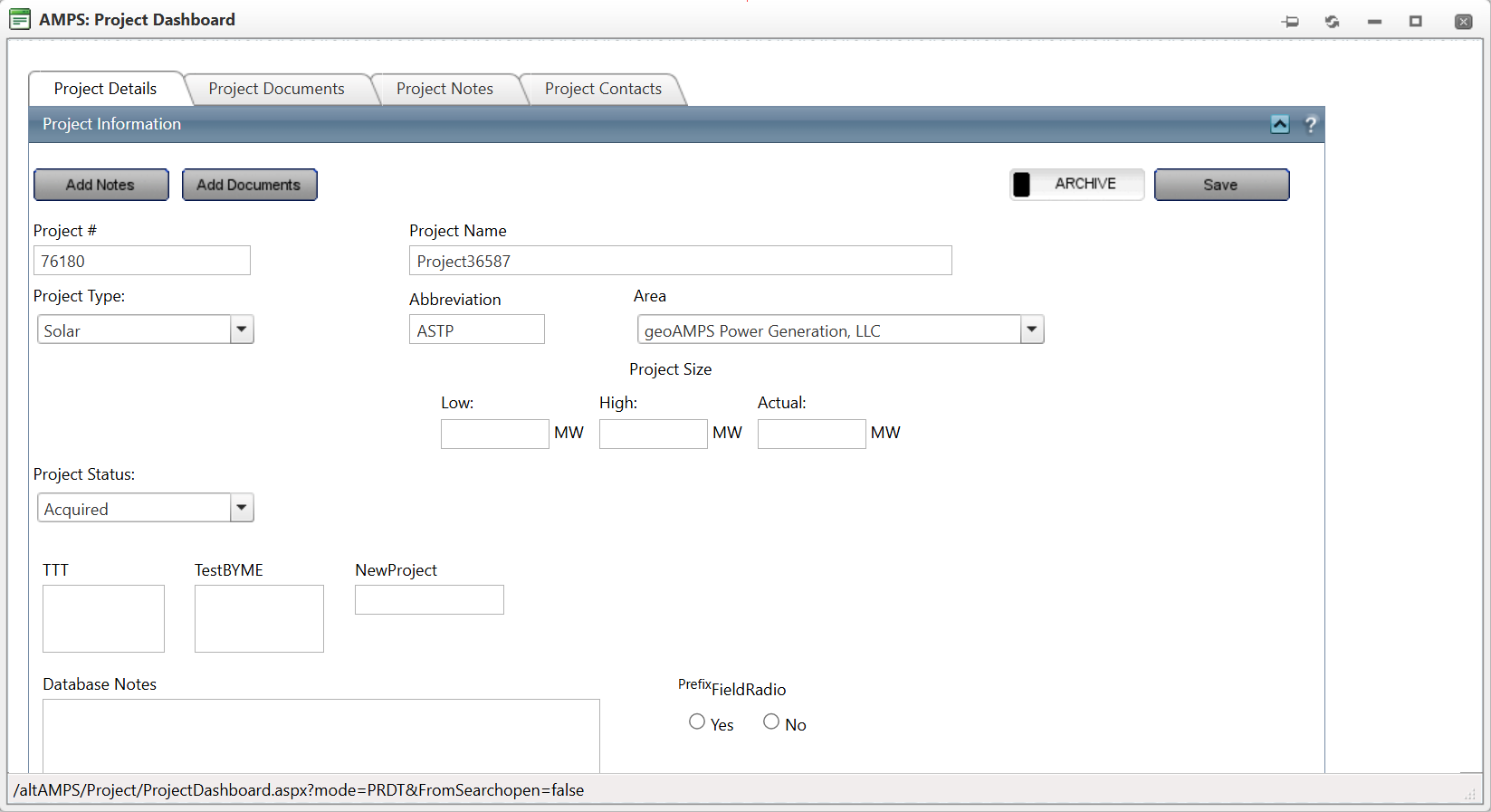
The selected record opens directly from the search results.
Note: This functionality is not available on the Document Search page.
8. Exporting Search Results
Search results can be exported for reporting or analysis.
To export search results:
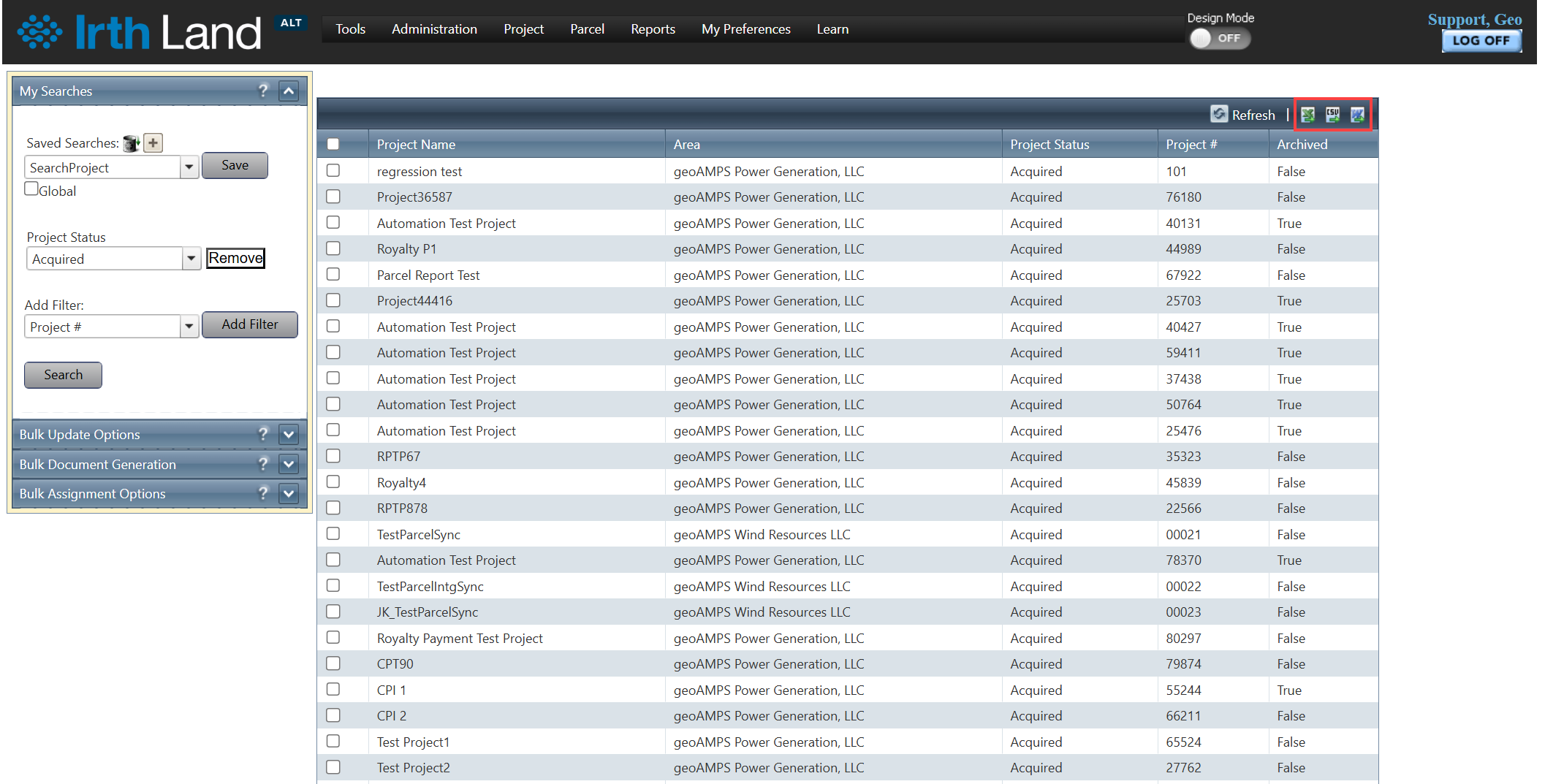
- Locate the export icons above the results grid.
- Select the desired export format:
- Microsoft Excel
- CSV
- Microsoft Word
- The system generates and downloads the file containing the current search results.
Related Features/Next Steps:
FAQ/Troubleshooting:
Q: Why can't I see certain records in my search results?
A: Users can only view records they have been assigned permission to access.
Q: Why is the Delete Search button not available?
A: The Delete button is controlled by the Can Use Global Search permission setting. Contact your administrator if you require access.
Q: Can I share a saved search with other users?
A: Yes. Select the Global checkbox when creating or editing a saved search to make it available to all users.
Q: Can I search when I only know part of a value?
A: Yes. Use wildcard searching with the asterisk (*) character to search for partial values.
Q: Which file formats can be used when exporting search results?
A: Search results can be exported to Microsoft Excel, CSV, and Microsoft Word formats.
Questions? Contact us!

Was this article helpful?
That’s Great!
Thank you for your feedback
Sorry! We couldn't be helpful
Thank you for your feedback
Feedback sent
We appreciate your effort and will try to fix the article