Purpose/Overview
The Upload Documents feature allows users to add and manage documents related to Projects, Parcels, Agreements and Customer Outreach. Users can either upload files directly into the system or link to externally stored documents.
This ensures all relevant documentation is centralized, organized, and easily accessible.
Navigation Path:
To access this feature:
- Project > Project Information > Project Documents
- Parcel > Parcel Info > Documents
- Agreement Manager > Documents
Things to Know:
- Supports both file uploads and external links
- Drag-and-drop upload is enabled by default
- Maximum 25 documents per upload using drag-and-drop
- Category and Description are required fields
Key Benefits/Use Cases:
- Centralized Storage: Keep all documents in one place
- Bulk Upload: Upload multiple files in a single action
- Flexible Upload Options: Choose between file upload or external linking
How It Works:
Adding Documents
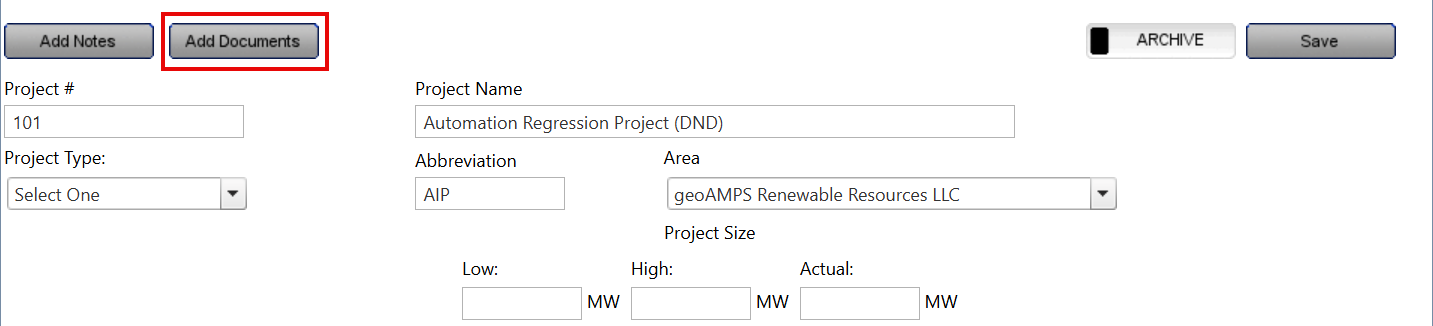
Step 1: Navigate to the required Documents section
Step 2: Click Add Documents
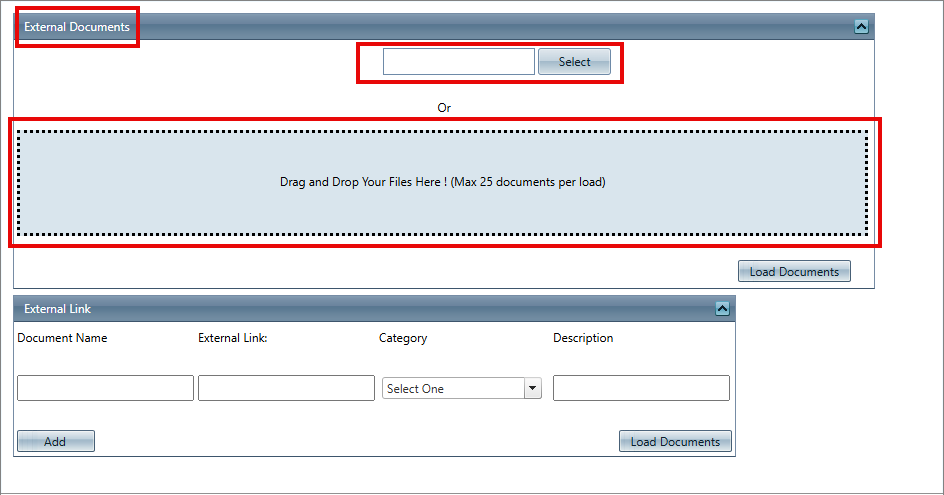
External Documents Tab (File Upload)
Step 3: Select the file using the file selector or drag and drop the document
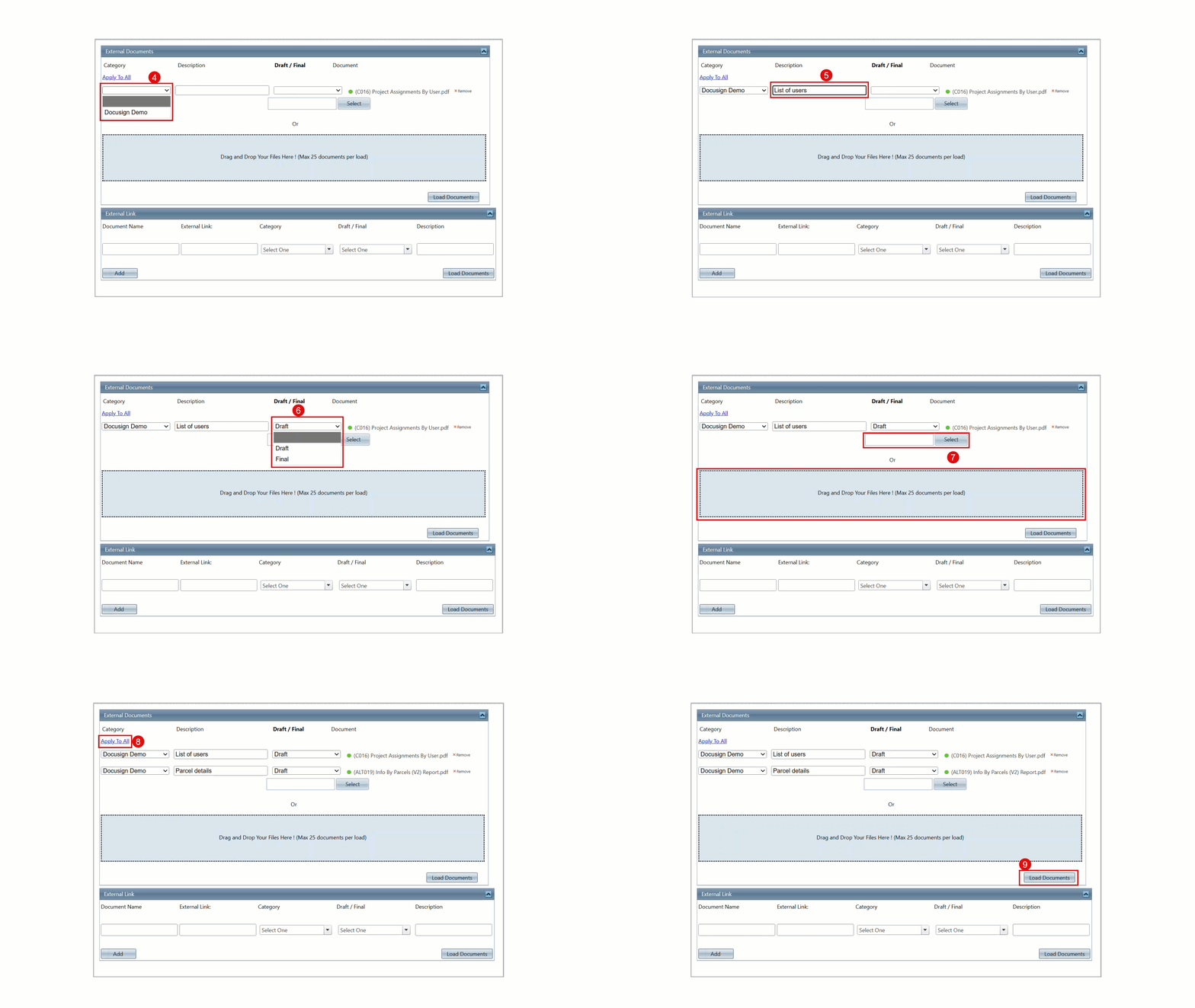
Step 4: Select a Category
Step 5: Enter the Description
Step 6: Set the document version as Draft or Final
Step 7: (Optional) Repeat the above steps to upload multiple documents
Step 8: Use Apply to All to copy the first record’s details to all documents
Step 9: Click Load Documents to upload and save
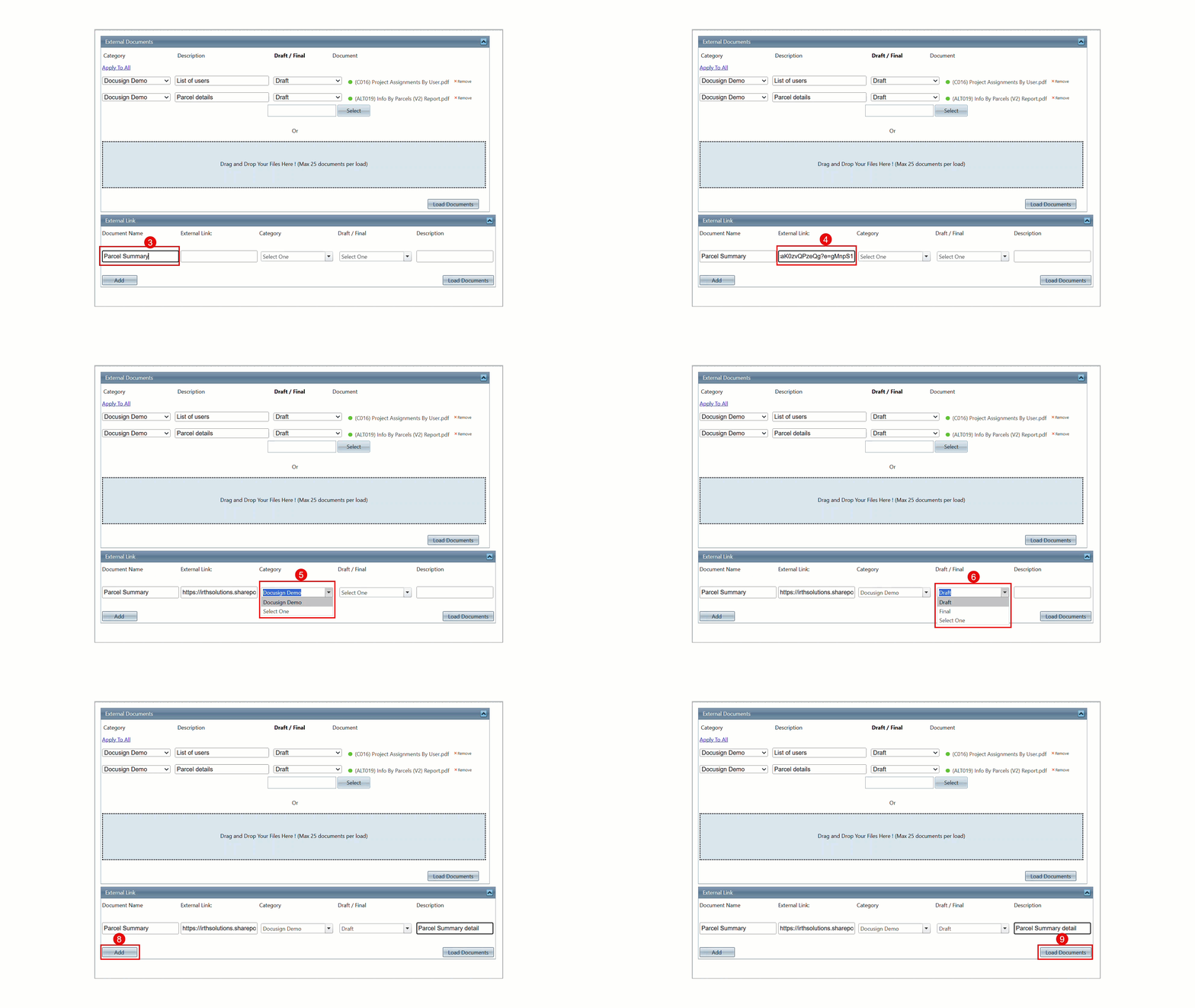
External Link Tab (URL Upload)
Step 3: Enter Document Name
Step 4: Add External Link (URL)
Step 5: Select Category
Step 6: Set the document version as Draft or Final
Step 7: Enter the Description
Step 8: (Optional) Click on Add and repeat the above steps to upload multiple documents links
Step 8: Click Load Documents
Related Features/Next Steps:
FAQ/Troubleshooting
Q: How many documents can I upload at once?
A: Up to 25 documents using drag-and-drop.
Q: Can I upload multiple files together?
A: Yes, you can upload multiple documents in one go.
Questions? Contact us!

Was this article helpful?
That’s Great!
Thank you for your feedback
Sorry! We couldn't be helpful
Thank you for your feedback
Feedback sent
We appreciate your effort and will try to fix the article