Purpose/Overview
The Tabs and Panels structure in Irth Land is designed to organize information efficiently across the application, making it easier for users to navigate, view, and manage data within different modules.
This feature helps users quickly locate relevant sections without cluttering the interface. It is intended for all users interacting with project, agreement, or parcel data, enabling a structured workflow and improved usability. By grouping related data into tabs and panels, users can focus on specific tasks while maintaining access to other sections when needed.
Navigation Path:
To access this feature: Any Module Page > Tabs (Top Section) > Panels (Within Selected Tab)
Things to Know:
- Tabs act as primary navigation sections within a page, while panels exist inside tabs and contain data entry fields.
- Example: Tabs such as Project Details, Document Management, Project Notes, and Contacts contain panels like Project Information.
- Users can switch between tabs without leaving the page, improving workflow efficiency.
- The black navigation bar at the top allows users to move between different modules in the system.
- Each panel includes an icon that provides access to a downloadable PDF manual for additional guidance on that specific panel.
Key Benefits/Use Cases:
- Efficient Data Entry
Users can enter and manage information within specific panels (e.g., Project Information) without navigating away from the page, reducing time and effort. - Organized Information Access
Tabs separate different types of information (documents, notes, contacts), allowing users to quickly locate and work within the relevant section. - Quick Navigation Between Sections
Users can seamlessly switch between tabs or use the top navigation bar to move across modules, improving productivity and workflow continuity.
How It Works:
Follow these steps to use Tabs and Panels:
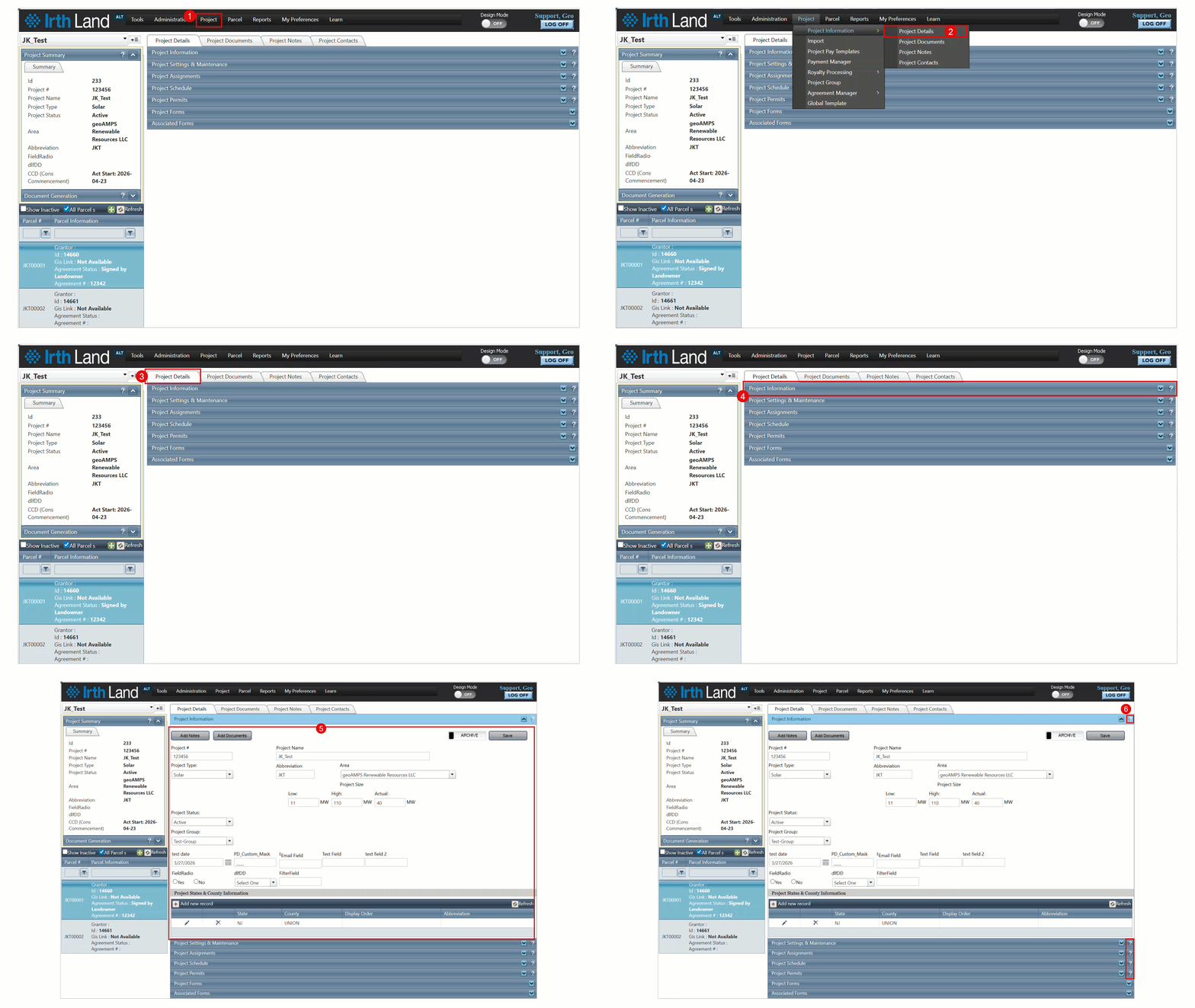
- Step 1: Open any module (e.g., Project Management).
- Step 2: Locate the tabs displayed at the top of the page (e.g., Project Details, Document Management).
- Step 3: Click on a tab to view its contents.
- Step 4: Within the selected tab, identify panels that contain relevant fields (e.g., Project Information panel).
- Step 5: Enter or review data within the panel fields as required.
- Step 6: Click the panel help icon to access the PDF manual for additional guidance, if needed.
Related Features/Next Steps:
FAQ/Troubleshooting:
Q: What is the difference between a tab and a panel?
A: Tabs are high-level sections used for navigation, while panels are subsections within tabs that contain fields for data entry and viewing.
Q: How do I access help for a specific panel?
A: Click the help icon available within the panel to open the corresponding PDF manual.
Q: Can I navigate to other sections without leaving the page?
A: Yes, you can switch between tabs on the same page or use the top navigation bar to access other modules.
Questions? Contact us!

Was this article helpful?
That’s Great!
Thank you for your feedback
Sorry! We couldn't be helpful
Thank you for your feedback
Feedback sent
We appreciate your effort and will try to fix the article