Purpose/Overview
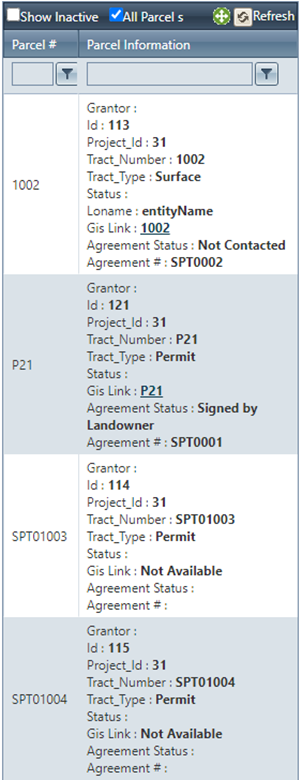
The Summary Grid provides a centralized, panel-based view of key data associated with records such as parcels, agreements, and tickets. It allows users to quickly review, monitor, and manage multiple data points without navigating into individual records.
This feature is designed for users who need quick visibility into record details and the ability to validate or update information efficiently. It solves the problem of repeatedly opening individual records by presenting a consolidated snapshot of relevant data, improving productivity and decision-making.
Navigation Path:
To access this feature: [Relevant Module > Record Type (Parcel / Agreement / Ticket) > Summary Grid Section]
Things to Know:
- The Summary Grid displays most, if not all, data points entered within a record.
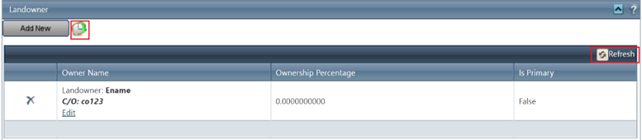
- A clock icon is available next to certain fields, indicating the history of changes made to that specific data point.
- If newly entered or updated data does not appear, use the Refresh option to update specific fields without reloading the entire page.
- Users can edit or delete records directly from the grid, provided they have write access—even if they were not the original creator.
- A customizable summary portlet on the left-hand side provides quick access to basic information for parcels, agreements, or tickets without opening the full record.
Note (Applicable to ALT only):
- The LO Name (Landowner Name) field will display only when the Primary on Parcel checkbox is enabled.
- If this checkbox is not selected, no landowner names will appear in the Summary Grid.
Key Benefits/Use Cases:
- Quick Data Review: Users can view all relevant record details in one place, reducing the need to open multiple records and improving efficiency.
- Efficient Data Validation: Teams can quickly verify entered data and identify missing or incorrect information using the consolidated grid view.
- Change Tracking & Audit: The clock icon allows users to review the history of changes, supporting audit requirements and improving data transparency.
How It Works:
Follow these steps to setup or enable:
- Step 1: View records in the Summary Grid.
- Step 2: Use filters or search fields to narrow results.
- Step 3: Click Refresh if new data is not visible.
- Step 4: Use icons (e.g., clock icon) to view history.
Related Features/Next Steps:
FAQ/Troubleshooting:
Q: Why is my newly entered data not visible in the Summary Grid?
A: Click the Refresh button to update the grid without reloading the entire page.
Q: Can I edit records that I did not create?
A: Yes, you can edit or delete records as long as you have the appropriate write access permissions.
Q: Why is the Landowner Name (LO Name) not showing?
A: Ensure that the Primary on Parcel checkbox is enabled. The LO Name will only display when this option is selected.
Questions? Contact us!

Was this article helpful?
That’s Great!
Thank you for your feedback
Sorry! We couldn't be helpful
Thank you for your feedback
Feedback sent
We appreciate your effort and will try to fix the article