Purpose/Overview
The System Navigation feature provides a structured way for users to move through the application and access different levels of information efficiently. The system is organized into a hierarchical structure consisting of Line (top level), Project (middle level), and Parcel (lower level).
This structure helps users clearly understand where they are within the system and quickly locate relevant data such as project details, parcel information, or associated records. It is designed for all users interacting with land, project, or parcel data, ensuring consistency and ease of use across the platform.
Navigation Path:
To access this feature: Black Navigation Bar (Top Menu) > Select Line / Project / Parcel > Desired Screen/Page
Things to Know:
- The system is divided into three levels:
- Line (Top Level)
- Project (Middle Level)
- Parcel (Lower Level)
- The Project level is commonly referred to as the primary working level.
- The Parcel levelmay represent:
- Land parcels
- Tracts
- Permits
- The Black Navigation Bar at the top is the primary way to move across different sections.
- If a screen displays a green arrow icon, it indicates that multiple tabs are available within that page.
- Navigation instructions follow a structured format:
Menu Header > Screen/Page > Tab > Panel
Key Benefits/Use Cases:
- Use Case 1: Efficient Navigation Across Hierarchy
Users can seamlessly switch between Line, Project, and Parcel levels, improving productivity and reducing time spent searching for data. - Use Case 2: Structured Data Access
The hierarchical model ensures users can logically drill down from high-level project information to specific parcel details. - Use Case 3: Improved User Orientation
Clear navigation paths (e.g., Project > Project Information > Project Details) help users always understand their current location within the system.
How It Works:
- Step 1: Use the top navigation bar to switch modules.

- Step 2: Navigate using menu path (e.g., Project > Project Information).
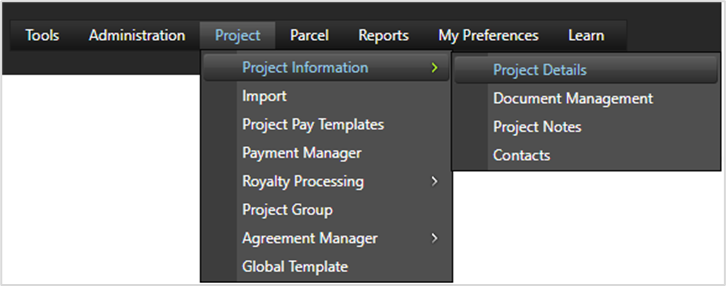
- Step 3: Use tabs within pages to access sections.

- Step 4: Use panels inside tabs to view or enter data.
Related Features/Next Steps:
FAQ/Troubleshooting:
Q: What does the green arrow next to a screen indicate?
A: It indicates that the screen contains multiple tabs that can be accessed within that page.
Q: What are the three main levels in the system?
A: Line (top level), Project (middle level), and Parcel (lower level).
Q: How do I navigate to detailed project information?
A: Use the navigation path format: Project > Project Information > Project Details
Questions? Contact us!

Was this article helpful?
That’s Great!
Thank you for your feedback
Sorry! We couldn't be helpful
Thank you for your feedback
Feedback sent
We appreciate your effort and will try to fix the article