Purpose/Overview
The Title Tab is designed to capture and manage all information related to the ownership and legal standing of a property parcel. Similar to how a vehicle requires proper title documentation for ownership transfer, land ownership must be supported by legally valid records.
This feature allows users to maintain a centralized repository of title-related data, including ownership documents, easements, leases, liens, tenants, and historical title records. It ensures transparency, reduces legal risks, and provides a complete audit trail of property ownership and associated obligations.
Navigation Path:
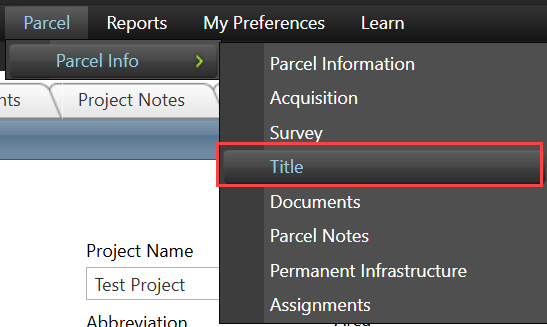
To access this feature: Parcel > Parcel Info > Title
Things to Know:
- Users must have appropriate permissions to view, add, or edit title-related records.
- Title information is interconnected across multiple panels; updates in one section may reflect in the overall title chain.
- The Title Chain is automatically updated as new records are added.
- Incomplete or incorrect title data may impact downstream processes such as agreements or payments.
Key Benefits/Use Cases:
- Centralized Title Management: Maintain all ownership and legal documentation in one place, improving accessibility and audit readiness.
- Risk Identification & Mitigation: Track liens, encumbrances, and title issues to proactively identify risks that may impact ownership transfer.
- Historical Ownership Tracking: Use the Title Chain to view a complete history of ownership and legal changes over time.
How It Works:
Follow these steps to manage title information:
Step 1: Access Title Tab
- Navigate to Parcel > Title.
Step 2: Manage Parcel Information
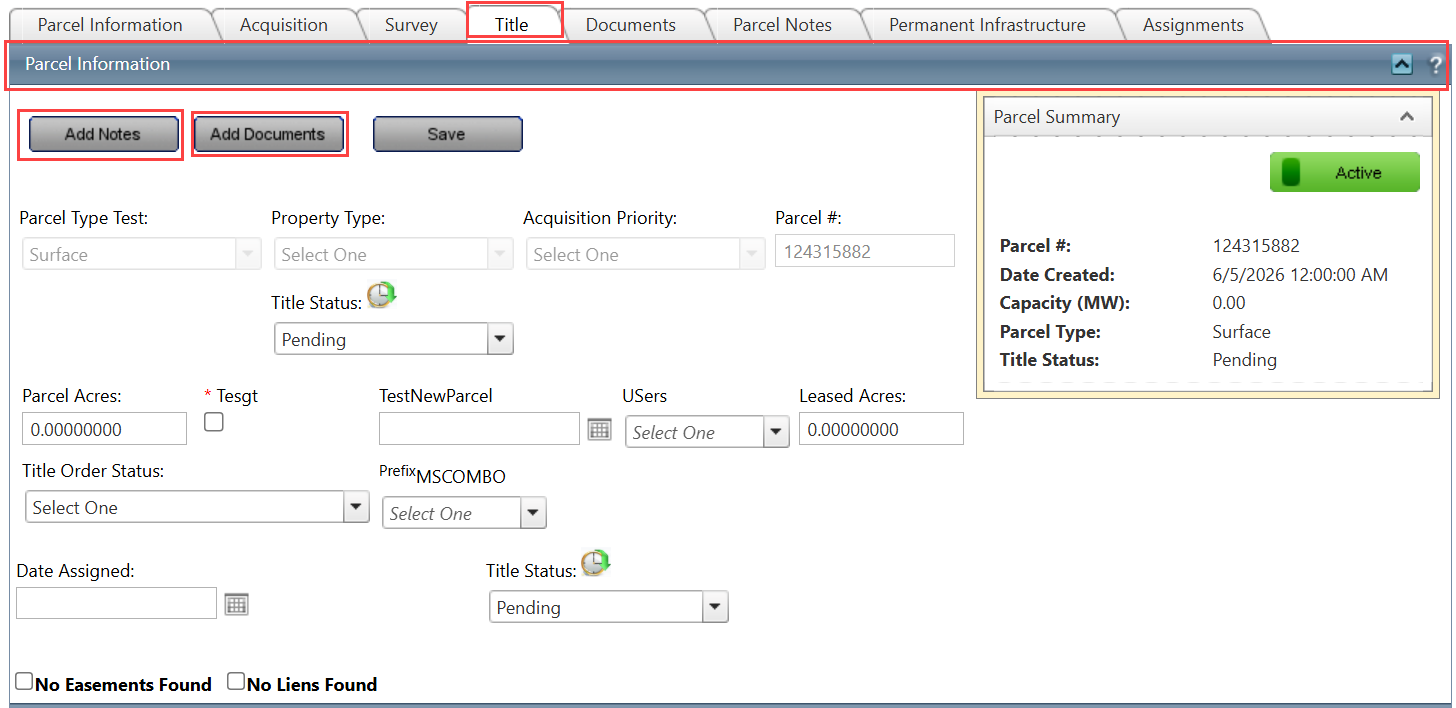
- Go to Parcel > Title > Parcel Information.
- Add general notes and upload title-related documents using the Load Title Document option.
Step3: Update Title Status
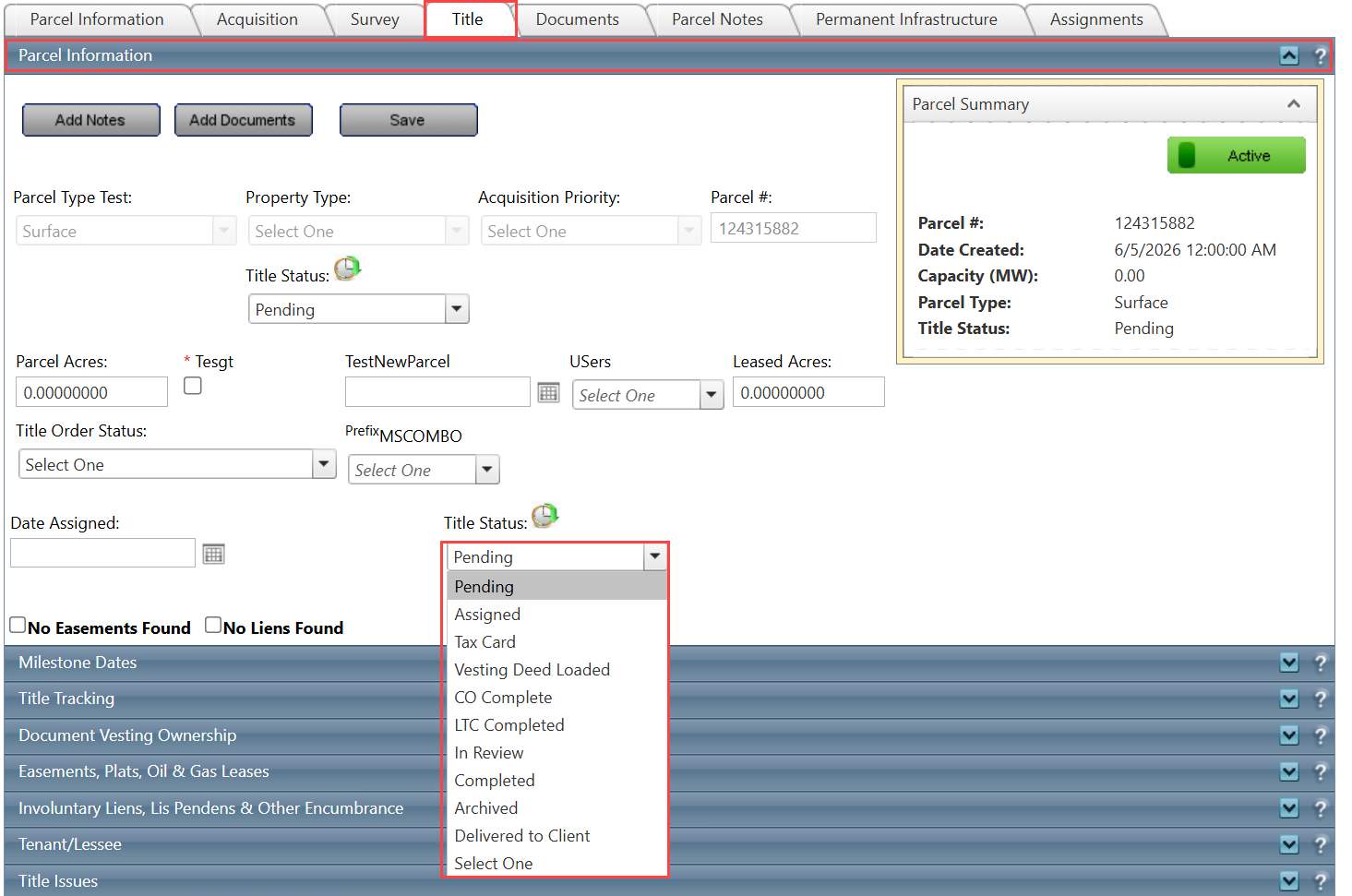
- Navigate to Parcel > Title > Parcel Information Panel.
- Select the appropriate status from the Title Status dropdown.
Step 4: Track Milestone Dates
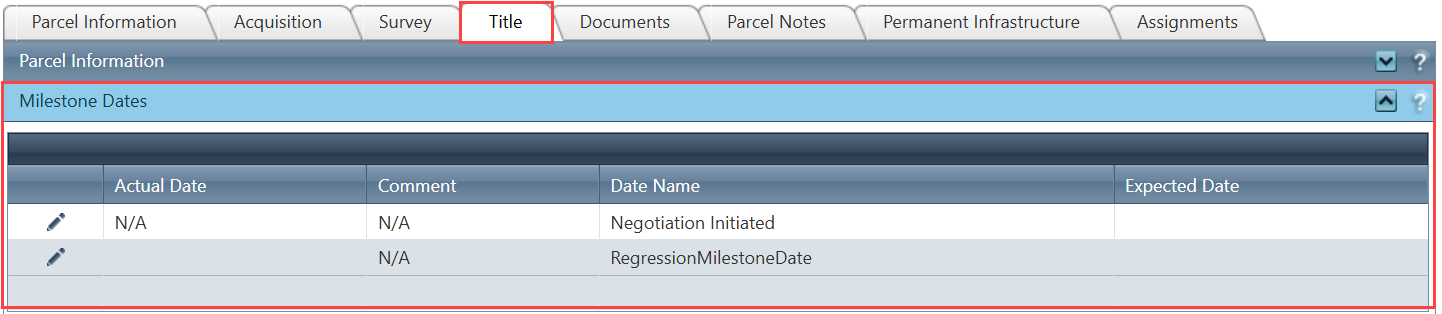
- Navigate to Parcel > Title > Milestone Dates.
- View or capture key dates such as:
- LTC/OTC Reviewed
- Survey Permission
- Title Reviewed
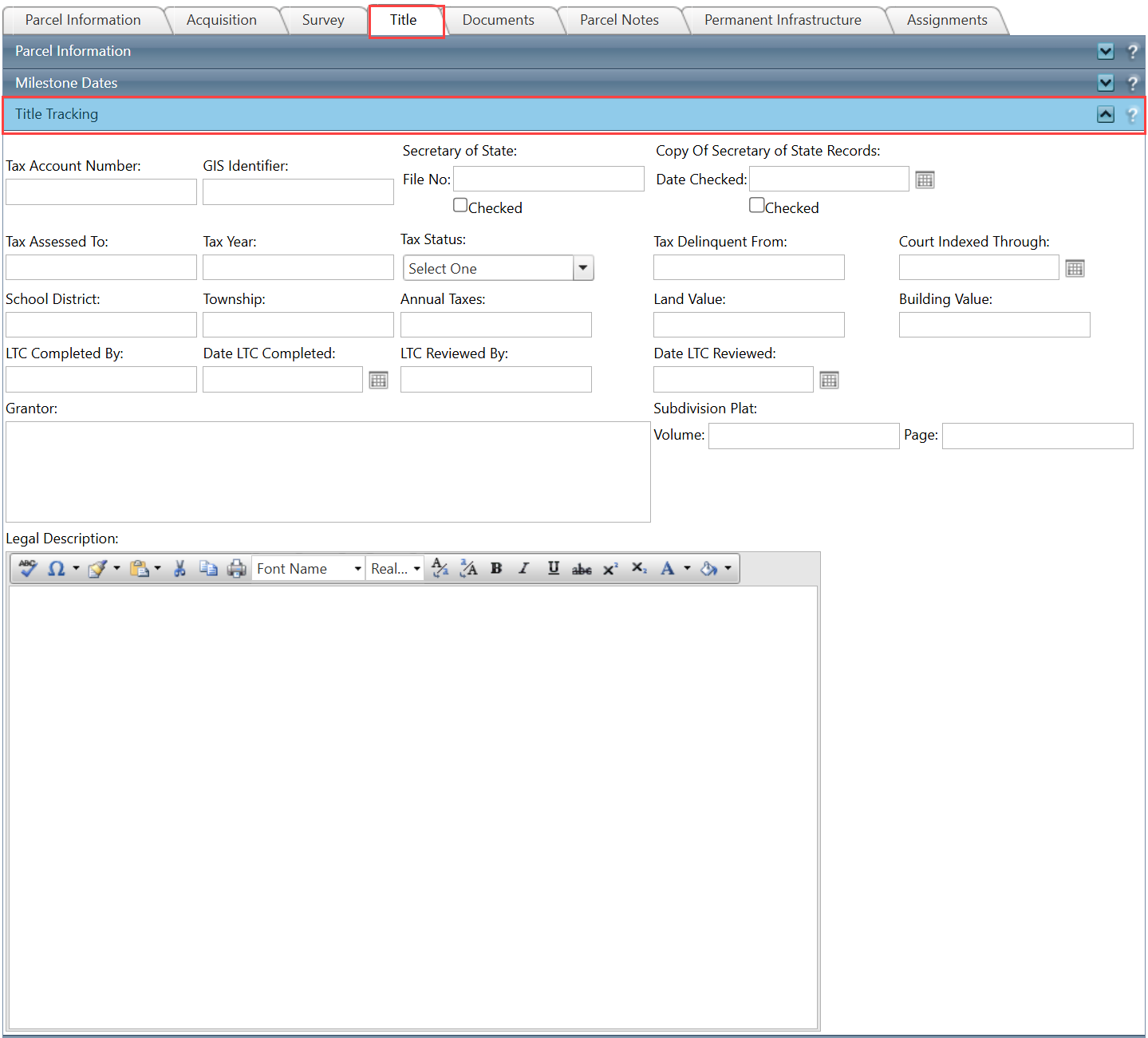
Step 5: Monitor Title Progress
- Use the Title Tracking panel to monitor overall progress and status of title work.
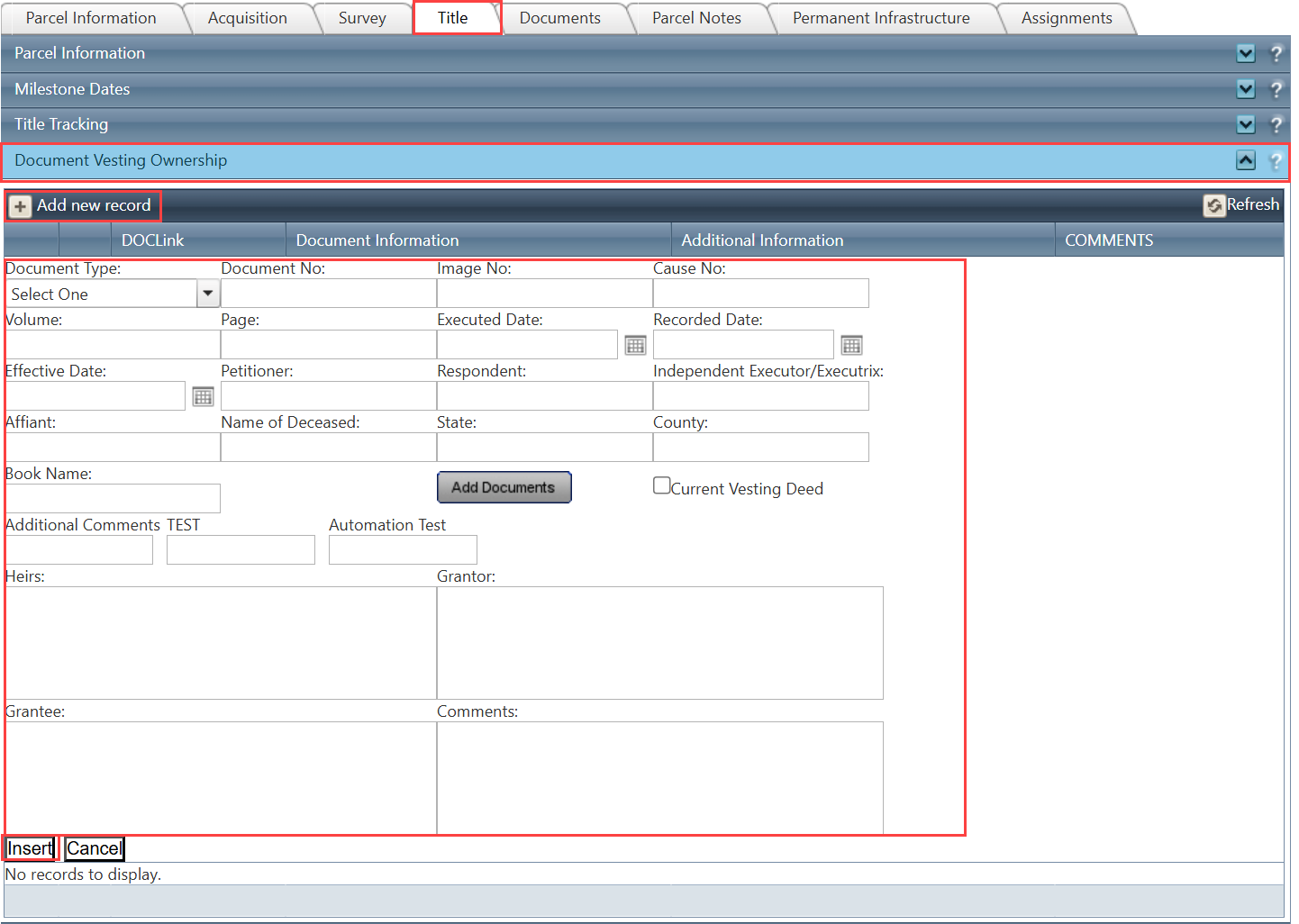
Step 6: Add Vesting Ownership Records
- Navigate to Parcel > Title > Document Vesting Ownership.
- Click Add New Record.
- Enter required ownership details.
- Click Insert.
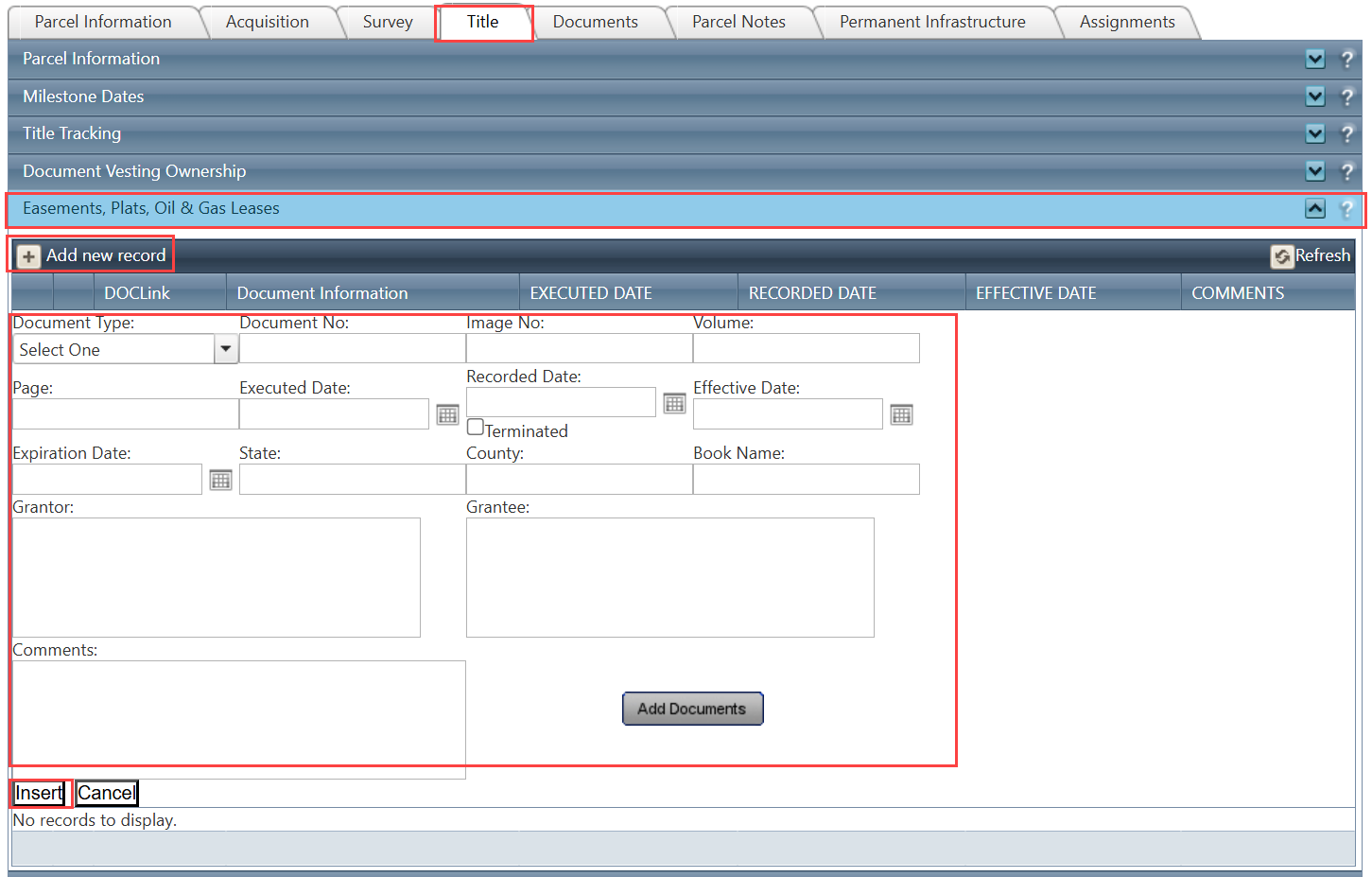
Step 7: Record Easements, Plats, and Leases
- Navigate to Parcel > Title > Easements, Plats, Oil & Gas Leases.
- Click Add New Record.
- Fill in details and click Insert.
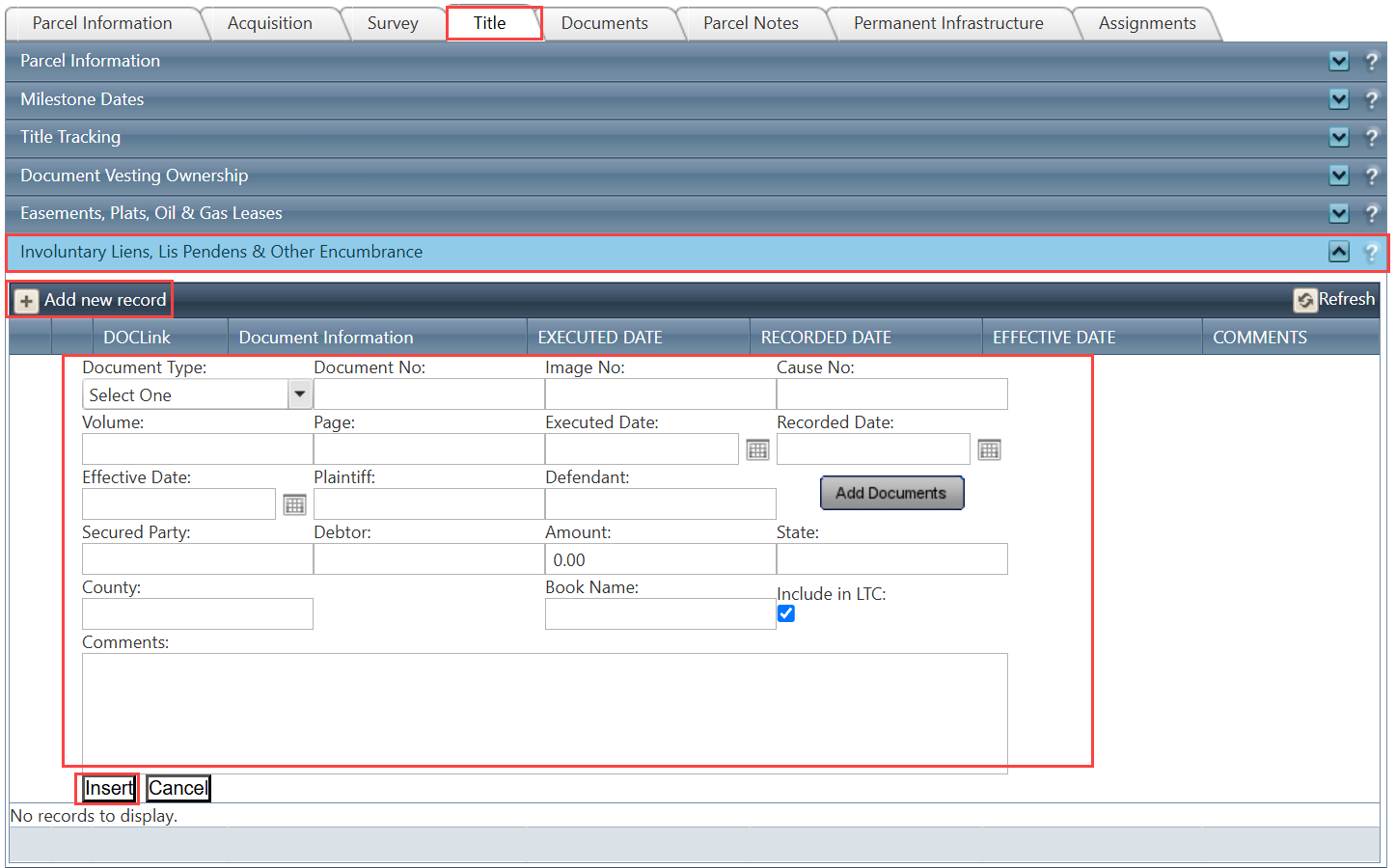
Step 8: Capture Liens and Encumbrances
- Navigate to Parcel > Title > Involuntary Liens, Lis Pendens & Other Encumbrance.
- Click Add New Record.
- Enter required information and click Insert.
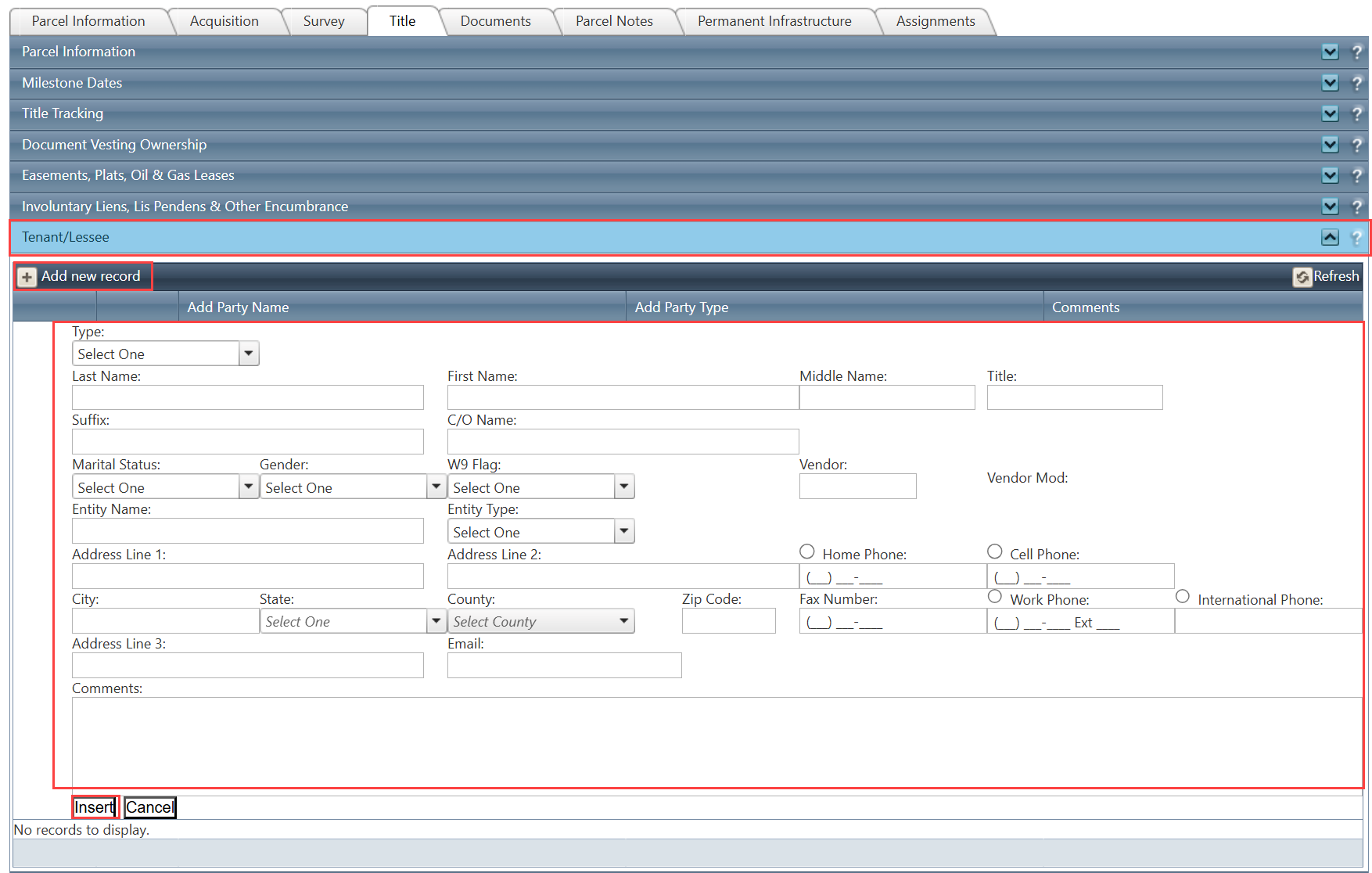
Step 9: Maintain Tenant Information
- Use the Tenant/Lessee panel to record tenant or lessee details associated with the parcel.
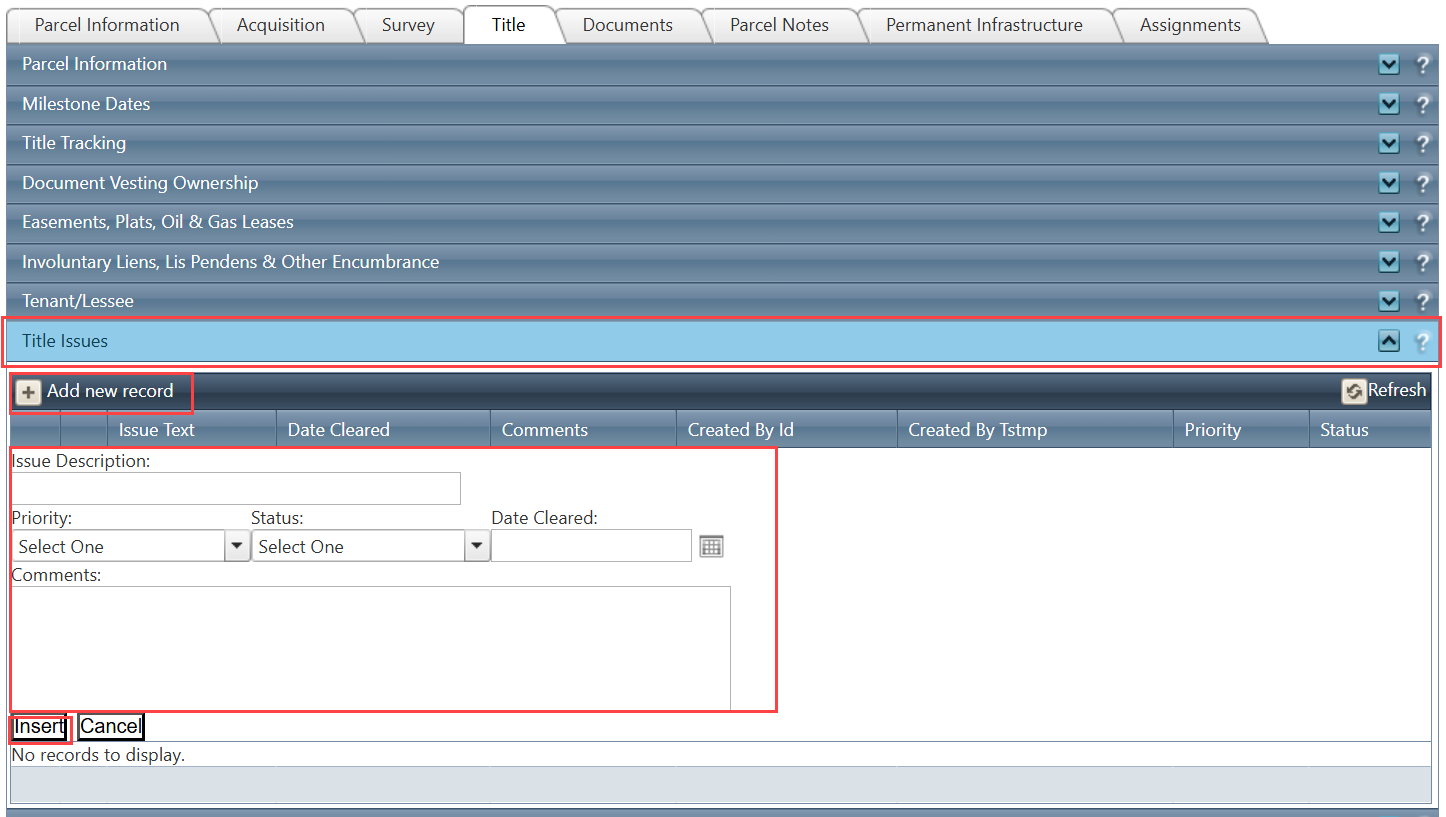
Step 10: Track Title Issues
- Use the Title Issues panel to document and monitor any issues identified during the title process.
Related Features/Next Steps:
FAQ/Troubleshooting:
Q: Why is my Title Chain not showing recent updates?
A: Ensure that all new records are properly inserted and saved in their respective panels. The Title Chain updates automatically once records are successfully added.
Q: Can I edit previously added title records?
A: Yes, if you have the required permissions, you can update existing records in their respective panels.
Q: What should I do if I cannot see the Title Tab?
A: Verify your user permissions or contact your system administrator to gain access.
Questions? Contact us!

Was this article helpful?
That’s Great!
Thank you for your feedback
Sorry! We couldn't be helpful
Thank you for your feedback
Feedback sent
We appreciate your effort and will try to fix the article