Purpose/Overview
The Parcel Assignments feature enables organizations to assign responsibility for individual parcels within a project to specific users or agents. While Project Assignments operate at a high level, Parcel Assignments provide a more granular approach, ensuring clear ownership and accountability for each parcel.
This feature is especially useful for large-scale projects involving multiple parcels and team members. It helps distribute workload efficiently, improves tracking, and ensures that each agent focuses only on their assigned parcels rather than the entire project.
For example, in a project involving 300 parcels and 30 land agents, each agent can be assigned 10 parcels. This structured allocation allows agents to manage their responsibilities effectively and ensures better coordination across the project.
Navigation Path:
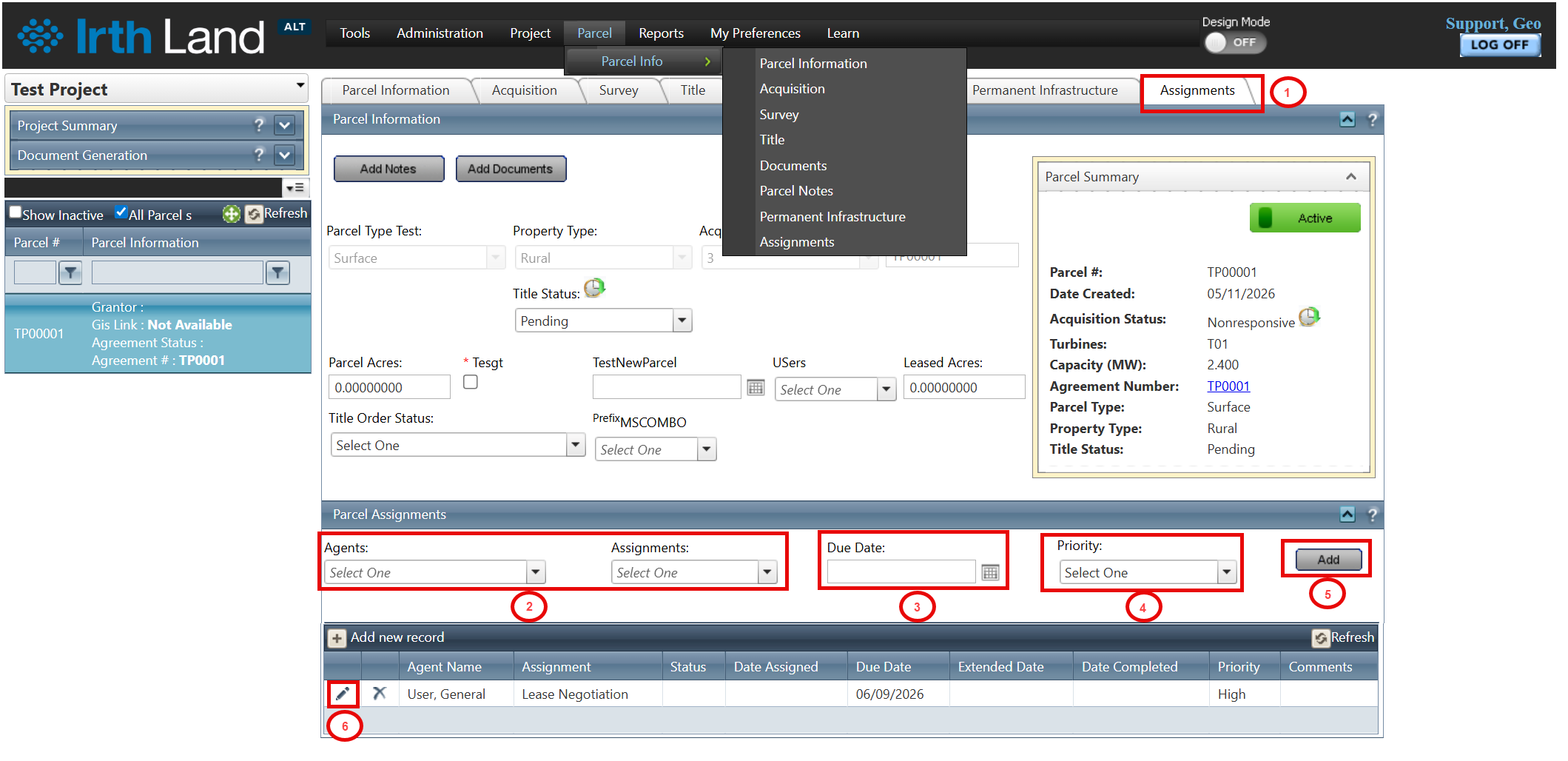
To access this feature: Parcel > Parcel Info > Assignments Tab > Parcel Assignments
Things to Know:
- Users must have appropriate permissions to view and manage parcel assignments.
- Assignments are specific to individual parcels and do not impact project-level assignments.
- Due dates and priorities should be set carefully to ensure proper tracking and task management.
- Multiple agents and assignments can be selected using the multi-select dropdown.
Key Benefits/Use Cases:
- Use Case 1: Assign specific parcels to individual land agents, ensuring clear ownership and accountability for each parcel.
- Use Case 2: Distribute workload evenly across team members in large projects, improving efficiency and avoiding overlap.
- Use Case 3: Track progress at a detailed level by associating due dates and priorities with each parcel assignment.
How It Works:
Follow these steps to assign users to a parcel:
Step 1: Navigate to Parcel > Parcel Info > Assignments Tab > Parcel Assignments Panel.
Step 2: Use the multi-select dropdowns to choose the required Agents and Assignments.
Step 3: Select a Due Date using the calendar icon.
Step 4: Choose the appropriate Priority level.
Step 5: Click Add to create the assignment.
Step 6 (Optional): To modify an existing assignment, click the Pencil icon and update the required details.
Related Features/Next Steps:
FAQ/Troubleshooting:
Q: Can I assign multiple agents to a single parcel?
A: Yes, the multi-select dropdown allows you to assign multiple agents to a parcel.
Q: Can I edit an existing parcel assignment?
A: Yes, click the Pencil icon next to the assignment to make changes.
Q: What happens if no due date is set?
A: While the system may allow it, it is recommended to set a due date for proper tracking and accountability.
Questions? Contact us!

Was this article helpful?
That’s Great!
Thank you for your feedback
Sorry! We couldn't be helpful
Thank you for your feedback
Feedback sent
We appreciate your effort and will try to fix the article