Purpose/Overview
The Bulk Parcel Assignment feature allows users to assign one or more agents to multiple parcel records simultaneously after completing a Parcel Search. Instead of updating parcel assignments individually, users can apply assignments, due dates, priority levels, and primary agent settings to several parcel records in a single action.
This feature is designed to streamline assignment management, reduce manual effort, improve processing efficiency, and ensure consistency across multiple parcel records.
Navigation Path:
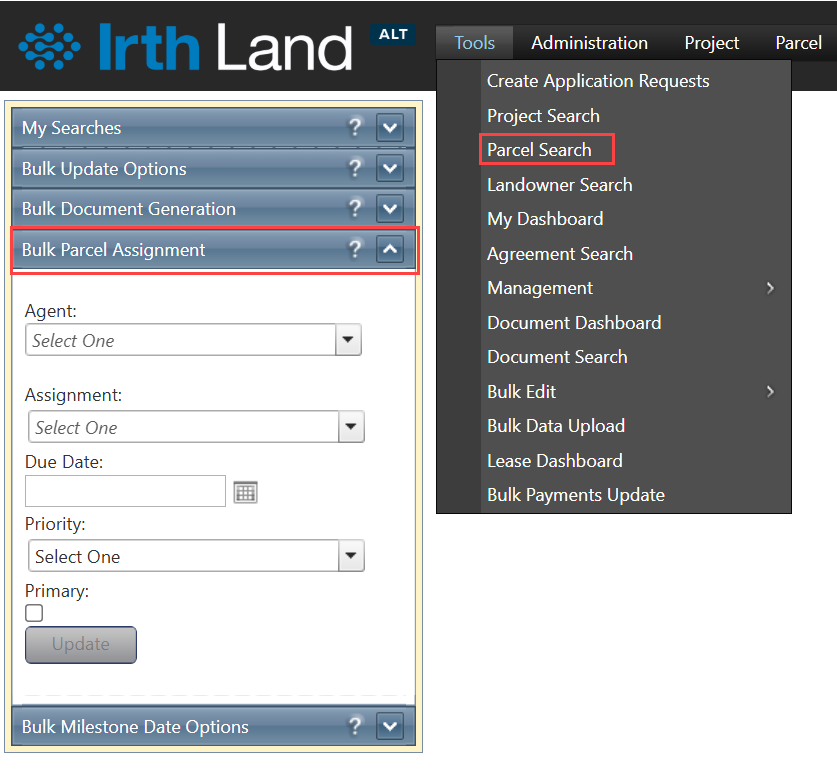
To access this feature: Tools > Parcel Search > Bulk Parcel Assignment
After running a Parcel Search from the My Searches window, select the parcels that require updates and use the Bulk Parcel Assignment option.
Key Benefits/Use Cases:
Assign Multiple Parcels at Once
Assign one or more agents to several parcel records simultaneously, eliminating the need to update each parcel individually.
Apply Consistent Assignment Settings
Apply the same assignment type, due date, and priority level across multiple parcel records.
Manage Primary Agent Assignments
Designate an assigned agent as the Primary Agent for multiple parcels during the bulk update process.
How It Works:
Follow these steps to add parcel assignments in bulk:
Step 1: Access Bulk Parcel Assignment
Navigate to Tools > Parcel Search > Bulk Parcel Assignment.
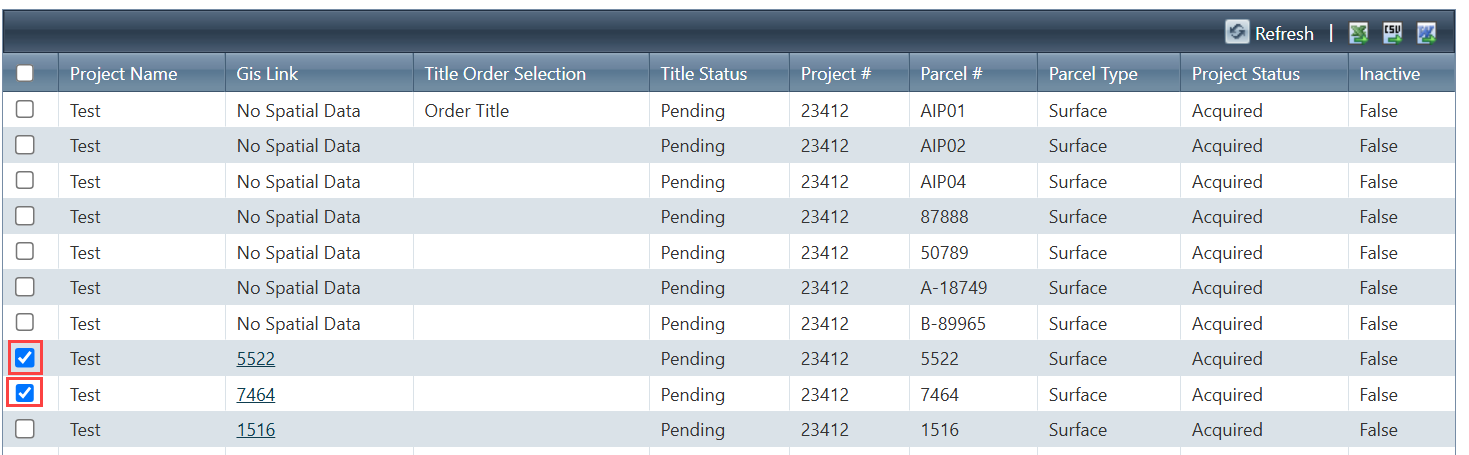
Step 2: Select Parcel Records
In the search results grid, select the parcel records that require assignments.
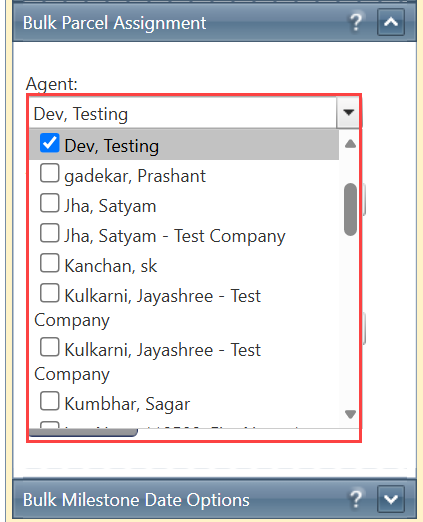
Step 3: Select Agent(s)
From the Agent drop-down menu, select the agent or agents to be assigned to the selected parcels.
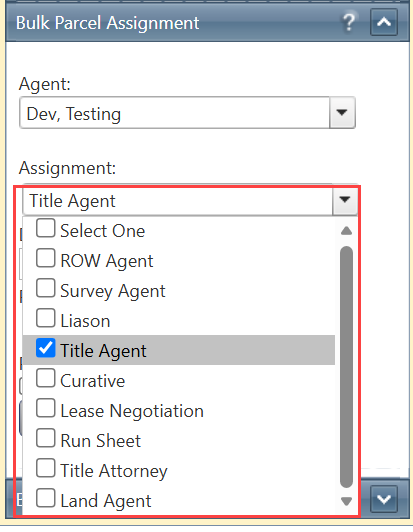
Step 4: Select Assignment Type
From the Assignment drop-down menu, select the assignment type that should be applied to the selected parcels.
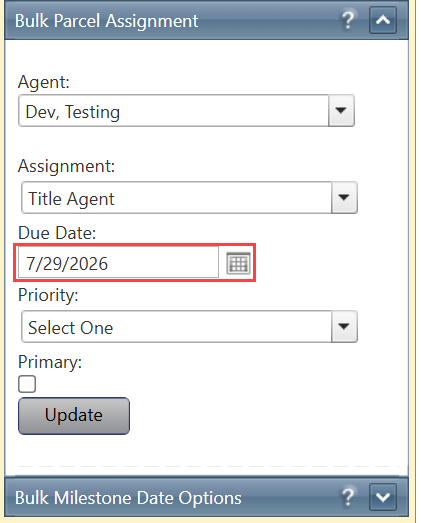
Step 5: Specify Due Date
Enter or select the required Due Date for the assignment.
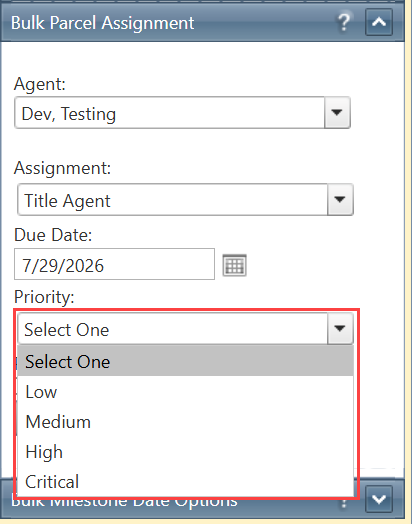
Step 6: Set Priority
From the Priority drop-down menu, select the appropriate priority level.
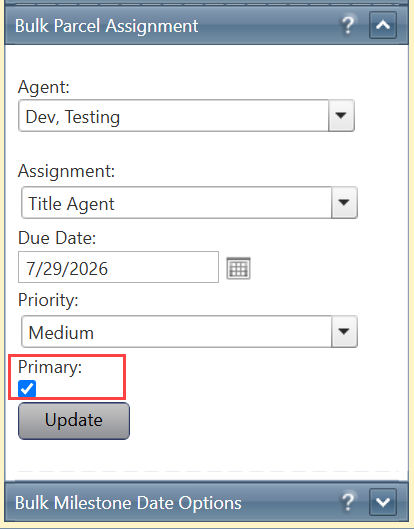
Step 7: Configure Primary Agent (Optional)
If required, select the Primary Agent checkbox to designate the selected agent as the primary agent for the parcel records.
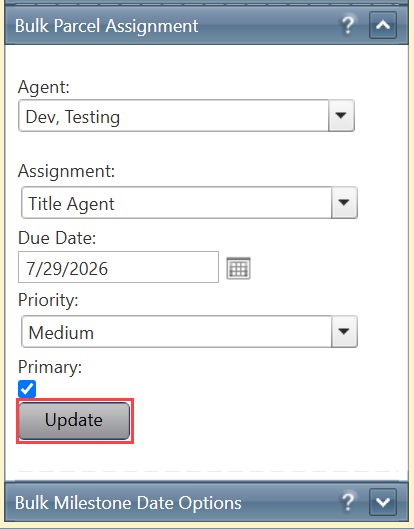
Step 8: Apply the Assignments
Review the assignment details and click Update to save and apply the assignments to the selected parcel records.
Related Features/Next Steps:
FAQ/Troubleshooting:
Q: Can I assign more than one agent to multiple parcels at the same time?
A: Yes. The Bulk Parcel Assignment feature allows users to select one or more agents and apply the assignments to multiple parcel records simultaneously.
Q: Can I set a due date and priority for all selected parcels during the assignment process?
A: Yes. Users can specify a due date and select a priority level that will be applied to all selected parcel records.
Q: What happens when I select the Primary Agent option?
A: The selected agent is designated as the primary agent for the parcel records being updated.
Questions? Contact us!

Was this article helpful?
That’s Great!
Thank you for your feedback
Sorry! We couldn't be helpful
Thank you for your feedback
Feedback sent
We appreciate your effort and will try to fix the article