Billing System Configuration - Enhanced
Purpose/Overview
Navigation Path:
To access this feature: Digtix > Administration > CDCs/Billables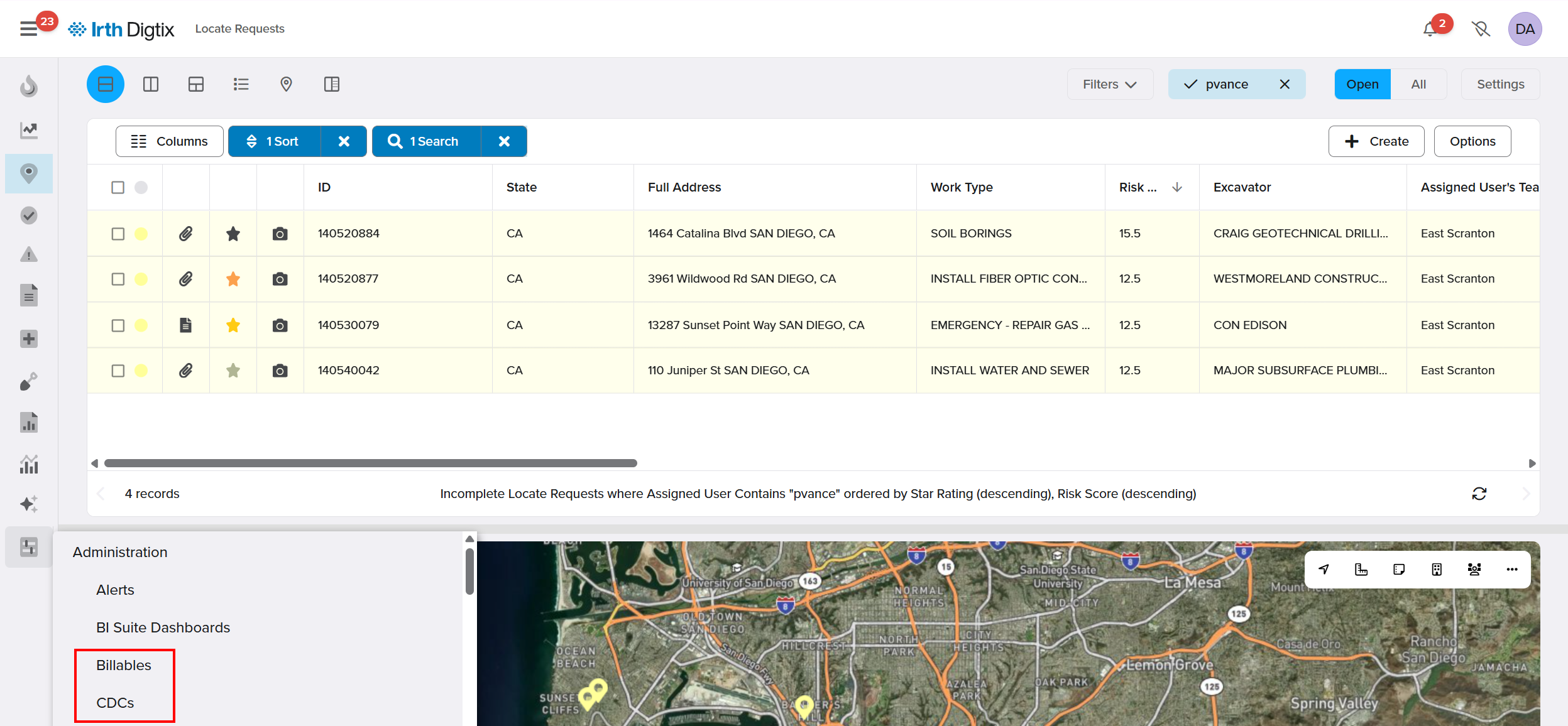
Things to Know:
- Permissions: By default, only users with Administrator permissions can view pricing information in Digtix.
- Billing System Type: Each CDC can use either Basic or Enhanced billing (not both).
- Historical Integrity: Once a billable’s start date has passed, certain fields can no longer be edited. This protects historical billing data.
- Platform Behavior: Enhanced billing calculations are applied automatically based on system rules (holidays, normal hours, priorities, thresholds).
Key Benefits/Use Cases:
- Automatic Emergency Pricing: When a technician completes an emergency locate after hours, Digtix automatically applies the correct after-hours emergency rate, ensuring accurate billing without requiring the user to select a special close code.
- Tiered Footage or Hourly Billing: For jobs that require multiple site visits and exceed configured footage or hourly thresholds, Digtix incrementally applies additional charges as thresholds are met, resulting in fair and consistent pricing across complex, multi-day work orders.
- Multi-Facility Owner Discounts: When a single work order includes utilities from multiple facility owners, Digtix applies the appropriate configured discount automatically, producing transparent, itemized billing that aligns with customer agreements
How It Works:
Follow these steps to set up and use Enhanced Billing:
Configure a CDC for Enhanced Billing
- Navigate to Administration ▸ CDCs.
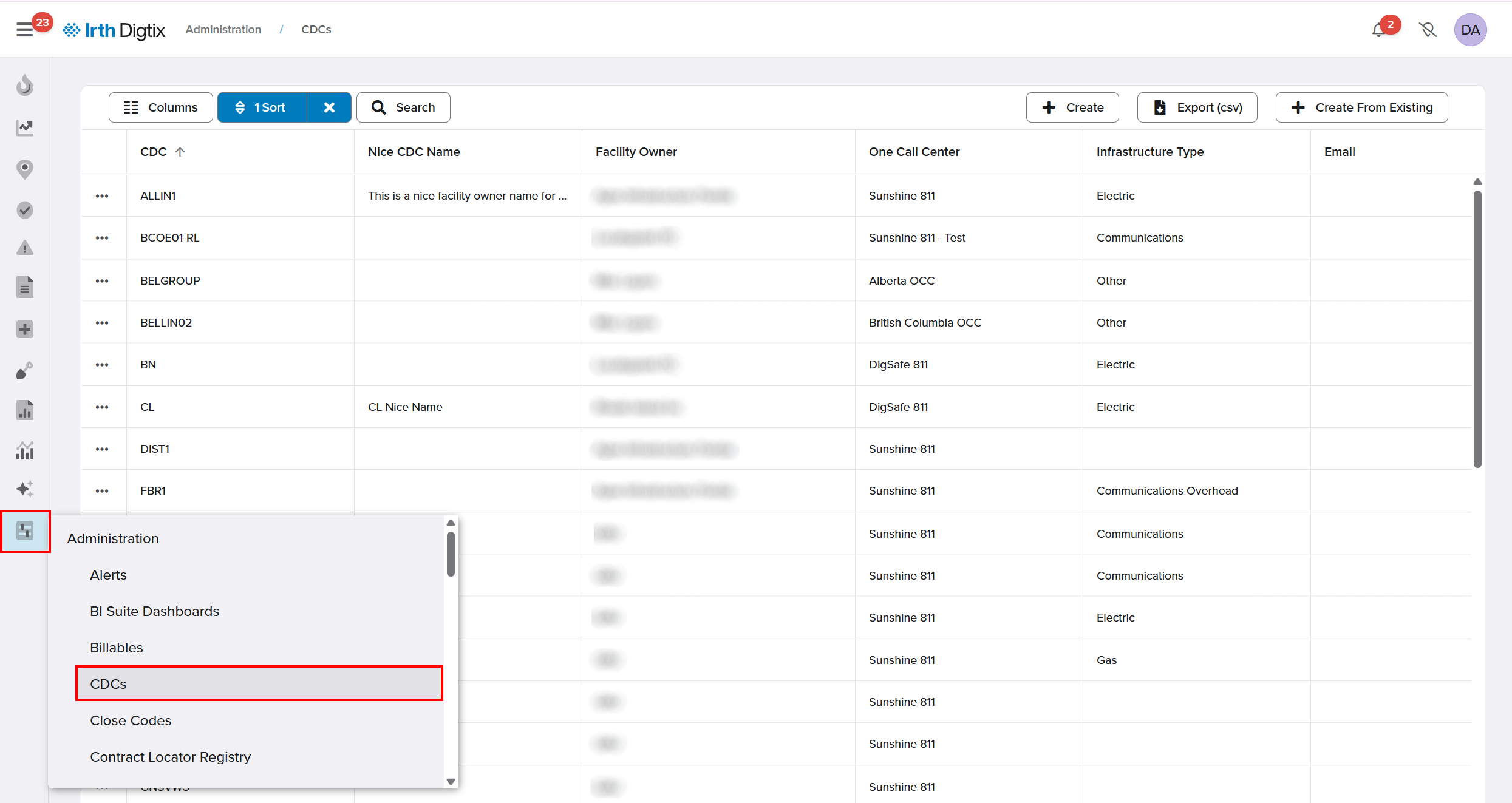
- Create a new CDC or edit an existing one.

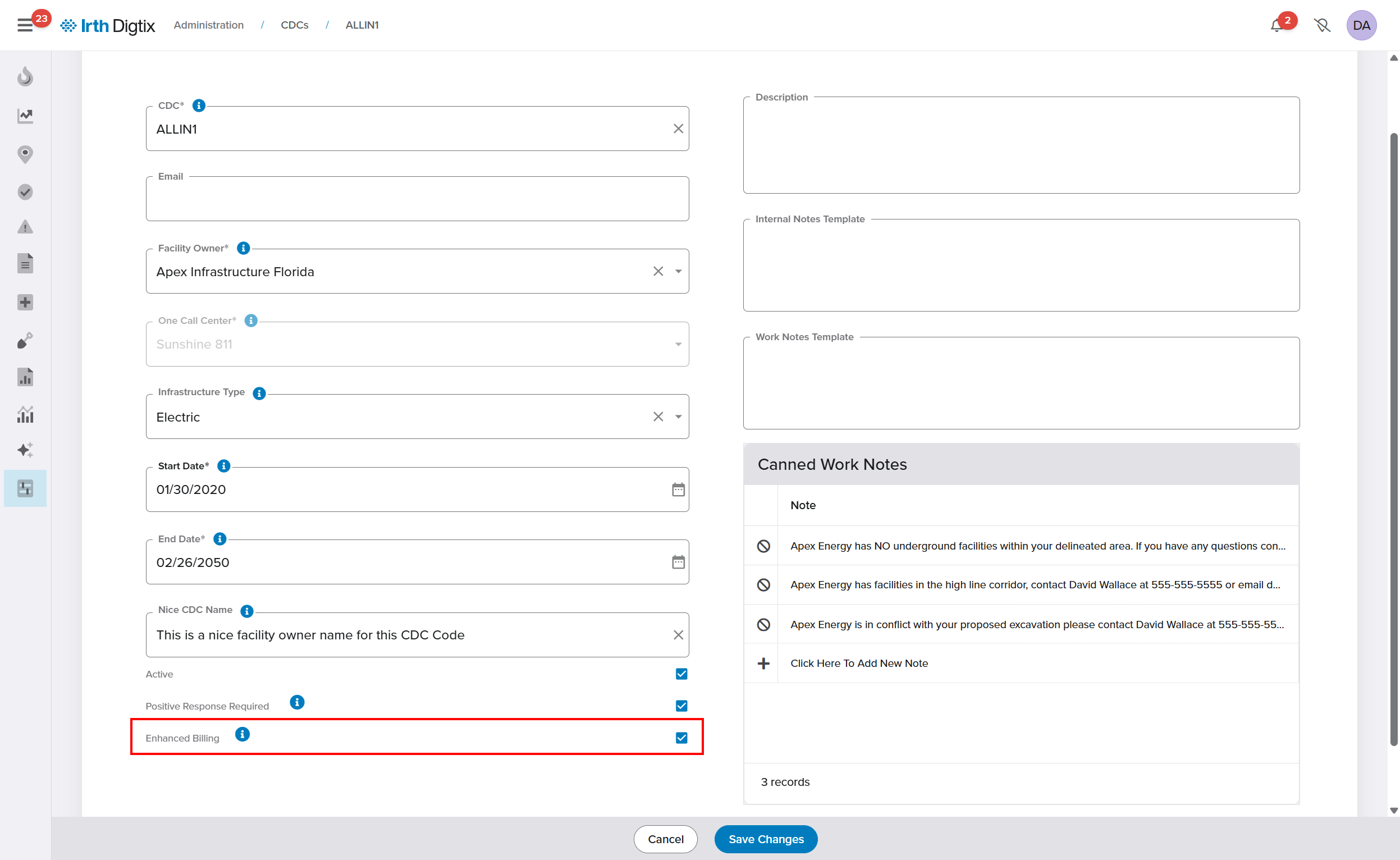
- Select Enhanced Billing as the billing system.
Create and Configure Billables
- Go to Administration > Billables.
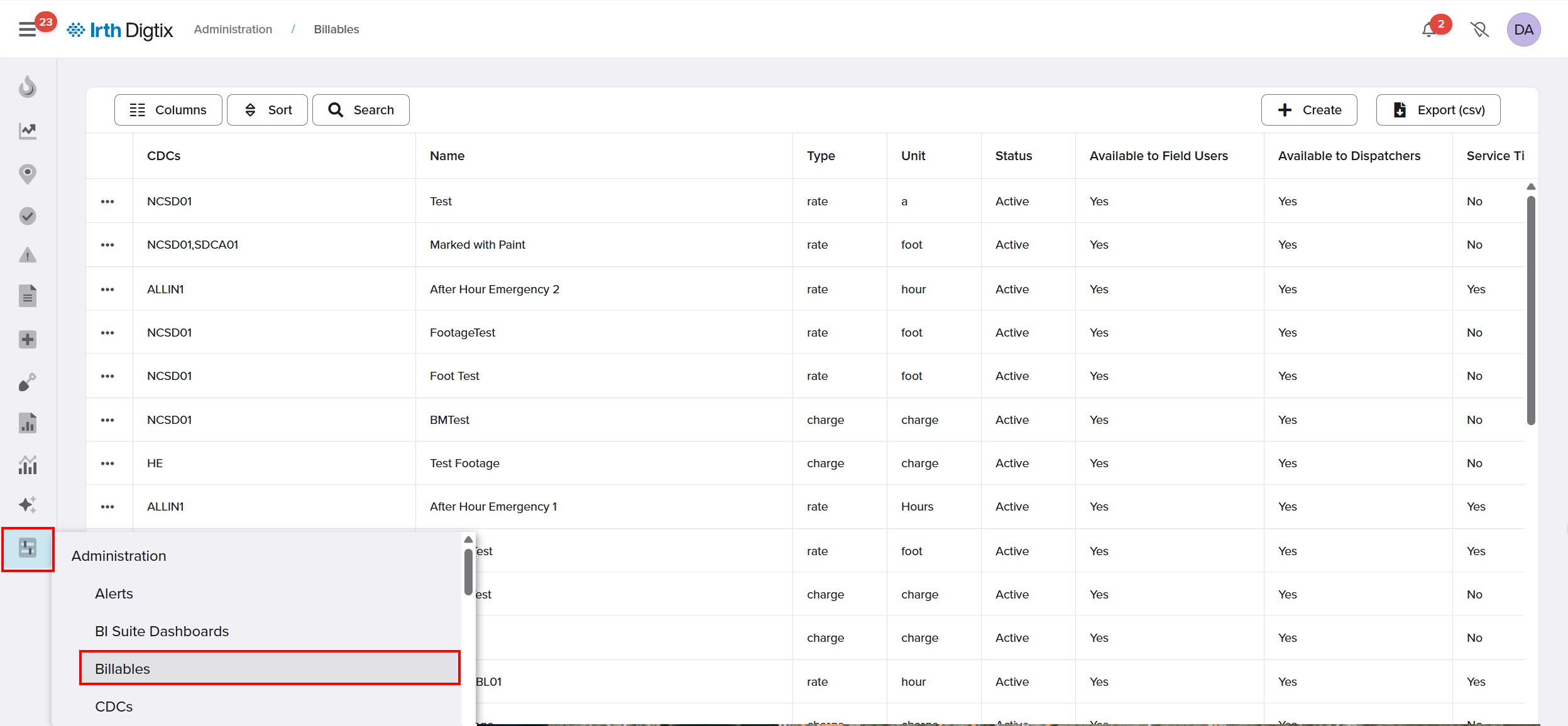
- Click +Create to add a new billable.

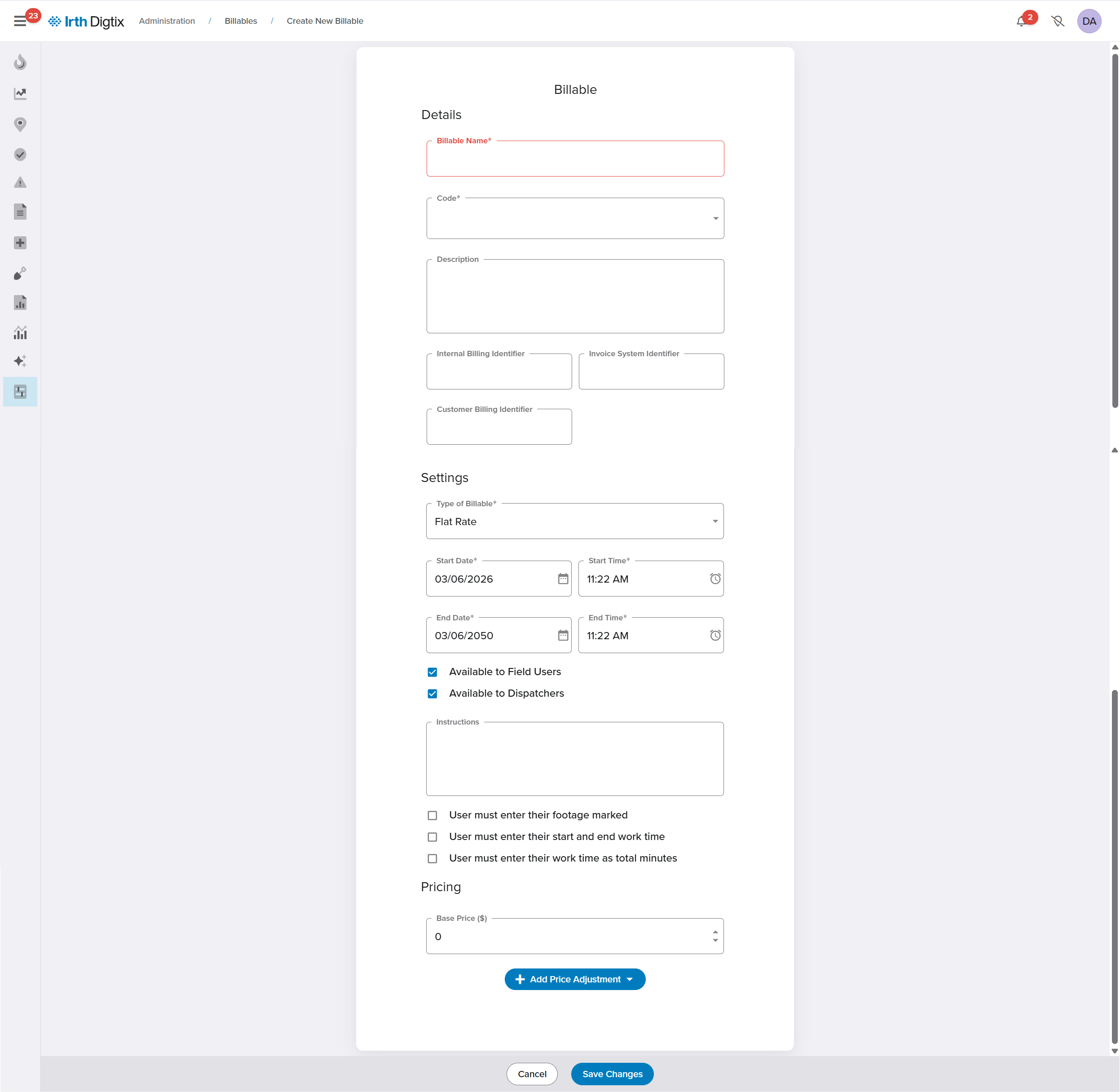
- Complete the billable configuration:
- Billable Name – What users see when selecting the billable
- Active – Enable or disable the billable
- Code (CDC) – The CDC this billable applies to
- Description – Internal or user-facing explanation
- Type of Billable – Fixed, Hourly, or Footage
- Minimum / Maximum Units – Allowed unit range
- Increment – Unit increments
- Instructions – Guidance shown to users
- Start / End Date – Validity period
- Base Price – Starting price before adjustments
- Billing Identifiers – Internal, invoice, or customer identifiers
Add Price Adjustments (Optional)
- Within a billable, click +Add Price Adjustment.

- Choose the adjustment type.

- Configure whether the adjustment is:

- A percentage of the base price
- A fixed dollar amount
- A per-unit amount
Each price adjustment appears as a separate, itemized line on billing reports.
Price Adjustment Types
Fuel Surcharge
- Always applied when the billable is used.

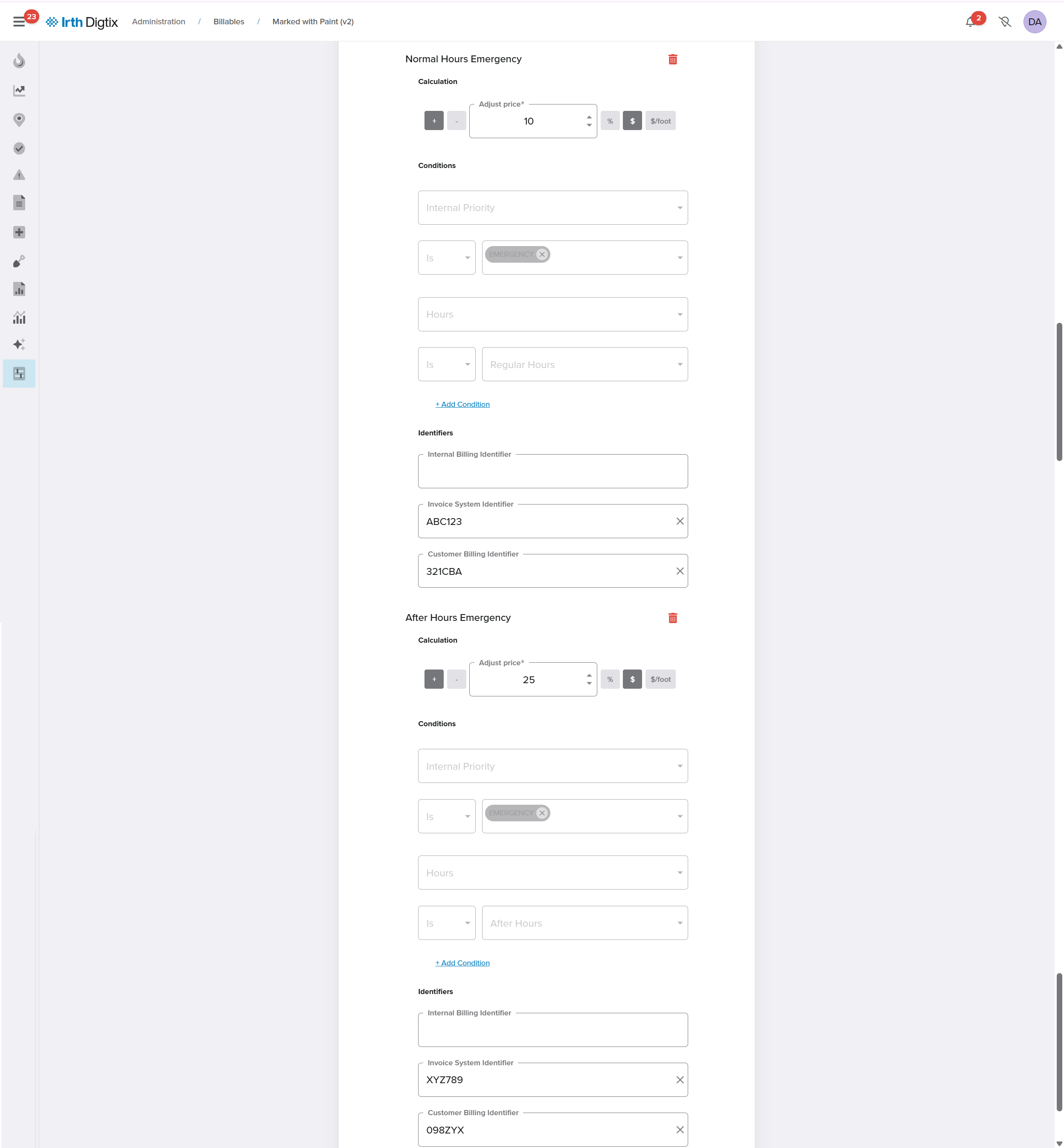
Normal Hours/After-Hours Emergency
Applied automatically when a locate request:
- Has an Internal Priority of Emergency, and
- Meets configured rules for weekdays, weekends, holidays, and normal business hours.
Total Hourly Threshold/Total Footage Threshold
- Supports tiered or incremental billing.
- Thresholds accumulate across multiple visits to the same work order.
- Availability depends on the billable type (Hourly or Footage).

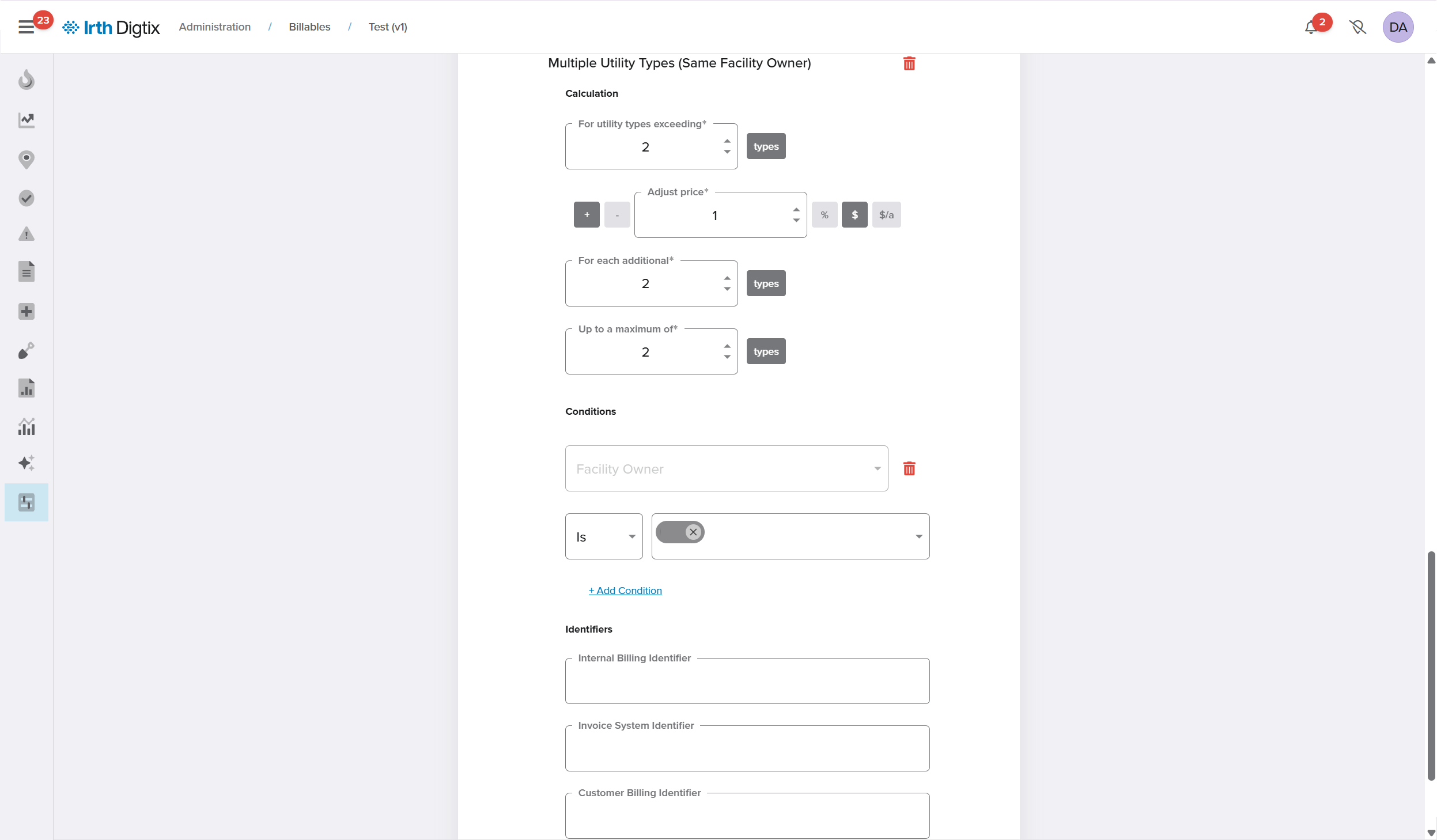
Multiple Utilities / Utility Types / Facility Owners
- Applies pricing changes based on how many utilities, utility types, or facility owners are present.
- Only one of these threshold types may be configured per billable.
Miscellaneous Configuration Options
One Billable Job Per Infrastructure Type
Facility owners can be configured to allow only one billable per infrastructure type on a work order. This prevents duplicate billing when multiple CDCs represent the same utility type.
Related Features/Next Steps:
- Billing System Configuration – Basic (New UI)
FAQ/Troubleshooting:
Questions? Contact us!

Was this article helpful?
That’s Great!
Thank you for your feedback
Sorry! We couldn't be helpful
Thank you for your feedback
Feedback sent
We appreciate your effort and will try to fix the article