OVERVIEW
DigTix provides two billing systems: Basic and Enhanced. The basic billing system is designed to capture a single price based on the close code that is applied to each locate request. The enhanced billing system allows for itemized billing rates and automatically applied price adjustments based on when and how work is performed.
Each individual CDC may be configured to use the basic billing system or the enhanced billing system.
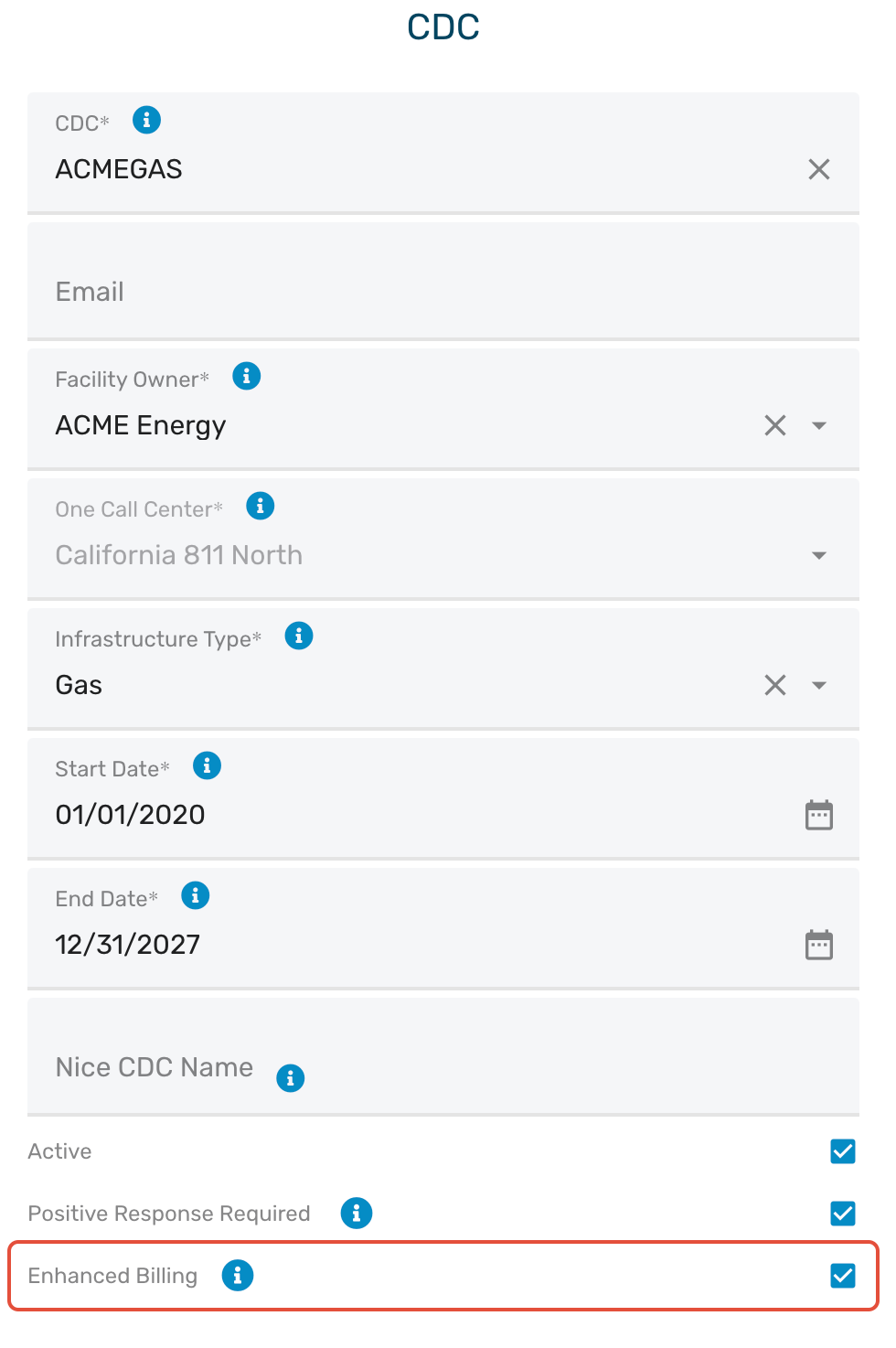
Figure 1: Configuring a CDC for Enhanced Billing
The information included in this article assumes a CDC that is configured with the enhanced billing system. For more information on the basic billing system, please refer to Billing System Configuration - Basic.
NOTE: By default, only users which are configured with "Administrator" data permissions may view pricing information within DigTix.
AUTOMATIC PRICE CALCULATIONS
As an example, let's consider a situation where marking a typical locate request costs $30 but marking a normal hours emergency locate request costs $40 and marking an after hours emergency locate request costs $55. DigTix allows the configuration of all three price points and will automatically select the appropriate price, given the circumstances detected by DigTix.
This structure allows DigTix users to simply tell DigTix what work they performed (e.g. "I marked this locate request") and DigTix figures out the rest (e.g. "An after hours emergency was marked and therefore the customer should be charged $55). This provides a significantly simplified experience for users, where they do not need to be aware of customer billing rules and how to charge the correct price (e.g. I need to charge "Marked After Hours Emergency" instead of "Marked Routine" or "Marked Normal Hours Emergency").
The result is flexible, accurate billing for your customers and a simplified, efficient billing experience for your team.
CONFIGURING BILLABLES
Once configured, users may apply the billable to DigTix work orders.
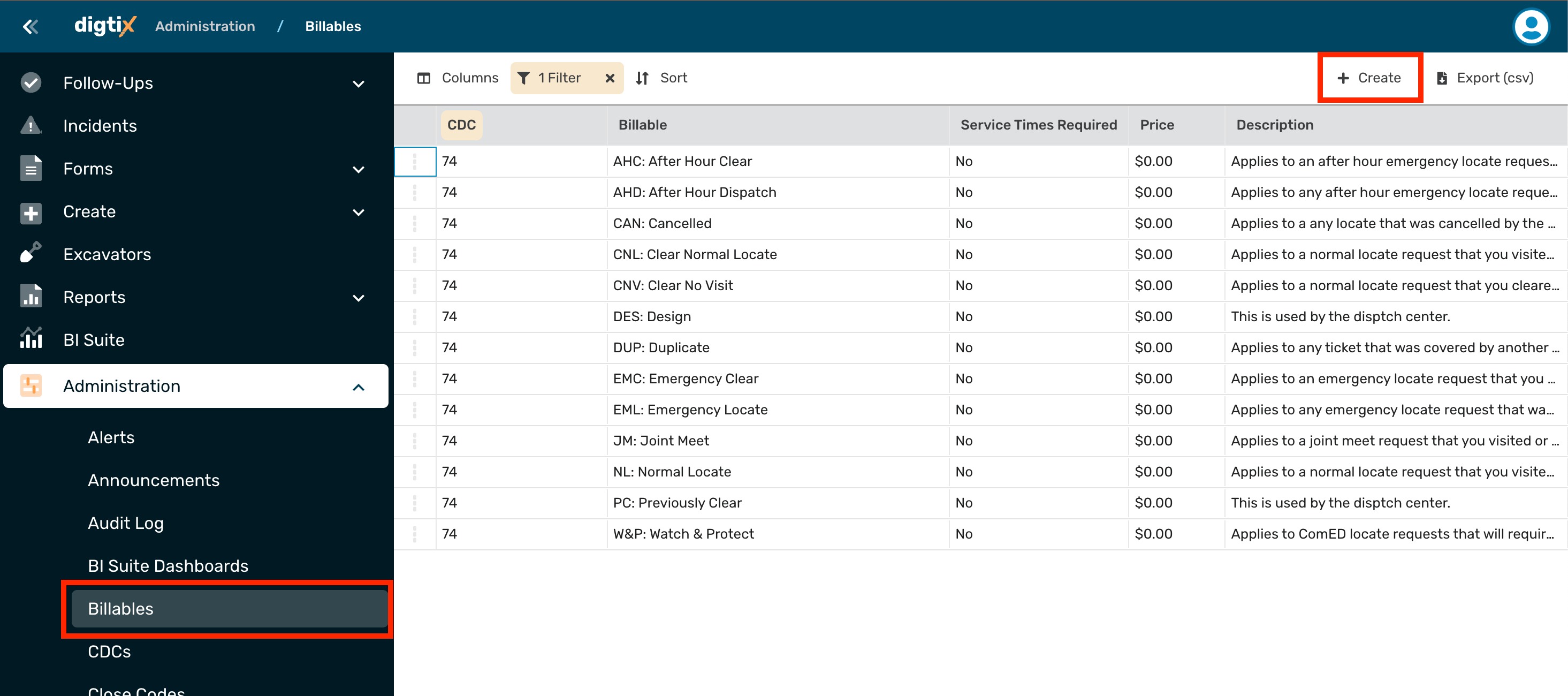
Figure 2: Viewing Existing Billables with Creation Option
Each billable can be configured by supplying the appropriate values in the billable configuration form. A screenshot of this form is shown below, with explanations for each field. Once configured, clicking on the "Save" button will commit the updated field values into DigTix.
When a billable is being applied to a work order, the user will be required to provide information based on the configuration of the billable. For example, a billable with type "Footage" will require the user to provide the amount of feet (or meters) marked.
Billable Name: The name of the billable. This is what end users will see when selecting from a list of billables to apply.
Active: Whether the billable is active or not. Deactivating a billable is effectively the same as deleting the billable, although the historical data is kept intact for potential auditing in the future.
Code: The CDC that this billable is being configured for.
Description: A description of the billable.
Type of Billable: The billable type. Options include "Fixed" ($ per unit), "Hourly" ($ per X hour), or "Footage" ($ per X feet / meters).
Minimum units: The minimum amount of units that may be applied for this billable.
Maximum units: The maximum amount of units that may be applied for this billable.
Increment: The incremental amount of units that can be applied for this billable.
Instructions: Helpful instructions that will be displayed to the user during the application of this billable.
User must enter their start and end work time: Whether the user must specify the start and end date / times when this billable is being applied.
Base Price: The base price for this billable. This price can be adjusted based on the configured "Price Adjustments", as described below.
Start Date: When this billable may start being applied to work orders. NOTE: Once a billable's start date has passed, no edits to certain configuration parameters may be made. Instead, the billable should be deleted and a new one created in its place. This mechanism is included in order to keep historical billing information intact.
End Date: After this date, the billable may no longer be applied to work orders.
Internal Billing Identifier: The billing identifier used internally by your company, if one exists.
Invoice System Identifier: The billing identifier used by your company's invoicing system, if one exists.
Customer Billing Identifier: The billing identifier used by your customer, if one exists.
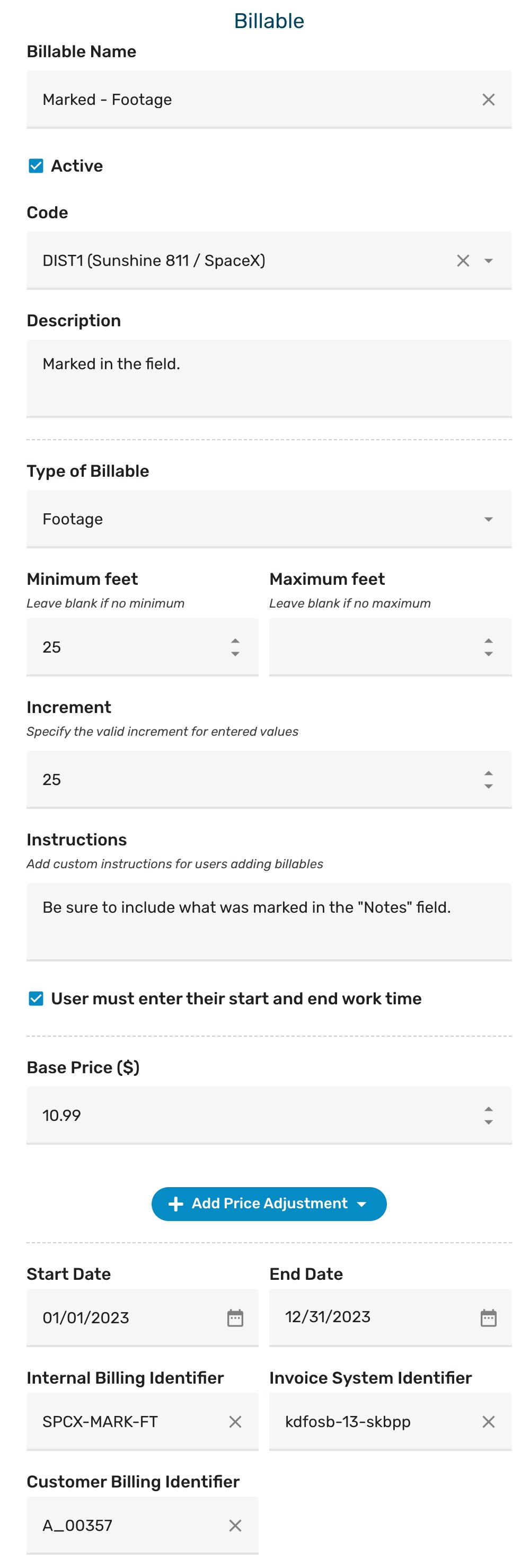
Figure 3: Configuring a Billable (Footage Based)
ADDING PRICE ADJUSTMENTS
Price adjustments may be added by clicking the "Add Price Adjustment" button shown below. A price adjustment may be removed by clicking the trash can icon next to the price adjustment configuration title.
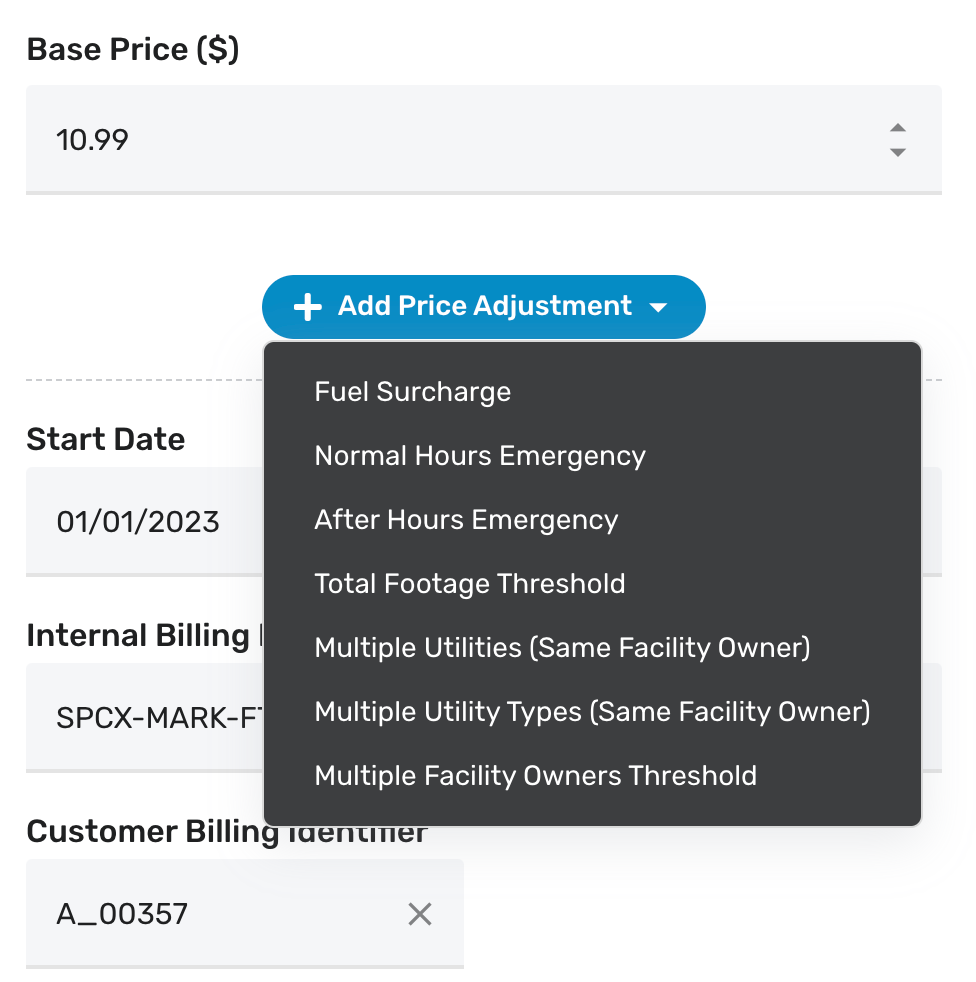
Figure 4: Adding a Price Adjustment
Each price adjustment may increase (+) or decrease (-) the billable's base price. The amount adjusted may be:
- An amount relative to the base price (%)
- A fixed amount ($)
- A per-unit amount ($/unit)
- NOTE: Unit is based on the billable type (fixed, hourly, or footage units).
Each billable's price adjustments will appear separately from the base price on billing reports and BI data sets. This provides a descriptive itemization of each charge and accompanying adjustment. Each price adjustment may be configured with its own set of billing identifiers which will appear alongside this itemization.

Figure 5: A Fixed Surcharge Price Adjustment (+$5.99)

Figure 6: A Relative Discount Price Adjustment (-20%)
A price adjustment may be removed by clicking the trash can icon next to the price adjustment configuration title.
Fuel Surcharge
A fuel surcharge price adjustment will always be applied whenever the associated billable is applied.
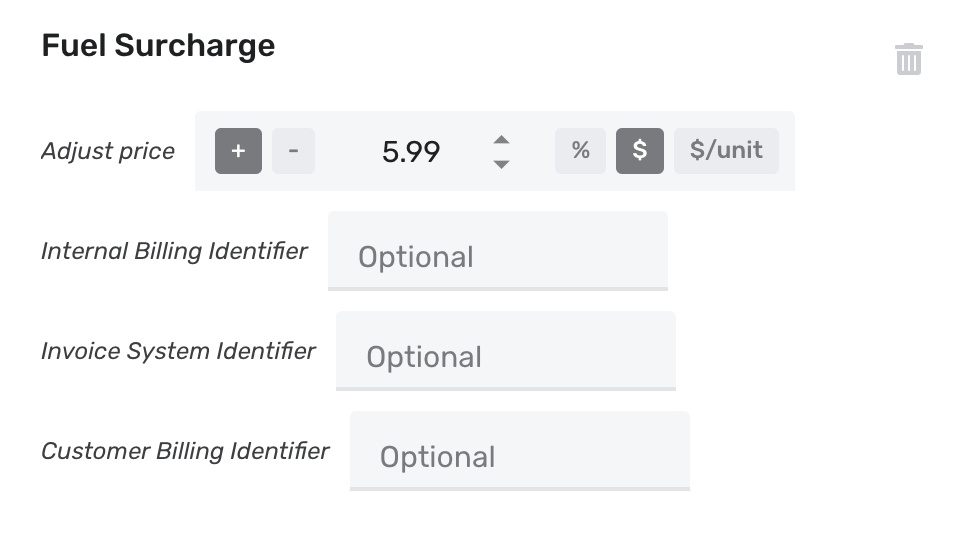
Figure 7: Fuel Surcharge Price Adjustment
Normal Hours Emergency / After Hours Emergency
A normal hours emergency price adjustment will be automatically applied if the locate request:
- Has an "Internal Priority" of "EMERGENCY"; and
- Was not received on a date that is configured as a holiday in the "Holidays" section of the DigTix Administration page; and
- Was received on a weekday (Monday through Friday) during a time configured as normal within the "Facility Owners" section of the DigTix Administration page.
An after hours emergency price adjustment will be automatically applied if the locate request:
- Has an "Internal Priority" of "EMERGENCY"; and
- One or more of the following is true:
- Was received on a date that is configured as a holiday in the "Holidays" section of the DigTix Administration page; or
- Was received on a weekend (Saturday or Sunday); or
- Was received on a weekday (Monday through Friday) during a time that is not configured as normal within the "Facility Owners" section of the DigTix Administration page.
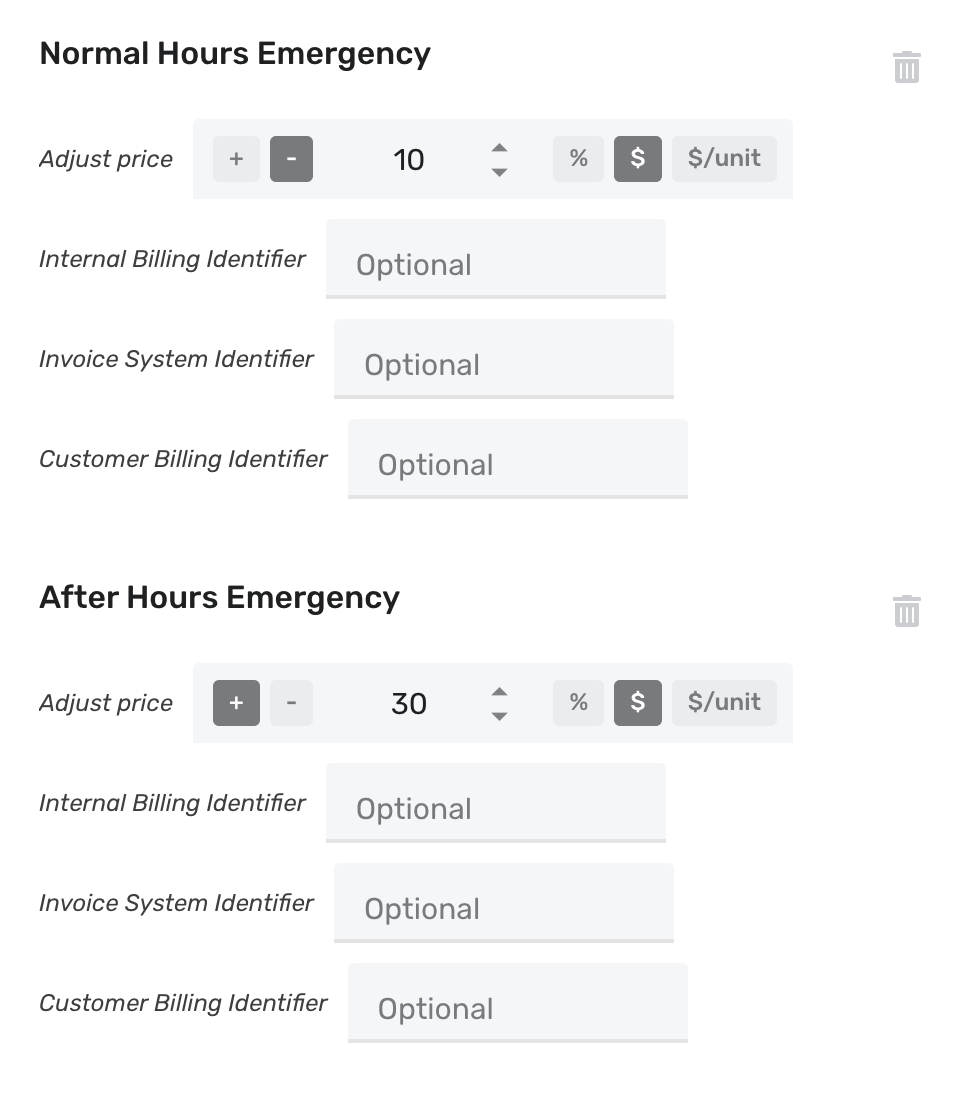
Figure 8: Normal and After Hours Emergency Price Adjustments
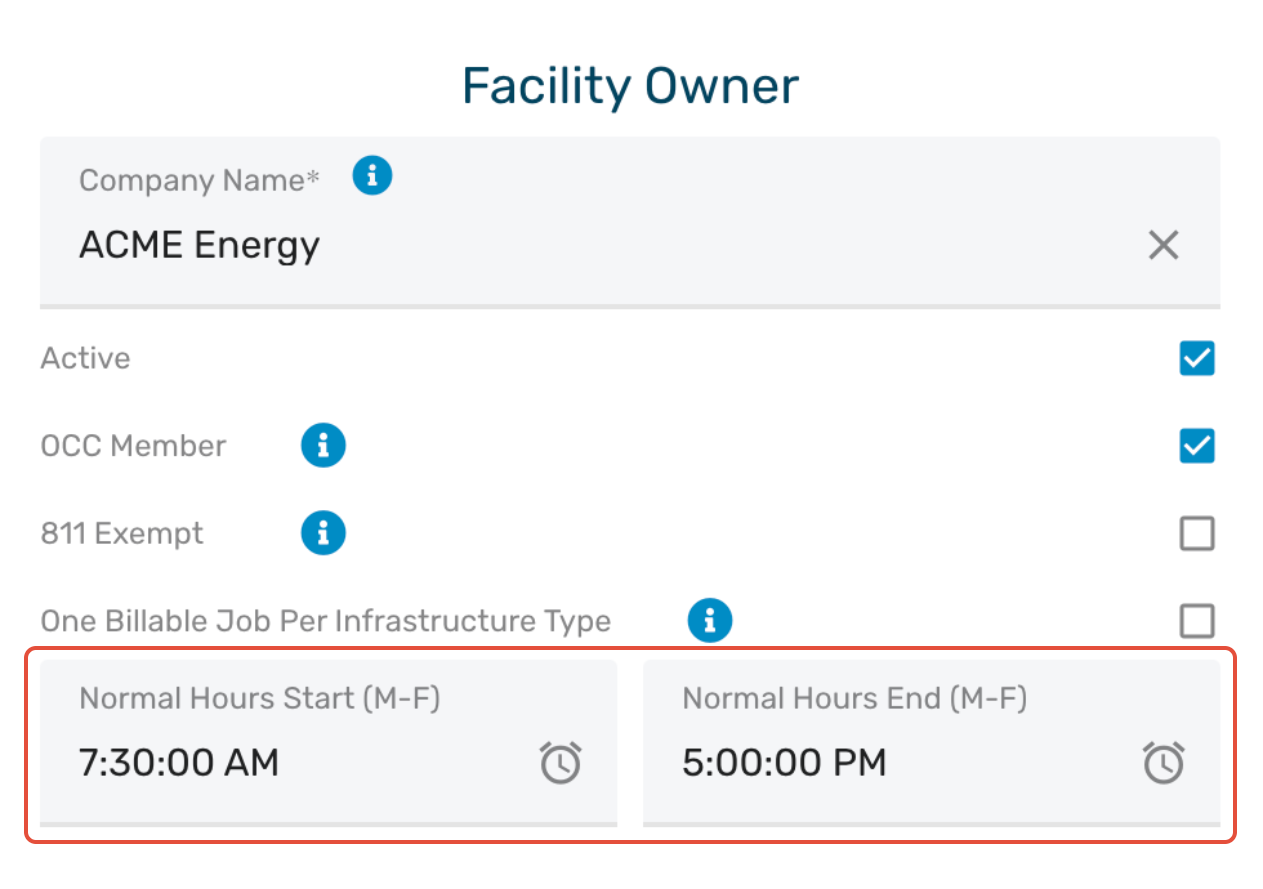
Figure 9: Normal Hours Configuration (M-F)
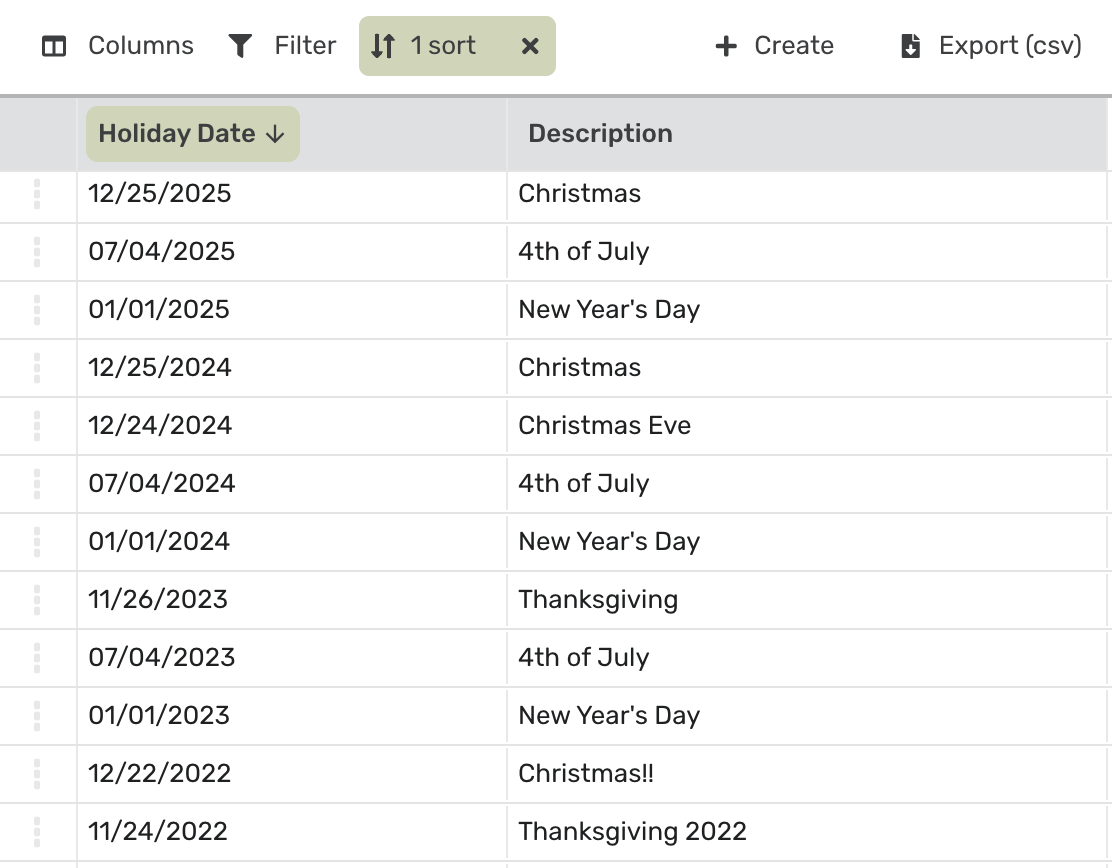
Figure 10: Holidays Administration Section
Total Hourly Threshold / Total Footage Threshold
The Total Hourly and Footage Threshold price adjustments support incremental or tiered billing. They can be configured to charge additional amounts (or provide discounts) as certain work thresholds are met. These thresholds can be met across multiple days or job site visits.
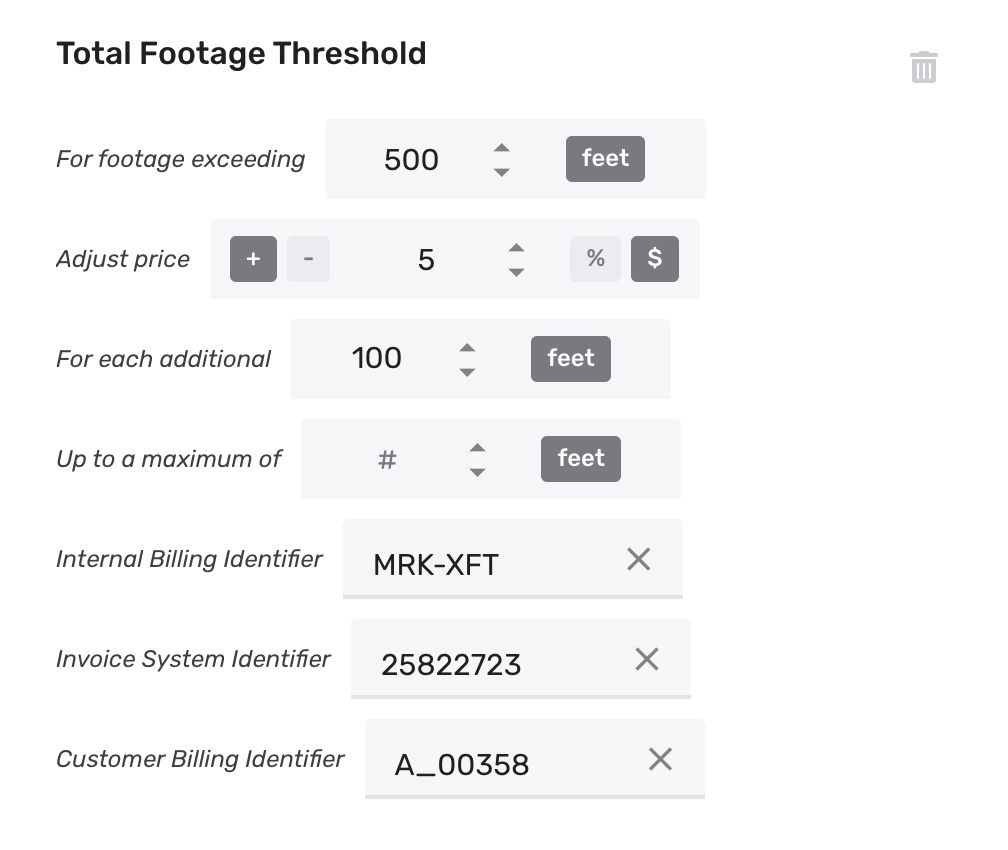
Figure 11: Total Footage Threshold Price Adjustment
Both of these thresholds work the same way, except one is based on the total number of hours logged to a work order and the other is based on the total footage logged to a work order.
The Total Hourly Threshold price adjustment is only available if the Billable type is "Hourly". Similarly, the Total Footage Threshold price adjustment is only available if the Billable type is "Footage".
Example: Let's assume that the price adjustment shown in Figure 11 belongs to a billable with $25 base price. Bob visits the job site on Monday and logs this billable with 350 feet. Bob visits the job site again on Tuesday and logs this billable with 600 feet. Finally, Bob visits the job site a third time on Thursday and logs this billable with 100 feet. A total of 1,050 feet were marked over the course of the three visits. This will trigger the base price ($25) and two price adjustments (2x $10) for a total charge of $45 for that work order.
Multiple Utilities (Same Facility Owner) / Multiple Utility Types (Same Facility Owner) / Multiple Facility Owners Threshold
These price adjustments support incremental or tiered billing based on the number of utilities, utility types, or customers present on a work order. They can be configured to charge additional amounts (or provide discounts) when certain thresholds are met.
Each CDC is considered a utility, whereas the utility type and facility owner are configured for each CDC, as shown in Figure 12.
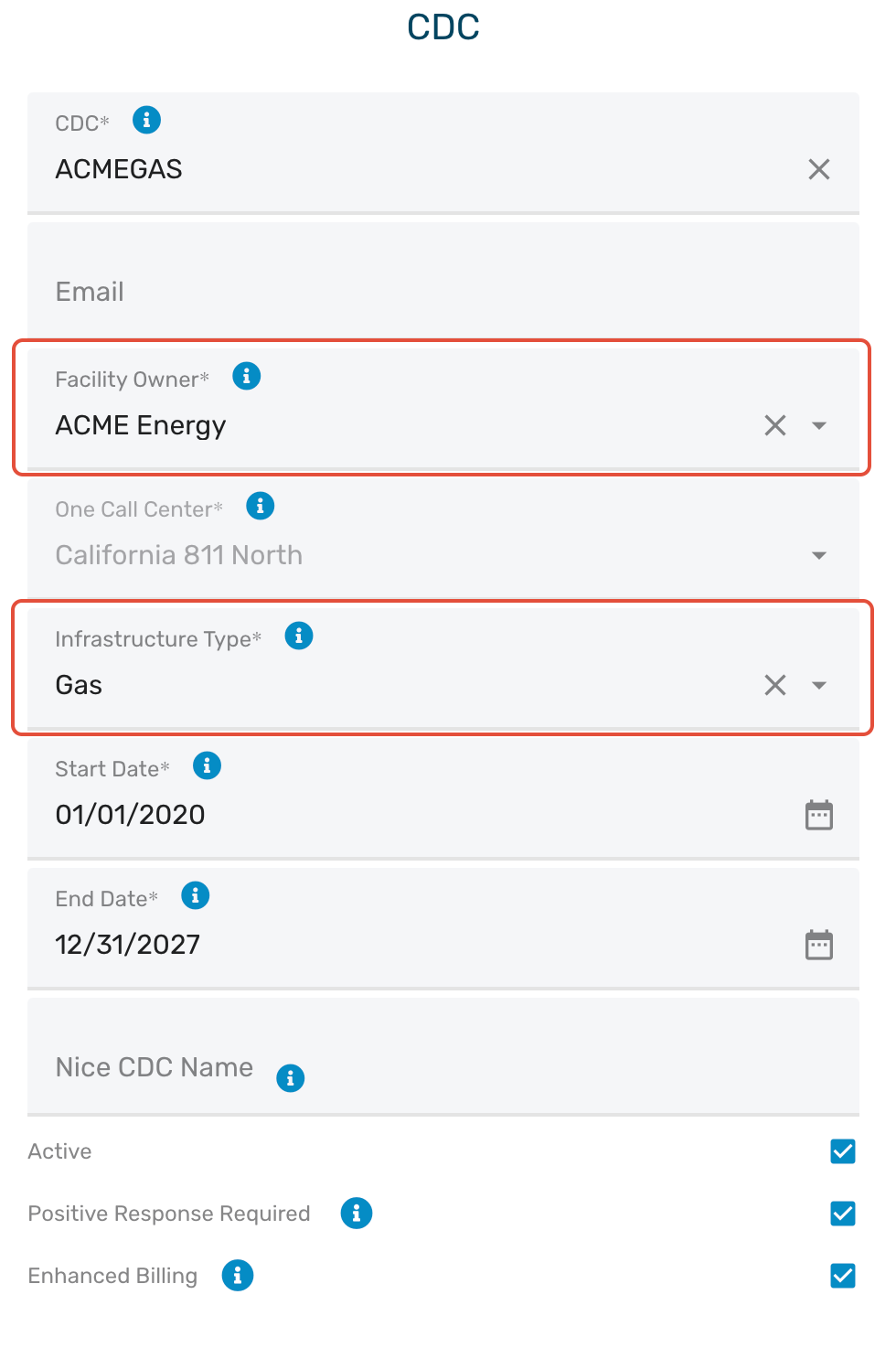
Figure 12: Configuring CDC Utility Type and Facility Owner
Only one of these three price adjustment types may be added to a given billable. For example, it is not possible to have a "Multiple Utilities (Same Facility Owner)" price adjustment and a "Multiple Facility Owners Threshold" price adjustment on a billable at the same time.
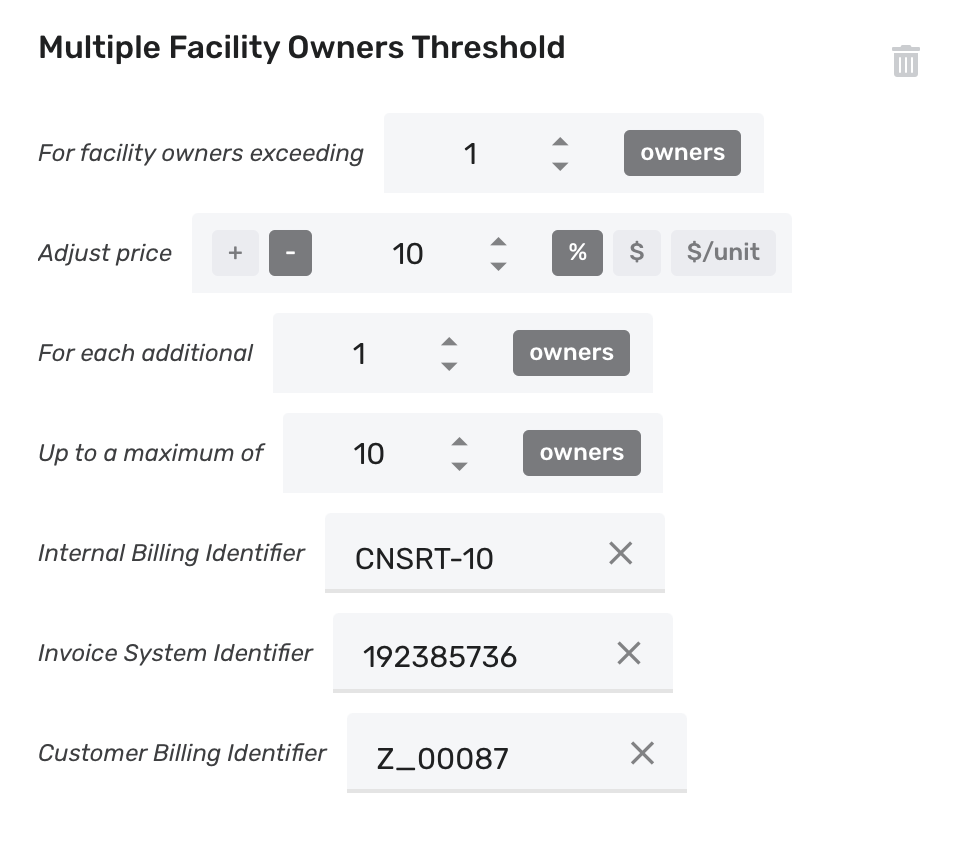
Figure 13: Multiple Facility Owners Threshold Price Adjustment
Example: Let's assume that the price adjustment shown in Figure 13 belongs to a billable with $25 base price, and a work order which involves the CDCs:
- ACMEGAS - Infrastructure Type "Gas" belonging to "ACME Utilities"
- ACMEHPGAS - Infrastructure Type "High Pressure Gas" belonging to "ACME Utilities"
- FFIBER - Infrastructure Type "Fiber" belonging to "Fast Fiber LLC"
- FFIBER_2 - Infrastructure Type "Fiber" belonging to "Fast Fiber LLC"
- MUW - Infrastructure Type "Water" belonging to "Municipal Utilities Inc"
This work order has three facility owners:
- ACME Utilities - Two utilities (ACMEGAS and ACMEHPGAS with two utility types (Gas and High Pressure Gas).
- Fast Fiber - Two utilities (FFIBER and FFIBER_2) with one utility type (Fiber).
- Municipal Utilities - One utility (MUW) with one utility type (Water).
Since the work order involves three facility owners, a 20% discount is applied to the base price, resulting in a charge of ($25 - ($25 * 20%)) = $20.00.
MISC CONFIGURATION OPTIONS
One Billable Job Per Infrastructure Type
Each facility owner may be configured to limit billables to one infrastructure type per work order, as shown in Figure 14 below. This provides a way to restrict duplicate billing when facility owners use multiple CDCs to represent the same utility type.
Example: Let's assume a work order which involves the CDCs:
- FFIBER - Infrastructure Type "Fiber" belonging to "Fast Fiber LLC"
- FFIBER_2 - Infrastructure Type "Fiber" belonging to "Fast Fiber LLC"
- FFIBER_TRUNK - Infrastructure Type "Critical Fiber" belonging to "Fast Fiber LLC"
Since FFIBER and FFIBER_2 belong to the same facility owner (Fast Fiber LLC) and both have the same infrastructure type (Fiber), only one of these CDCs may have billables applied to it. FIBER_TRUNK may have billables applied to it, since it is the only "Critical Fiber" CDC on the work order.
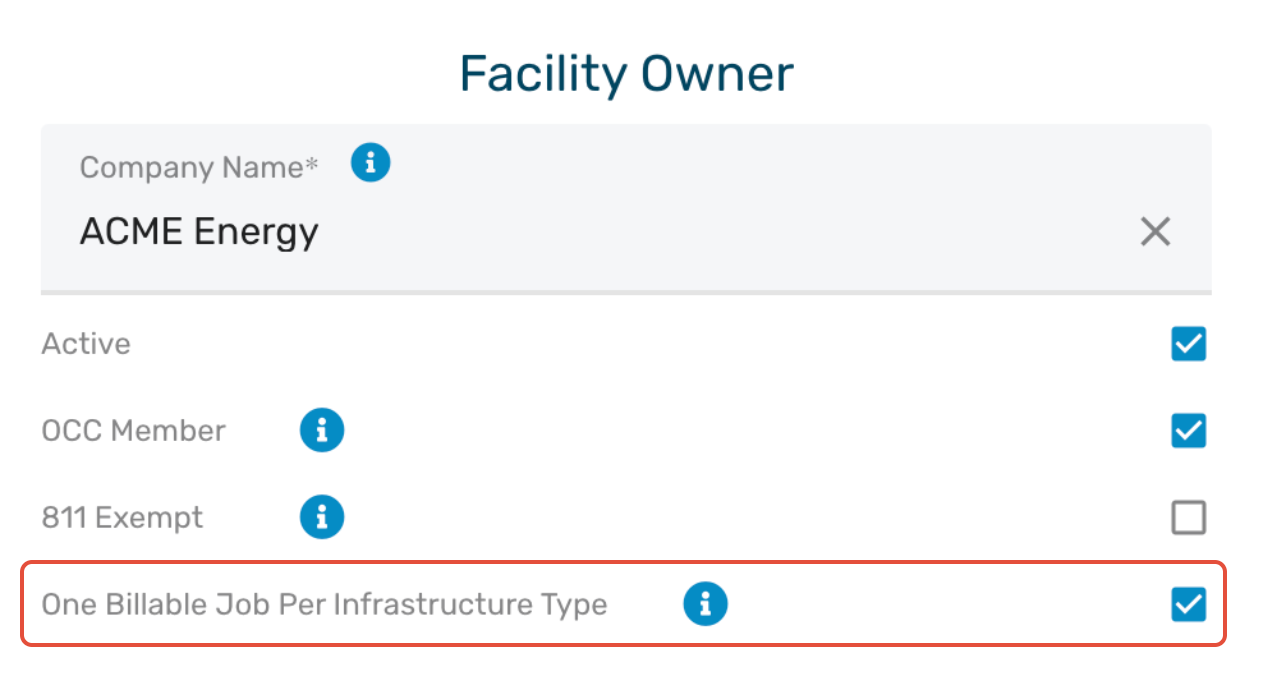
Figure 14: Limit One Billable Job Per Infrastructure Type
Was this article helpful?
That’s Great!
Thank you for your feedback
Sorry! We couldn't be helpful
Thank you for your feedback
Feedback sent
We appreciate your effort and will try to fix the article